
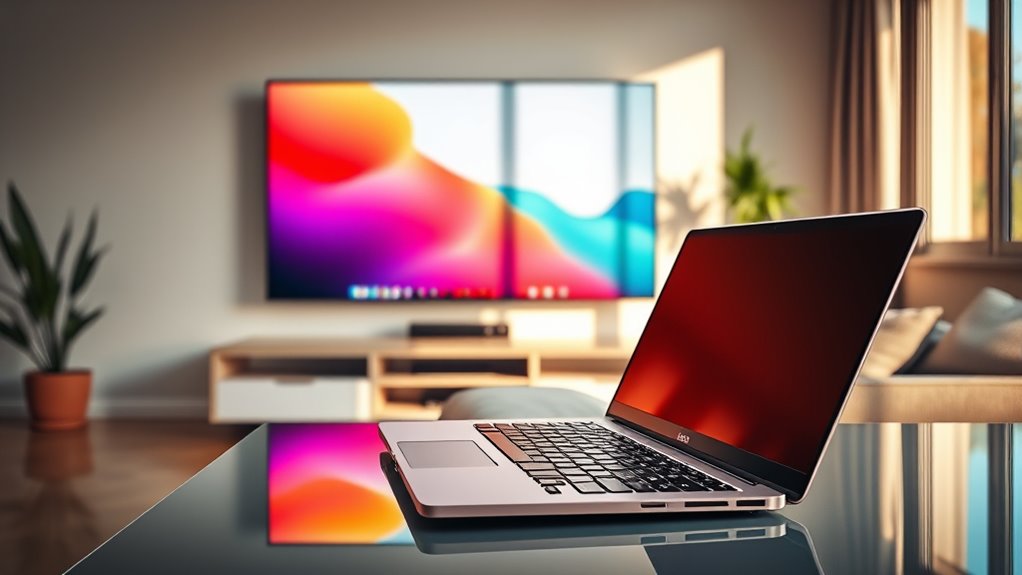

Yes, you can use a TV as a monitor, and it can really enhance your viewing experience for gaming and streaming with its large screen and vibrant colors. However, keep in mind input lag and text clarity may not match dedicated monitors. To connect, you’ll need an HDMI cable, which is usually straightforward. If you’re curious about the best features to look for and use cases, there’s more to explore.
Benefits of Using a TV as a Monitor
Using a TV as a monitor can be a game-changer, especially if you’re looking to enhance your viewing experience. With a large screen, you can dive deeper into your favorite games, movies, and shows, making media consumption more immersive. Watching content on a bigger display not only improves clarity but also allows for better detail, which can be vital for gaming or graphic design. Plus, many modern TVs support high resolutions like 4K, providing vibrant colors and sharp images. You can also enjoy the flexibility of connecting multiple devices, turning your living room into a versatile entertainment hub. So, if you’re craving a more engaging experience, using a TV as a monitor might just be the freedom you need.
Drawbacks to Consider
While the allure of a large screen can be tempting, there are several drawbacks to take into account when using a TV as a monitor. One major concern is input lag, which can be frustrating, especially for gaming or fast-paced tasks. TVs often process images differently than monitors, leading to delays that can hinder your experience. Additionally, you might encounter resolution issues; many TVs don’t display text and fine details as sharply as a dedicated monitor, making it harder to read or work on documents. Color accuracy can also be less reliable, affecting graphic design or photo editing. So, before you decide to make the switch, weigh these factors carefully to guarantee it meets your needs.
How to Connect a TV to Your Computer
If you’ve weighed the drawbacks and still want to connect your TV to your computer, the process can be straightforward. Start by checking if both your TV and computer have HDMI connections, which are the easiest way to link the two. Simply plug one end of the HDMI cable into your computer and the other into your TV. Once connected, turn on your TV and select the appropriate HDMI input.
Next, you’ll need to adjust your display settings on your computer. Right-click on your desktop, choose “Display settings,” and select your TV as the primary display or extend your desktop. With these steps, you’ll enjoy a larger screen for work or entertainment with minimal hassle.
Key Features to Look For
When choosing a TV to use as a monitor, there are several key features you should consider to verify it meets your needs. First, resolution options are vital; aim for at least 1080p for clear visuals, but 4K offers even sharper detail. Next, check for input compatibility; confirm the TV has the right ports, like HDMI or DisplayPort, to connect seamlessly with your computer. Consider the refresh rate as well; higher rates can enhance smoothness in motion, especially for gaming. Also, look for low input lag, which can make a significant difference in responsiveness. Finally, think about the screen size and viewing distance to create a comfortable setup that suits your space and preferences.
Best Use Cases for a TV as a Monitor
Have you ever wondered how a TV can enhance your computing experience? Using a TV as a monitor can really elevate your gaming experience. With larger screens and vibrant colors, you’ll feel immersed in your favorite games like never before. Plus, if you’re into streaming or multimedia, a TV’s expansive display makes it perfect for binge-watching shows or movies.
On the productivity side, a TV can offer a significant productivity boost by allowing you to multitask more effectively. You can easily manage multiple windows or applications on a bigger screen, making it ideal for presentations or creative work. Whether you’re gaming, streaming, or working, a TV can transform your setup into a versatile hub for all your digital needs.
Frequently Asked Questions
Can I Use a 4K TV as a Computer Monitor?
Yes, you can use a 4K TV as a computer monitor. Just adjust the resolution settings for ideal display. Keep in mind that input lag might be noticeable, impacting your experience during fast-paced tasks.
Does Using a TV Affect My Computer’s Performance?
Using a TV can impact your computer’s performance. If the resolution’s too high or the refresh rate’s too low, you might experience lag. It’s essential to choose the right settings for smooth operation.
What Cable Do I Need to Connect a TV to My Laptop?
To connect your laptop to a TV, you’ll typically need an HDMI cable. If your laptop lacks an HDMI port, consider using DisplayPort adapters to guarantee a smooth connection and enjoy your viewing experience.
Can I Use a Smart TV Without Internet as a Monitor?
Absolutely, you can use a smart TV as a monitor setup without internet. Just connect your laptop or device using HDMI, and you’re good to go. Enjoy your larger screen experience with ease!
Are There Specific TV Brands Better Suited for Monitor Use?
Yes, some brands excel in TV compatibility for monitor use. Look for models from LG or Samsung for better gaming performance and color accuracy; they often provide features that enhance your overall experience.
