
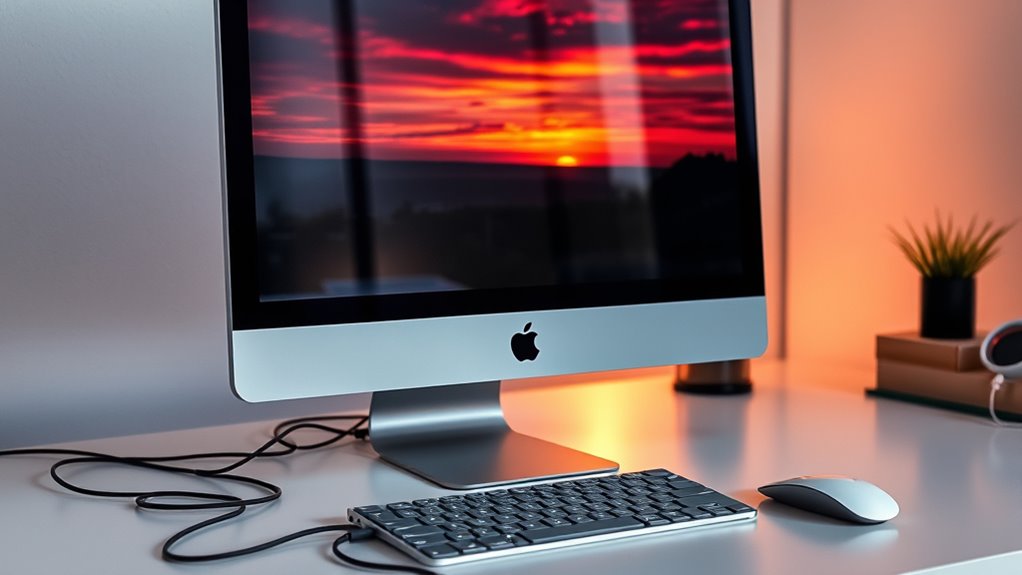

You can use your iMac as a monitor if it supports Target Display Mode, which is available on certain models from 2009 to 2014. To connect, you’ll need a Thunderbolt or Mini DisplayPort cable. Keep in mind that there are limitations regarding resolution and performance, and issues may arise if settings don’t match. For a smoother experience, guarantee all connections are secure. Explore further to discover setup tips and troubleshooting methods to maximize functionality.
Understanding Target Display Mode
Have you ever wondered how to use your iMac as a monitor for another device? Understanding Target Display Mode is essential. This feature allows your iMac to act as a display for another Mac, enabling a seamless connection. It’s particularly useful in various usage scenarios, like when you want a larger screen for presentations or gaming without investing in a separate monitor. To activate this mode, connect the two devices using a Thunderbolt or Mini DisplayPort cable, then select the iMac as a target display. Remember, this functionality is limited to specific iMac models and requires the correct setup. Once you grasp these basics, you’ll reveal the potential of your iMac beyond its traditional computing role.
Compatible Imac Models
To effectively use your iMac as a monitor, it’s essential to know which models support Target Display Mode. Only certain iMacs, primarily those from 2009 to 2014, offer this feature, allowing for seamless screen sharing capabilities. Understanding these specific models will help you maximize your setup.
Targeted Imac Models
When considering using an iMac as a monitor, it’s essential to know which models are compatible. The iMac models that support Target Display Mode include the iMacs introduced in 2009 and later, specifically the 27-inch versions from 2010 to 2014. These models can effectively display resolutions of up to 2560 x 1440 when connected to another Mac via a Thunderbolt or Mini DisplayPort cable. However, earlier and newer iMac models, like the 5K Retina displays, don’t support this feature. Understanding these specifications guarantees you maximize your setup’s potential, allowing you the freedom to utilize your iMac creatively and efficiently as a secondary display. Always verify your specific model to avoid compatibility issues.
Screen Sharing Capabilities
While many iMac models can serve as monitors through Target Display Mode, they also offer robust screen sharing capabilities that enhance flexibility in multi-device setups. Screen sharing benefits include seamless collaboration, allowing you to access files and applications across multiple devices without switching screens. This feature is particularly useful in creative environments, where teamwork is essential.
However, it’s important to recognize screen sharing limitations. Not all iMac models support this feature, and performance can vary based on network speed and stability. Additionally, screen sharing may introduce latency or quality loss, especially with high-resolution content. By understanding these aspects, you can effectively utilize your iMac’s screen sharing potential while acknowledging its constraints.
Connection Options and Requirements
There are several connection options and requirements to contemplate when using an iMac as a monitor. First, you’ll need to check your iMac’s model, as only certain models support Target Display Mode. This feature allows for seamless integration with other devices. For ideal display performance, using the right cable types is essential. Thunderbolt and Mini DisplayPort cables are typically recommended for this purpose, as they guarantee high-quality video transmission. Additionally, verify your source device supports these connections; otherwise, you might face compatibility issues. Be mindful of the resolution and refresh rates your iMac can handle, as this will affect your overall experience. Knowing these details will empower you to make informed decisions about using your iMac as a monitor.
Setting up Your Imac as a Monitor
To set up your iMac as a monitor, you’ll need to understand Target Display Mode and the necessary cables and adapters for connection. It’s also essential to check compatibility with your devices to guarantee a seamless experience. Getting these elements right will help you effectively use your iMac as a secondary display.
Target Display Mode
Setting up your iMac as a monitor through Target Display Mode can greatly enhance your workspace by allowing you to utilize its high-resolution display for another device. This feature provides impressive display performance, giving you a crisp, vibrant picture that can elevate your productivity. To activate Target Display Mode, simply connect your iMac to your other device using the appropriate cable and press Command (⌘) + F2 on your iMac’s keyboard. Remember, it also supports audio output, so you can enjoy sound from the connected device through your iMac’s speakers. However, this mode is only available on specific iMac models, so it’s essential to verify compatibility before diving in. Embrace the freedom of a multi-device setup!
Required Cables and Adapters
When utilizing Target Display Mode to turn your iMac into a monitor, choosing the right cables and adapters is essential for a successful setup. You’ll need to ascertain you have compatible cable types like Thunderbolt or Mini DisplayPort, depending on your iMac model. Make sure to check the adapter specifications, as some setups may require a specific configuration to connect your external device properly. For instance, if you’re connecting to a MacBook, a Thunderbolt cable will be necessary. Always verify that the cables support the required resolution to achieve peak display quality. By selecting the appropriate cables and adapters, you’ll enjoy a seamless experience while maximizing your iMac’s capabilities as a monitor.
Compatibility With Devices
Understanding compatibility with devices is essential for successfully using your iMac as a monitor. First, check the connection types of your iMac, such as Thunderbolt or Mini DisplayPort, to verify they match your other devices. Most modern laptops and gaming consoles support these connection types, but older devices may require adapters.
Next, consider the resolution capabilities of your iMac and the device you’re connecting. Higher resolutions can lead to a better viewing experience, but they also require compatible hardware.
Ultimately, confirming proper device compatibility and understanding the necessary connection types will help you set up your iMac as a monitor seamlessly. This way, you can enjoy the freedom of a multi-device setup without the hassle of technical issues.
Limitations of Using an Imac as a Display
Although using an iMac as a display can be appealing, there are several limitations to take into account. First, many iMac models feature performance limitations that may hinder your experience, particularly if you’re using demanding applications. The processing power of the iMac is primarily designed for its own operating system, which might not translate well when used as an external monitor. Additionally, resolution constraints can impact how crisp your visuals appear. Not all iMacs support the same resolutions as other devices, leading to potential scaling issues. These factors can diminish the overall flexibility you might expect when trying to leverage your iMac as a secondary display. So, before diving in, make sure to weigh these limitations carefully.
Alternative Solutions for Dual Displays
If you’re looking for effective alternatives to using your iMac as a display, several options can enhance your dual-monitor setup. First, consider investing in an external monitor; these external monitor options come in various sizes and resolutions, allowing you to tailor your workspace to your needs. DisplayPort and HDMI connections are common, ensuring compatibility with most devices. Additionally, using a USB-C monitor can streamline your setup if you have a newer Mac. For those seeking a more portable solution, a USB-powered monitor could be ideal. Finally, software solutions like Duet Display can transform your iPad or another device into a second screen, providing flexible dual display alternatives without the need for additional hardware.
Troubleshooting Common Issues
When using your iMac as a monitor, you might encounter several common issues that can disrupt your workflow. One prevalent problem is display resolution issues. If the resolution doesn’t match, you may see blurry images or incorrect scaling. To resolve this, adjust the display settings on both devices to guarantee compatibility.
Another frequent concern is connection stability problems. If your iMac frequently disconnects or lags, check the cable connections and verify they’re secure. Sometimes, using a different port or cable can enhance stability. If issues persist, consider restarting both devices. By addressing these key areas, you can enjoy a smoother experience when utilizing your iMac as a monitor, allowing you the freedom to focus on your tasks without interruptions.
Frequently Asked Questions
Can I Use an Imac as a Monitor for Gaming Consoles?
You can’t directly use your iMac as a monitor for gaming consoles due to compatibility issues. Adjusting iMac display settings won’t help since it lacks the necessary input ports for external devices. Consider alternatives.
Does Using an Imac as a Monitor Affect Its Performance?
Using an iMac as a monitor can impact performance, like a river slowing under a heavy load. While display quality may remain high, processing demands might hinder other tasks, limiting your freedom to multitask effectively.
Can I Use Wireless Connections to Set up My Imac as a Monitor?
You can use wireless connections for a screen sharing setup, allowing your iMac to act as a monitor. However, performance might vary, so consider wired options for a more stable experience when needed.
Will Using My Imac as a Monitor Void Its Warranty?
Using your iMac as a monitor may have warranty implications, especially if display limitations arise from improper use. It’s best to consult Apple’s guidelines to guarantee you don’t unintentionally void your warranty.
Can I Switch Back to Using My Imac Normally Easily?
Yes, switching back to your iMac’s normal usage is an easy changeover. You just need to disconnect any external devices, restart it if necessary, and you’ll be ready to enjoy your iMac as usual.
