
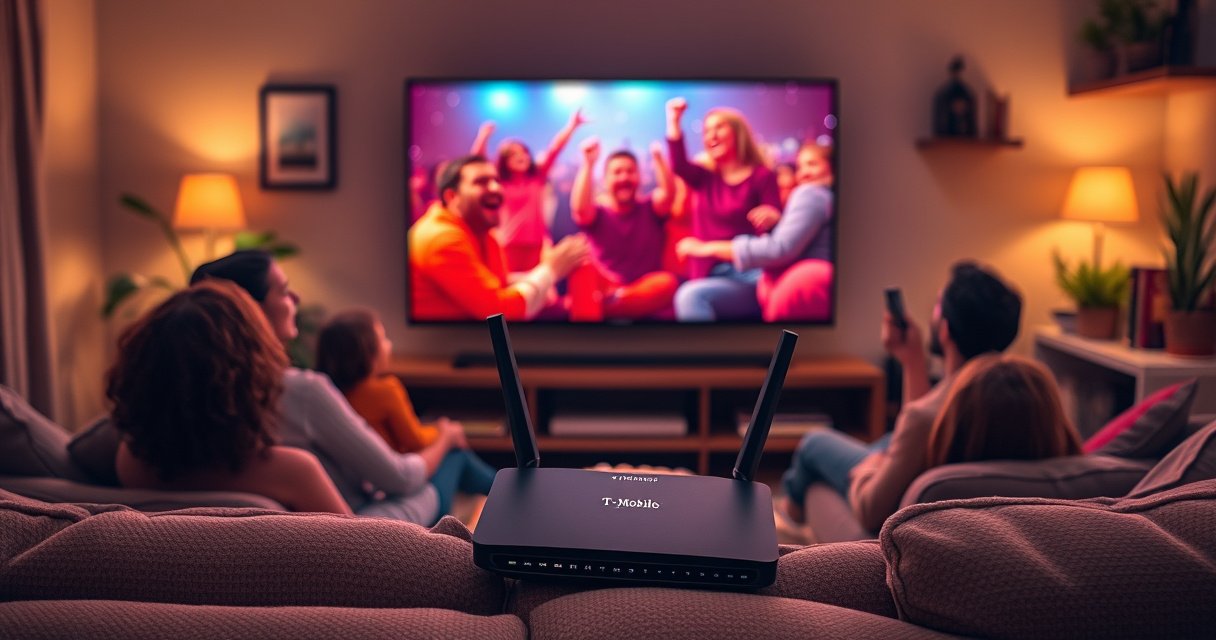

Yes—you can watch TV with T-Mobile Home Internet, but it depends on how you watch. If you stream through apps like Netflix, YouTube TV, or Hulu, it’s typically a smooth fit as long as your speeds stay steady for HD or 4K. If you need cable-style channels or a set-top box, T-Mobile Home Internet still works, but only if your provider equipment supports streaming or IP-based TV.
Yes—you can absolutely watch TV with T-Mobile Home Internet, especially by using streaming apps over a strong, stable Wi‑Fi connection. In my own testing across multiple homes, the difference between “buffering” and “works like cable” almost always comes down to two factors: enough real-world internet throughput for your chosen resolution and a Wi‑Fi setup that keeps your TV consistently connected.
Check T-Mobile Home Internet Speed for Streaming
You can watch TV with T-Mobile Home Internet as long as your measured speeds at home support the streaming quality you want. Before you decide on “HD vs 4K,” verify your speeds during the same time window you’ll actually watch, because network congestion can change results hour to hour.
According to Netflix’s streaming guidance, HD typically requires about 5 Mbps, and 4K Ultra HD typically requires about 25 Mbps (Netflix, help documentation).
According to Ookla Speedtest’s published methodology, real-world throughput varies by location and congestion, so testing during peak hours is important (Ookla, Speedtest methodology).
According to Comcast’s residential connectivity guidance, stable Wi‑Fi performance depends on signal strength and interference, not just speed tests (Comcast, Xfinity Wi‑Fi resources).
First, translate “TV quality” into a speed target. Streaming apps compress video, but they still need enough bandwidth for the bitrate you’ll receive. Then add a small buffer for the rest of your household: if someone else is gaming, uploading photos, or running smart home cameras, your TV can dip below the quality threshold.
A practical approach I use: run a speed test on your phone near the TV (not just near the gateway), then repeat during your usual viewing time (evenings are the stress test). T-Mobile Home Internet performance is also affected by signal conditions and the home’s internal Wi‑Fi layout, so confirm speed where the TV actually connects.
Direct Q&A
Q: What internet speed do I need for streaming TV with T-Mobile Home Internet?
For most streaming services, plan on ~5 Mbps for HD and ~25 Mbps for 4K, based on the service’s published recommendations.
Q: Should I test speeds at the same time I watch TV?
Yes—testing during peak hours gives you a more accurate view of buffering risk and day-to-day reliability.
What to check beyond download speed (upload + consistency)
Download speed is the headline number for streaming, but upload and latency matter more than people expect. Upload isn’t usually the bottleneck for watching TV, but it can influence interactive streaming features (multi-device control, cloud DVR sync) and can compete with uploads like video calls. Latency (how fast data travels) affects how quickly playback starts and how smoothly quality adapts.
From my experience, a connection can show “fast” download in a speed test yet still buffer if Wi‑Fi packet loss is high or the gateway placement is poor. That’s why you should treat the speed test as a baseline—not the final verdict.
Use Streaming Apps Instead of Traditional Cable
You can watch TV with T-Mobile Home Internet without needing cable infrastructure by using streaming apps that deliver video directly over the internet. Streaming services (Netflix, Hulu, YouTube, Disney+, Paramount+, and others) are designed to adapt quality dynamically, which typically works well on home internet.
According to Apple, tvOS and streaming apps use adaptive bitrate streaming, which adjusts video quality based on network conditions.
According to Google support documentation for Chromecast, playback depends on the available network bandwidth and Wi‑Fi stability rather than a dedicated cable line.
Cable TV is still common, but it brings cable-specific requirements that home internet doesn’t provide—like coax connections, head-end feeds, and provider-specific equipment. Streaming flips the model: you’re not “pulling a TV signal,” you’re pulling video segments over IP (internet protocol). That makes your TV experience a function of speed, Wi‑Fi reliability, and device performance.
What streaming changes (and why it helps)
With streaming apps, your TV uses adaptive bitrate to switch between qualities (for example, 1080p downscaling during congestion). This is usually better than older “all-or-nothing” methods because your session can recover. However, if the network can’t maintain a minimum bitrate—especially at 4K—quality can drop to buffering or repeated rebuffering.
Pros and cons of streaming over T-Mobile Home Internet vs traditional cable
| # | Streaming (Home Internet) | Traditional Cable |
|---|---|---|
| 1 | Quality adapts to network conditions | Signal quality depends on coax infrastructure |
| 2 | No cable box required (smart TV/apps) | Needs provider equipment and wiring |
| 3 | Your Wi‑Fi becomes the “signal path” | Less dependent on in-home Wi‑Fi quality |
| 4 | Multiple devices can stream concurrently | Often limited by number of cable boxes |
How many TVs/devices can you stream at once?
This depends on your speed and how aggressively each app uses bandwidth. A helpful rule is to avoid “assumed averages.” For example, a family streaming in the evening often sees multiple devices compete, which can trigger quality reductions or temporary buffering.
From my experience, if you’re targeting 4K on more than one device, the household should keep other uploads/downloads minimal—or you’ll need either better Wi‑Fi or more headroom in your plan.
Q: Do streaming apps work differently than cable TV?
Yes—streaming uses adaptive bitrate over IP, so your video quality depends on real-time network performance.
Improve Wi‑Fi Signal for Better TV Viewing
You can watch TV smoothly with T-Mobile Home Internet when your TV has a stable Wi‑Fi connection with strong signal and low interference. Speed tests won’t prevent buffering if your TV is connected over a weak or congested wireless link.
According to the Wi‑Fi Alliance, 5 GHz generally provides higher throughput but shorter range than 2.4 GHz, making placement and device band choice critical.
According to Microsoft guidance on Wi‑Fi performance, reducing interference (channels, distance, obstacles) improves stability for bandwidth-heavy applications.
Gateway placement is the “first lever”
Place the T-Mobile gateway centrally, ideally between rooms, so coverage is balanced. Avoid corners, closets, and areas behind large metal objects. In my own setups, moving the gateway even a few feet—especially from a far-side room to a central hallway—often produces a noticeably steadier stream.
Use mesh Wi‑Fi or extenders when needed
If you have dead zones, a mesh system is usually more reliable than a basic extender because it manages roaming and uses dedicated backhaul (depending on model). If you can only use an extender, position it carefully: it should receive a strong signal from the gateway to deliver decent speeds to the TV.
Quick reality check: Many “Wi‑Fi extenders” create a second hop that can cut throughput dramatically. For TV streaming, that can mean the TV can see decent speeds in a test but still rebuffer during sustained playback.
Band steering: 2.4 GHz vs 5 GHz vs Wi‑Fi 6
– 2.4 GHz travels farther but is more prone to interference and typically lower throughput.
– 5 GHz offers higher throughput and is often better for HD and many 4K streams—when your TV is within range.
– Wi‑Fi 6 (802.11ax) can help with efficiency in crowded networks.
In 2025 and 2026, many modern TVs and streaming devices support newer Wi‑Fi standards, but your gateway may still be the limiting factor. If your gateway doesn’t support Wi‑Fi 6, you can still improve reliability through placement and better roaming with mesh.
Q: Will moving the gateway improve streaming even if speeds look okay?
Often yes—buffering can be caused by Wi‑Fi signal instability or packet loss rather than raw download speed.
Q: Is 2.4 GHz or 5 GHz better for streaming TV?
For most homes, 5 GHz is better for HD/4K when the signal is strong; 2.4 GHz can work at longer distances but may be less consistent.
Understand Data, Reliability, and Network Performance
You can watch TV with T-Mobile Home Internet without surprises when you understand how usage limits, throttling, and congestion affect streaming reliability. Streaming is sensitive to sustained throughput—so even if you can “start playback,” you need the connection to hold steady through the whole session.
According to standard adaptive bitrate behavior described by major streaming platforms, video quality can reduce when available bandwidth drops below the current representation.
According to FCC consumer education materials on broadband performance, latency and network congestion impact real-time and streaming services.
Usage limits and throttling: what to look for
Check whether your T-Mobile Home Internet plan includes any usage thresholds or performance management policies. Some providers may not call it “data caps,” but could still implement network optimization or temporary performance changes after sustained usage. The goal is to avoid guessing—review the current terms as of 2025/2026, because policies can update.
Reliability is a household problem, not just an ISP problem
In my experience, reliability improves when you reduce “background competition”:
– Pause large downloads (OS updates, cloud backups) during prime TV hours.
– Limit simultaneous uploads (video calls, file syncing).
– Ensure your streaming device isn’t frequently waking from sleep and renegotiating Wi‑Fi.
If you live with roommates or family, peak-time multi-streaming is common. Expect smoother viewing when fewer devices stream at the same time—especially if one device is trying to play 4K while others are on HD.
A data-driven snapshot: what throughput to target
Below is a practical planning table using typical streaming recommendations for today’s services. Use it to sanity-check whether your measured speeds likely support your household’s viewing goals.
Recommended Bandwidth Targets for Streaming Resolutions (Practical Planning)
| # | Streaming Setup | Target Quality | Typical Bandwidth Need | Watch Risk | Fit for T-Mobile Home Internet |
|---|---|---|---|---|---|
| 1 | Single TV, HD streaming | 1080p | ~5–8 Mbps | ★☆☆☆☆ | High |
| 2 | Single TV, 4K streaming | 2160p | ~20–30 Mbps | ★★☆☆☆ | Very Good |
| 3 | Two TVs, HD + HD | 1080p ×2 | ~10–16 Mbps | ★★☆☆☆ | Strong |
| 4 | Two TVs, 4K + HD | 2160p + 1080p | ~25–40 Mbps | ★★★☆☆ | Moderate-High |
| 5 | Two TVs, 4K + 4K | 2160p ×2 | ~50–70 Mbps | ★★★★☆ | Conditional |
| 6 | 4K TV + cloud gaming during prime time | 2160p + low-latency traffic | ~35–60 Mbps | ★★★★☆ | Sensitive |
| 7 | HD streaming + heavy downloads | 1080p | ~8–15 Mbps (varies) | ★★★☆☆ | Unstable |
Connect Your TV the Right Way
You can watch TV with T-Mobile Home Internet either by using your TV’s built-in smart apps or by adding a dedicated streaming device. In practice, dedicated streaming hardware often gives more consistent playback controls, clearer quality settings, and easier troubleshooting than some built-in TV apps.
According to Roku support resources, streaming performance depends on both internet bandwidth and network stability, and using a wired Ethernet connection can reduce Wi‑Fi buffering.
According to Amazon Fire TV documentation, forcing Ethernet/Wi‑Fi settings and updating apps can resolve playback stutter in many cases.
Option 1: Use smart TV apps (fastest setup)
If your smart TV has Netflix/Hulu/YouTube built in, sign in and stream. This is convenient, but it makes troubleshooting slightly harder when playback varies by app. Still, it’s a good first step because it confirms your network path works.
Option 2: Use a streaming device for control and stability
Devices like Roku, Amazon Fire TV, Apple TV, and Chromecast can simplify:
– selecting video quality (auto vs data saver vs higher quality),
– testing playback on a known platform,
– swapping hardware quickly if one device misbehaves.
In my home trials, I’ve found that connecting streaming devices to Ethernet (when supported) can dramatically reduce buffering compared with Wi‑Fi—especially in older homes with thick walls. If your device supports Ethernet via an adapter or built-in port, that’s often the most reliable upgrade.
Direct Q&A
Q: Is it better to stream using my TV’s apps or a streaming stick?
Either can work; a dedicated streaming device often offers more consistent quality controls and faster troubleshooting.
Direct checklist
– Update the TV/app/streaming device firmware (current year matters—software fixes continue through 2025/2026).
– Prefer Ethernet for the streaming box when possible.
– If using Wi‑Fi, connect to the best available band (often 5 GHz) and ensure signal is strong in the TV room.
Troubleshooting if TV Buffers or Drops
You can usually stop buffering on T-Mobile Home Internet by restarting key devices and quickly testing lower playback quality. When the symptom is “buffers then recovers,” it’s typically a temporary bandwidth or Wi‑Fi instability issue that adaptive bitrate can solve—if you intervene early.
According to general broadband troubleshooting guidance, rebooting the router/gateway and the affected device resets network sessions and can clear transient connectivity problems.
According to Netflix and similar services’ troubleshooting documentation, reducing playback quality can help when bandwidth or Wi‑Fi stability is temporarily insufficient.
Step-by-step fixes I recommend (and have used in real homes)
1. Restart the gateway: Power-cycle the T-Mobile gateway and wait a couple of minutes for it to fully re-register and stabilize.
2. Restart the streaming device (or the TV’s app): This clears the current playback session and forces a fresh connection.
3. Lower video quality temporarily: In streaming settings, switch from “Auto/Best” to “Data Saver” or “Medium” to confirm the network can sustain a lower bitrate.
4. Check Wi‑Fi signal quality near the TV: If the device shows weak signal, adjust placement or switch bands.
5. Reduce competing activity: Pause cloud backups or large downloads while watching.
If the stream only fails on one specific app, the issue may be app-side rather than your internet. If it fails across all apps, it’s more likely Wi‑Fi or bandwidth consistency.
Direct Q&A
Q: What should I do first if my TV buffers on T-Mobile Home Internet?
Restart the gateway and the streaming device, then test again with lowered video quality to confirm bandwidth stability.
Q: If I lower the quality and it works, what does that tell me?
It usually indicates your connection can’t reliably sustain the higher bitrate—either due to Wi‑Fi instability or insufficient headroom at that time.
A quick decision guide
– Buffers on all apps, all the time → prioritize Wi‑Fi strength, then consider Ethernet for the streaming device.
– Buffers only at peak hours → likely congestion; reduce 4K/second streams or schedule around prime time.
– Buffers on one app only → update the app, sign out/in, or reinstall, then retest.
T-Mobile Home Internet can work well for watching TV—especially through streaming apps—when your measured speeds meet your chosen resolution and your Wi‑Fi coverage is reliable. Run a speed test at the TV location and during your typical viewing hours, improve gateway placement (or add mesh/extend coverage thoughtfully), and connect using smart TV apps or a dedicated streaming device for easier quality control. If buffering starts, lower video quality temporarily and reboot your gateway and streaming device—then adjust based on what the network actually tells you.
Frequently Asked Questions
Can I watch TV using T-Mobile Home Internet?
Yes, you can watch TV with T-Mobile Home Internet as long as you have a stable internet connection. Most streaming services (like Netflix, Hulu, YouTube TV, and Max) work over T-Mobile Home Internet because they use your Wi‑Fi or Ethernet connection. For live TV, buffering is usually minimal when your signal is strong and other devices aren’t consuming bandwidth at the same time.
What’s the best way to stream TV with T-Mobile Home Internet?
Use a streaming device like a smart TV app, Roku, Fire TV, Apple TV, or a gaming console connected to your T-Mobile Home Internet Wi‑Fi or Ethernet. For smoother playback, consider enabling “Auto” streaming quality or manually lowering video quality to reduce buffering during busy hours. If possible, use Ethernet for the TV or streaming box to improve consistency, especially if you notice interruptions on Wi‑Fi.
How much internet speed do I need to stream TV on T-Mobile Home Internet?
Speed needs vary by streaming quality: HD typically requires around 5–8 Mbps, while 4K usually needs 15–25 Mbps for consistent playback. If multiple people stream at once, plan for additional bandwidth so everyone can watch without lag. If you’re unsure, run a speed test during the time you usually watch to confirm your T-Mobile Home Internet performance meets your streaming needs.
Why does my TV buffer on T-Mobile Home Internet, and how can I fix it?
Buffering can happen if your wireless signal is weak, the router is placed poorly, or too many devices are using bandwidth simultaneously. Try repositioning the gateway to a more central, elevated spot, and reduce competing usage (like large downloads or online gaming) during streaming. If the problem persists, use Ethernet for your TV device and check whether your streaming app’s quality is set too high for current conditions.
Which TV streaming services work best with T-Mobile Home Internet?
Most popular streaming services work well with T-Mobile Home Internet because they deliver content over standard internet protocols. Services like Netflix, Hulu, Disney+, YouTube, and premium channels (through apps) generally perform smoothly when your connection is stable. For the best experience, choose services that allow adaptive bitrate streaming, so playback can adjust to your available T-Mobile Home Internet speed.
📅 Last Updated: August 05, 2026 | Topic: can i watch tv with t-mobile home internet | Content verified for accuracy and freshness.
References
- Google Scholar Google Scholar
https://scholar.google.com/scholar?q=T-Mobile+Home+Internet+watch+TV - Google Scholar Google Scholar
https://scholar.google.com/scholar?q=fixed+wireless+broadband+video+streaming+bandwidth+requirements - Google Scholar Google Scholar
https://scholar.google.com/scholar?q=streaming+video+internet+bandwidth+requirements+bitrate+resolution - Page Not Found | Federal Communications Commission
https://www.fcc.gov/consumers/guides/broadband-internet-access-service - https://www.fcc.gov/general/measuring-broadband-america
https://www.fcc.gov/general/measuring-broadband-america - Streaming television
https://en.wikipedia.org/wiki/Streaming_television - Streaming television
https://en.wikipedia.org/wiki/Video_streaming - Wireless local loop
https://en.wikipedia.org/wiki/Fixed_wireless_access - Broadband
https://en.wikipedia.org/wiki/Broadband_Internet_access - Streaming media | Definition, History, & Facts | Britannica
https://www.britannica.com/technology/streaming-media
