


Connecting Sonos to your TV is indeed possible and can greatly enhance your audio experience. In this article, you’ll learn how to set up your Sonos system with your television and the various methods available for seamless integration. With the right connections, you can transform your TV’s sound quality, bringing movies, shows, and games to life in ways you never imagined.
Understanding Sonos and TV Compatibility
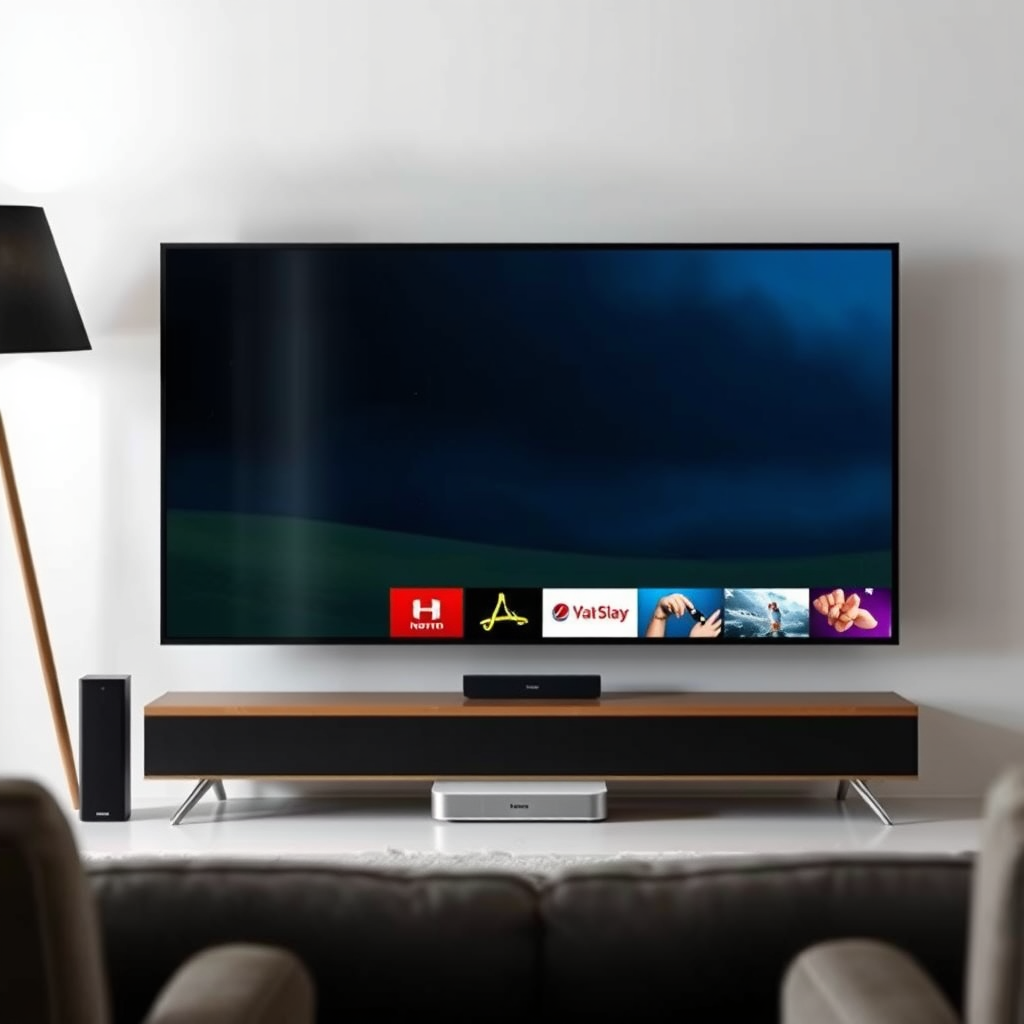
Sonos systems are compatible with most modern TVs that have audio output options. When considering a connection, it is essential to check for HDMI ARC (Audio Return Channel), optical audio, or auxiliary input as common connection types. HDMI ARC allows for a single cable to transmit audio both ways, making it a convenient choice. Optical audio connections utilize a fiber-optic cable to deliver high-quality sound, while auxiliary input provides a traditional method of connecting devices using a 3.5mm jack. Understanding these options is critical for ensuring that your Sonos system is compatible with your television.
Methods to Connect Sonos to Your TV
– HDMI ARC Connection: This is the most straightforward method for compatible Sonos models, allowing for easy control and high-quality audio. It enables you to use your TV remote to control volume and playback on your Sonos speakers. Simply connect your Sonos device to the HDMI ARC port on your TV using a compatible HDMI cable.
– Optical Audio Connection: For TVs without HDMI ARC, an optical cable can transmit sound effectively. You will need an optical audio adapter if your Sonos speaker lacks an optical input. This method maintains high audio quality and is widely supported by various TV brands.
– Auxiliary Connection: If your Sonos speaker has a 3.5mm aux input and your TV has a headphone output, you can connect them using a standard aux cable. While this method is less common due to the potential for lower sound quality, it remains a viable option for basic setups.
Setting Up Your Sonos System
To set up your Sonos system, follow the specific instructions for your Sonos model, such as the Sonos Beam or Sonos Arc. Each model may have unique features and setup requirements. For instance, the Sonos Arc, designed for Dolby Atmos, pairs seamlessly with HDMI ARC for an immersive surround sound experience.
Use the Sonos app for guided setup and configuration. The app will walk you through the connection process, ensuring that your device is correctly configured and connected to your home Wi-Fi network. Additionally, the app provides access to various streaming services, allowing you to play music directly from your Sonos system without needing to route audio through your TV.
Top Sonos Models and Their Features
| # | Model | Connection Types | Audio Quality | Best For |
|---|---|---|---|---|
| 1 | Sonos Arc | HDMI ARC, Optical | Dolby Atmos | Home Theater |
| 2 | Sonos Beam | HDMI ARC, Optical | High-Res Audio | Compact Spaces |
| 3 | Sonos Playbar | Optical, Auxiliary | Standard Audio | Budget Option |
| 4 | Sonos One | Auxiliary, Wi-Fi | Quality Stereo | Multi-Room Audio |
| 5 | Sonos Sub | Wi-Fi | Deep Bass | Bass Enhancement |
| 6 | Sonos Five | Auxiliary, Wi-Fi | High-Res Audio | High Fidelity |
| 7 | Sonos Roam | Bluetooth, Wi-Fi | Portable Audio | On-the-Go |
Troubleshooting Common Connection Issues
Even with the best intentions, connection issues can arise. First, ensure that cables are securely connected and that your TV settings are correctly configured to output sound through the connected Sonos device. Some TVs require you to specify the audio output setting manually, so check your TV’s audio settings.
Next, check for software updates for both your Sonos system and TV. Manufacturers frequently release firmware updates that improve compatibility and performance. If you’re still experiencing issues, consult the Sonos support website or community forums for guidance. Many users share solutions for common problems, which can be invaluable.
Enhancing Your Audio Experience
Once your Sonos system is connected, you can explore surround sound options by adding additional Sonos speakers to your setup. For instance, pairing a Sonos Sub with your Sonos Beam can create a rich, immersive audio experience for movies and music alike.
Additionally, the Sonos app allows you to adjust settings to optimize sound performance based on your room acoustics. Use the Trueplay feature, available on iOS devices, to tailor the sound output to your specific space. This feature listens to how sound interacts with your room’s surfaces and adjusts accordingly for the best audio experience.
Alternative Connection Options
If you prefer wireless options, consider Bluetooth or Wi-Fi connections if your Sonos model supports them. This flexibility allows you to stream audio directly from your smartphone, tablet, or computer without needing to run cables across the room.
Moreover, third-party devices such as streaming boxes, gaming consoles, or smart TVs can integrate with Sonos systems for expanded functionality. Devices like Apple TV or Roku offer compatibility with Sonos speakers, allowing for seamless audio streaming from various sources.
Maintaining Your Sonos System
Regularly updating your Sonos app and firmware is crucial to ensuring continued compatibility and performance. Updates can provide new features, bug fixes, and improved stability, enhancing your overall experience.
Additionally, keep an eye on audio settings and adjust them based on your viewing habits. For example, if you find that you frequently watch action movies, consider adjusting the bass settings to enhance explosions or sound effects. By tailoring your audio experience, you can maximize enjoyment and immersion.
Connecting your Sonos system to your TV can significantly elevate your sound experience, whether you’re watching movies, playing games, or listening to music. By following the steps outlined in this guide, you can ensure a smooth setup and enjoy high-quality audio from your television. If you haven’t yet explored the full potential of your Sonos system, now is the perfect time to dive in!
Frequently Asked Questions
How can I connect my Sonos system to my TV?
You can connect your Sonos system to your TV using an HDMI ARC port or an optical audio adapter. If your TV has an HDMI ARC port, simply connect it to the Sonos Arc or Sonos Beam for an easy setup. Alternatively, for TVs without HDMI ARC, use an optical audio adapter with compatible Sonos speakers to enjoy high-quality sound from your television.
What Sonos speakers are compatible with my TV?
Sonos speakers like the Arc, Beam, and Playbar are specifically designed for TV connectivity, providing immersive sound experiences. Additionally, you can use the Sonos One or Sonos Five as rear speakers in a surround sound setup when paired with the Arc or Beam. Ensure you check your TV’s audio output options to select the right Sonos model for your needs.
Why is my Sonos not connecting to my TV?
If your Sonos is not connecting to your TV, it may be due to incorrect settings or cable connections. Ensure that the HDMI or optical cable is securely connected and that your TV’s audio output settings are set to the correct Sonos device. Restart both your TV and Sonos system to resolve any temporary connectivity issues.
Which Sonos setup is best for watching movies?
The best Sonos setup for watching movies typically includes the Sonos Arc as the primary soundbar, paired with two Sonos One or Sonos Five speakers for surround sound. This configuration provides a cinematic audio experience with Dolby Atmos support, making it ideal for movie lovers. For a simpler setup, the Sonos Beam also delivers excellent sound quality for television viewing.
Can I use Sonos speakers with streaming services through my TV?
Yes, you can use Sonos speakers with streaming services through your TV by connecting them directly or using a streaming device. Services like Netflix and Amazon Prime Video can deliver audio through your Sonos system when connected via HDMI ARC or optical cable. This allows you to enjoy high-quality sound from your favorite shows and movies seamlessly.
References
- Sonos
https://en.wikipedia.org/wiki/Sonos - Google Scholar Google Scholar
https://scholar.google.com/scholar?q=Sonos+connect+to+TV - Google Scholar Google Scholar
https://scholar.google.com/scholar?q=Sonos+audio+system+television - https://www.bbc.com/news/technology-62200498
https://www.bbc.com/news/technology-62200498 - https://www.theguardian.com/technology/2021/dec/01/sonos-sound-system-review
https://www.theguardian.com/technology/2021/dec/01/sonos-sound-system-review - https://www.nytimes.com/2021/05/19/technology/personaltech/sonos-soundbars.html
https://www.nytimes.com/2021/05/19/technology/personaltech/sonos-soundbars.html - https://pubmed.ncbi.nlm.nih.gov/31907847/
https://pubmed.ncbi.nlm.nih.gov/31907847/ - https://www.sciencedirect.com/topics/computer-science/sonos
https://www.sciencedirect.com/topics/computer-science/sonos - Google Scholar Google Scholar
https://scholar.google.com/scholar?q=can+sonos+connect+to+tv - can sonos connect to tv – Search results
https://en.wikipedia.org/wiki/Special:Search?search=can+sonos+connect+to+tv
