


Yes, you can access the internet on a Roku TV; however, it functions differently than traditional web browsing. Roku TVs are primarily designed for streaming content through dedicated apps and channels rather than conventional web browsing. In this article, you will learn how to connect your Roku TV to the internet, explore the options available for browsing, and discover how to optimize your streaming experience.
Connecting Your Roku TV to the Internet
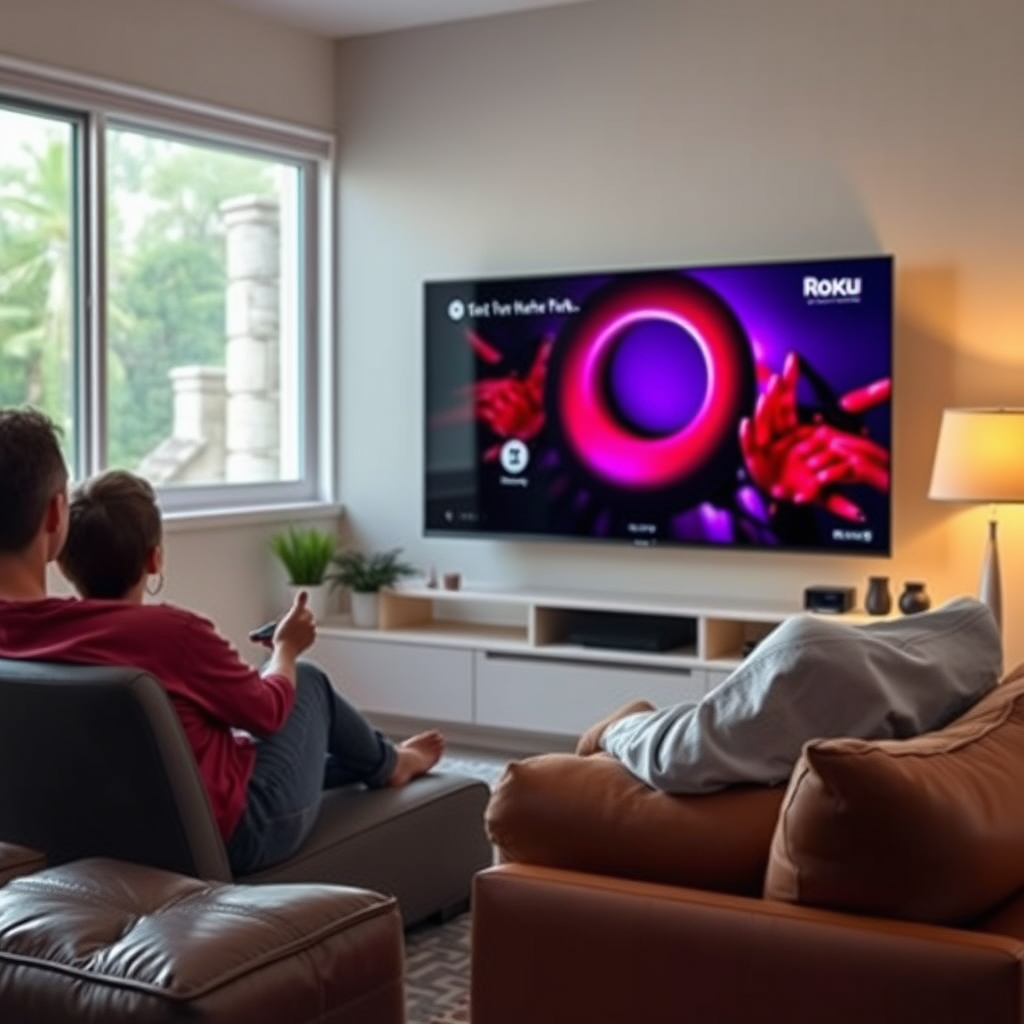
To start enjoying internet features on your Roku TV, you first need to establish a connection. Roku TVs offer two primary methods for connecting to the internet: Wi-Fi and Ethernet.
– Use Wi-Fi or Ethernet: If you prefer the convenience of wireless connectivity, select your home Wi-Fi network and enter the password when prompted. For a more stable connection, particularly useful for streaming high-definition content, consider using a wired Ethernet connection. Simply connect one end of the Ethernet cable to your Roku TV and the other end to your router.
– Accessing Network Settings: To set up your internet connection, navigate to the ‘Settings’ menu from the home screen. From there, select ‘Network,’ then choose ‘Set up connection.’ Follow the prompts to connect either via Wi-Fi or Ethernet, and ensure that your connection is stable before proceeding to browse or stream content.
Understanding the connection process is crucial for a seamless experience on your Roku TV, as a stable internet connection is essential for uninterrupted streaming.
Using the Roku Browser
While Roku TVs do not come with a native web browser, users have alternative options for browsing the internet.
– Roku Web Browser: You can download third-party applications such as ‘Web Browser X’ from the Roku Channel Store. This app allows you to access websites directly on your TV. However, it’s important to note that the browsing experience will not be as smooth as on traditional devices like computers or smartphones.
– Limitations: Browsing capabilities may be limited compared to standard web browsers on other devices. For instance, you might encounter difficulties with certain websites that require Adobe Flash or advanced features that the Roku browser cannot support. Additionally, navigating through websites with a remote control can be cumbersome compared to using a mouse or touchscreen.
Streaming Content Online
Roku TVs shine when it comes to streaming content from various online platforms.
– Accessing Streaming Services: Roku TV supports a wide array of streaming services, including popular platforms like Netflix, Hulu, Amazon Prime Video, Disney+, and many others. Each of these services requires an internet connection and often necessitates a subscription for full access to their content libraries.
– Setting Up Streaming Accounts: To enjoy the content provided by these services, ensure that you have accounts set up with your chosen streaming platforms. Once registered, you can easily log in through the Roku TV interface. Additionally, many services offer free trials, allowing you to explore the content before committing to a subscription.
Screen Mirroring from Mobile Devices
Another valuable feature of Roku TVs is the ability to mirror content from mobile devices.
– Mirroring Options: You can use features such as ‘Screen Mirroring’ or ‘Casting’ to display web content or apps from your smartphone or tablet directly onto your Roku TV screen. This is particularly useful for sharing photos, videos, or even streaming content that may not be available on Roku’s native apps.
– Supported Devices: Check compatibility with your Android or iOS device for seamless mirroring. Both systems support screen mirroring, but the setup process may vary slightly. For Android devices, ensure that both the Roku TV and the mobile device are connected to the same Wi-Fi network. For iOS devices, use the AirPlay feature by selecting your Roku TV in the list of available devices.
Troubleshooting Connectivity Issues
Sometimes, you may encounter connectivity issues that can hinder your Roku TV’s performance.
– Common Problems: Potential problems include weak Wi-Fi signals, incorrect network settings, or issues with the router itself. It’s essential to diagnose these issues to restore a smooth streaming experience.
– Solutions: Start by restarting your router; this can often resolve connectivity issues. If problems persist, check for updates on both your Roku TV and your router. Ensure that your Roku TV is updated to the latest software version by navigating to ‘Settings’ > ‘System’ > ‘System update.’ Additionally, consider moving the router closer to the Roku TV or using a Wi-Fi extender if your home layout presents challenges.
Enhancing Your Roku Experience
Your Roku TV experience can be enhanced further by exploring additional apps and customizing your interface.
– Explore Additional Apps: Beyond streaming, the Roku Channel Store offers a variety of apps for games, news, weather, and more. These applications utilize internet access and can provide a richer, more engaging experience on your Roku TV.
– Customize Your Home Screen: Organizing your apps and channels on the Roku home screen allows for easier access to your favorite content. You can rearrange the channels, hide those you don’t use frequently, or even remove them entirely to streamline your viewing experience.
Top Streaming Services Available on Roku (2024)
| # | Service | Monthly Cost | Content Library | Rating |
|---|---|---|---|---|
| 1 | Netflix | $15.49 | Over 15,000 titles | ★★★★☆ |
| 2 | Hulu | $7.99 | Over 4,000 titles | ★★★★☆ |
| 3 | Amazon Prime Video | $14.99 | Over 12,000 titles | ★★★★☆ |
| 4 | Disney+ | $7.99 | Over 1,000 titles | ★★★★★ |
| 5 | HBO Max | $14.99 | Over 2,500 titles | ★★★★☆ |
| 6 | Peacock | $4.99 | Over 20,000 titles | ★★★☆☆ |
| 7 | Apple TV+ | $9.99 | Over 1,000 titles | ★★★★☆ |
By following these insights, you can effectively access the internet and make the most out of your Roku TV. Whether it’s for streaming or browsing, understanding the functionalities will enhance your viewing experience. If you have any further questions or need assistance, check out the Roku support page or forums for more tips and tricks.
Frequently Asked Questions
Can you browse the internet on a Roku TV?
Roku TVs do not have a built-in web browser, which means you cannot directly browse the internet like you would on a computer or smartphone. However, you can use screen mirroring from a compatible smartphone or tablet to display web content on your Roku TV, or utilize specific channels that provide web-like experiences.
How can I access online content on my Roku TV?
You can access online content on your Roku TV by adding channels from the Roku Channel Store, such as Netflix, Hulu, or YouTube. Simply navigate to the Channel Store on your Roku device, search for the desired app, and install it to begin streaming online content directly.
Why can’t I find a web browser on my Roku TV?
Roku TVs are designed primarily for streaming video content rather than general web browsing, which is why they do not come with a traditional web browser. The focus on streaming apps allows for a more streamlined user experience, ensuring users can easily access popular services without the complexity of navigating the internet.
What is the best way to surf the internet on a Roku TV?
The best way to surf the internet on a Roku TV is by using screen mirroring from a smartphone, tablet, or PC. This feature allows you to mirror your device’s screen, enabling you to browse websites and view content on your TV, effectively turning it into a larger display for web activities.
Which Roku channels allow web-like browsing or internet access?
While Roku does not support a traditional web browser, channels like “Web Browser X” can provide a limited browsing experience. Additionally, some streaming apps may include their own browsing features for specific content, allowing users to explore within those platforms while enjoying a TV-friendly interface.
References
- Roku
https://www.roku.com/products/roku-tv - Roku
https://support.roku.com/article/208754178-how-to-set-up-your-roku-tv - Roku
https://en.wikipedia.org/wiki/Roku - https://www.lifewire.com/how-to-use-a-roku-tv-4686921
https://www.lifewire.com/how-to-use-a-roku-tv-4686921 - Google Scholar Google Scholar
https://scholar.google.com/scholar?q=can+you+get+on+the+internet+on+a+roku+tv - Google Scholar Google Scholar
https://scholar.google.com/scholar?q=roku+tv+internet+access - Google Scholar Google Scholar
https://scholar.google.com/scholar?q=roku+tv+online+streaming - https://www.reuters.com/article/us-tech-roku-idUSKBN2B20E3
https://www.reuters.com/article/us-tech-roku-idUSKBN2B20E3 - https://www.bbc.com/news/technology-54347612
https://www.bbc.com/news/technology-54347612 - can you get on the internet on a roku tv – Search results
https://en.wikipedia.org/wiki/Special:Search?search=can+you+get+on+the+internet+on+a+roku+tv
