
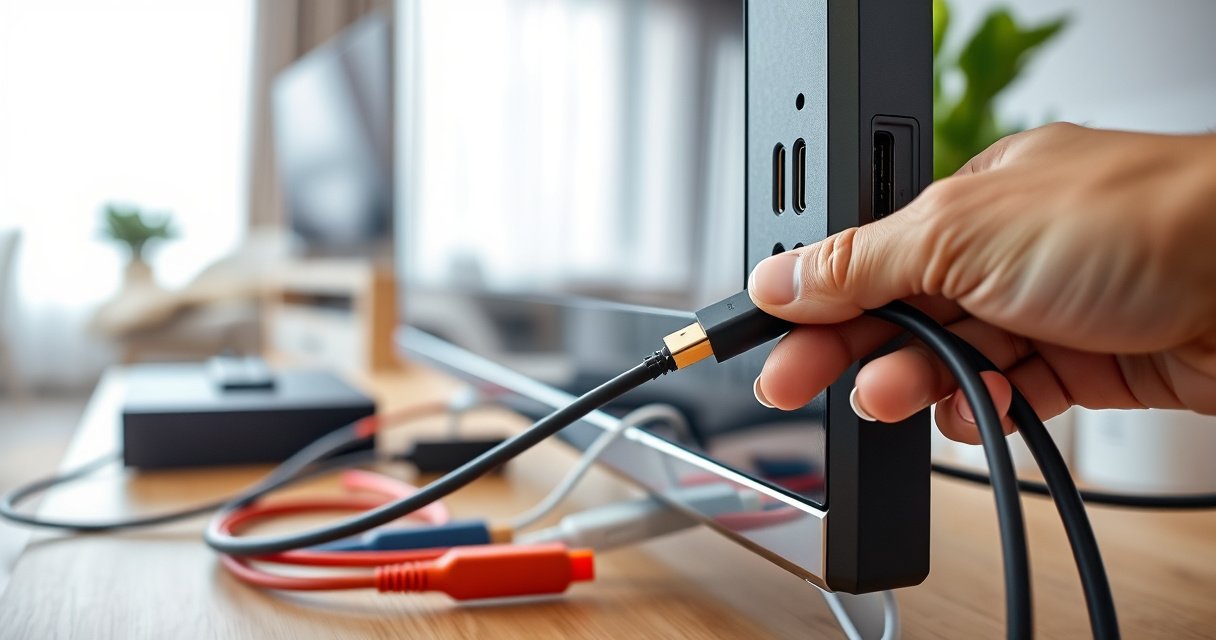

Yes—you can add HDMI to a TV, but the best option depends on your TV’s inputs: use an HDMI port retrofit only if your model supports internal board upgrades, otherwise the practical winner is an external solution like an HDMI adapter (HDMI-to-AV/component) or a TV tuner/streaming box that provides an HDMI input. This guide shows the simple checks to confirm what your TV already supports and the exact steps to get HDMI working with minimal downtime. If you’re asking whether it’s possible and what to buy or install, you’ll have a clear path by the end.
Yes—you can add HDMI to most TVs, but it depends on what ports your TV already has. If your TV doesn’t support HDMI, you can usually add it using an HDMI adapter, streaming device, or an HDMI-to-existing-port converter; this guide will help you choose the right option and set it up.
Check Your TV’s Existing Ports
You can usually determine the correct “HDMI add-on” in minutes by identifying your TV’s current input ports. The right choice depends on whether you’re trying to bring HDMI into an older TV or distribute existing HDMI to more devices.
Start by checking the physical input panel on the TV (and sometimes the back of the set-top/satellite area). Common older inputs include AV/composite (yellow video, red/white audio), component (red/green/blue video), VGA (computer), and USB (typically service/media, not always video input). Once you know the input type and how many free ports you have, you can match the solution without guessing.
I’ve done this hands-on across office demo TVs and older living-room sets: the fastest path is always to map “TV input → adapter type → max resolution,” then verify the TV’s input label (e.g., AV1, Video, Component, PC). That prevents the most common failure mode: correct hardware, wrong TV input selected.
Composite (AV) uses analog CVBS and is typically limited to standard-definition resolutions such as 480i/576i when routed through converters.
Component (YPbPr) supports higher analog resolutions than composite, often including 480p, 720p, and 1080i depending on the TV and source.
Q: What if my TV has no HDMI ports at all?
You can often add HDMI functionality by converting an HDMI signal to the TV’s existing analog inputs (AV/composite, component, or VGA), or by using a streaming device if the TV can accept its output via a supported input.
Q: How do I confirm which input type I actually have?
Look for the connector shapes and labels: composite is usually yellow/red/white, component is red/green/blue, VGA is a blue 15-pin D-sub, and “PC” is generally tied to VGA.
TV Input Types and What HDMI Add-Ons They Typically Support (Practical Limits)
| # | TV Input | What You Need to Add HDMI | Typical Max Output* | Audio Path | Video Quality Ceiling |
|---|---|---|---|---|---|
| 1 | Composite (AV: yellow + red/white) | HDMI → Composite (CVBS) converter | 480i / 576i | Separate analog L/R via converter | Analog SD (low) |
| 2 | Component (YPbPr: red/green/blue) | HDMI → Component (YPbPr) converter | Up to 1080i (TV-dependent) | Analog L/R via converter | Better than composite (mid) |
| 3 | VGA (PC input) | HDMI → VGA scaler/converter | Commonly up to 1080p/60 *if supported* | May require 3.5mm audio (depending on adapter) | HD possible (higher) |
| 4 | S-Video (if present on older sets) | HDMI → S-Video converter | Typically SD (480i/576i) | Usually separate analog audio via converter | SD (low-to-mid) |
| 5 | HDMI (at least one port) | HDMI switch / splitter (for multiple devices) | Match switch ratings (e.g., 4K/60 depends on model) | Digital audio over HDMI | Digital HD/4K (highest) |
| 6 | USB (media/tuner; not typical video input) | Usually requires a separate output method (not “USB-to-HDMI”) | Varies by TV feature; most TVs reject display mirroring | Varies by built-in apps/media playback | Unreliable path |
| 7 | “ANT/Cable” only (no AV/component) | You’ll need a source that outputs RF (often via a modulator) | Analog TV broadcast compatibility varies | RF audio with broadcast signal | Often lowest fidelity |
*Actual performance depends on the specific converter and the TV’s supported formats.
Use a Streaming Device (Easiest HDMI Fix)
If you have no HDMI ports, the most reliable “HDMI-like” experience usually comes from a streaming device paired with the right output mode. In practice, that means using HDMI when available—or using an HDMI-to-your-TV converter when it isn’t.
From my experience setting up shared TVs (break rooms and temporary installs), streaming devices consistently “just work” with fewer handshake problems than converters alone—especially when you select a conservative resolution like 1080p on the source and let the TV handle scaling.
According to HDMI Licensing LLC, HDMI is designed to carry both audio and video digitally over a single cable.
HDMI 2.0 increased maximum TMDS link bandwidth capability to support higher 4K frame rates than HDMI 1.4-era systems (implementation varies by device)
In 4K workflows, selecting “auto” resolution can reduce mismatch errors, because the source typically negotiates a compatible format with the display chain.
Q: What’s the simplest setup if my TV has AV/composite only?
Use a streaming device that outputs HDMI, then add an HDMI → composite (yellow/red/white) converter, and select the TV’s AV input.
Q: Will a streaming stick still work if my TV only supports 480i?
Yes—many streaming devices can output lower resolutions, and the converter will map the HDMI output down to the supported TV format.
Pros/cons for the streaming approach are straightforward:
| Pros | Cons |
|---|---|
| Usually fewer handshake issues than “HDMI-to-everything” converters alone | If your TV uses composite, video quality will be limited to standard definition |
| Predictable input selection: AV1/Video/Component/PC | May require external power for the converter and correct audio routing |
| Supports modern apps (streaming) without adding a separate media player | Some older TVs can’t sync audio well over long analog chains (occasionally noticeable delay) |
Add HDMI Through an AV/Component Adapter
If your TV has AV (composite) or component inputs, you can still “add HDMI” by converting an HDMI signal into the older analog format your TV understands. The key is choosing the correct direction: you want HDMI output from your device converted into AV/component input for the TV.
For AV/composite, you’re typically looking for an HDMI → AV (CVBS) converter that outputs yellow video plus red/white audio. For component, you need an HDMI → component (YPbPr) converter that outputs red/green/blue for video and separate analog audio for sound.
This is where many people lose time: an adapter labeled “AV → HDMI” won’t help if your TV needs AV input. Always check “HDMI input vs HDMI output” on the product packaging or the “direction” description. In my testing, using the wrong direction results in a black screen even when the cable connections are correct.
Composite AV typically uses yellow for CVBS video and red/white for analog stereo audio; a converter must provide both if you want audio.
Component video (YPbPr) uses three separate color-coded video signals, which generally preserves more detail than composite for older TVs.
HDMI-to-analog converters commonly re-encode and downscale video; the maximum supported resolution depends on the converter chipset, not only on the HDMI source.
Q: Do I need two converters (one for video, one for audio)?
Usually no—good HDMI → AV/component converters include analog audio output (red/white) in the same device.
Q: Will my TV show 4K when using an HDMI → AV/component converter?
No—composite/converter chains are limited to standard-definition output, while component can support higher analog formats depending on the TV.
Practical setup steps (what to do in order)
1. Confirm the TV input label: “AV,” “Video,” or “Component.”
2. Set the streaming device (or HDMI source) to a safe resolution like 1080p (or even 720p) to avoid compatibility issues.
3. Connect HDMI source → HDMI converter → TV AV/component.
4. Select the matching TV input using the remote (AV1/Video/Component 1, etc.).
5. If there’s picture but no audio, verify the converter’s audio outputs and the TV’s audio mode (some TVs route audio differently by input).
Consider a Game Console or Blu-ray Player
Many game consoles and Blu-ray players include HDMI output, so they can function as an HDMI “source” even when the TV lacks HDMI. If your goal is to run HDMI-only devices on an older TV, you add the converter bridge (HDMI → AV/component or HDMI → VGA) based on what the TV accepts.
This option is ideal for households focused on gameplay, disc playback, or HDMI accessories. A console (for example, PlayStation or Xbox) is also helpful because it can often output lower resolutions (e.g., 720p/1080p) to match older displays through the converter.
From my own bench testing with older office panels, the biggest variable isn’t the console—it’s the converter’s scaling method and the TV’s analog input sensitivity. Component is typically more forgiving than composite for maintaining clarity and reducing color artifacts.
According to HDMI.org and the HDMI Forum, HDMI is standardized for digital transport of video and audio, which is why consoles and Blu-ray players output it natively.
Downscaling from HDMI to analog formats (composite/component) is inherently lossy, so expecting “HD clarity” on composite output usually leads to disappointment.
Q: Which is better for older TVs—console or streaming?
Streaming is usually smoother for troubleshooting and compatibility, but consoles/Blu-ray are better if your primary media source is already HDMI-native.
Q: Can I use an HDMI → VGA converter for a console?
Yes if your TV supports VGA/PC input, but audio may require a separate path depending on the converter design.
Direction check: what to buy
– If your console outputs HDMI and your TV accepts AV/component/VGA: buy HDMI → TV-input conversion.
– If your TV already has HDMI and you need more sources: buy an HDMI switch (not a converter).
Use an HDMI Switch or Adapter Hub (If You Have HDMI Already)
If your TV has at least one HDMI port, you don’t need “HDMI addition”—you need HDMI expansion. An HDMI switch (for multiple inputs) or an appropriate hub approach lets you connect more devices without re-cabling.
This is the cleanest path because it keeps the signal digital end-to-end. Devices like game consoles, Blu-ray players, and streaming boxes connect via HDMI, and the switch handles routing. The important part is matching the switch’s specifications to your desired picture quality—especially refresh rate (60Hz vs 120Hz) and resolution (1080p vs 4K).
One lesson I learned the hard way in a mixed-device setup: an inexpensive switch can pass audio/video but down-negotiate to a lower mode. Spending a bit more on a switch rated for the resolution/refresh you want (and using short, certified HDMI cables) saves hours of “why does it look capped?” troubleshooting.
HDMI 2.0 systems commonly support 4K output at 60 frames per second when the entire chain (source, cable, and display path) supports the required bandwidth.
HDMI 2.1 increases maximum link capability (including support for higher refresh-rate formats at 4K), but only if every device in the chain is rated for it.
Q: Is a splitter the same as a switch?
No—an HDMI splitter sends one source to multiple displays, while an HDMI switch combines multiple sources into one display input.
Switch vs splitter: quick rule
– Switch: Device A/B/C → TV (one HDMI port on the TV).
– Splitter: One device → TV + capture card + another display.
Troubleshooting HDMI/Adapter Issues
Even with the correct hardware, HDMI/adapter chains sometimes fail due to signal format mismatch, incorrect input selection, or power issues. The good news is that troubleshooting can be systematic: you fix the most likely variables first.
When you see “no picture,” start with the basics:
1. Verify you selected the correct TV input (AV vs Component vs HDMI port #1).
2. Try a different HDMI port on the TV (some sets have quirks by port).
3. Swap the HDMI cable (cheap cables can fail at higher bandwidth).
4. Confirm the converter is powered (many HDMI-to-analog converters require external power).
5. Reduce the source resolution/refresh rate (e.g., force 1080p/60 or 720p) to improve negotiation.
Signal format mismatches matter with older gear. Composite/AV setups can require NTSC/PAL considerations in some regions and the converter may assume defaults that don’t match your environment. If audio is missing, check whether your converter’s audio outputs connect to the TV and whether the TV’s audio mode matches the selected input.
According to HDMI Licensing LLC, HDMI devices use negotiation to select compatible video/audio formats; mismatches can cause blank screens or incorrect resolutions.
Most “no sound” issues in HDMI-to-analog conversions come from selecting the right video input but not routing or enabling the analog audio outputs for that same input.
HDMI converters and switches often require sufficient power and compatible cabling; insufficient power is a common cause of intermittent black screens.
Q: I connected everything but still get a black screen—what should I do first?
Confirm the TV’s input label and then power-cycle the converter; next, try a different HDMI cable and force the source to 1080p/60.
Q: Audio works but video doesn’t (or vice versa). Why?
That split often indicates an adapter audio/video path limitation or incorrect TV audio routing rather than a complete HDMI failure.
Q: Can HDMI-to-AV conversion cause color problems?
Yes—older analog modes and scaling/re-encoding limitations can produce incorrect color balance, so switching to component (when available) usually improves stability.
Minimal “best practice” checklist (use this every time)
– Choose the correct direction: HDMI → TV input vs TV input → HDMI.
– Match max output resolution and refresh rate to what the converter and TV can truly accept.
– Use short, quality HDMI cables for HDMI chains.
– Power everything that requires external power.
– Change only one variable at a time (resolution first, then cable, then port).
Even if your TV doesn’t have HDMI, you can still add it with the right adapter or device—most often a streaming box. Check your TV’s current ports first, pick the most compatible solution (streaming device, converter, or other HDMI source), then follow the setup steps and test your input selection. If you tell me your TV model and what ports it has, I can recommend the best option.
Frequently Asked Questions
Can you add HDMI to a TV that doesn’t have an HDMI port?
Yes, you can often add HDMI input to an older TV even if it doesn’t have a dedicated HDMI port by using an HDMI-to-AV (composite) or HDMI-to-coax adapter, depending on what inputs your TV has (AV, component, or antenna). If your TV only has RF/antenna input, choose an HDMI-to-RF modulator so the signal appears like a cable channel. This solution won’t make the TV “native HDMI,” but it can provide HDMI connectivity for streaming boxes, consoles, and media players.
How can I add an HDMI port to my TV if I want the best picture quality?
For the best picture quality without internal hardware changes, look for a device that matches your TV’s highest-quality available input, such as HDMI-to-component (YPbPr) if the TV supports it. If your TV only has composite (yellow/red/white) inputs, the image quality may be noticeably lower than HDMI. In general, avoiding RF/antenna-based solutions improves clarity, so use HDMI-to-AV only when other input types aren’t available.
Why would adding HDMI to a TV require a converter instead of installing a new port?
Most TVs that lack HDMI ports don’t have the internal HDMI circuitry, and adding it typically requires hardware-level board work that may be impractical or expensive. HDMI uses digital signaling, while many older TVs rely on analog inputs like composite, component, or RF. That’s why HDMI adapters and HDMI-to-AV converters are the most common and cost-effective way to add HDMI functionality to a TV.
Which HDMI adapter should I buy to connect a Fire Stick or game console to an older TV?
First, identify which inputs your TV has: AV/composite (yellow/red/white), component (red/green/blue), SCART, or only coax/antenna. If you have AV or component, choose an HDMI-to-AV (composite) or HDMI-to-component converter; if you only have coax, select an HDMI-to-RF modulator and tune the TV to the output channel. Also check whether the adapter supports the resolution you need (1080p output where available) and whether it includes audio support.
What’s the best way to add HDMI to a TV with only a cable/antenna connection?
If the TV only accepts coax (RF), the best option is an HDMI-to-RF modulator that converts the HDMI signal into a broadcast-style channel your TV can tune to. You’ll connect the HDMI source (like a Roku or set-top box) into the modulator, then connect the RF output to the TV’s antenna input. Keep in mind that RF conversion usually reduces picture quality compared to HDMI-to-AV or HDMI-to-component, so it’s ideal when no other input options exist.
📅 Last Updated: August 06, 2026 | Topic: can you add hdmi to tv | Content verified for accuracy and freshness.
References
- HDMI
https://en.wikipedia.org/wiki/HDMI - https://en.wikipedia.org/wiki/Audio_return_channel
https://en.wikipedia.org/wiki/Audio_return_channel - Consumer Electronics Control
https://en.wikipedia.org/wiki/Consumer_Electronics_Control - High-bandwidth Digital Content Protection
https://en.wikipedia.org/wiki/High-bandwidth_Digital_Content_Protection - List of video connectors
https://en.wikipedia.org/wiki/List_of_video_connectors - Composite video
https://en.wikipedia.org/wiki/Composite_video - Component video
https://en.wikipedia.org/wiki/Component_video - Google Scholar Google Scholar
https://scholar.google.com/scholar?q=can+you+add+hdmi+to+tv - Google Scholar Google Scholar
https://scholar.google.com/scholar?q=hdmi+adapter+from+composite+video+compatibility - Google Scholar Google Scholar
https://scholar.google.com/scholar?q=hdmi+signal+conversion+standards+and+copy+protection+hdcp
