


Yes, you can connect headphones to a Vizio TV, enhancing your viewing experience by allowing you to enjoy personal audio without disturbing others. This flexibility is particularly beneficial in shared living spaces or during late-night viewing sessions. In this article, we will delve into various methods for connecting both wired and wireless headphones to your Vizio TV, troubleshoot common issues, and explore alternative audio solutions to ensure you get the best audio experience possible.
Understanding Your Vizio TV’s Audio Outputs
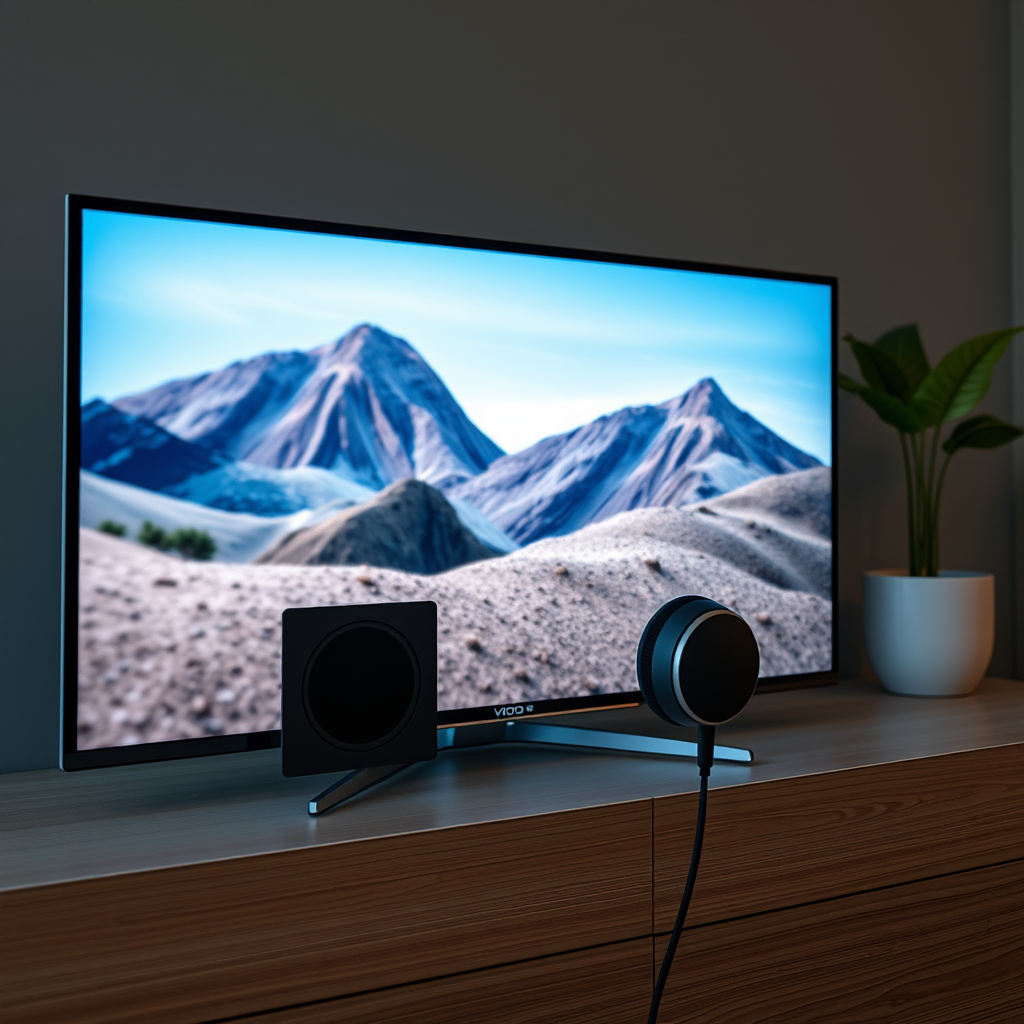
Most Vizio TVs are equipped with a variety of audio output options that cater to different needs. These typically include a dedicated headphone jack, optical audio outputs, and built-in Bluetooth capabilities. The specific connection methods available to you will largely depend on the model of your Vizio TV. For instance, many newer models embrace wireless technology, allowing for Bluetooth connections, while older models may only support wired options.
To determine your TV’s capabilities, consult the user manual or the manufacturer’s website for detailed specifications. Understanding these audio outputs will help you make informed decisions about connecting your headphones.
Connecting Wired Headphones
If your Vizio TV features a headphone jack, connecting wired headphones is a straightforward process. Simply plug your headphones into the headphone jack, usually located on the side or back of the TV. Once connected, you may need to adjust the audio settings on your TV to direct the sound to the headphone output. This can typically be done through the TV’s audio menu.
It’s also important to check the volume levels, as some models allow you to set separate volume controls for the headphones versus the TV speakers. This feature can enhance your listening experience by providing more precise audio levels tailored to your preference.
Connecting Wireless Headphones via Bluetooth
For those who prefer a wireless experience, many Vizio TVs support Bluetooth connectivity, allowing you to connect wireless headphones without the hassle of cords. To connect your Bluetooth headphones, follow these general steps:
1. Access Bluetooth Settings: Navigate to the settings menu on your Vizio TV and select the Bluetooth option.
2. Put Headphones in Pairing Mode: Activate the pairing mode on your headphones, which usually involves holding down a specific button until a light flashes.
3. Select Your Headphones: Once your headphones appear in the list of available devices on the TV, select them to establish the connection.
After successfully pairing, you should enjoy sound transmitted directly to your headphones with minimal delay. However, be prepared to adjust the audio settings as needed, especially if you experience any connectivity issues.
Using an External Bluetooth Transmitter
If your Vizio TV does not come equipped with built-in Bluetooth capabilities, an external Bluetooth transmitter is a viable alternative. This device connects to your TV’s audio output, either through the headphone jack or optical output, and enables wireless audio transmission to Bluetooth-enabled headphones.
To set it up:
1. Connect the Transmitter: Plug the transmitter into the appropriate audio output on your TV.
2. Power On the Device: Turn on the transmitter, ensuring it is in pairing mode.
3. Pair with Your Headphones: Follow the same pairing procedure as you would for Bluetooth headphones directly connected to the TV.
This method allows you to enjoy wireless audio from your Vizio TV without needing to upgrade to a newer model.
Top Vizio TV Models with Audio Connection Features (2024)
| # | Model | Headphone Jack | Bluetooth | Optical Output |
|---|---|---|---|---|
| 1 | Vizio D-Series | Yes | No | Yes |
| 2 | Vizio M-Series | Yes | Yes | Yes |
| 3 | Vizio P-Series | Yes | Yes | Yes |
| 4 | Vizio 4K Ultra HD | Yes | Yes | Yes |
| 5 | Vizio Smart TV | Yes | Yes | Yes |
| 6 | Vizio OLED TV | Yes | Yes | Yes |
| 7 | Vizio Smartcast TV | Yes | Yes | Yes |
Troubleshooting Connection Issues
Even with the right equipment, you may encounter problems when connecting your headphones to a Vizio TV. Common issues include audio lag, disconnection, or poor sound quality. Here are some troubleshooting tips to resolve these issues:
1. Check for Interference: Other wireless devices, such as Wi-Fi routers or microwaves, can interfere with Bluetooth connections. Ensure that your headphones and TV are within close proximity without obstacles.
2. Restart Devices: A simple restart of both your Vizio TV and headphones can rectify many connectivity issues. This action clears temporary glitches that may be affecting performance.
3. Adjust Audio Settings: Verify that your audio settings are configured correctly. Ensure that the volume levels are set appropriately for your headphones and that the TV is directing audio to the correct output.
4. Update Firmware: Occasionally, outdated firmware can cause connectivity problems. Check for any available updates for both your Vizio TV and headphones to ensure you have the latest enhancements and fixes.
By following these steps, you should be able to troubleshoot and resolve most common issues with headphone connections.
Alternative Audio Solutions
If connecting headphones directly to your Vizio TV presents challenges, consider alternative audio solutions. One such option is using a soundbar that supports headphone connections. This can provide an enhanced audio experience with better sound quality than standard TV speakers while still allowing for personal listening through headphones.
Moreover, some Vizio TVs come with mobile apps that allow for audio control, enabling you to manage sound settings directly from your smartphone or tablet. This feature can be particularly useful for adjusting volume levels or switching audio sources without having to navigate through the TV’s menu.
In cases where you consistently face issues with direct headphone connections or prefer a more robust audio setup, investing in a quality soundbar or external audio system may be the best route.
To summarize, connecting headphones to your Vizio TV can significantly improve your viewing experience, whether through wired or wireless options. By understanding your TV’s audio outputs, following the correct procedures for connection, and troubleshooting common issues, you can enjoy a personalized audio experience tailored to your preferences. If issues persist, exploring alternative audio solutions like soundbars or mobile apps can further enhance your listening experience. Now that you are equipped with this knowledge, go ahead and elevate your viewing sessions with your favorite headphones!
Frequently Asked Questions
Can you connect Bluetooth headphones to a Vizio TV?
Yes, you can connect Bluetooth headphones to a Vizio TV if your model supports Bluetooth connectivity. To do this, go to the TV’s settings menu, select “Bluetooth,” and then put your headphones in pairing mode. Once they appear in the list of devices, select them to connect.
How do I connect wired headphones to a Vizio TV?
To connect wired headphones to a Vizio TV, simply plug the headphone jack into the TV’s headphone port, usually located on the side or back of the TV. Make sure to adjust the TV’s audio settings to ensure the sound is directed through the headphones instead of the TV speakers for an optimal listening experience.
Why can’t I hear sound from my headphones when connected to my Vizio TV?
If you’re not hearing sound from your headphones connected to a Vizio TV, check to ensure that the headphones are properly plugged in or paired. Additionally, navigate to the TV’s audio settings to confirm that the output is set to headphones and not the TV speakers. If the problem persists, try testing the headphones on another device to rule out any issues with them.
What is the best way to connect wireless headphones to a Vizio TV?
The best way to connect wireless headphones to a Vizio TV is by using Bluetooth. Make sure your headphones are compatible with Bluetooth and within range. Access the TV’s settings, enable Bluetooth, and follow the pairing instructions to ensure a stable connection for uninterrupted audio.
Which Vizio TV models support Bluetooth headphones?
Most Vizio Smart TVs released in recent years, particularly those in the D-series, M-series, and P-series, support Bluetooth headphones. However, it’s important to check the specifications of your specific model in the user manual or Vizio’s official website to confirm Bluetooth capability.
References
- https://en.wikipedia.org/wiki/Vizio
https://en.wikipedia.org/wiki/Vizio - https://support.vizio.com/s/article/How-to-Connect-Headphones-to-Your-Vizio-TV?language=en_US
https://support.vizio.com/s/article/How-to-Connect-Headphones-to-Your-Vizio-TV?language=en_US - https://www.lifewire.com/how-to-connect-your-headphones-to-your-tv-1846853
https://www.lifewire.com/how-to-connect-your-headphones-to-your-tv-1846853 - Google Scholar Google Scholar
https://scholar.google.com/scholar?q=connecting+headphones+to+tv - Google Scholar Google Scholar
https://scholar.google.com/scholar?q=Vizio+TV+headphone+connection - Google Scholar Google Scholar
https://scholar.google.com/scholar?q=Bluetooth+headphones+TV+connection - https://www.pcmag.com/how-to/how-to-connect-headphones-to-your-tv
https://www.pcmag.com/how-to/how-to-connect-headphones-to-your-tv - Google Scholar Google Scholar
https://scholar.google.com/scholar?q=can+you+connect+headphones+to+vizio+tv - can you connect headphones to vizio tv – Search results
https://en.wikipedia.org/wiki/Special:Search?search=can+you+connect+headphones+to+vizio+tv - https://www.ncbi.nlm.nih.gov/search/research-articles/?term=can+you+connect+headphones+to+vizio+tv
https://www.ncbi.nlm.nih.gov/search/research-articles/?term=can+you+connect+headphones+to+vizio+tv

[…] functions typically depend on Bluetooth connectivity states. To maximize […]
[…] Bluetooth headphones only if the TV supports Bluetooth audio streaming (A2DP), not just general Bluetooth connectivity. If your TV lists “Wireless Headphones” or “Bluetooth Audio,” you’re good to go; if it […]
[…] Bluetooth connectivity typically degrades beyond short indoor ranges due to signal attenuation and interference, so staying within a few meters helps. Firmware updates can improve Bluetooth stack performance by addressing discovery timing, reconnection logic, and profile compatibility. […]