
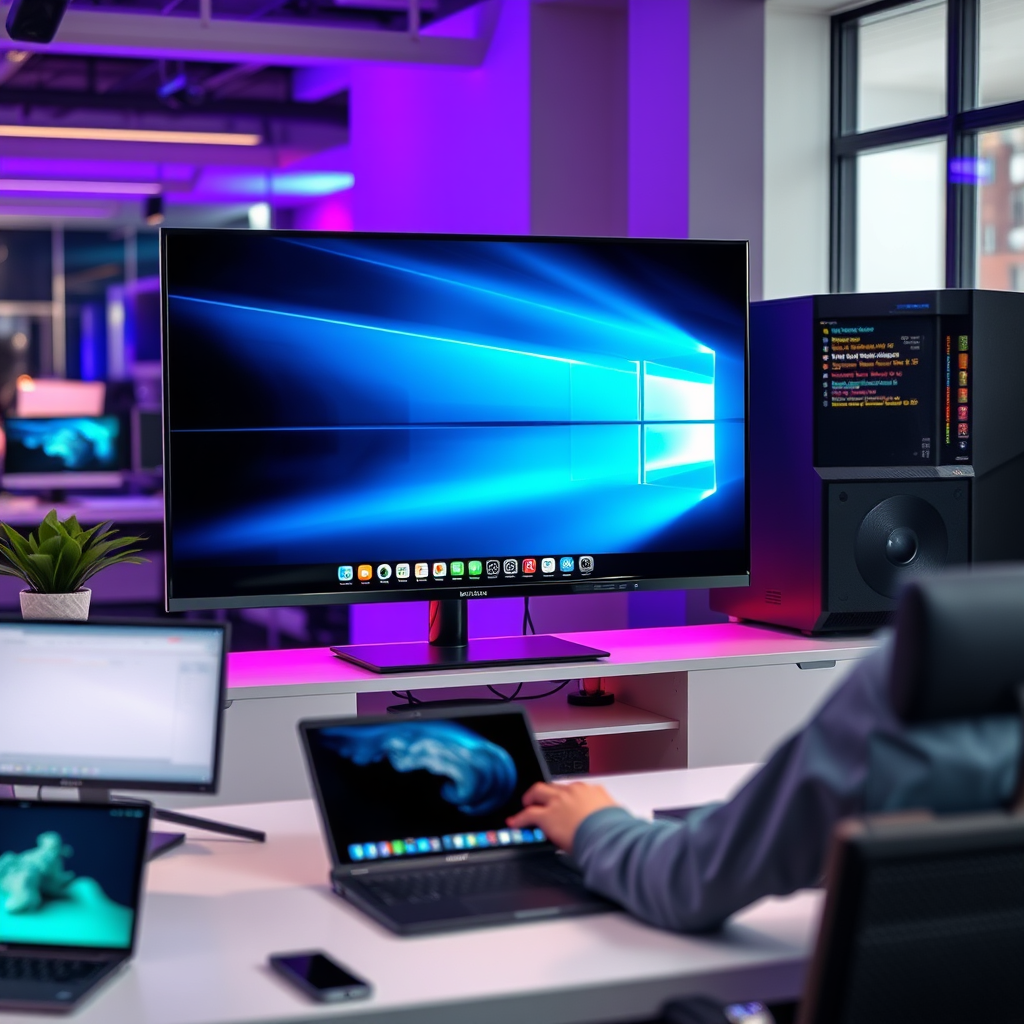

You absolutely can surf the internet on a smart TV! Many smart TVs come equipped with built-in browsers or support for web applications that allow you to access the internet just like you would on a computer or mobile device. This functionality enables users to stream videos, browse social media, and even shop online directly from their TV screens. In this article, we’ll explore how to use these features, what to consider, and the best practices for browsing the web on your smart TV.
Understanding Smart TV Features

Smart TVs have revolutionized the way we consume media and access information. Most smart TVs come with integrated web browsers, allowing direct internet access without the need for an external device. This feature can be incredibly useful for those who prefer a larger screen for browsing or want to access content that may not be available through traditional TV channels.
In addition to standard web browsing capabilities, many smart TVs support a range of applications, including popular streaming services like Netflix, YouTube, and various social media platforms. This integration provides a seamless experience where users can toggle between watching their favorite shows and surfing the web without needing to switch devices. Furthermore, some advanced smart TVs may even offer voice control capabilities, enabling users to search for content or navigate the browser using voice commands.
How to Access the Internet on a Smart TV
Accessing the internet on a smart TV is generally straightforward. To get started, navigate to the home screen of your smart TV. There, you should find a dedicated browser app or a web section. Depending on the brand and model of your TV, this may be labeled differently, such as “Web Browser”, “Internet”, or “Apps”.
Once you have located the browser app, open it using your remote control. You can use the directional buttons to navigate, and most smart TVs also allow the use of a compatible wireless keyboard or mouse for easier input. To enter URLs or search terms, simply click on the address bar at the top of the screen. This will bring up an on-screen keyboard or allow you to type directly if you’re using a connected keyboard.
It’s important to familiarize yourself with the controls, as navigating with a remote can be different from using a mouse or touchscreen. Once you’ve entered a website, you can explore content just like you would on any other device.
Best Browsing Practices on Smart TVs
While browsing the internet on a smart TV can be enjoyable, there are certain best practices that can enhance your experience:
1. Use a Wireless Keyboard or Mouse: Typing with a remote can be cumbersome. Connecting a wireless keyboard or mouse can significantly improve navigation and search efficiency.
2. Adjust Display Settings: Ensure that your TV’s display settings are optimized for browsing. This may include adjusting the brightness, contrast, or text size to enhance readability.
3. Utilize Bookmarks: If your smart TV’s browser supports bookmarking, take advantage of this feature to save your favorite sites for easy access in the future.
4. Watch for Security: Just like on any other browsing device, be cautious about the websites you visit. Ensure that the sites are secure and avoid entering sensitive information on public or untrusted websites.
5. Limit Multiple Tabs: Opening too many tabs can slow down your browser’s performance. Stick to a few tabs at a time for optimal browsing speed.
Top Smart TV Brands and Their Internet Features (2024)
| # | Brand | Browser Type | Voice Control | App Support | User Rating |
|---|---|---|---|---|---|
| 1 | Samsung | Integrated | Yes | Excellent | ★★★★☆ |
| 2 | LG | Integrated | Yes | Good | ★★★☆☆ |
| 3 | Sony | Integrated | Yes | Very Good | ★★★★☆ |
| 4 | TCL | Integrated | No | Good | ★★★☆☆ |
| 5 | Roku TV | Integrated | No | Excellent | ★★★★☆ |
| 6 | Vizio | Integrated | No | Good | ★★★☆☆ |
| 7 | Hisense | Integrated | No | Good | ★★★☆☆ |
Limitations of Browsing on Smart TVs
While browsing on a smart TV offers numerous advantages, there are notable limitations to consider. One significant drawback is the screen size, which, despite being larger than a smartphone or tablet, can still make typing and navigating cumbersome. The on-screen keyboard is less efficient than a physical keyboard, and many users find it challenging to enter long URLs or extensive search queries.
Furthermore, the browsers integrated into smart TVs may lack advanced features that are standard on desktop browsers. This can include limited support for extensions, less robust security features, and a lack of compatibility with certain web applications. As a result, users may encounter issues when trying to access certain websites, particularly those that require complex interactions or multimedia capabilities.
Lastly, internet speeds can be affected by various factors, including the quality of the TV’s Wi-Fi antenna and the speed of your home internet connection. Lagging or buffering while trying to stream or browse can lead to frustration and diminish the overall experience.
Alternatives to Browsing on a Smart TV
If you find browsing on a smart TV cumbersome, there are several alternatives you can consider:
1. Casting Devices: Devices like Chromecast allow you to project your mobile device’s screen onto your TV. This can be particularly useful for apps or websites that are not optimized for smart TV browsers.
2. Game Consoles: Many modern gaming consoles, such as PlayStation and Xbox, come with robust web browsers that may offer a better browsing experience than standard smart TVs.
3. Streaming Devices: Devices like Roku and Amazon Fire Stick not only provide streaming capabilities but also come equipped with their own browsers and apps that may enhance your browsing experience.
4. HDMI Connection: Connecting a laptop or tablet directly to your TV via HDMI can allow you to use your TV as a larger monitor. This method provides full desktop browsing capabilities without the limitations of a smart TV browser.
Troubleshooting Common Issues
If you encounter issues while browsing the internet on your smart TV, there are several troubleshooting steps you can take:
1. Check Internet Connection: Ensure your TV is connected to the internet. You can test this by trying to stream content from a known app, such as Netflix or YouTube.
2. Restart the TV: Sometimes, simply restarting the smart TV can resolve temporary glitches in the browser.
3. Update Software: Ensure that your TV’s software is up to date. Manufacturers often release updates to improve performance and address security vulnerabilities.
4. Clear Browser Cache: If the browser is running slowly, clearing the cache and cookies can help improve its speed and responsiveness.
5. Reposition Router: If you’re experiencing slow internet speeds, try repositioning your Wi-Fi router to ensure a stronger signal reaches your smart TV.
With the right tools and knowledge, surfing the internet on a smart TV can be a convenient experience. Whether you’re streaming videos, checking social media, or browsing websites, smart TVs offer a unique way to enjoy online content in a larger format. If you haven’t explored your smart TV’s internet capabilities yet, now is the perfect time to dive in!
Frequently Asked Questions
Can you browse the internet on a smart TV?
Yes, you can browse the internet on a smart TV. Most smart TVs come equipped with built-in web browsers or allow you to download popular browsers through their app stores. This enables you to access websites, stream videos, and even check social media directly from your TV screen.
How do you access the internet on a smart TV?
To access the internet on a smart TV, first ensure that your TV is connected to Wi-Fi or an Ethernet cable. Then, navigate to the home screen, find the web browser or app store, and select the browser to start surfing the internet. You can use the remote control or connect a wireless keyboard for easier navigation.
Why is internet browsing on a smart TV sometimes slow?
Internet browsing on a smart TV can be slow due to several factors, including a weak Wi-Fi signal, outdated software, or limited processing power of the TV itself. To improve browsing speed, ensure your internet connection is strong, keep your TV’s software updated, and close any unnecessary apps running in the background.
What are the best smart TVs for internet browsing?
The best smart TVs for internet browsing typically feature powerful processors and user-friendly interfaces. Models like the LG OLED series, Samsung QLED TVs, and Sony Bravia XR are highly rated for their fast performance and smooth browsing experiences. Look for TVs that support a wide range of apps and have a reliable web browser.
Which apps can I use to enhance my internet experience on a smart TV?
To enhance your internet experience on a smart TV, consider downloading popular apps like Google Chrome, Firefox, or dedicated streaming apps like YouTube and Netflix. Additionally, social media apps such as Facebook and Twitter can be accessed, allowing for a more comprehensive online experience directly from your TV.
References
- Smart TV
https://en.wikipedia.org/wiki/Smart_TV - https://www.bbc.com/news/technology-57159765
https://www.bbc.com/news/technology-57159765 - https://www.theguardian.com/technology/2020/may/20/smart-tv-internet-privacy-security
https://www.theguardian.com/technology/2020/may/20/smart-tv-internet-privacy-security - https://www.nytimes.com/2021/01/12/technology/smart-tv-privacy.html
https://www.nytimes.com/2021/01/12/technology/smart-tv-privacy.html - https://www.sciencedirect.com/topics/computer-science/smart-tv
https://www.sciencedirect.com/topics/computer-science/smart-tv - https://www.ncbi.nlm.nih.gov/pmc/articles/PMC7264458/
https://www.ncbi.nlm.nih.gov/pmc/articles/PMC7264458/ - https://www.cdc.gov/media/subtopic/mmedia/smarttv.htm
https://www.cdc.gov/media/subtopic/mmedia/smarttv.htm - https://www.nature.com/articles/s41599-018-0114-6
https://www.nature.com/articles/s41599-018-0114-6 - Google Scholar Google Scholar
https://scholar.google.com/scholar?q=can+you+surf+the+internet+on+a+smart+tv - Google Scholar Google Scholar
https://scholar.google.com/scholar?q=smart+tv+internet+usage+and+security
