
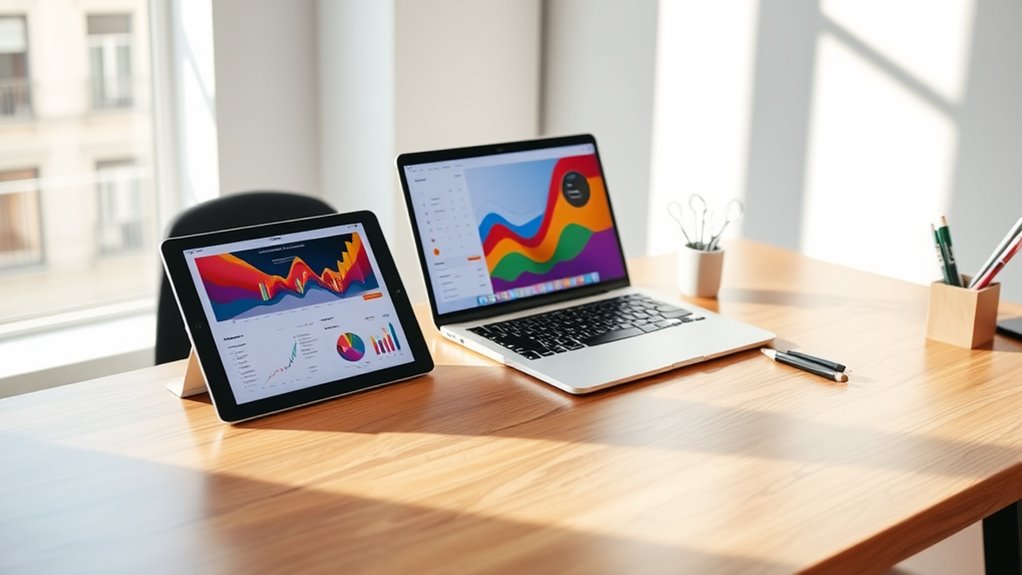

Yes, you can use your iPad as a second monitor to boost productivity and increase your screen space. Whether you prefer a wired or wireless connection, it’s easy to set up with various compatible applications. An iPad can help you multitask, keep important apps open, and streamline your workflow. However, there are some challenges to contemplate, like resolution limits. If you want to explore more about setup options and best practices, keep going to find out.
Understanding the Benefits of Using an Ipad as a Second Monitor
Whether you’re working from home or juggling multiple tasks, using an iPad as a second monitor can greatly enhance your productivity. By extending your screen space, you can easily keep essential applications open and accessible, allowing for seamless shifts between tasks. This setup promotes increased productivity, as you won’t need to constantly switch between windows or applications. Imagine having your email open on one screen while you work on a document on the other—this enhanced multitasking capability saves you time and reduces frustration. Additionally, the portability of an iPad means you can take your work anywhere, offering you the freedom to maintain efficiency outside the traditional office environment. Embrace this versatile tool to optimize your workflow!
Compatible Devices and Requirements
Before diving into using your iPad as a second monitor, it’s essential to make sure that both your iPad and primary device meet the necessary compatibility requirements. First, verify your iPad runs iOS 13 or later for peak performance. For Macs, you’ll need macOS Yosemite or newer; for Windows, specific software may be required. Check if your primary device supports external display connections, as this is vital for seamless use. If you’re using third-party apps, verify their compatibility with your devices, as iPad compatibility can vary. Finally, confirm that both devices are on the same Wi-Fi network if you’re opting for wireless connections. Meeting these device requirements will set you up for a smooth experience using your iPad as a second monitor.
Wired vs. Wireless Connections
When considering how to connect your iPad as a second monitor, you’ll find two primary options: wired and wireless connections. Each method has its perks, so it’s essential to weigh them based on your needs.
| Connection Type | Advantages |
|---|---|
| Wired | Fast, reliable, no lag |
| Wireless | Flexibility, no cables needed |
| Easy setup, mobility |
Wired connections offer advantages like speed and stability, making them ideal for tasks requiring high precision. On the other hand, wireless connections provide flexibility, allowing you to move your iPad anywhere without being tethered. Ultimately, your choice may depend on your workspace and personal preferences.
Popular Applications for Dual Display Setup
As you set up your iPad as a second monitor, you’ll discover a variety of popular applications that can enhance your productivity. One standout is Duet Display, which transforms your iPad into a seamless extension of your desktop. Another great choice is Sidecar, especially if you’re using macOS, allowing for easy integration and touch control. If you’re looking for a more versatile solution, DisplayLink provides display extensions for both Windows and macOS, enabling multiple screens effortlessly. For creative tasks, apps like Astropad let you use your iPad as a drawing tablet. With these popular apps, you’ll maximize your workspace and enjoy a more fluid workflow, releasing your potential for multitasking and efficiency.
Setting up Your Ipad as a Second Monitor
To set up your iPad as a second monitor, you’ll need the right software and apps to make the connection seamless. There are various methods to connect your devices, whether through Wi-Fi or a cable. Let’s explore these options so you can enhance your workspace efficiently.
Required Software and Apps
Setting up your iPad as a second monitor requires specific software and apps that facilitate the connection between your devices. You’ll find several software options available, each with unique features. Popular choices include Duet Display, Luna Display, and Sidecar (if you’re in the Apple ecosystem). When making app comparisons, consider factors like ease of use, performance, and latency. Duet Display is known for its smooth performance, while Luna Display offers wireless connectivity. If you’re using Apple devices, Sidecar integrates seamlessly with macOS. Think about your specific needs, like whether you prefer wired or wireless connections, as this will influence your choice. Ultimately, the right software will enhance your productivity and provide the freedom to multitask effectively.
Connection Methods Explained
While you might think using your iPad as a second monitor is complicated, the connection methods are quite straightforward. You typically have two connection types: wired and wireless. For a wired setup, use a USB cable and an app like Duet Display or Sidecar. Simply connect your iPad to your computer, and adjust the display settings on your device for seamless integration.
If you prefer a wireless connection, make certain both devices are on the same Wi-Fi network. Apps like Air Display or Splashtop can help you achieve this. Just select your iPad from the display settings on your computer, and you’re good to go! Embrace the freedom of multiple screens, and enhance your productivity effortlessly.
Tips for Optimizing Performance
Although using your iPad as a second monitor can enhance productivity, optimizing its performance is crucial for a seamless experience. Start by adjusting your iPad’s performance settings. Confirm that it’s running the latest software to leverage any performance improvements. Disable unnecessary background apps to free up resources, enhancing responsiveness. Next, make display adjustments; lowering the brightness can extend battery life and improve visual clarity. If you’re using a wireless connection, verify your Wi-Fi is stable, as a weak signal can cause lag. Finally, consider using a dedicated app designed for second monitor functionality, as they often come with features that optimize performance. By implementing these tips, you’ll enjoy a smoother, more efficient dual-screen setup.
Troubleshooting Common Issues
Even with performance optimizations in place, you might still encounter common issues when using your iPad as a second monitor. Here are some troubleshooting tips:
- Screen flickering: This can often be resolved by adjusting the display settings on your iPad or computer. Verify both devices are updated to the latest software version.
- Connection drops: If you’re experiencing frequent disconnections, check your Wi-Fi network. A strong connection is essential; consider moving closer to your router or switching to a wired connection if possible.
- Lagging performance: If your iPad feels sluggish, close unnecessary apps running in the background to free up resources.
Comparing Ipad as a Monitor to Traditional Dual Monitors
When you compare using an iPad as a second monitor to traditional dual monitors, portability and convenience stand out. An iPad is lightweight and easy to set up anywhere, while traditional monitors can be bulky and less flexible. However, performance and display quality may vary, so it’s worth considering which option best meets your needs.
Portability and Convenience
Using an iPad as a second monitor offers unmatched portability and convenience compared to traditional dual monitors. You’ll find that it enhances your portable workspace, making it easier to work from anywhere. Here are three key benefits:
- Lightweight Design: The iPad’s slim profile means you can carry it effortlessly alongside your laptop.
- Easy Setup: You can connect your iPad wirelessly in seconds, eliminating messy cables and complicated configurations.
- Flexible Positioning: Unlike bulky monitors, the iPad can be positioned at various angles and locations, perfect for convenient multitasking.
With an iPad, you’re not just adding a screen; you’re embracing a more adaptable and freedom-driven work style. Enjoy the smart, efficient, and mobile way to get things done!
Performance and Display Quality
While traditional dual monitors often excel in performance and display quality, the iPad can still hold its own as a secondary screen. You’ll find the display responsiveness on the iPad to be commendable for everyday tasks like browsing, document editing, and video playback. However, you might encounter resolution limitations, especially when using high-resolution graphics or intricate design work. The iPad’s screen may not match the clarity and size of larger, dedicated monitors, which can affect your workflow if you’re used to expansive setups. Still, for those seeking flexibility and convenience, the iPad offers a decent alternative that can easily adapt to your needs, especially when you’re on the go. Ultimately, it’s about balancing portability with performance.
Use Cases for an Ipad as a Second Display
There are several compelling use cases for turning your iPad into a second display. By doing this, you can greatly enhance your iPad productivity and streamline your creative workflows. Here are three practical scenarios:
- Multitasking: Keep your email or messaging apps open on the iPad while working on a project on your main screen, making it easier to stay connected without losing focus.
- Design Work: Use the iPad for reference images or tool palettes when working on graphic design projects, giving you more space and flexibility.
- Presentations: Show your slides on your main monitor while using the iPad to view speaker notes, ensuring a smooth delivery without breaking your flow.
These scenarios illustrate how an iPad can transform your work experience and maximize efficiency.
Future Trends in Multi-Screen Workflows
As technology continues to evolve, multi-screen workflows are set to become even more essential to how we work and create. With the rise of remote work and hybrid setups, you’ll find that digital collaboration is more efficient than ever. Screen sharing capabilities are improving, allowing seamless interaction across devices, enhancing your productivity tools. Imagine using mobile technology to connect your iPad as a second monitor, creating a dynamic workspace that adapts to your needs. Ergonomic design plays a vital role, ensuring comfort during long hours. As workspace innovation accelerates, expect tools that empower you to customize your environment, boosting creativity and flexibility. Embrace these trends to maximize your potential in a fast-paced, multi-screen world.
Frequently Asked Questions
Can I Use an Ipad as a Monitor for Gaming?
You can use an iPad for gaming, but don’t expect ideal gaming performance. Its display resolution may not match a dedicated monitor, potentially affecting your experience. Still, it’s a fun, portable option for casual play.
Does Using an Ipad as a Monitor Drain Its Battery Quickly?
Yes, using an iPad as a monitor can drain its battery quickly due to increased power consumption. To mitigate this, consider connecting it to a charger while in use to maintain battery life.
Can I Use a Stylus on the Ipad While It’s a Second Monitor?
Yes, you can use a stylus on the iPad while it’s a second monitor. For stylus compatibility, try apps like Duet Display or Air Display, which enhance your experience and offer seamless interaction.
Is There a Delay When Using an Ipad as a Second Display?
Oh sure, your iPad’s performance might just take a coffee break! There can be a slight delay, especially with high display resolution. But hey, it’s still a nifty little companion for multitasking!
Can I Connect Multiple Ipads as Monitors Simultaneously?
You can’t connect multiple iPads as monitors simultaneously due to simultaneous display limitations. While iPad connectivity options are versatile, most apps and systems only support one iPad as a secondary display at a time.
