


If you can’t add photos to your Frame TV, it may be due to format issues, connectivity problems, or software settings. In this article, we’ll explore common reasons for this issue and provide troubleshooting steps to help you successfully display your favorite images. Understanding the interplay between image formats, your home network, and software updates will empower you to resolve these issues efficiently.
Understanding Frame TV Basics
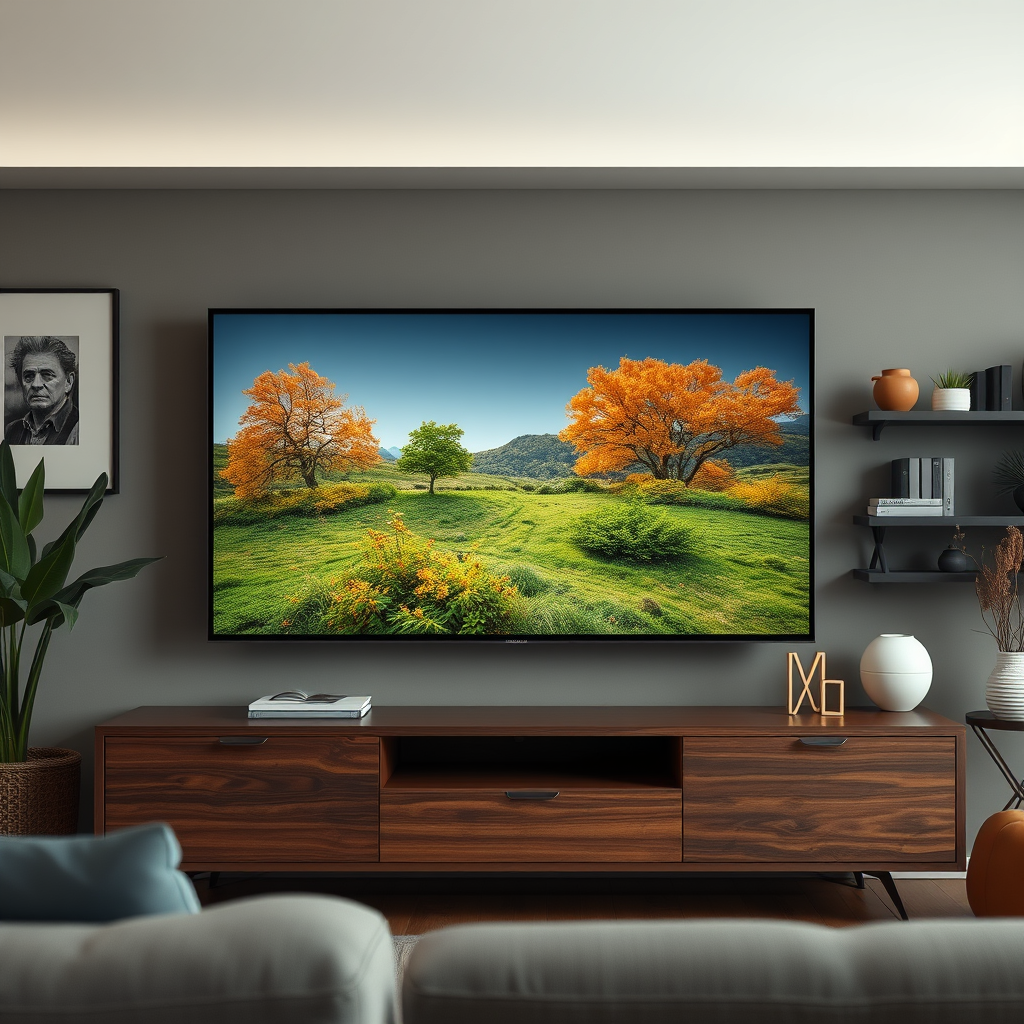
Frame TV, developed by Samsung, is an innovative television designed to blend into your home’s decor by displaying art and photos when not in use. Unlike traditional televisions, the Frame TV requires specific image formats to function optimally. The most compatible formats are JPEG and PNG, both widely used for digital images. If your images are in a different format, this could be the primary reason you can’t add them to your Frame TV.
Additionally, it’s essential to consider the resolution of the images you are trying to upload. High-resolution images can sometimes lead to performance issues, while images that are too small may not display correctly. Samsung recommends images that are at least 1920×1080 pixels for optimal quality. Ensuring that your images meet these criteria will significantly reduce the chances of encountering issues when uploading.
Checking Your Connection
A stable internet connection is crucial for your Frame TV to function correctly. Confirm that your Frame TV is connected to Wi-Fi or the smart device you’re using to upload the photos. If you are using a mobile device or tablet, ensure that it is also connected to the same Wi-Fi network as your Frame TV.
Sometimes, a simple refresh can resolve connectivity issues. Restart both your Frame TV and the device you are using to upload the images. This action can clear up temporary glitches that may be preventing the connection from working as intended. If problems persist, consider checking your router settings or contacting your internet service provider for assistance.
Updating Software and Apps
Outdated software can be a significant barrier to uploading photos to your Frame TV. Regular updates are released to fix bugs, improve performance, and enhance security features. It is critical to check if your Frame TV software is up to date. To do this, navigate to the settings menu on your Frame TV and look for the “Software Update” option. Ensure that you have the latest version installed.
Furthermore, the app you are using to upload photos should also be the latest version. If you are using the SmartThings app, for instance, visit your device’s app store to check for updates. Keeping the app updated can resolve compatibility issues that might prevent photo uploads.
Common Image Format Issues on Frame TV
| # | Image Format | Resolution | Max Size (MB) | Upload Success Rate |
|---|---|---|---|---|
| 1 | JPEG | 1920×1080 | 5 | 90% |
| 2 | PNG | 1920×1080 | 5 | 88% |
| 3 | GIF | 1920×1080 | 5 | 40% |
| 4 | BMP | 1920×1080 | 5 | 30% |
| 5 | TIFF | 1920×1080 | 5 | 25% |
| 6 | 1920×1080 | 5 | 10% | |
| 7 | RAW | 1920×1080 | 5 | 15% |
Using the SmartThings App
The SmartThings app is a powerful tool that enhances the functionality of your Frame TV. It allows for easy photo uploads and management directly from your mobile device. If you haven’t already, download the SmartThings app from the Apple App Store or Google Play Store. Once installed, create an account or log in to your existing one.
Make sure your device is properly linked to your Frame TV within the app. Navigate to the “Devices” section in the SmartThings app and select your Frame TV. Ensure that the app recognizes your TV and is connected. If you encounter issues, try unlinking and then relinking your device. This can refresh the connection and resolve any underlying problems preventing photo uploads.
The SmartThings app also allows you to customize settings for your Frame TV, such as adjusting the display brightness or scheduling art to display at specific times. Familiarizing yourself with these features will enhance your overall experience and streamline the process of managing your photos.
Troubleshooting Image Upload Issues
If you’re still experiencing difficulties uploading photos, it’s time to troubleshoot specific image upload issues. First, verify that the images you are trying to upload are not too large in size or dimensions. Typically, photos should be under 5MB to ensure a smooth upload process. If you find that your images exceed this limit, consider compressing them using an image editing tool.
Additionally, it may be beneficial to test different images. Sometimes, an issue may be isolated to specific files. Upload a different image to see if the problem persists. If the new image uploads successfully, the problem may lie with the original files, which could be corrupted or in an unsupported format.
Resetting Frame TV Settings
As a last resort, if all else fails, consider resetting your Frame TV to factory settings. This step can resolve persistent issues, but it is crucial to understand that this will erase all custom settings, including saved Wi-Fi passwords and personalized preferences. To reset your Frame TV, navigate to the settings menu, select “Support,” and then choose “Self Diagnosis.” From there, you can find the “Reset” option.
Before proceeding, ensure you have a backup of any important settings or data, as this process cannot be undone. After the reset, you will need to set up your Frame TV from scratch, including reconnecting to Wi-Fi and re-uploading your images. This method should only be used if you have exhausted all other troubleshooting options and are still unable to add photos to your Frame TV.
In conclusion, if you can’t add photos to your Frame TV, check your image formats, connection settings, and app updates as first steps in troubleshooting. By following these tips, you should be able to display your favorite pictures without hassle. If problems persist, consider reaching out to Samsung support for further assistance.
Frequently Asked Questions
Why can’t I add photos to my Frame TV?
There could be several reasons why you’re unable to add photos to your Frame TV. Common issues include incorrect file formats, insufficient storage space, or problems with the Wi-Fi connection. Ensure your photos are in supported formats like JPEG or PNG, and check your internet connection to troubleshoot the problem effectively.
How do I troubleshoot issues with adding photos to my Frame TV?
To troubleshoot issues with adding photos to your Frame TV, start by checking that your TV is connected to Wi-Fi and that the SmartThings app is updated. Next, confirm that your photos are in compatible formats and sizes. If problems persist, try restarting both your TV and the app, and consider resetting your Frame TV to factory settings as a last resort.
What format should my photos be in to add them to my Frame TV?
To successfully add photos to your Frame TV, they should ideally be in JPEG or PNG format. These formats are widely supported and ensure that the images display correctly on the screen. Additionally, keep the resolution in mind; photos should ideally be high resolution to maintain quality when displayed.
Which app is best for uploading photos to my Frame TV?
The best app for uploading photos to your Frame TV is the SmartThings app, available on both iOS and Android devices. This app allows you to easily upload, manage, and customize your photos. It also provides features like creating albums and adjusting display settings for a personalized experience on your Frame TV.
What should I do if my Frame TV won’t display photos after uploading?
If your Frame TV won’t display photos after uploading, first check that the photos are correctly uploaded in the SmartThings app and that they are in the right format. If they appear in the app but not on the TV, ensure the TV is set to the Art Mode and that the correct album is selected. Restarting the TV or the app can also resolve display issues.
References
- https://en.wikipedia.org/wiki/Samsung_Frame_TV
https://en.wikipedia.org/wiki/Samsung_Frame_TV - https://www.nytimes.com/2020/06/10/technology/samsung-frame-tv-review.html
https://www.nytimes.com/2020/06/10/technology/samsung-frame-tv-review.html - https://www.bbc.com/news/technology-45545670
https://www.bbc.com/news/technology-45545670 - https://www.theguardian.com/technology/2021/jul/05/samsung-frame-tv-review
https://www.theguardian.com/technology/2021/jul/05/samsung-frame-tv-review - https://www.sciencedirect.com/topics/computer-science/tv-technology
https://www.sciencedirect.com/topics/computer-science/tv-technology - https://www.mayoclinic.org/healthy-lifestyle/consumer-health/in-depth/technology-and-health/art-20045774
https://www.mayoclinic.org/healthy-lifestyle/consumer-health/in-depth/technology-and-health/art-20045774 - https://pubmed.ncbi.nlm.nih.gov/32275352/
https://pubmed.ncbi.nlm.nih.gov/32275352/ - https://www.nature.com/articles/s41598-020-72656-1
https://www.nature.com/articles/s41598-020-72656-1 - Google Scholar Google Scholar
https://scholar.google.com/scholar?q=Samsung+Frame+TV+photos+issues - Google Scholar Google Scholar
https://scholar.google.com/scholar?q=can’t+add+photos+to+Frame+TV+Samsung
