
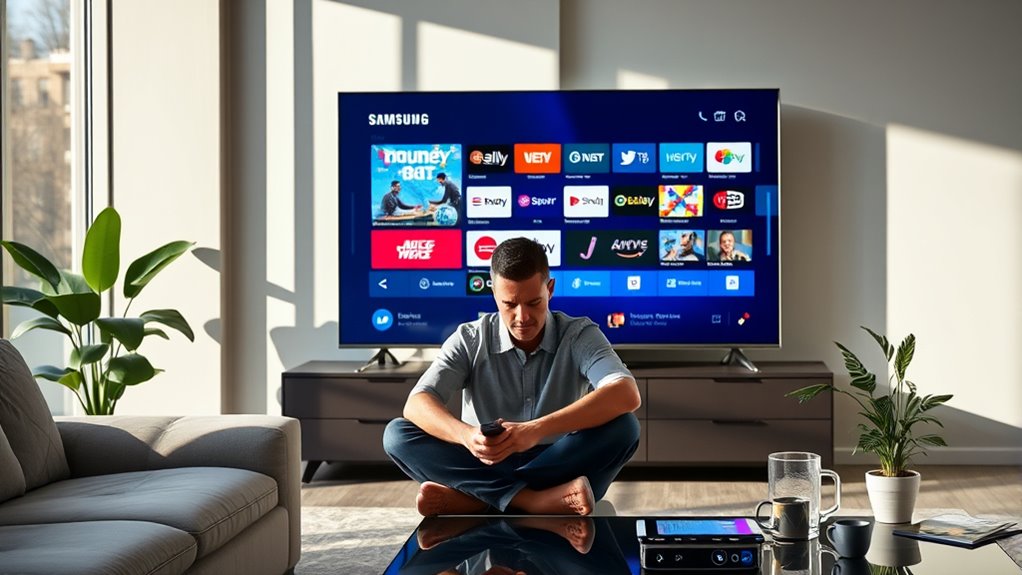

If you can’t find the Bally Sports app on your Samsung Smart TV, it might be due to compatibility issues with your particular model or outdated software. Start by checking if your TV model supports the app; you can find the model number in the settings. Also, verify your TV’s software is up to date to access the latest features. If you still can’t locate the app, there are alternative ways to enjoy Bally Sports content.
Understanding the Bally Sports App Availability
Have you ever wondered how to access the Bally Sports app on your Samsung Smart TV? Understanding Bally Sports availability is vital for streaming your favorite games. The app’s compatibility with various Samsung models may vary, so it’s important to know if your TV supports it. Generally, newer Samsung Smart TVs are more likely to have the app pre-installed or available for download. However, if you own an older model, you might face limitations. To check availability, navigate to the Samsung Smart Hub and search for the Bally Sports app. If it’s not listed, it may not be compatible with your device. Staying informed on updates can guarantee you don’t miss out on accessing Bally Sports content, enhancing your viewing freedom.
Checking Your Samsung Smart TV Model
How can you determine which model of Samsung Smart TV you own? Start by checking the back or side of your TV for a label that lists the Samsung model number. Alternatively, navigate to the Settings menu, select “Support,” then “About This TV.” Knowing your Samsung model is essential because app compatibility, including the Bally Sports App, often varies by model and software version. If your TV is an older model, it might not support the latest apps, which could explain your difficulty finding Bally Sports. By identifying your model, you can better assess your options for accessing the Bally Sports App and guarantee you’re making informed decisions about your viewing experience.
Ensuring Software Updates Are Installed
To guarantee the Bally Sports app runs smoothly on your Samsung Smart TV, keeping your software up to date is essential. You can check for updates manually or configure automatic settings to streamline the process. Understanding both methods will help you maintain peak performance and access the latest features.
Check for Updates
While keeping your Samsung Smart TV up to date may seem like a minor task, ensuring software updates are installed is essential for peak performance of the Bally Sports app. Regular updates enhance app compatibility and enable new smart TV features, giving you a superior viewing experience.
Here’s how to check for updates:
| Step Number | Action | Result |
|---|---|---|
| 1 | Go to Settings | Access the main menu |
| 2 | Select Support | Navigate to support options |
| 3 | Click on Software Update | Check for available updates |
| 4 | Install Updates | Enhance app functionality |
Automatic Update Settings
Making sure your Samsung Smart TV is set to automatically update can save you time and enhance your experience with the Bally Sports app. Automatic updates guarantee that you always have the latest features and security enhancements, which can greatly improve app performance. To enable this, navigate to your TV’s settings and locate the software update section. Here, you can activate automatic updates, allowing your TV to install updates without manual intervention. Additionally, check your app permissions to make certain the Bally Sports app has the necessary access for peak functionality. Keeping your TV updated not only enhances your viewing experience but also guarantees you don’t miss out on new features or improvements that could enrich your engagement with the app.
Manual Update Process
If you prefer a hands-on approach, manually checking for software updates on your Samsung Smart TV can be a straightforward process. Start by directing yourself to the Settings menu, then select “Support” and choose “Software Update.” This will prompt your TV to check for available updates. If an update is found, you can initiate the manual installation. It’s vital to confirm that your TV’s software is current, as this affects app compatibility, including the Bally Sports app. Keeping your TV updated not only enhances performance but also guarantees you have access to the latest features. Regularly checking for updates assures that you won’t miss out on essential improvements, allowing your viewing experience to be as seamless as possible.
Searching for the Bally Sports App
Have you ever wondered how to easily find the Bally Sports App on your Samsung Smart TV? Start by checking your TV’s app store to verify it’s compatible with the Bally Sports App. Not all Samsung models support every app, so it’s vital to know your device’s specifications. Once you’ve confirmed compatibility, search for the app by typing “Bally Sports” in the search bar of the app store. If it doesn’t appear, you may need to update your TV’s software or check if the app is available in your region. Remember, successful app installation hinges on both compatibility and availability, so staying informed will help you access exciting sports content.
Installing the Bally Sports App
To install the Bally Sports App on your Samsung Smart TV, start by checking the Samsung Smart Hub for its availability. It’s also essential to confirm your TV’s firmware is up to date for peak performance. Finally, you can access the Samsung App Store to download and install the app directly.
Check Samsung Smart Hub
Many users find that accessing the Samsung Smart Hub is the first step to installing the Bally Sports app on their Smart TV. To begin, press the Smart Hub button on your remote. This takes you to a dashboard featuring various apps and services. Use the App Navigation feature to browse through the available apps. You may also search for “Bally Sports” in the search bar to locate it quickly. If you spot the app, select it and follow the prompts to download and install. Remember, having a stable internet connection is essential for a smooth installation process. By effectively utilizing the Samsung Smart Hub, you can enjoy seamless access to your favorite sports content in no time.
Update TV Firmware
After accessing the Samsung Smart Hub, ensuring your TV’s firmware is up to date is important for a smooth installation of the Bally Sports app. Firmware plays a vital role in your TV’s performance, affecting compatibility with new apps and features. Regular updates enhance stability and security, making sure you enjoy seamless streaming. To check for updates, navigate to the settings menu, select “Support,” and then “Software Update.” The frequency of updates can vary, but keeping your firmware current is essential to avoid potential issues. By prioritizing firmware importance, you empower your Samsung Smart TV to function at its best, allowing you to access the Bally Sports app and enjoy your favorite content without interruptions.
Use Samsung App Store
Once you’ve guaranteed your Samsung Smart TV is ready, accessing the Samsung App Store is the next step to install the Bally Sports app. Start by directing yourself to the App Store on your TV’s home screen. Use the search function to find the Bally Sports app, ensuring your device meets the necessary Samsung App Compatibility requirements for peak performance. Once located, select the app and click ‘Install.’ This app offers a range of Bally Sports Features, including live streaming and game highlights, enhancing your viewing experience. After installation, you can find it in your app library. With the Bally Sports app ready, you’re free to enjoy your favorite sports content with ease and convenience.
Troubleshooting Common Issues
While streaming on the Bally Sports app via your Samsung Smart TV, you might encounter a few common issues that can disrupt your viewing experience. First, check for app compatibility issues, as not all models support the app. Ascertain your TV’s software is up to date; outdated firmware can lead to performance problems. If the app crashes or won’t load, try clearing the app cache or reinstalling it altogether. Additionally, verify your internet connection; a weak signal can hinder streaming quality. Using these troubleshooting tips, you can often resolve issues quickly and reclaim your viewing freedom. If problems persist, consider reaching out to customer support for further assistance tailored to your specific device.
Alternative Ways to Access Bally Sports Content
How can you enjoy Bally Sports content if the app on your Samsung Smart TV isn’t working? Fortunately, there are alternative ways to access your favorite sports viewing. Consider using popular streaming services like Hulu + Live TV, YouTube TV, or fuboTV, which often include Bally Sports channels in their packages. You can also explore the Bally Sports website, where you can stream live games directly through your browser, provided you have a cable login. Additionally, if you have a gaming console or streaming device like Roku or Amazon Fire Stick, you can download the Bally Sports app there. These options give you the freedom to catch all the action, regardless of app availability on your Smart TV.
Frequently Asked Questions
Is the Bally Sports App Free to Download on Samsung Smart TVS?
You won’t believe it, but the Bally Sports app’s free to download on Samsung Smart TVs! Just navigate to your app store, and the download process is as easy as pie. Enjoy your sports freedom!
Can I Stream Bally Sports Without a Cable Subscription?
Yes, you can stream Bally Sports without a cable subscription. Consider various streaming options and cable alternatives like YouTube TV or Hulu + Live TV, which often include Bally Sports in their channel lineups for flexible viewing.
What Should I Do if the App Crashes on My TV?
If the app crashes, start with app troubleshooting steps. Check for software updates on your TV, restart the app, and clear the cache. These actions often resolve issues, allowing you to enjoy your streaming experience uninterrupted.
Are There Regional Restrictions for the Bally Sports App?
Yes, there’re regional restrictions for the Bally Sports app. Depending on your location, app availability may vary, limiting access to certain content. Always check local guidelines to verify you’re in the right region for viewing.
How Do I Contact Bally Sports Customer Support for App Issues?
To contact Bally Sports customer support for app issues, visit their official website or use the app’s settings. You’ll find options for live chat, email, or phone support to get your concerns addressed quickly.
