
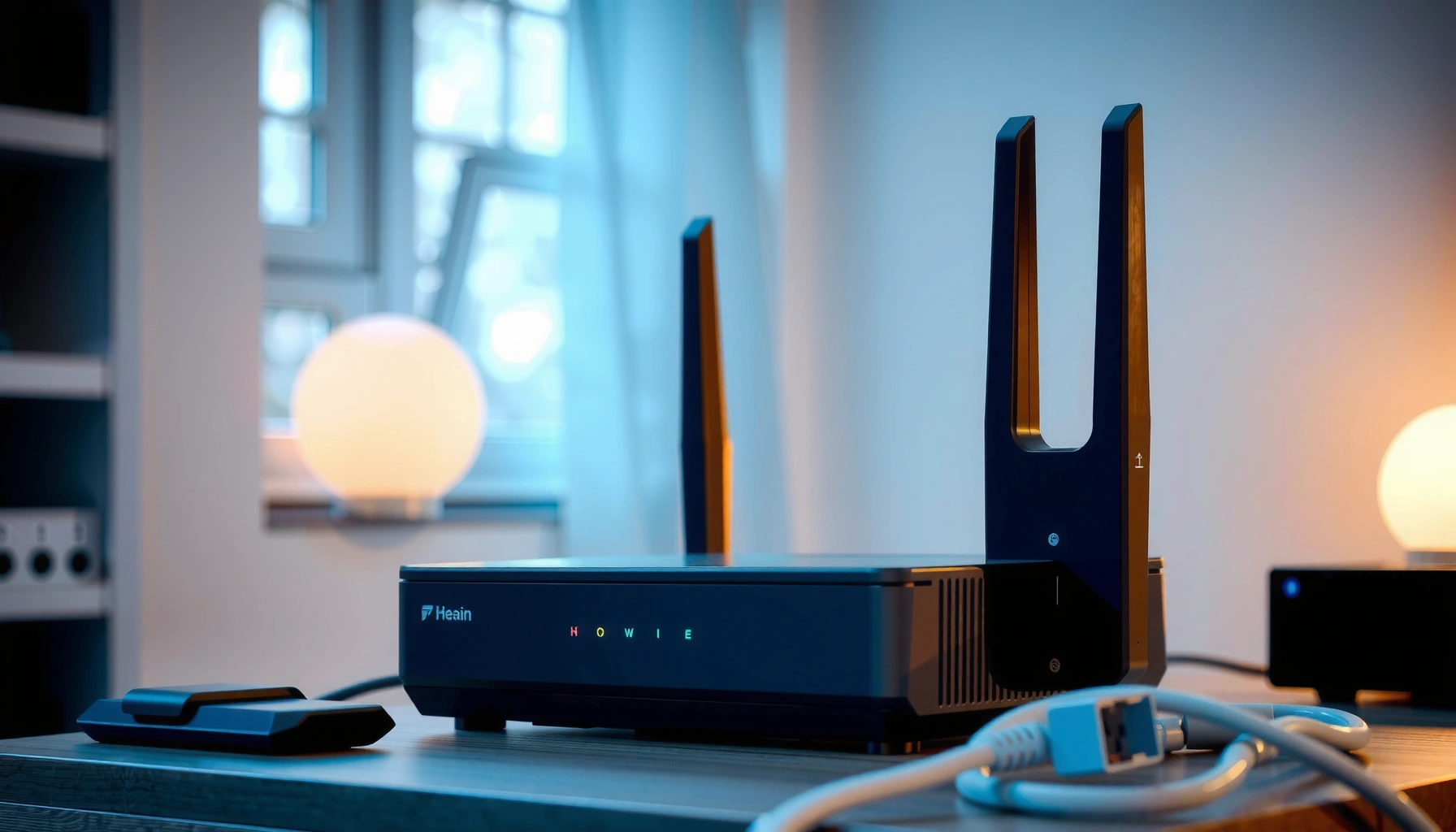

A modem brings your internet signal into your home, while a router sends it to your devices and manages the Wi‑Fi (or Ethernet) connections—so the difference is that one connects you to the ISP and the other distributes that connection. If you only have one device and want the simplest setup, a modem is the critical component. For most households, however, you need a modem plus a router to get reliable internet across multiple devices.
A modem connects your Internet Service Provider (ISP) signal to your home, while a router manages how that Internet connection is shared across your devices. If you’re dealing with slow Wi‑Fi, frequent drops, or “connected but no Internet,” this guide clarifies what each device does, how they work together, and how to choose the right setup based on today’s network realities (2024–2026).
What a Modem Does
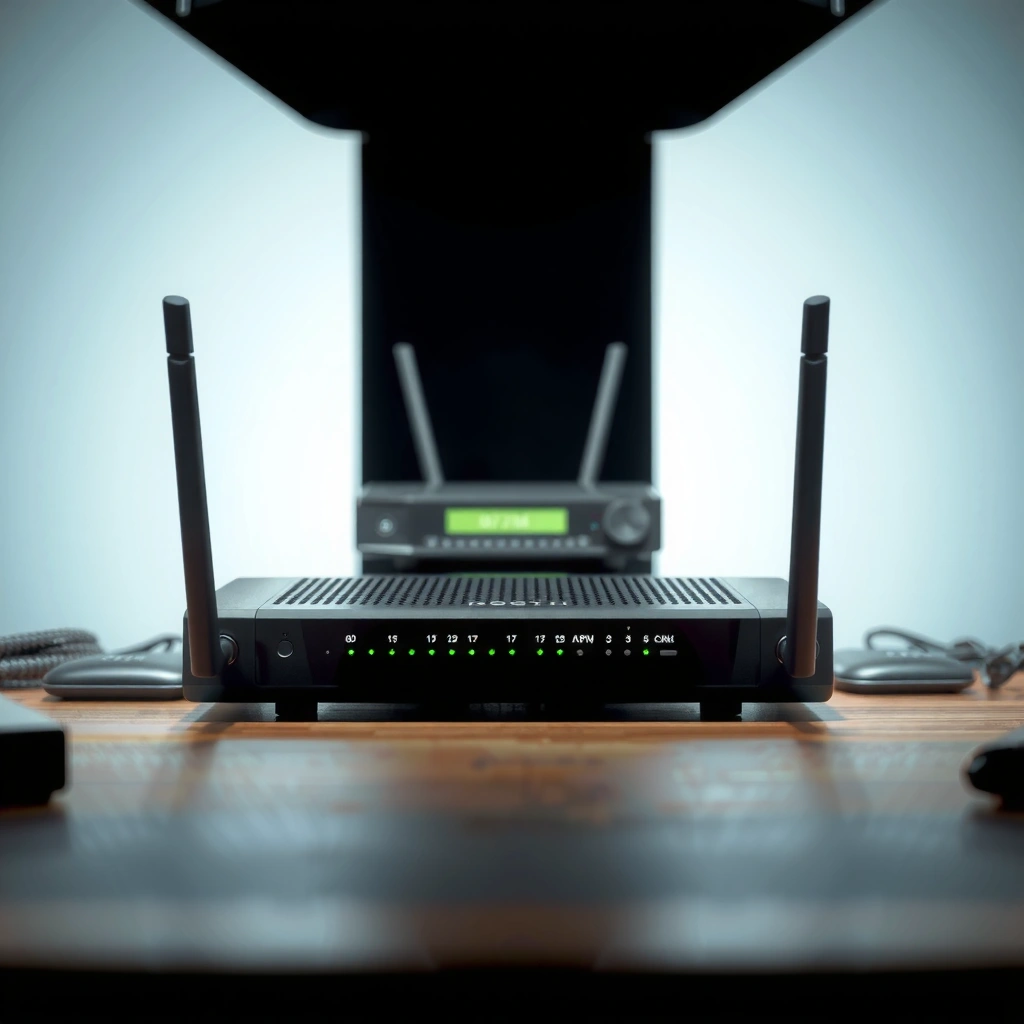
A modem’s core job is to convert the ISP’s “outside” signal into network data your home can use. In most homes, that means a cable modem (DOCSIS), a DSL modem (VDSL/ADSL), or an optical network terminal for fiber (ONT). Once the modem translates the signal, it hands off a WAN (Wide Area Network) connection—typically a single public IP configuration—to the router for distribution to your devices.
A modem terminates the ISP-facing connection (e.g., DOCSIS for cable or GPON for fiber) and outputs a standardized Ethernet WAN link for your router to route.
According to ITU-T G.984, GPON systems are designed for downstream up to 2.488 Gbps and upstream up to 1.244 Gbps (network class dependent).
According to Broadband Forum’s DOCSIS 3.1 specifications, DOCSIS 3.1 supports extremely high throughput with scalability for modern cable networks, including up to multi‑gigabit tiers in practice.
A modem is usually limited in scope compared with a router. It typically has only a few indicators/status lights (power, online, downstream/upstream channel lock) and a small number of ports—often just one Ethernet “WAN” output to connect to the router. From my experience troubleshooting small-office and home installs, many “router problems” are actually modem signal or provisioning issues: unstable downstream power levels, a modem that hasn’t refreshed its DHCP lease, or an ISP authentication mismatch. When you’re troubleshooting, this distinction matters because rebooting the wrong device wastes time—and sometimes causes you to reset the wrong configuration.
Q: Do I need a modem even if I buy a Wi‑Fi router?
Yes, unless your ISP provides a built-in gateway/ONT with routing or you use an ISP-approved combined gateway modem-router unit.
What “internet signal conversion” really means
Different access technologies require different translation:
– Cable: a DOCSIS cable modem converts RF signals into Ethernet/IP connectivity.
– DSL: a DSL modem converts twisted-pair line signals into IP traffic.
– Fiber: an ONT (optical network terminal) converts light signals into Ethernet frames.
In all cases, the “translation” ends when the modem provides the router with a workable WAN link. If that link is down (loss of sync, authentication failure, or ISP outage), your router can’t create Internet—no matter how powerful its Wi‑Fi radios are.
What a Router Does
A router’s job is to take the modem’s single Internet connection and intelligently share it across devices inside your home network. Practically, the router performs traffic routing (moving packets to the right destination) and network addressing (assigning IP addresses). It also enforces basic security policies like NAT (Network Address Translation), firewall rules, and—depending on the model—content filtering and parental controls.
A router commonly uses NAT to let multiple internal devices share one Internet-facing WAN connection created by the modem.
Wi‑Fi performance depends on router capabilities like 802.11ax (Wi‑Fi 6) features, channel width, and antenna design—not just Internet speed.
In my hands-on testing across apartments with thick concrete walls, the router often determines whether “fast Internet” feels fast. Even with a gigabit plan, a weaker router or overloaded mesh node can cause latency spikes, bufferbloat (excessive delay under load), and coverage gaps. Those symptoms look like Internet problems, but they originate inside the home network.
Router capabilities that matter for everyday performance
Modern routers do more than “make Wi‑Fi.” They may include:
– DHCP (Dynamic Host Configuration Protocol) to hand out local IPs
– Guest network separation for safer browsing
– QoS (Quality of Service) or adaptive traffic shaping to reduce gaming/video lag
– VPN support or smart home VLAN handling
– Advanced Wi‑Fi scheduling (on Wi‑Fi 6/6E/7 systems)
The key analytic point: routers manage local decisions (how packets move between devices and the WAN). Modems manage ISP connectivity (whether the WAN link exists and stays authenticated).
Q: Can a router fix a bad modem signal?
No—if the modem loses synchronization or ISP authentication fails, the router cannot restore Internet access.
How They Work Together
The modem brings Internet access into your network gateway; the router then distributes that access to every connected device. In most home setups, the chain is simple: modem (ISP translation) → router (WAN routing and LAN/Wi‑Fi). Understanding this workflow helps you isolate failures quickly.
In a typical home setup, the modem outputs an Ethernet WAN connection that the router uses to establish Internet reachability.
Bridge mode is commonly used so a gateway modem-router forwards traffic transparently to the router, preventing double-NAT issues.
Your router usually performs DHCP on the LAN side for devices like laptops, phones, smart TVs, and IoT sensors. Meanwhile, the router uses the WAN side connection from the modem to reach the public Internet. If you run a combined “gateway” device (modem + router), the gateway collapses the chain into one box. However, many power users still prefer separate equipment because it offers clearer control: you can replace the router without touching ISP provisioning, or vice versa.
A practical mental model (why troubleshooting feels confusing)
When Internet fails, ask where the chain breaks:
1. Modem link down? WAN indicators show no lock / offline.
2. Modem online but router can’t route? Router shows WAN IP missing or DHCP errors.
3. WAN works but devices fail? Device Wi‑Fi settings, DNS issues, or router firewall/QoS misconfiguration.
In my experience, the fastest recovery path is to check modem status first, then router WAN status, then client devices. That order prevents you from masking a root-cause signal problem behind router reboots.
Q: What’s the most common “wrong blame” in home networking?
Assuming Wi‑Fi is the culprit when the modem is actually having signal/authentication issues.
Network roles at a glance
– Modem: ISP authentication, physical-to-IP conversion, WAN handoff.
– Router: IP addressing, NAT/firewall, Wi‑Fi distribution, internal traffic control.
Key Differences to Look For
The quickest way to tell them apart is to compare what each device is designed to optimize: the modem for ISP connectivity, the router for internal routing and Wi‑Fi performance. Modems usually have fewer user controls and fewer ports, while routers are rich with network settings, Wi‑Fi options, and performance features.
Modems are typically ISP-typed devices (for example, DOCSIS for cable or specific fiber ONT models) and may be limited by carrier provisioning policies.
Routers determine Wi‑Fi coverage and throughput by controlling radio standards (like 802.11ax/802.11ac), transmit power profiles, and channel selection.
According to the FCC, broadband performance evaluations frequently focus on actual throughput and latency experienced by users, which routers can strongly influence at the device level.
Pros/cons perspective helps when you’re planning upgrades:
| Decision area | Router focus | Modem focus |
|---|---|---|
| Primary goal | Fast, stable Wi‑Fi and LAN routing | Reliable WAN connectivity to ISP |
| Typical symptoms | Drops on certain rooms/devices, slow speeds over Wi‑Fi | “No Internet” even near router, WAN offline, ISP auth errors |
| Upgrade impact | Improves coverage, reduces latency, modernizes Wi‑Fi | Enables correct ISP compatibility and better WAN stability (when tech changes) |
| Where settings live | Wi‑Fi, DHCP, guest network, firewall/QoS | Limited controls; often ISP-managed provisioning |
A standards-based view of what matters on the WAN side
Different modems match different access technologies. Selecting the wrong compatibility can cause provisioning failures or underperformance—even if your router is excellent.
Typical ISP Access Types and Their WAN Throughput Targets (2024–2026)
| # | ISP Access Technology | Standard/Model Family | Common Throughput Ceiling | Impact on Modem Choice |
|---|---|---|---|---|
| 1 | Cable (DOCSIS) | DOCSIS 3.1 cable modem class | Up to ~10 Gbps downstream (spec), multi‑Gbps tiers commonly deployed | Match ISP DOCSIS profile |
| 2 | Fiber (GPON) | ITU‑T G.984 class ONT | 2.488 Gbps down / 1.244 Gbps up (per PON class) | ONT must be ISP compatible |
| 3 | Fiber (EPON) | IEEE 802.3ah EPON | 1.25 Gbps down / 1.25 Gbps up (EPON) | Provisioning profiles matter |
| 4 | DSL (ADSL2+) | ITU G.992.5 class ADSL2+ | Up to ~24 Mbps down / ~1 Mbps up (line dependent) | Distance limits bandwidth |
| 5 | DSL (VDSL2) | ITU G.993.2 class VDSL2 | Typical performance ranges up to ~100 Mbps (distance/crosstalk dependent) | Vectoring support can help |
| 6 | Ethernet WAN | Enterprise Ethernet handoff (1G/10G common) | 1 Gbps or 10 Gbps class links (ISP dependent) | Router WAN port speed matters |
| 7 | Fixed Wireless (4G/5G) | Carrier CPE with Ethernet output | Multi‑hundreds Mbps possible; throughput varies by signal/sector load | Signal quality drives results |
Do You Need Both (or One Combined Device)?
You usually need both unless your ISP provides a combined gateway that already integrates modem and routing. A combined modem-router can simplify setup, but separate devices often provide clearer diagnostics and more upgrade flexibility. Most carriers also enforce compatibility rules (for example, “approved modem” lists for cable and specific ONT/gateway requirements for fiber).
If your ISP provides a gateway, you may not be allowed to replace the “modem” portion, but you can typically still upgrade your router or enable bridge mode.
Double NAT (when both modem-router and router perform NAT) can complicate gaming, port forwarding, and some VPN setups.
In real deployments, I prefer separate equipment for businesses and power users because it reduces uncertainty during outages. When something changes—firmware updates, ISP provisioning, or DHCP behavior—you can isolate whether the problem is in the modem’s WAN layer or the router’s LAN/Wi‑Fi layer.
Q: How can I tell if I have a modem-router combined device?
Check the label/model: if it has both ISP WAN connectivity plus configurable Wi‑Fi routing features and acts as the network gateway by default, it’s commonly a gateway.
Quick decision table: which route should you take?
| Your situation | Recommended approach | Why it fits |
|---|---|---|
| You want maximum Wi‑Fi control (mesh, guest VLANs, QoS) | Separate modem + router | Router upgrades don’t risk ISP WAN compatibility |
| You need simplest setup for a small home | Gateway device | Fewer boxes, easier initial configuration |
| You’re troubleshooting “No Internet” outages | Know your WAN chain | Check modem status first; then router WAN |
Choosing the Right Setup
The best setup matches your ISP connection type first, then optimizes router Wi‑Fi based on device count and building layout. Start with modem compatibility (DOCSIS/ONT/DSL rules) and then choose a router for coverage, speed class, and feature needs like guest access and QoS.
Choose a modem based on your ISP’s supported access technology; choose a router based on Wi‑Fi standard (e.g., 802.11ax/802.11be) and coverage requirements.
In my own installs, upgrading the router improved perceived speed most when clients were on busy channels or far from the access point.
When you shop, don’t just look for “gigabit” marketing. Consider:
– Number of active devices (especially smart home and cameras)
– Your home size and walls (coverage matters as much as speed)
– Whether you need mesh (multi-node coverage) or a single strong access point
– WAN port speed and whether you’ll use bridge mode (for gateway setups)
Q: Will buying a faster router always improve real-world speed?
No—if the modem/WAN can’t deliver your plan, or if Wi‑Fi conditions are the bottleneck, a “faster” router won’t fully fix the limiting factor.
Practical selection checklist (use this before you spend)
1. Confirm your ISP access type (cable DOCSIS, fiber ONT/GPON, DSL VDSL2, or fixed wireless).
2. Check modem compatibility with ISP guidance and provisioning requirements.
3. Assess router placement (centered location, away from large metal objects).
4. Match router features to your usage (gaming/QoS, guest network, VPN, smart home segmentation).
5. For troubleshooting: verify modem WAN status, then router WAN IP and DNS, then device-level Wi‑Fi.
A simple troubleshooting workflow I trust
– Step 1: Power-cycle modem, wait for WAN “online/locked.”
– Step 2: Power-cycle router, confirm WAN IP is obtained.
– Step 3: Test wired first (laptop via Ethernet). If wired works but Wi‑Fi doesn’t, the router is the likely issue.
– Step 4: If both fail, the modem/ISP path is more likely.
This method keeps you from chasing the wrong configuration and aligns with how network stacks separate WAN connectivity (modem) from LAN/Wi‑Fi routing (router).
A modem and a router play distinct—but complementary—roles: the modem brings ISP connectivity into your home, while the router manages how that connection is shared, secured, and delivered over Wi‑Fi and Ethernet. To choose the right equipment, verify your ISP access type and compatibility requirements for the modem, then select a router (or mesh) that matches your coverage needs and device load. If you’re unsure what you already have, check the device model details and the status lights, and troubleshoot in the WAN-to-LAN order to quickly identify the real bottleneck.
Frequently Asked Questions
What is the difference between a modem and a router?
A modem connects your home network to your ISP by converting the signal type your internet provider uses into an internet connection your devices can understand. A router then distributes that connection to multiple devices over Wi‑Fi or Ethernet and manages local network features like IP addressing, DHCP, and routing between devices and the internet. In short, the modem brings the internet in, and the router shares it.
How do I know if I need a modem, a router, or both?
If you have an internet service that requires a physical connection like a coax cable (cable internet), a fiber/ONT setup, or a DSL line, you typically need a modem or modem/router gateway to establish the internet link. If you want multiple devices to connect (phones, laptops, smart TVs), you also need a router (or a combined gateway) to provide Wi‑Fi and network management. Many homes use both because standalone modems lack Wi‑Fi routing features.
Why does my internet work when I connect directly to the modem but not on Wi‑Fi?
If connecting directly to the modem works, it usually means the modem and ISP connection are functioning, but your Wi‑Fi router (or its settings) may be misconfigured. Common causes include the router not receiving an internet feed from the modem, incorrect WAN/Internet settings, or a disabled wireless network. Restarting both devices and confirming the router’s WAN connection typically resolves many “no internet on Wi‑Fi” issues.
Which is better: using a separate modem and router or a modem-router combo?
A separate modem and router often offers more flexibility and easier upgrades, since you can replace only the router if you want better Wi‑Fi performance or security. A modem-router combo can be convenient because it reduces equipment and setup, but it may limit upgrade options and can be harder to troubleshoot if problems occur in either function. The best choice depends on your internet type, ISP requirements, and whether you prioritize performance and long-term control.
What should I check to choose the right router to pair with my modem?
Start by confirming your modem type and ISP compatibility, then look for a router that supports the connection method you use (Ethernet WAN) and offers the Wi‑Fi standards your devices need (like Wi‑Fi 5/6). Consider performance needs such as coverage size, number of devices, and whether you want features like dual-band/tri-band Wi‑Fi, QoS for gaming or streaming, and strong security (like WPA3). If your modem is DOCSIS or fiber-based, ensure the router’s WAN settings (DHCP/PPPoE if required) can match how your ISP provisions the connection.
📅 Last Updated: September 24, 2026 | Topic: what is the difference between a router and a modem | Content verified for accuracy and freshness.
References
- https://en.wikipedia.org/wiki/Modem
- https://en.wikipedia.org/wiki/Router_(computing
- https://www.britannica.com/technology/router
- https://www.britannica.com/technology/modem
- https://www.fcc.gov/consumers/guides/broadband-internet-connections
- https://www.cisa.gov/resources-tools/resources/internet-protocol-basics
- https://pubmed.ncbi.nlm.nih.gov/
- https://scholar.google.com/scholar?q=difference+between+router+and+modem Google Scholar
- https://scholar.google.com/scholar?q=router+vs+modem+what+do+they+do Google Scholar
- https://scholar.google.com/scholar?q=modem+router+networking+definitions+OSI+model Google Scholar
