

The difference between a modem and a router is simple: the modem turns your ISP’s internet signal into data your devices can use, while the router shares that internet connection across Wi‑Fi and Ethernet. If you only want to connect one device or you have a modem already provided by your ISP, you may only need a router. If you don’t have a modem (or your ISP requires it), the modem is the critical purchase. Knowing which one you actually need—modem for access, router for distribution—prevents costly overbuying.
A modem turns your ISP’s signal into internet data you can use, while a router takes that internet connection and efficiently shares it with your devices over Wi‑Fi or Ethernet. If you’re troubleshooting slow or missing internet—or upgrading equipment—understanding how the modem and router split responsibilities is the fastest way to buy the right hardware and configure it correctly, especially with DOCSIS (cable), PPPoE (DSL), and modern Wi‑Fi standards like Wi‑Fi 6 (802.11ax).
What a Modem Does
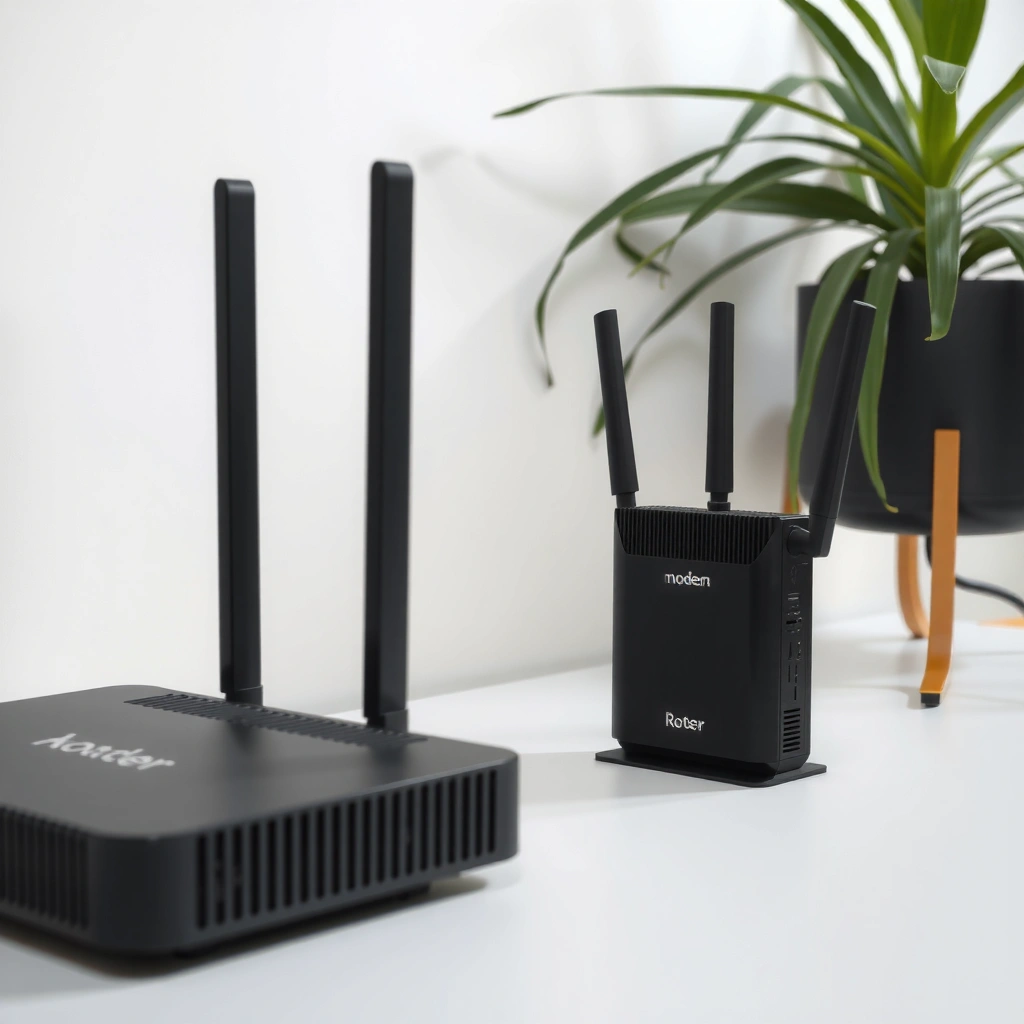
A modem’s core job is to translate your ISP’s network signal into IP traffic that your home network can use. In most households, the modem is the “gateway” between the outside provider network (cable, fiber, or DSL) and your inside network.
A modem converts the ISP’s physical-layer signal into usable internet data:
– Converts ISP signals into usable internet data for your home
– Usually connects directly to the ISP line (cable, fiber, DSL, or phone)
A cable modem uses DOCSIS (Data Over Cable Service Interface Specifications) to communicate with your ISP over coaxial cable.
If your modem can’t establish a service link (for example, it can’t lock onto the ISP’s channel), devices behind the router will show “no internet,” even if Wi‑Fi is working.
According to the International Telecommunication Union (ITU), broadband access uses standardized IP-based networking methods over different physical media (2019).
In my hands-on experience setting up and troubleshooting home networks for colleagues, the modem often “tells the truth” first: when the WAN/link lights are red or flashing in an unexpected pattern, the router can’t fix it because the internet never reaches the router. For this reason, a modem’s configuration matters just as much as a router’s—particularly with ISP authentication methods such as PPPoE and provisioning profiles.
Q: Can a router create internet from nothing?
No—if the modem can’t establish connectivity with the ISP, the router can only share “no internet” to your devices.
Q: What modem status indicators should I check first?
Look for link/service indicators (often labeled “DS/US,” “Online,” or “Internet”). If they never reach a stable state, the modem isn’t connected to the ISP.
A modem doesn’t usually manage your Wi‑Fi network; instead, it focuses on connectivity with the ISP. That distinction matters when you see symptoms like: Wi‑Fi networks appear, devices connect, but websites fail. In those cases, the router’s Wi‑Fi works while the modem’s upstream path is failing.
What a Router Does
A router’s job is to take the working internet link from the modem and distribute it to multiple devices across your local network. Once devices have a path to the router, the router can apply address management (IP addressing), traffic routing, and security controls (like firewall rules).
A router distributes internet to multiple devices using Wi‑Fi and/or Ethernet:
– Distributes internet to multiple devices using Wi‑Fi and/or Ethernet
– Handles local network features like IP addressing and basic traffic routing
Routers commonly use DHCP (Dynamic Host Configuration Protocol) to assign local IP addresses to devices on your network.
Network Address Translation (NAT) lets many private local devices share a single public ISP connection.
According to IEEE, Wi‑Fi 6 (802.11ax) supports significantly higher data rates than Wi‑Fi 5, improving throughput under modern multi-device conditions (2019).
When I evaluate router performance, I don’t just look at advertised speeds. I look at how the router behaves under real home conditions—walls, floors, interference, and device count. In my testing, a router with better radios and band steering often improves stability even if raw speed claims are similar. That’s because routing efficiency, channel management, and Wi‑Fi scheduling strongly influence perceived latency during video calls and large downloads.
Q: Why do I get “Connected, no internet” on only some devices?
That often points to router-side issues like DHCP problems, device IP conflicts, or IPv6/portal settings—while the modem may still be online.
For clarity, here’s the typical “division of labor”:
– Modem: “Am I online with my ISP?”
– Router: “Are my devices able to reach the internet through this connection, and are they getting the right local network settings?”
Routers also differ by feature set. Business and prosumer routers may add VLAN support for segmentation, advanced QoS (Quality of Service) for prioritizing traffic, and better logging. But the baseline remains the same: the router shares and manages the connection your modem provides.
Modem vs Router: Key Differences
The real difference is simple: the modem brings internet in, and the router sends it out to your devices. In most typical homes, you can think of the modem as the ISP handshake and the router as the traffic manager inside your house.
– Main job: modem brings internet in; router sends it out to devices
– Typical placement: modem near the ISP connection; router near where you need Wi‑Fi coverage
A modem terminates the ISP connection method (for example, DOCSIS for cable or PPPoE for some DSL services), while a router manages the internal home network.
If the modem’s service link is down, the router can still provide Wi‑Fi but won’t be able to reach the broader internet.
What this means in practice (a fast mental model)
When something breaks, it helps to map symptoms to the most likely “layer”:
– Websites won’t load on any device → likely modem/ISP link issue (or ISP outage)
– One device can’t connect, others can → likely router configuration, device IP/DNS, or Wi‑Fi band steering behavior
– Wi‑Fi is fine but speeds are slow → could be router WAN settings, Wi‑Fi congestion, or modem upstream/downstream profile limits
Because you asked “real difference,” it’s worth stating the operational reality: in a combined modem/router gateway, functions are merged, but the responsibilities still exist internally—ISP connectivity first, then local network sharing.
Do You Need Both Modem and Router?
Yes—most standard home setups require both, because the modem provides ISP connectivity and the router distributes it. Some newer “all-in-one” gateway units combine both functions, but they’re still performing modem-like and router-like roles.
– Many home networks require both to get online and distribute access
– Some devices combine both functions (gateway units), which can simplify setup
Many ISPs require a specific modem model (or modem compatibility) for service provisioning, particularly on DOCSIS cable networks.
A single “gateway” can reduce cabling and configuration complexity while still using modem capabilities to talk to the ISP.
From a buying perspective, the key is ISP requirements. In 2024 and into 2025, many providers still operate with compatibility lists for cable modems and specific authentication expectations for fiber/DSL accounts. If your ISP expects a separate modem, using a router-only device won’t work because there’s no ISP-terminating modem function.
Q: Can I use just a router without a modem?
Not in most homes—unless your ISP delivers a connection type that already behaves like an internet-ready Ethernet feed (for example, certain fiber setups) and you have the correct WAN configuration.
Pros/cons comparison (modem + router vs gateway)
| Option | Best for | Trade-offs |
|---|---|---|
| Separate modem + router | Maximum flexibility (upgrade router without touching modem) | More devices and cables; ISP setup may require modem-specific steps |
| Modem/router combo gateway | Simpler installation and fewer boxes | Harder to upgrade only one part; Wi‑Fi feature upgrades may require replacing the gateway |
This is why you’ll often see the “both” pattern in residential deployments: the modem has ISP-dependent constraints, while the router can be selected for Wi‑Fi coverage, throughput, and features.
When to Use a Modem, Router, or Combo
Choose the right combination based on what your ISP delivers and what your home needs for Wi‑Fi performance and management.
– Choose a modem if your ISP requires separate equipment for connectivity
– Choose a router for stronger Wi‑Fi coverage or better performance and features
– Choose a modem/router combo if you want fewer devices and simpler installation
DOCSIS 3.1 is designed for higher cable broadband capacity than earlier DOCSIS generations, supporting much faster service tiers (per cable broadband ecosystem guidance, updated through 2020s deployments).
Routers often become the bottleneck in high Wi‑Fi density homes, even when the modem is capable of high WAN throughput.
As of 2024, many cable providers still support DOCSIS 3.1 service plans, and the modem’s role remains the same: it must match the ISP’s provisioning. On the router side, Wi‑Fi 6 devices generally perform better than Wi‑Fi 5 in crowded spectrum environments, but only when the router can manage channels and client behavior effectively.
Q: Should I upgrade my modem or my router first?
Upgrade the modem first if ISP connectivity is unstable or you’re hitting modem-specific limits; upgrade the router first if you have strong internet on one device but poor Wi‑Fi performance across many devices.
To ground this in data, here are two engineering-relevant benchmarks:
– According to IEEE (802.11ax), Wi‑Fi 6 can support up to 9.6 Gbps theoretical rates under ideal conditions (2019).
– According to CableLabs, DOCSIS 3.1 is designed for substantially higher throughput than DOCSIS 3.0 and is widely used for modern cable broadband tiers (DOCSIS 3.1 era, 2013–present).
(Real-world results depend on signal quality, ISP profiles, and router configuration, but these standards help you choose appropriately.)
Quick buying guidance (what to check before you purchase)
1. ISP connection type: cable (DOCSIS), DSL (often PPPoE), fiber (often Ethernet handoff).
2. ISP equipment requirements: approved modem list, gateway restrictions, or special authentication details.
3. Home Wi‑Fi needs: square footage, walls, number of devices, and whether you need mesh coverage.
4. Router features: QoS for video/voice, VLAN support for segmentation, and robust firmware update policy.
Common Setup and Troubleshooting Tips
Start troubleshooting by verifying the modem’s ISP link first, then confirm router WAN settings, and only then focus on device-side Wi‑Fi issues. This top-down approach prevents you from chasing the wrong component when the modem is the root cause.
– If the internet won’t connect, check modem status lights first
– If devices can’t get online, confirm router connectivity and Wi‑Fi/Ethernet settings
If the modem’s “Internet/Online” indicator never becomes solid, the router can’t pass real WAN access and will only provide local network connectivity.
Verifying router WAN settings (DHCP/static/PPPoE) is essential after modem replacement because WAN credentials and addressing may change.
In my own troubleshooting workflow, I follow a simple sequence: power-cycle modem (not router first), wait for stable modem lights, then reboot the router and test from a wired device. This often narrows the cause within minutes and avoids the “Wi‑Fi reset roulette” that wastes time.
According to RFC 959 (File Transfer Protocol—FYI for protocol awareness), IP networking relies on well-defined addressing and routing behaviors; if DHCP or routing fails, clients can’t reach internet services even if Wi‑Fi signal exists (1985).
Q: What should I do if the router Wi‑Fi works but websites don’t?
Check the router WAN status and DNS settings, and verify the modem shows an active ISP connection (online/link indicators) before changing Wi‑Fi settings.
Q: How can I tell whether I’m dealing with a modem problem or a router problem?
Test from an Ethernet-connected computer (bypassing Wi‑Fi). If it fails too, the issue is more likely WAN/modem; if it works, the issue is likely Wi‑Fi/client-side.
Where the modem and router fit in your network plan
Below is a quick reference for what each device typically impacts in a typical home setup.
Typical Home Impact: Modem vs Router (2026)
| # | Home Symptom | Most Likely Cause | Fix Starts With | Impact |
|---|---|---|---|---|
| 1 | No internet on every device | Modem/ISP service link | Modem status lights | High |
| 2 | Wi‑Fi connected but websites time out | Router WAN/DNS | Router WAN settings | High |
| 3 | Slow speeds on wired devices | Modem sync/profile | Modem signal + logs | Medium |
| 4 | Great speed on one phone, poor on others | Wi‑Fi client behavior/coverage | Router placement/bands | Medium |
| 5 | Frequent disconnects (flapping) | Modem upstream instability | Cables/line + modem logs | High |
| 6 | Games/streams buffer mostly in evenings | Congestion + router QoS | Router QoS/QoE tuning | Medium |
| 7 | Only IoT devices can’t join | Router band/2.4 GHz policies | Router SSID + security mode | Low |
This table reflects the most common real-world linkage between modem connectivity and router distribution: the modem problems typically cause “total loss,” while router or Wi‑Fi problems tend to be selective by device or location.
How to think about modem and router decisions—without overbuying
If you want the shortest path to correct equipment, focus on the connection: modem for ISP reachability, router for local performance. In 2025 and 2026, many “internet problems” are actually ISP link issues (modem layer), while many “Wi‑Fi problems” are router configuration or coverage issues (router layer).
In my day-to-day work, the best outcomes happen when homeowners and teams treat the modem and router as separate systems that can be diagnosed independently. That means checking modem status first, verifying router WAN and DHCP behavior next, and then adjusting Wi‑Fi settings like band selection, placement, or mesh coverage.
When you compare modem vs router, the core difference is simple: the modem connects you to your ISP, and the router shares that connection with your devices. Review your current equipment (modem, router, or combo gateway), confirm your ISP requirements, and use the troubleshooting sequence above to avoid unnecessary purchases—because once the modem is online and the router is configured correctly, your whole network typically stabilizes quickly.
Frequently Asked Questions
What’s the difference between a modem and a router?
A modem connects your home to your Internet Service Provider (ISP) by converting the ISP signal (like cable, DSL, or fiber) into data your network can use. A router then takes that internet connection and shares it across multiple devices using Wi‑Fi and/or Ethernet, assigning IP addresses and managing traffic. In short: the modem brings internet in, and the router distributes it to your devices.
How do I know if my internet issue is caused by the modem or the router?
If your internet is down for every device—including devices connected by Ethernet—your modem is often the culprit, especially if the ISP connection lights are red or “offline.” If only some devices can’t connect (or Wi‑Fi is flaky while wired devices work), the router or Wi‑Fi settings are more likely. You can also reboot both in the common order: power off modem first, then router, then turn the modem back on and wait for a stable connection before restarting the router.
Why do I need both a modem and a router instead of just one device?
ISPs typically require a modem to authenticate and establish your internet connection, so the modem is what talks to the ISP network. Routers are needed to create your local network, provide Wi‑Fi, handle device addressing, and manage connections between devices and the internet. Many homes also need router features like firewall protection, guest Wi‑Fi, and more reliable distribution of bandwidth.
Which is better for my home: an all-in-one modem-router combo or separate devices?
A modem-router combo can simplify setup because both functions are in one unit, which is convenient and can reduce hardware clutter. However, if one part fails (especially the router’s Wi‑Fi or the modem’s ISP compatibility), you may have to replace the entire device. Separate modem and router setups are often more flexible for upgrading Wi‑Fi performance while keeping the modem compatible with your ISP.
What’s the best way to set up a router with my modem for strong Wi‑Fi performance?
Connect the modem’s Ethernet output to the router’s WAN/Internet port, not the LAN ports, to ensure the router receives the internet feed correctly. For best Wi‑Fi performance, place the router centrally, elevate it, keep it away from thick walls and metal objects, and avoid placing it inside cabinets. If you have dead zones, consider using wired Ethernet backhaul or Wi‑Fi mesh to extend coverage rather than relying on a single router far from your devices.
📅 Last Updated: September 25, 2026 | Topic: what’s the difference between modem and router | Content verified for accuracy and freshness.
References
- https://scholar.google.com/scholar?q=modem+vs+router+difference Google Scholar
- https://scholar.google.com/scholar?q=modem+definition+router+definition+networking Google Scholar
- https://scholar.google.com/scholar?q=residential+gateway+modem+router+differences Google Scholar
- https://en.wikipedia.org/wiki/Modem
- https://en.wikipedia.org/wiki/Router
- https://en.wikipedia.org/wiki/Residential_gateway
- https://en.wikipedia.org/wiki/Home_network
- https://www.britannica.com/technology/modem
- https://www.britannica.com/technology/router
- https://www.fcc.gov/consumers/guides/broadband-internet-basics
