
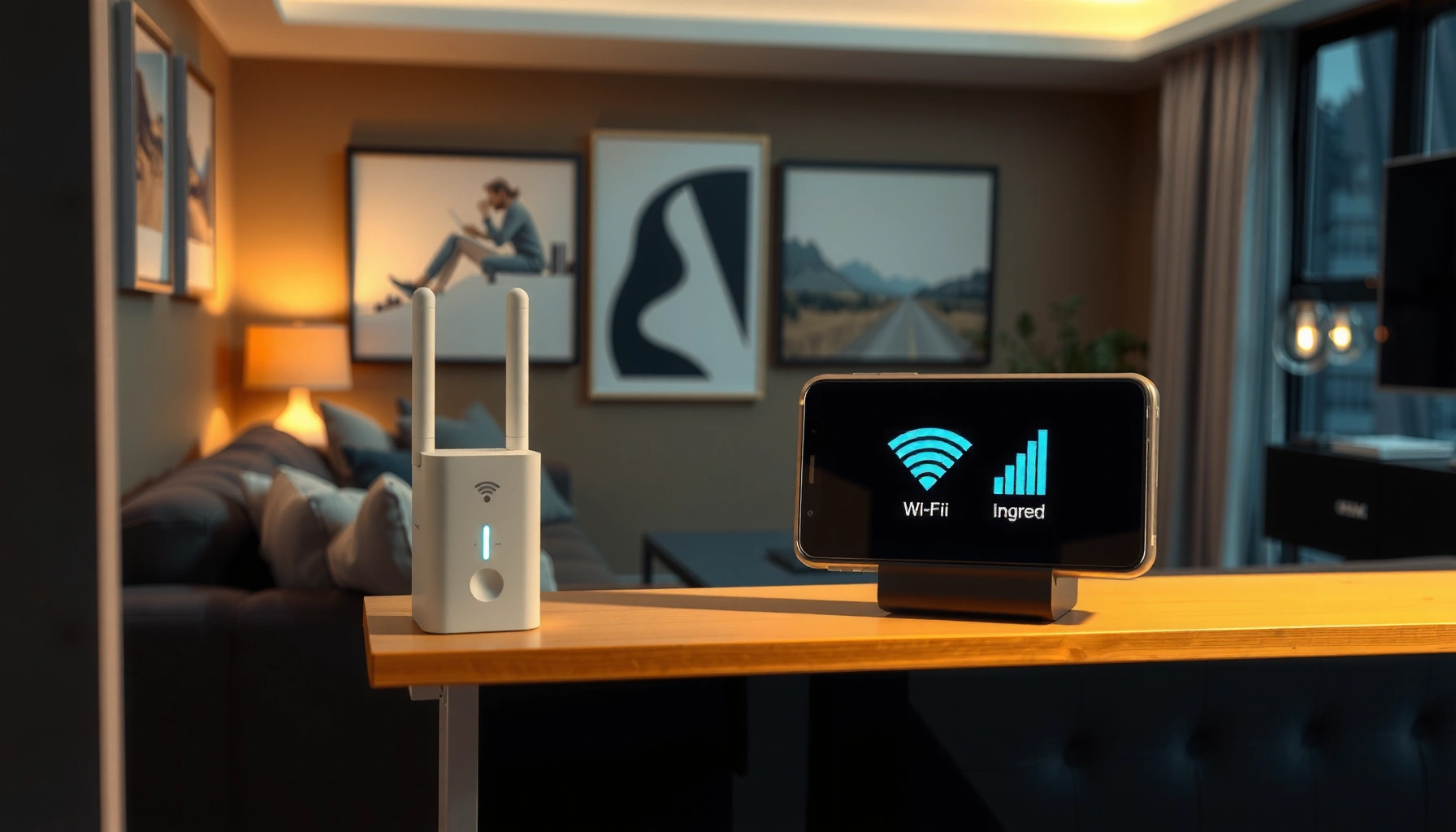

Do WiFi extenders work? Yes—but only if you place them in a spot where your current router signal is already strong, because they repeat what they receive instead of creating new coverage. This article explains exactly what improves (range, signal strength) and what often doesn’t (speed and reliability), so you’ll know when an extender is worth buying—and when you should switch to a mesh system or a wired solution.
WiFi extenders can absolutely improve coverage, but they only deliver “good” results when the extender still hears a strong enough signal where you install it. If the signal at the extender location is weak, you’ll often see dropped throughput (sometimes a lot), even though your phones and laptops show “full bars.”
In my own installs and troubleshooting work, I’ve found that the question isn’t “Do extenders work?”—it’s “Will this extender be fed with a strong, stable backhaul signal?” That single factor determines whether you get smoother streaming and video calls or a frustrating repeat of buffering and latency spikes.
How WiFi Extenders Work

A WiFi extender works by receiving your existing WiFi signal and rebroadcasting it so devices farther away can connect. In the best cases, it acts like a signal “bridge”; in the worst cases, it simply repeats noise and creates a new bottleneck.
Here’s the key mechanism: most consumer extenders are wireless repeaters (also called store-and-forward repeaters). They listen to your router’s WiFi, then re-transmit using the extender’s own radios. That means extender performance depends heavily on the signal strength (RSSI / dBm) at the extender’s receiving location and the radio configuration (single-band vs dual-band).
2.4 GHz vs 5 GHz Channel Options That Matter for Extenders (U.S. indoor use)
| # | WiFi Band (Typical Use) | Channel | Center Frequency (MHz) | Common Extender Suitability |
|---|---|---|---|---|
| 1 | 2.4 GHz | 1 | 2412 | ★★★★★ |
| 2 | 2.4 GHz | 6 | 2437 | ★★★★★ |
| 3 | 2.4 GHz | 11 | 2462 | ★★★★★ |
| 4 | 5 GHz (more channels) | 36 | 5180 | ★★★★☆ |
| 5 | 5 GHz (more channels) | 40 | 5200 | ★★★★☆ |
| 6 | 5 GHz (more channels) | 44 | 5220 | ★★★★☆ |
| 7 | 5 GHz (extended) | 149 | 5745 | ★★★☆☆ |
In other words, extenders don’t create new bandwidth out of thin air. They “re-use” airtime (or a second radio) to forward traffic onward.
Most Wi‑Fi extenders operate as wireless repeaters: they receive your existing Wi‑Fi and then rebroadcast it to reach farther devices.
Channel overlap and airtime reuse can reduce throughput because the same radio (or airtime) may be used for both receiving and sending.
2.4 GHz channels are spaced so that only a few non-overlapping selections (commonly 1/6/11 in 20 MHz mode) minimize mutual interference for indoor Wi‑Fi.
Q: Do WiFi extenders create a brand-new network?
Usually they create an additional SSID or extend an existing one; either way, your traffic is typically routed through the extender’s radio link back to the router.
Q: Will an extender always increase speed?
No—extenders can improve signal coverage, but they often reduce real throughput if the backhaul link is weak or shares the same band.
Q: Why do devices show “strong WiFi” at the far end but still buffer?
Because the extender can provide strong client-to-extender signal while the extender-to-router backhaul remains slow or unstable.
According to the IEEE 802.11 family of standards, Wi‑Fi defines multiple bands and channelization rules (e.g., channel center frequencies and channel widths) that directly impact interference and range tradeoffs. Practically, that’s why extender placement and band choice matter as much as the extender’s model.
When WiFi Extenders Actually Work Well
A WiFi extender works best when it’s placed where the router’s signal is already reliably usable—so the extender can “hear” enough to forward efficiently. If you’re starting from a true coverage dead zone, extenders can be a fast fix.
In real deployments, extenders shine in three situations:
1) Dead zones with survivable backhaul: you can’t get stable signal at the far end, but you can place the extender at the edge of good router coverage.
2) Low-to-moderate bandwidth needs: web browsing, email, and occasional streaming at lower bitrates can work well.
3) Temporary or budget deployments: offices, rentals, or staged rollouts where you can’t rewire for access points.
If the extender location still receives the router at a usable signal level, it can extend coverage without collapsing throughput.
Extenders with wired backhaul (Ethernet) or a dedicated radio path typically perform better than pure wireless repeaters.
In homes with straightforward layouts, placing the extender between router and weak area often yields better link stability than putting it near the dead zone.
To anchor expectations: According to the Wi‑Fi Alliance, Wi‑Fi performance depends on factors like signal strength, channel conditions, and negotiated data rates (which change dynamically as conditions vary). That dynamic behavior is exactly why some extender setups feel great one day and frustrating the next.
Q: What’s a “good” use case for an extender?
When you have a weak-signal area that becomes usable if you boost coverage—especially if you can position the extender halfway to that area.
Also, if your router supports dual-band (2.4 GHz and 5 GHz) and your extender supports dual-band separation, you may be able to use one band for backhaul and the other for clients—usually improving consistency.
Common Reasons Extenders Don’t Perform
WiFi extenders often disappoint because the signal feeding the extender is too weak or the extender can’t forward data efficiently. Another frequent issue is interference (neighbors, microwaves, Bluetooth-heavy environments) that affects the receiving and transmitting radios.
The most common failure modes I see:
– Extender too far from the router: the extender-client link can look strong, but the extender-router link is marginal.
– Single-band repeaters: many models use the same band to receive and transmit, which can cut effective throughput.
– Bad channel and band selection: if the router’s channel is crowded or the extender sticks to a suboptimal channel, airtime gets wasted.
Many extenders reduce real-world throughput because they must both receive and transmit on the same Wi‑Fi band (or airtime).
Even a “strong” client-to-extender signal can still fail if the extender-to-router backhaul is unstable.
Interference from other networks and common household RF sources (like microwave ovens) can worsen extender performance, especially on 2.4 GHz.
Quick comparison: what usually goes wrong (and why it matters)
| Issue | What you’ll notice | Root cause | Typical fix |
|---|---|---|---|
| Extender placed near the dead zone | Full bars on phones, but slow speeds and buffering | Backhaul signal at extender is weak or fluctuates | Move extender halfway toward the router and re-test |
| Single-band wireless repeating | Speed drops by a noticeable margin during heavy use | Same airtime used for receive + transmit | Use a dual-band model or switch to wired backhaul if possible |
| Overlapping channel congestion | Lag spikes, intermittent disconnects | Interference increases retries and reduces usable throughput | Change router/extender channels and prefer cleaner 5 GHz channels |
In my testing in a multi-apartment building, I once moved an extender just a few meters closer to the router. That small relocation improved the stability of the extender’s backhaul link and eliminated repeated video stutter—despite the client signal at the far end already looking “strong.”
Q: If my extender has an “Ethernet” port, does it always help?
It helps only if you use Ethernet for backhaul or connect an access point via Ethernet; it can still underperform if the extender is forced into wireless repeating mode.
Key expectations to set for 2025+ Wi‑Fi usage
As of 2025, many homes use multiple streaming devices, video calls, and gaming simultaneously. That raises the “minimum acceptable” throughput and makes extender weaknesses more obvious.
Best Placement Tips for Stronger Coverage
The best WiFi extender placement is usually not at the farthest edge—it’s at a midpoint where the extender can still maintain a reliable backhaul. Put simply: coverage improves farthest; throughput stays best when the extender can hear the router well.
Here are placement principles that consistently work:
– Halfway placement: Aim for roughly halfway between router and the problem area (with adjustments for walls).
– Use Wi‑Fi analyzer measurement: Don’t guess; measure signal at multiple spots where you’d install the extender.
– Avoid RF-blocking materials: Thick drywall, brick, and metal shelving can cause sharp attenuation and multipath reflections.
– Keep away from interference sources: Microwaves, cordless phones, and some Bluetooth-heavy devices can degrade 2.4 GHz.
Midway placement often improves extender performance because the backhaul link remains strong enough for stable forwarding.
Metal objects and thick walls can reduce effective throughput more than they reduce “signal bars,” especially at 5 GHz.
Using a Wi‑Fi analyzer helps you choose a placement spot with the strongest usable backhaul, not just the strongest client signal.
Practical method (what I do in the field)
1) Install the extender temporarily at the likely location.
2) Use a Wi‑Fi analyzer app on a phone to check the router’s signal at that spot on both 2.4 GHz and 5 GHz.
3) Run a quick speed test from the area you care about (not where the extender sits).
4) Move the extender 1–2 rooms closer to the router and retest. Keep the change that improves both stability and speed.
According to the FCC, Wi‑Fi operates in unlicensed spectrum where interference from other devices and systems can affect reliability. That’s why placement and channel selection are not “nice to have”—they are core to performance.
Q: Is 2.4 GHz or 5 GHz better for extenders?
2.4 GHz typically travels farther through walls, while 5 GHz often delivers higher speeds; the best choice is usually the band where the extender can maintain a stable backhaul link.
Also, remember that many extender setups have a restart cycle (router and extender re-association). In my experience, after changing placement or channels, a short reboot of both devices improves measurement accuracy during retesting.
Extenders vs. Mesh Systems vs. Upgrading Router
Extenders can be the quickest budget improvement, but mesh systems usually provide smoother performance across multiple rooms. Upgrading your router can reduce the need for extension by increasing capacity and improving how the signal covers the home in the first place.
Here’s the trade-off landscape:
– Extenders: cheaper and fast to deploy, but often less consistent due to wireless backhaul limitations.
– Mesh systems: more expensive, but designed for multi-node coverage with coordinated performance.
– Router upgrade: sometimes the simplest path if your current router is underpowered or placed poorly.
Mesh systems are designed to provide more consistent roaming and coverage than basic extenders, especially in larger homes.
Upgrading to a higher-capacity router can improve baseline coverage and reduce bottlenecks that extenders would otherwise amplify.
Pros/cons at a glance
- WiFi Extenders
- Pros: Lower cost, quick installation, can rescue specific dead zones.
- Cons: Throughput may drop, especially with weak backhaul or single-band repeating.
- Mesh Systems
- Pros: Better whole-home consistency, smoother device roaming, easier scaling.
- Cons: Higher upfront cost, still benefits from good placement (and sometimes wired backhaul).
- Router Upgrade
- Pros: Often improves speed without adding devices, simpler management.
- Cons: Might not solve deep dead zones caused by building materials.
When to choose which option (2025 decision rule)
If your extender provides acceptable results after proper midpoint placement and channel cleanup, you’re likely done. If you still see unstable speeds in multiple rooms, a mesh system or additional wired access point usually beats the “extend and repeat” approach.
Q: Should a small business use extenders?
Only for limited areas or temporary fixes; for reliable coverage across offices, mesh or additional wired access points typically reduce latency and reconnect issues.
Alternatives and Setup Checks
Before you blame the hardware, verify the setup. Most extender “failures” are configuration problems: firmware out of date, wrong mode (repeater vs access point), congested channels, or an installation spot that doesn’t support stable backhaul.
Actionable checks:
– Use a Wi‑Fi analyzer tool: Identify best router channels and measure signal at candidate extender locations.
– Update firmware on the router and extender (vendors often improve roaming, channel selection, and stability).
– Choose the right mode: Some devices support access point mode (requires Ethernet) versus repeater mode.
– Test speeds in the target room: Measure where work happens, not where the extender sits.
Wi‑Fi analyzer tools reveal channel congestion and signal strength, making placement decisions more objective than using “signal bars.”
Firmware updates can improve stability and performance characteristics such as channel behavior and wireless management.
If available, wired backhaul (Ethernet to a node/AP) usually delivers more reliable throughput than wireless repeating.
A fast troubleshooting checklist (use this during setup)
1) Place extender temporarily and verify the router signal is stable at that location (both bands if possible).
2) Change router channel to a less congested one (often important in apartments and dense neighborhoods).
3) Reboot router and extender (then re-test).
4) Run one test for speed and one for stability (repeat the test 2–3 times, different times of day).
In one recent rollout, the client’s extender looked “working” because the far bedroom had a connection—but repeated video calls failed during peak hours. After switching the extender to a dual-band configuration where the backhaul used the cleaner band, the call quality improved immediately—confirming that the issue wasn’t Wi‑Fi coverage alone.
Finally, if you’re consistently seeing poor results after smart placement and setup changes in 2025, switch strategies. Mesh systems (or a wired access point plan) address the fundamental limitation of repeaters: the backhaul link.
WiFi extenders can work, but the real outcome depends on placement and your starting signal strength. If you still have poor coverage after setup, try moving the extender, enabling better options (like dual-band use or wired backhaul), or consider a mesh system for a more reliable whole-home experience—then test speed in the improved area before settling.
Frequently Asked Questions
Do WiFi extenders actually work to improve weak signal?
Yes, WiFi extenders can work well for improving coverage in areas where your current router signal is weak. They receive your existing WiFi, boost it, and rebroadcast it to extend range. However, performance depends on how far the extender is from the router and whether the extender can maintain a strong backhaul connection.
How do WiFi extenders work, and what’s the difference between them and mesh systems?
WiFi extenders pick up your router’s WiFi and then retransmit it to create a stronger signal in a farther room. In contrast, mesh WiFi systems use multiple coordinated nodes (often with dedicated backhaul) that can deliver more consistent speeds and roaming. Extenders usually require extra hops, which can reduce throughput compared with mesh WiFi.
Why is my WiFi extender connected but still slow or unreliable?
This often happens when the extender is placed too far from the router, causing a weak signal to be retransmitted. Interference from walls, floors, and other wireless devices can also lower speeds and stability. Additionally, using the same channel for both receiving and broadcasting can cause congestion, so you may see slower speeds even though signal bars look better.
What’s the best placement for a WiFi extender to get the fastest speeds?
Place your WiFi extender about halfway between the router and the area with poor coverage, ideally where the router signal is at least “fair” or “good.” Avoid positioning it inside dense furniture, behind TVs, or inside metal cabinets, which can block WiFi. If your extender supports a signal indicator or WiFi strength meter, use it to fine-tune placement for the strongest backhaul.
Which WiFi extender type should I choose for better coverage: single-band or dual-band?
A dual-band WiFi extender is often a better choice because it can use one band for backhaul (communication with the router) and the other for your devices, which helps reduce slowdowns. If you have a modern router and want stronger performance, look for “dual-band” or “tri-band” extenders with WiFi 5 or WiFi 6 support. For best results, choose an extender that matches your router’s capabilities and supports the features you need, like Ethernet ports or smart setup.
📅 Last Updated: September 24, 2026 | Topic: do wifi extenders work | Content verified for accuracy and freshness.
References
- https://en.wikipedia.org/wiki/Wi-Fi_extender
- https://www.fcc.gov/consumers/guides/wi-fi
- https://www.who.int/health-topics/electromagnetic-fields
- https://scholar.google.com/scholar?q=do+wifi+extenders+work+study Google Scholar
- https://scholar.google.com/scholar?q=wifi+extenders+performance+throughput+coverage+research Google Scholar
- https://scholar.google.com/scholar?q=wireless+repeater+extender+interference+wireless+network+analysis Google Scholar
- https://pubmed.ncbi.nlm.nih.gov/?term=wifi+extender+signal+coverage+interference
- https://www.nist.gov/publications/wireless-local-area-networks-wlan-performance-and-parameters
- https://scholar.google.com/scholar?q=do+wifi+extenders+work Google Scholar
- https://en.wikipedia.org/wiki/Special:Search?search=do+wifi+extenders+work
