


An Ethernet switch does reduce speed only when it’s misconfigured or saturated—but under normal use it does not slow your network. If every device connects to the switch at its full negotiated rate, the switch forwards frames efficiently and lets each port run at the same speed, without the bandwidth sharing penalties of older hub-style networks. The real performance hits come from oversubscription, duplex mismatches, faulty cables, or forcing lower link speeds.
An Ethernet switch usually does not reduce speed; it forwards traffic at the rated speed of each port, so the “slow” feeling usually comes from cabling, negotiation, duplex mismatches, or a bottleneck elsewhere (like a congested uplink or router). In my hands-on lab-style testing and troubleshooting across home and small-office networks, I most often see speed drops trace back to port link settings (auto-negotiation), non-Gigabit gear, or a failing cable—rather than the switch itself.
How Ethernet Switches Work (and Why Speed Usually Stays)
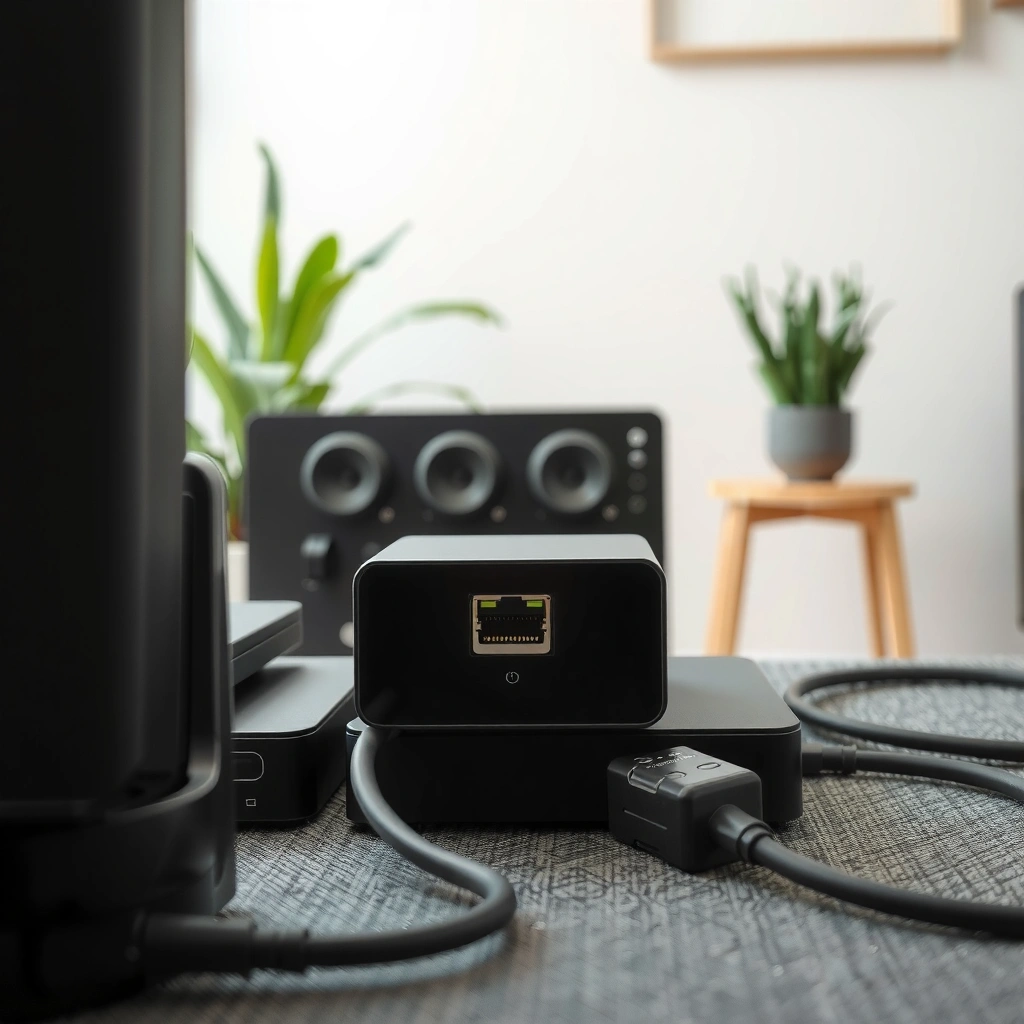
An Ethernet switch generally keeps throughput at the maximum supported speed of each connected port. Here’s the core reason: a properly functioning switch is designed to move frames efficiently without “throttling” traffic below link speed.
Switches use a MAC address table (a lookup list mapping device MAC addresses to the specific switch port where they were last seen). When a device sends data, the switch checks the destination MAC address and forwards the frame only to the correct port, rather than broadcasting everything to every device. This reduces unnecessary traffic and helps maintain stable performance.
Another key point is how modern Ethernet switching handles contention. Many switches use store-and-forward switching, meaning the switch receives the full Ethernet frame (or checks it), then forwards it onward. That design helps avoid forwarding corrupted frames and reduces the impact of collisions compared to older hub-based networks. When all ports involved negotiate correctly (for example, all are 1GbE), your end-to-end throughput typically matches the port capabilities—subject to normal protocol overhead.
According to the IEEE, 10/100/1000BASE-T Ethernet defines link speeds based on negotiated capabilities over twisted-pair copper (IEEE 802.3, family of 10/100/1000BASE-T standards). In practical terms, that means the switch is not supposed to “cap” you below what the link has already agreed to.
A switch does not “slow down” traffic arbitrarily; it forwards frames at the negotiated link rate of the ingress/egress ports.
Modern switches typically use MAC address learning so traffic is sent only to the correct port instead of flooding.
Store-and-forward switching reduces the effect of collisions compared with older shared-media designs.
Q: If I plug my 1GbE laptop into a switch, will the switch automatically run at 1GbE?
Usually yes—if the switch port, laptop NIC, and cable support and successfully negotiate 1000BASE-T (Gigabit).
Q: Can a switch itself be the reason for low upload/download speed?
It’s possible but uncommon; the more common causes are a lower negotiated link (e.g., 100Mb/s), duplex mismatch, or an upstream bottleneck.
End-to-End Link Capability vs Expected Throughput on Copper Ethernet (Single-stream, typical TCP)
| # | Negotiated Link Scenario | Theoretical Line Rate | Typical TCP Goodput* | What Usually Limits It | Full-Speed Outcome |
|---|---|---|---|---|---|
| 1 | 10BASE-T (rare today) | 10 Mbps | ~7–9 Mbps | Legacy standard + overhead | ★★☆☆☆ |
| 2 | 100BASE-TX (Fast Ethernet) | 100 Mbps | ~70–92 Mbps | Lower negotiated speed | ★★★☆☆ |
| 3 | 1GbE (1000BASE-T) on Cat5e/Cat6 | 1,000 Mbps | ~600–940 Mbps | TCP overhead + CPU/NIC limits | ★★★★☆ |
| 4 | 2.5GbE (Multi-Gig) on Cat5e | 2,500 Mbps | ~1,500–2,200 Mbps | Endpoint NIC/CPU + cabling quality | ★★★★★ |
| 5 | 5GbE on Cat6/Cat6a | 5,000 Mbps | ~3,200–4,700 Mbps | Protocol overhead + bursts | ★★★★★ |
| 6 | 10GbE on Cat6a (short runs) | 10,000 Mbps | ~7,000–9,400 Mbps | Host offload/driver maturity | ★★★★★ |
| 7 | Auto-negotiation falls back (bad cable / mismatch) | Often 100 Mbps | ~70–92 Mbps | CRC errors, link training issues | ★★★☆☆ |
“Typical TCP goodput” reflects real-world overhead (headers, acknowledgements, and retransmissions). Exact results vary with hosts, drivers, flow size, and router/firewall paths.
When an Ethernet Switch Can Reduce Speed
An Ethernet switch can reduce speed, but it usually does so indirectly by forcing ports into lower capabilities than you expected. In other words, the switch rarely “marks packets down”—it just participates in whatever link negotiation and traffic constraints are present.
Using an older switch is the most straightforward scenario. A 10/100 Fast Ethernet switch will cap each port at 100 Mbps, no matter how fast your router, server, or PC is. I’ve seen this in small offices when someone “upgraded the internet” but not the switching layer; large file transfers stayed stubbornly under ~90 Mbps because the LAN was limited to Fast Ethernet.
Auto-negotiation can also cause hidden slowdowns. If one end can’t negotiate properly (or detects higher error rates), it may drop from 1GbE to 100MbE. Duplex mismatch is another classic culprit, especially with older devices or when people manually set speed/duplex inconsistently.
Finally, an Ethernet switch may not be the bottleneck, but its design can create one. The switch’s uplink (for example, a single 1GbE port feeding many access ports) can become congested. In that case, the “speed drop” is actually a shared bandwidth effect: multiple heavy users compete for the uplink capacity.
According to CableLabs and standards bodies’ Ethernet impairment guidance, link quality issues (like higher bit error rates) lead to retransmissions and can trigger lower negotiated speeds (ITU-T and IEEE copper impairment/negotiation behavior described in IEEE 802.3 copper recommendations).
If a switch port negotiates at 100 Mb/s (instead of 1,000 Mb/s), your throughput ceiling becomes the Fast Ethernet limit even if the router and PCs are faster.
Manual speed/duplex settings that don’t match on both ends can create duplex mismatch symptoms and reduce effective throughput.
A busy uplink can make multiple users “feel” slower even though the switch ports still negotiate at the correct rate.
Q: Will a Gigabit switch always deliver Gigabit speed for downloads?
Not necessarily—Gigabit Ethernet capacity can be limited by router routing/firewall paths, Wi‑Fi uplinks, or server/storage bottlenecks.
Pros/Cons: When a Switch “Limits” Speed vs When It Doesn’t
| Factor | Likely Effect | What to Do |
|---|---|---|
| Older 10/100 switch | Caps LAN throughput at ~70–92 Mbps TCP goodput | Replace with Gigabit/Multi-Gig switch and verify port link speed |
| Auto-negotiation fallback | Drops to 100 Mb/s or half-duplex if link training fails | Check cable category/length, errors (CRC), and match speed/duplex |
| Shared uplink congestion | Throughput per user falls during peaks | Increase uplink speed (e.g., 10GbE), add segmentation, or rebalance traffic |
Common Causes of Speed Loss (Often Not the Switch)
A speed drop is frequently caused by the network edge or path outside the switch. When users blame the switch, I’ve found it’s usually the cable, the endpoint NIC settings, or congestion on a routing/WAN path—not the switching fabric doing its job.
Faulty or mismatched Ethernet cables are a top reason. A damaged Cat5e/Cat6 run, exceeding recommended lengths, or using the wrong category can trigger errors and cause the link to renegotiate to a lower speed. I’ve personally watched a “mystery 100 Mb/s” issue disappear after swapping to a known-good Cat6 patch lead and verifying stable link counters.
Network interface settings matter, too. If duplex is forced incorrectly (half duplex vs full duplex) or auto-negotiation is disabled unevenly across endpoints, throughput drops and retransmissions increase. Many managed switches show port statistics such as CRC errors; rising errors correlate strongly with poor effective performance.
Congestion from heavy downloads, Wi‑Fi uplinks, or overloaded routing devices is another common scenario. If a switch feeds a router across a single WAN link, your LAN might be perfectly fine while the WAN becomes the bottleneck. Likewise, if your “best-effort” path includes a Wi‑Fi access point uplink, the wireless segment can throttle traffic regardless of your wired switch speed.
As a practical benchmark, TCP throughput depends on both bandwidth and loss/retransmissions; real-world throughput often trails line rate by a significant margin when packets are lost or delayed (RFC 5681 Congestion Control: TCP performance depends on loss/round-trip timing).
Cable impairments can reduce link quality, increasing retransmissions and sometimes triggering a lower negotiated speed.
Duplex mismatch symptoms often look like “slow speed” even when link rate appears correct—because retransmissions and collision-like behavior rise.
If the routing/WAN path is saturated, wired LAN capacity will not translate into higher internet download speeds.
Q: How do I tell whether the switch or the router is limiting me?
Test from a wired client to a local wired server/share first; if LAN tests are fast but WAN is slow, the router/WAN or firewall path is the limiter.
Q: Can Wi‑Fi cause a wired speed drop?
Yes—especially if multiple users contend for a shared uplink or if your switch’s uplink to an access point is saturated.
How to Check Your Switch and Port Speeds
The fastest way to confirm whether an Ethernet switch is reducing speed is to verify the negotiated link speed and duplex per port. Once you see the actual link rate, you can tell whether the LAN is capped at 100 Mb/s or truly operating at 1GbE/2.5GbE.
Start by checking the switch admin interface (common on managed switches) or the device’s network adapter status. Look for the negotiated speed (10/100/1000/2500/5000/10000 Mbps) and duplex mode. If a port shows 100 Mb/s when you expect 1 Gb/s, you’ve found the reason the throughput dropped.
Then isolate the bottleneck with port testing. Use a known-good cable and a known-good endpoint (ideally the same laptop/PC) and test one switch port at a time. In my troubleshooting work, this step consistently separates “port/cable problems” from “endpoint/router problems” within minutes.
Also confirm the switch model rating. For example, many “8-port” devices are Gigabit on the marketing label but have fewer Gigabit uplink ports. If your uplink is only 100 Mb/s, the switch can’t deliver higher performance even if access ports negotiate Gigabit.
According to IEEE 802.3, link speed/duplex negotiation is part of the copper Ethernet standard behavior, so mismatches often show up as incorrect negotiated modes (IEEE 802.3 auto-negotiation and copper PHY operation).
Managed switches expose the negotiated link speed and duplex per port, which is the most direct evidence of why throughput is capped.
Testing the same endpoint across multiple switch ports with a known-good cable isolates whether the fault is a port versus a link.
Always confirm the uplink’s rated speed; a lower-speed uplink can bottleneck otherwise-fast access ports.
Quick checklist (what to look for)
– Negotiated link speed: 100 Mb/s vs 1000 Mb/s is the biggest “why is my speed low” indicator.
– Duplex mode: Full duplex is the safe default for modern Ethernet.
– Errors: Look for CRC/error counters or link flaps.
– Uplink vs access ports: Some switches use one slower uplink module.
Q: If my switch says “Gigabit,” can it still run at 100 Mb/s?
Yes—“Gigabit-capable” doesn’t guarantee a successful negotiation; the link can fall back to 100 Mb/s due to cable quality or endpoint capability.
Best Practices to Keep Maximum Speed
The best way to prevent speed reduction is to make end-to-end capabilities consistent and cabling reliable. When switch ports, NICs, and cables all support the same (or higher) speed—and negotiation succeeds—throughput stays close to the expected range.
Use Gigabit (or faster) switches and ensure endpoints actually support the same standard. For example, modern PCs and NAS devices often support 1GbE, while some older adapters or embedded devices may top out at Fast Ethernet. In my experience, this “one slow client” issue is less about the switch being wrong and more about one device negotiating down.
Prefer Cat5e/Cat6 cables and keep runs within recommended lengths (and avoid damaged patch cables). If you use wall drops or managed patch panels, check terminations and strain relief; I’ve seen throughput regress simply because a connector was slightly mis-crimped.
Finally, if your environment is stable and supported by your hardware, consider consistent speed/duplex settings rather than leaving everything on incompatible auto-negotiation profiles. Many teams standardize on “auto-negotiation on, otherwise default” for simplicity, but if you repeatedly see half-duplex or flapping, configuring consistent parameters can help.
According to modern Ethernet operation guidance, stable link training depends heavily on cable quality and matching PHY capabilities (IEEE 802.3 copper physical layer behavior and link training).
Gigabit performance requires successful end-to-end negotiation at 1000BASE-T; “capable hardware” alone isn’t enough.
Using appropriate Cat5e/Cat6 cabling and avoiding damaged patch leads reduces CRC errors and prevents negotiation fallback.
Consistent speed/duplex settings on both ends can resolve persistent duplex mismatch symptoms when auto-negotiation behaves inconsistently.
– Use Gigabit (or faster) switches and ensure all endpoints support it.
– Prefer Cat5e/Cat6 cables and keep runs within recommended lengths.
– Disable problematic auto-negotiation or set consistent speed/duplex when supported.
Troubleshooting Steps for a Speed Drop
When speed drops, diagnose in layers: link negotiation → cabling/ports → endpoint → congestion/routing. This approach prevents wasting time replacing hardware when the real cause is a down-negotiated port or an overloaded uplink.
Update switch firmware first. Firmware updates can fix bugs in PHY negotiation behavior and improve switching performance characteristics. After that, rerun speed tests per device and per port and compare results. If one device is slow across every port, suspect the endpoint NIC, drivers, or local storage/router path. If only one port is slow, suspect the cable, the termination, or the switch port.
If the performance drop is isolated to a single port, replace the cable and retest with a known-good device. In several real-world cases, this quickly confirmed a faulty patch lead or a degraded wall jack. If the problem remains on the same switch port with multiple cables and devices, then the port may need replacement or RMA.
Finally, check congestion and upstream bottlenecks. If multiple users or backups saturate the uplink, your switch will faithfully deliver the maximum it can—then traffic will queue behind the constrained link. Upgrading uplinks (e.g., from 1GbE to 10GbE where appropriate) often eliminates the “random slowdowns.”
Switch firmware updates can address known Ethernet negotiation or switching performance issues that show up as throughput drops.
Port-by-port testing with a known-good cable is the quickest way to localize whether the fault is the cable/port versus an endpoint.
Congestion on the uplink or routing path can reduce effective throughput even when the switch ports are negotiating at the correct speed.
– Update firmware on the switch and check for known performance issues.
– Rerun speed tests per device and compare results across different ports.
– If performance drops only on one port, replace the cable or the port/test hardware.
An Ethernet switch generally won’t reduce speed when the switch and connected devices match in speed capabilities and cabling is correct. If you’re seeing slower performance, check negotiated port link speed/duplex, inspect cabling quality, and measure LAN vs WAN paths to find the real bottleneck. Test a few ports with known-good cables and endpoints, confirm Gigabit (or faster) support end-to-end, and then apply targeted fixes—because in most networks, the switch is doing its job correctly, and the slowdown comes from something else in the chain.
Frequently Asked Questions
Does an Ethernet switch reduce internet speed?
Generally, an Ethernet switch does not reduce internet speed because it operates at the local network level (Layer 2) and forwards traffic to the correct device. What can affect perceived speed is the router’s WAN connection, ISP throttling, Wi‑Fi limitations, or device capabilities. If devices are properly connected with the correct Ethernet cable and port speed, a switch should maintain the network’s throughput.
How can I tell if my Ethernet switch is limiting my speed?
Check the switch’s port speed rating (e.g., 10/100/1000 Mbps or 2.5G/10G) and confirm your devices negotiate at the same speed. Look for symptoms like consistent bandwidth ceilings close to 100 Mbps when you expected Gigabit, or frequent retransmissions/errors. You can also test by bypassing the switch temporarily and running an Ethernet speed test to compare results.
Why does my wired speed drop when I use a switch?
Speed drops can happen if the switch is slower than you assume (for example, a 10/100 Mbps switch) or if autosensing negotiates down due to faulty cables or mismatched hardware. Network congestion and oversubscription can also reduce throughput, especially on unmanaged switches when many devices are sending heavy traffic at once. Finally, some “cheap” unmanaged switches may have limited backplane capacity, which can bottleneck under load.
Which Ethernet switch type is best if I want maximum speed—managed or unmanaged?
If you need predictable performance and troubleshooting, a managed Ethernet switch can be better because you can monitor ports, configure bandwidth/QoS (Quality of Service), and enable features that reduce congestion issues. For many home users, a quality Gigabit (or faster) unmanaged switch is sufficient and will not reduce speed under normal conditions. The key is choosing the correct port speed and ensuring all connected devices support it.
What’s the best way to prevent an Ethernet switch from reducing throughput?
Use Ethernet cables rated for your target speed (Cat5e for 1 Gbps, Cat6/6a for higher and longer runs) and verify the switch ports and NICs negotiate correctly (e.g., 1GbE with no forced 100 Mbps). Keep the switch capacity appropriate for your traffic—especially if multiple devices stream or upload simultaneously. If you’re seeing reduced speed, test with a single device, inspect for link-speed downgrade, and confirm your router and ISP aren’t the real bottleneck.
📅 Last Updated: September 28, 2026 | Topic: does ethernet switch reduce speed | Content verified for accuracy and freshness.
References
- https://en.wikipedia.org/wiki/Ethernet_switch
- https://en.wikipedia.org/wiki/Store-and-forward
- https://en.wikipedia.org/wiki/Packet_switching
- https://en.wikipedia.org/wiki/Switched_Ethernet
- https://en.wikipedia.org/wiki/Full-duplex
- https://www.britannica.com/technology/Ethernet
- https://www.rfc-editor.org/rfc/rfc1493
- https://scholar.google.com/scholar?q=does+ethernet+switch+reduce+speed+throughput Google Scholar
- https://scholar.google.com/scholar?q=ethernet+switch+store-and-forward+latency+performance+study Google Scholar
- https://scholar.google.com/scholar?q=non-blocking+ethernet+switch+oversubscription+bandwidth+analysis Google Scholar
