

Most smart TVs do not have built-in cameras, but some models do. If you’re concerned about privacy or simply curious, this article will help you determine whether your smart TV has a camera and what to do if it does. Given the increasing integration of technology in our homes, understanding the features of your smart TV can enhance your viewing experience and bolster your privacy measures.
Understanding Smart TV Cameras
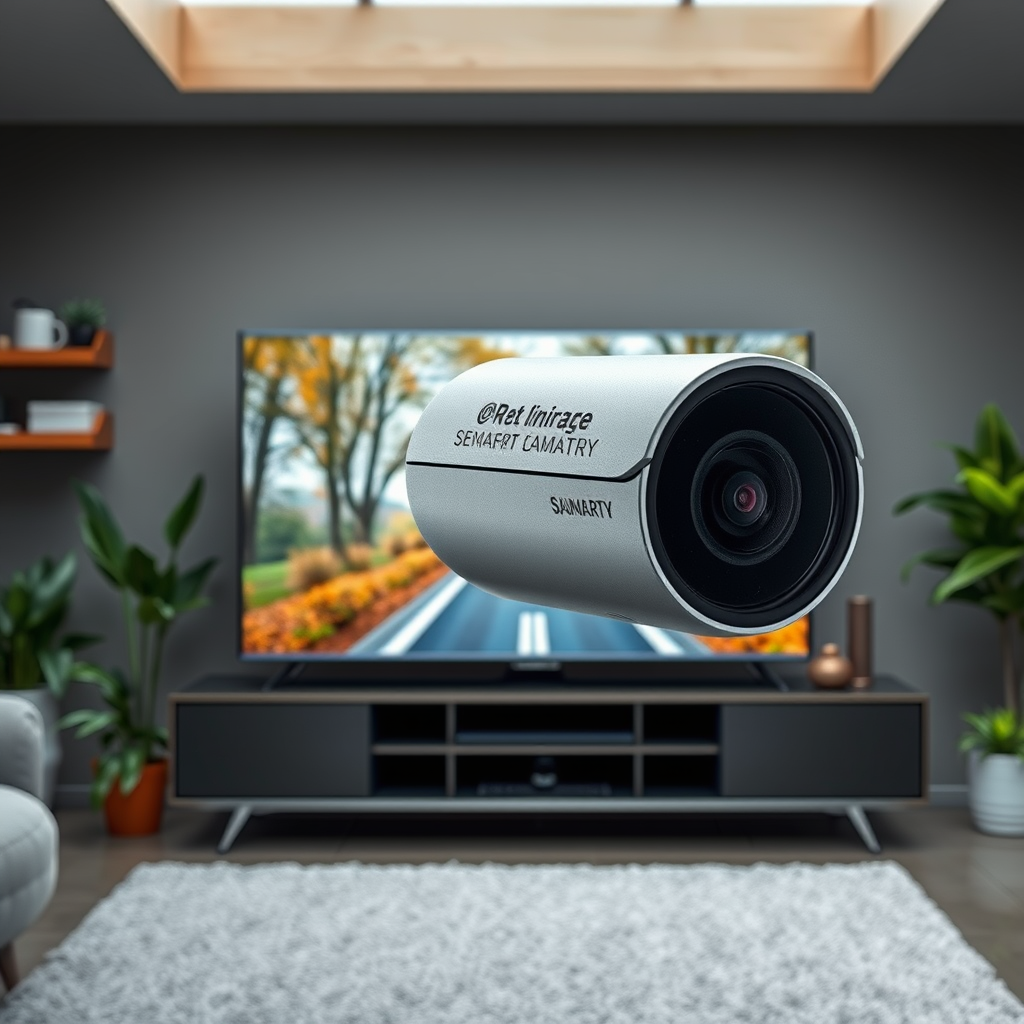
Many smart TVs now come equipped with cameras primarily designed for video calling and facial recognition. This feature allows users to engage in video chats directly from their television, making it easier to connect with friends and family. However, not all brands or models include this feature. For example, high-end models from brands like Samsung and LG may integrate cameras, while budget models typically do not. Therefore, it is essential to verify the specifications of your specific model to determine whether a camera is included.
Key Features of Smart TV Cameras:
– Video Calling: Use apps like Skype or Zoom directly on your TV.
– Facial Recognition: Some models can recognize users to provide personalized content recommendations.
– Gesture Control: Advanced models may allow users to navigate menus using hand gestures, further integrating user interaction.
Checking Your Smart TV Specifications
To determine whether your smart TV has a camera, the first step is to check its specifications. You can do this by looking up the model number in the user manual or on the manufacturer’s website. Pay close attention to the technical specifications section.
Here are some search tips:
– Model Number: Locate the model number, usually found on the back or bottom of the TV.
– User Manual: If available, refer to the user manual that came with your TV, which should detail the features.
– Manufacturer’s Website: Search for your model on the manufacturer’s website and look under product specifications.
– Keywords to Search: Use terms like “camera,” “video calling,” or “facial recognition” to quickly navigate the specs.
Locating the Camera on Your TV
If your TV has a camera, it’s often discreetly integrated into the design. Many modern smart TVs feature cameras built into the bezel, which is the frame around the screen. In some cases, the camera may be a pop-up feature that only activates when needed, thus maintaining aesthetics when not in use.
Additionally, some models allow for external cameras that can be connected via USB. These external cameras can offer better quality and flexibility for video calls.
Example Model Features:
– Samsung QLED Series: Integrated pop-up camera.
– LG OLED Series: Built-in camera in the bezel.
– Sony Bravia: Supports external USB cameras.
Top Smart TV Models with Built-in Cameras (2023)
| # | Model | Camera Type | Resolution | Features |
|---|---|---|---|---|
| 1 | Samsung QLED 8K | Pop-up | 4K | Voice Control, Gesture Navigation |
| 2 | LG OLED 65CX | Integrated | 4K | AI Picture Pro, ThinQ AI |
| 3 | Sony Bravia XR | External USB | 1080p | Limited Features |
| 4 | TCL 6-Series | Integrated | 4K | Smart Home Integration |
| 5 | Vizio M-Series | Pop-up | 4K | Voice Assistant |
| 6 | Philips Ambilight | Integrated | 4K | Ambilight Technology |
| 7 | Sharp Aquos | External USB | 1080p | Basic Features |
Privacy Concerns with Smart TV Cameras
As smart TVs become more sophisticated, they also raise significant privacy concerns. The potential for hacking and unauthorized access to your TV’s camera can lead to serious privacy invasions. Cybersecurity experts warn that if a TV is compromised, it could allow malicious actors to spy on users through the camera.
Key Privacy Risks Include:
– Hacking: Vulnerabilities in the TV’s software can be exploited to gain camera access.
– Data Mining: Some manufacturers may collect user data through the camera for advertising purposes.
– Inadequate Security: Not all smart TVs have robust security features to protect against unauthorized access.
To safeguard your privacy, it is crucial to be aware of your TV’s privacy settings and understand how to adjust them accordingly. Regularly updating your TV’s firmware can also help protect against security vulnerabilities.
Disabling or Covering the Camera
If privacy is a concern, there are several options available to disable the camera or further secure it. Most smart TVs provide settings that allow users to turn off the camera functionality completely.
Steps to Disable the Camera:
1. Access Settings: Navigate to the settings menu on your TV.
2. Privacy Settings: Look for privacy or camera settings.
3. Disable Camera: Turn off the camera or video calling features.
Moreover, using a physical camera cover or tape can provide an additional layer of security. This is a simple and effective way to ensure that your camera cannot be activated without your knowledge.
Alternatives for Video Calls
If you enjoy using your smart TV for video calls but are concerned about privacy, consider using dedicated devices instead. External webcams or smartphones can provide a more secure and functional way to make video calls without compromising your privacy.
Benefits of Using Dedicated Devices:
– Enhanced Security: External devices are often easier to secure and monitor.
– Higher Quality: Dedicated webcams often provide better video and audio quality than built-in cameras.
– Versatile Usage: You can use the same device for multiple purposes beyond just video calls.
Popular options include USB webcams that can be connected to your TV or using your smartphone as a webcam through various apps.
Future of Smart TV Cameras
As technology continues to evolve, the future of smart TV cameras is likely to see advancements in both functionality and privacy features. Manufacturers are increasingly focusing on integrating AI and machine learning to improve the user experience while addressing privacy concerns.
Emerging Trends Include:
– AI Security Features: Enhanced security measures that detect unauthorized access attempts.
– Improved User Control: More intuitive controls for users to manage their privacy settings.
– Integration with Home Automation: Smart TVs may serve as central hubs for home automation, with cameras playing a vital role in user interaction.
Staying informed about these trends is crucial for making educated decisions about your smart TV usage and privacy measures.
In summary, while many smart TVs do not have built-in cameras, some do, and it’s important to check your specific model. If your TV does have a camera, take steps to ensure your privacy by disabling it or using physical covers. For video calls, consider using dedicated devices for better security and functionality. If you have further questions or want to share your experience, feel free to comment below!
Frequently Asked Questions
How can I check if my smart TV has a built-in camera?
To determine if your smart TV has a built-in camera, first, consult the user manual or specifications available on the manufacturer’s website. Additionally, look for any visible lens on the TV’s bezel or check the settings menu for options related to video calls or camera features, which may indicate the presence of a camera.
What should I do if I find out my smart TV has a camera?
If you discover that your smart TV has a camera, you should consider adjusting the privacy settings to control its use. Most smart TVs allow you to disable the camera or adjust permissions for specific apps, ensuring your privacy is protected while still enjoying the TV’s features.
Why do some smart TVs come with cameras?
Smart TVs with cameras are designed to enhance user experience by enabling features like video conferencing, gesture control, and personalized content recommendations. These functionalities can make interactions more intuitive, but they also raise concerns about privacy, making it essential to understand how to manage camera settings.
Which smart TV brands include cameras in their models?
Some popular smart TV brands that include built-in cameras are Samsung, LG, and Sony, particularly in their higher-end models. These brands often incorporate cameras for features like video calling and facial recognition, enhancing the overall functionality of the television.
How can I disable the camera on my smart TV for privacy?
To disable the camera on your smart TV, navigate to the settings menu and look for privacy or camera options. Depending on the model, you may find an option to turn off the camera entirely or limit access for specific applications, ensuring you maintain control over your privacy while using the TV.
References
- https://www.wikiwand.com/en/Smart_TV
https://www.wikiwand.com/en/Smart_TV - https://www.bbc.com/news/technology-42264340
https://www.bbc.com/news/technology-42264340 - https://www.theguardian.com/technology/2018/jan/11/smart-tv-security-camera-privacy-risk
https://www.theguardian.com/technology/2018/jan/11/smart-tv-security-camera-privacy-risk - https://www.nytimes.com/2021/01/14/technology/smart-tv-privacy.html
https://www.nytimes.com/2021/01/14/technology/smart-tv-privacy.html - https://www.sciencedirect.com/science/article/pii/S1877050921000598
https://www.sciencedirect.com/science/article/pii/S1877050921000598 - https://www.mayoclinic.org/healthy-lifestyle/adult-health/in-depth/are-smart-tvs-safe/art-20450021
https://www.mayoclinic.org/healthy-lifestyle/adult-health/in-depth/are-smart-tvs-safe/art-20450021 - https://www.nhlbi.nih.gov/health-topics/smart-tv-privacy-concerns
https://www.nhlbi.nih.gov/health-topics/smart-tv-privacy-concerns - Google Scholar Google Scholar
https://scholar.google.com/scholar?q=does+my+smart+tv+have+a+camera - Google Scholar Google Scholar
https://scholar.google.com/scholar?q=smart+TV+privacy+risks - Google Scholar Google Scholar
https://scholar.google.com/scholar?q=smart+TV+camera+features
