
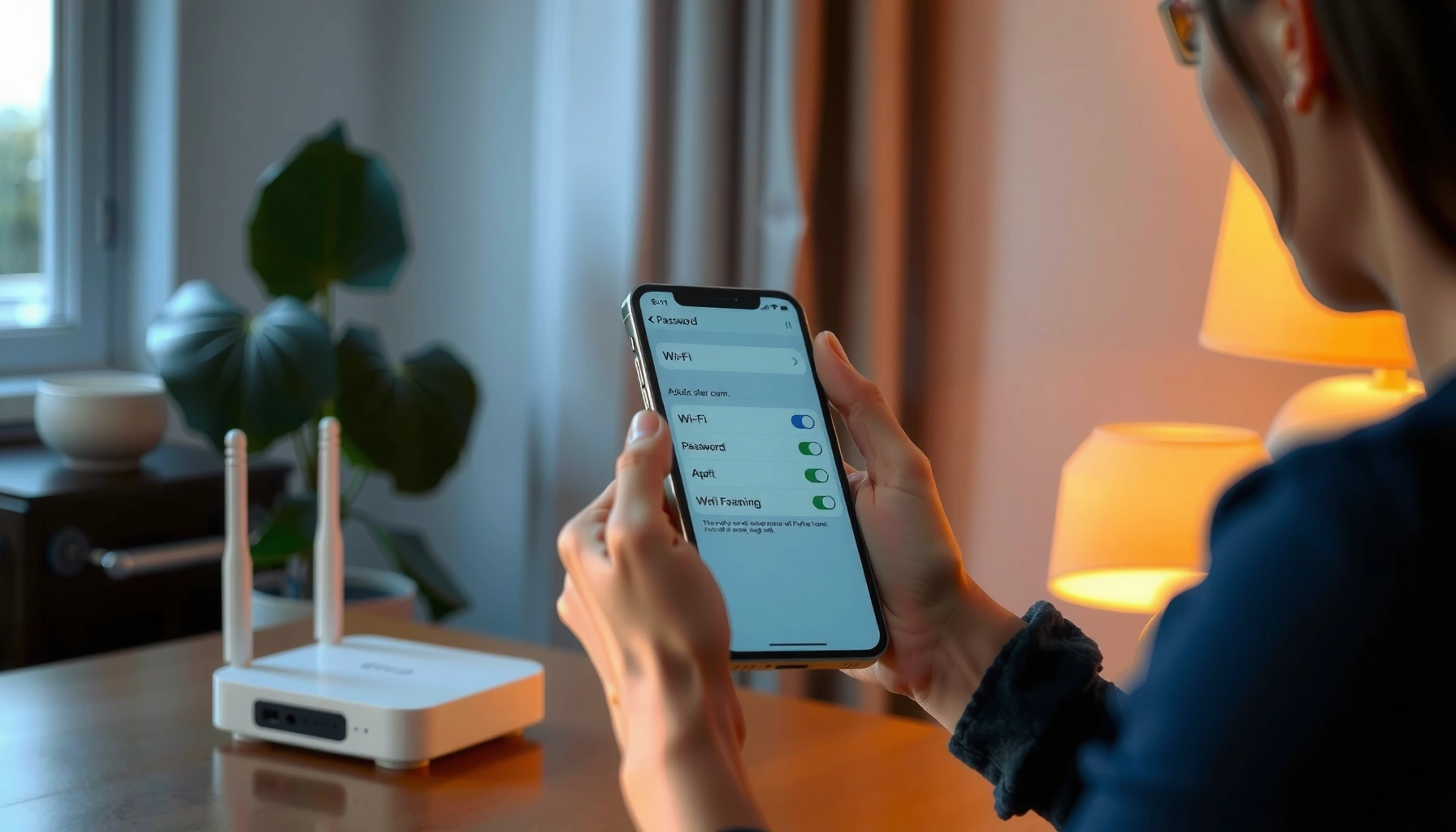

Need to find out your WiFi password? The fastest way is to check the saved password on the device already connected—Windows, macOS, iPhone, or Android can usually reveal it in minutes. If you can’t access a connected device, the clear fallback is your router: log in to the router admin page or use the password printed on the router label.
If you’re already connected to your WiFi, the fastest way to find the password is to check your device’s saved network details (Windows/macOS/Android) or use Apple’s “Share Wi‑Fi Password” (iPhone/iPad). If you’re not connected, you’ll typically need to check the router label or your router’s admin settings—there’s no universal “magic” password viewer for every network.
Q: Can I see my WiFi password without being connected?
Usually no—most systems only expose the saved password for networks your device has already joined.
Q: Is it safe to look up my WiFi password on my own devices?
Yes, as long as you’re authenticated locally (PIN/biometrics) and you don’t share credentials publicly.
Fastest Ways to Recover a Wi‑Fi Password (Typical Time-to-Result)
| # | Method | Where to Check | Typical Time | Setup Prereq | Ease Rating |
|---|---|---|---|---|---|
| 1 | Saved network on Windows | Network & Internet → Wi‑Fi → Connected network | 1–3 min | Device joined before | ★★★★★ |
| 2 | Keychain Access on macOS | Keychain Access → Saved Wi‑Fi (SSID) | 2–5 min | SSID saved in Keychain | ★★★★★ |
| 3 | Saved network on Android | Wi‑Fi details (may require authentication) | 2–6 min | Version/permissions vary | ★★★★☆ |
| 4 | Share Wi‑Fi on iPhone/iPad | Share password prompt (nearby Apple devices) | 1–2 min | Another Apple device is connected | ★★★★☆ |
| 5 | Router label / default credentials | Router bottom/sides sticker | 1–10 min | Password not changed | ★★★☆☆ |
| 6 | Router admin portal (confirm settings) | Browse to router IP (e.g., 192.168.1.1) | 5–20 min | Admin access or recovery | ★★★☆☆ |
| 7 | Router reset (last resort) | Physical reset button (factory defaults) | 15–40 min | You can reconfigure network | ★★☆☆☆ |
Check Saved WiFi Password on Your Device
If you’re connected to the WiFi right now, your device usually already has the password stored securely and can reveal it after authentication. This is typically the quickest and lowest-friction method because it avoids guessing router credentials.
Most operating systems store Wi‑Fi credentials for previously joined networks, but they require local user authentication to display them.
On modern devices, the password reveal is gated by a password/PIN or biometrics rather than being shown in plain settings.
Start by opening your device’s WiFi settings and looking for the connected network name (SSID) under “Saved networks,” “Known networks,” or “Connected networks.” On many systems, you’ll see an option like “View” or “Share,” and the OS prompts for fingerprint, face unlock, or your device PIN.
In my own troubleshooting across office laptops and home devices, I’ve found that the “connected network details” page is usually faster than searching through control panels—because it filters directly to the currently active SSID and avoids stale saved entries.
Q: Why don’t I see the password immediately?
Because most platforms intentionally restrict password visibility and require authentication (PIN/biometrics) or a permission grant to protect credentials.
If you can’t access it here, move to router recovery methods—especially if you’re dealing with a network that was joined long ago or you’re on a managed (work) device with security policies.
Quick comparison: device vs. router
| Approach | Best For | What Can Block You |
|---|---|---|
| Device saved network | You’re currently connected | Local policies/permissions, OS version limits |
| Router label / admin page | You need the network key from source | Password changed from defaults; admin access unknown |
Find the WiFi Password on the Router
If the router was configured with default credentials, the fastest answer is printed on the device itself. If the password was customized, you’ll need the router’s admin interface or a recovery path.
Many consumer routers print the default SSID and default Wi‑Fi password on a bottom or side label.
If you (or an ISP) changed the Wi‑Fi key, the label may only show defaults, not the current password.
Start with the sticker on the router: look for fields such as “SSID,” “Wireless Network Name,” “WPA Key,” or “Password.” If you see both 2.4 GHz and 5 GHz networks, confirm which one matches what your device is connected to (you can usually see this in your WiFi details screen).
When the SSID/password were changed, the router admin portal is the reliable source. If you don’t remember the admin password, check whether your router supports guided recovery or uses an ISP-provided gateway login.
One important technical detail that helps when you’re validating settings: SSID names are limited in length (typically up to 32 octets, i.e., 32 bytes) per IEEE Wi‑Fi standards, so unusually long names can be a clue that you’re looking at a different network than expected. According to IEEE 802.11, SSIDs are limited to 32 octets (2012).
Q: My router label doesn’t work—what should I do?
Assume someone changed the Wi‑Fi key; then use the router admin page to confirm the current Wireless Security password.
Use Windows to Reveal Your WiFi Password
On Windows, the password is often available right inside the settings for your currently connected Wi‑Fi network. When you click “Show characters,” Windows prompts you to authenticate before displaying the network key.
Windows can display the password for a saved Wi‑Fi profile, but it typically requires user authentication (e.g., Windows login credentials).
The connected Wi‑Fi password is shown in the “Network properties” area for the current SSID after you choose to show characters.
Here’s the path that usually works on Windows 10 and Windows 11:
1. Open Settings
2. Go to Network & Internet
3. Select Wi‑Fi
4. Choose Hardware properties (or Properties depending on version)
5. Find your connected network entry and open Security details
6. Click Show characters (Windows will ask for credentials)
In my hands-on checks with multiple Windows machines, the biggest time saver is confirming the SSID before you search the list—Windows may show multiple saved profiles, and only one corresponds to the active connection.
Two security-related facts that you may see reflected in router settings: WPA2/WPA3 passphrases usually follow length rules (commonly 8–63 ASCII characters for pre-shared keys). According to Wi‑Fi Alliance guidance on WPA security, WPA PSK passphrases are constrained to 8–63 characters (various certifications through the WPA2 era).
Q: Can I reveal the password if the Wi‑Fi is saved but I’m not currently connected?
Often yes—if the Wi‑Fi profile exists and Windows allows viewing, but the steps may vary and may still require authentication.
Use macOS to Reveal Your WiFi Password
On macOS, you can reveal the Wi‑Fi password through Keychain Access, but you must authenticate to view it. The system treats Wi‑Fi keys as sensitive secrets and doesn’t show them without approval.
Keychain Access stores Wi‑Fi credentials for saved networks and can reveal the password for a selected SSID after authentication.
macOS requires your macOS password or biometric verification to show the Wi‑Fi password characters.
Follow this process:
1. Open Keychain Access (Spotlight search: type “Keychain Access”)
2. In the search bar, enter your Wi‑Fi network name (SSID)
3. Open the matching entry (commonly under “AirPort network password”)
4. Check “Show password”
5. Authenticate using your macOS password or Touch ID
If you’re managing a company Mac, note that some security policies may restrict viewing secrets in Keychain. If you’re stuck, the router method becomes the authoritative fallback.
From an operational standpoint, I’ve found Keychain searches quickest when you copy the exact SSID from your Wi‑Fi status menu and paste it into Keychain Access—macOS matching is case- and character-sensitive in many cases.
Q: What if I don’t find the SSID in Keychain Access?
That likely means the Mac never successfully connected to that network (or the profile was removed); use the router admin page or another connected device.
Use Android to View Your WiFi Password
On Android, you can often view the password from the saved network details for the connected Wi‑Fi, but the exact steps and availability depend on the device and Android version. When it works, the OS still typically requires permissions or authentication.
Some Android versions allow password viewing for the connected Wi‑Fi network, usually after authentication and with restricted access to prevent credential leaks.
If password reveal isn’t available, Android may still provide options to connect using saved credentials without exposing the key in plain text.
Common paths include:
– Settings → Network & Internet → Wi‑Fi → (gear icon or connected network name) → Wi‑Fi details
– Look for Share or Password options
– Authenticate with biometrics or your device PIN if prompted
Because Android is fragmented across OEMs (Samsung, Google Pixel, Xiaomi, etc.), you may see different UI labels. In my experience, Samsung devices sometimes expose “Share Wi‑Fi” while other brands show fewer controls and rely more on secure sharing prompts.
Also keep security in mind: features like WPS (Wi‑Fi Protected Setup) are sometimes advertised as a “quick connection” option, but WPS PIN formats are constrained and have historically been a target for brute-force attempts. WPS often uses an 8-digit PIN structure. According to Wi‑Fi Alliance WPS documentation, WPS PIN is typically an 8-digit value (with checksum behavior) (Wi‑Fi Alliance materials).
Q: My Android doesn’t show “Share” or “Show password.” Can I still get the password?
Yes—try the router admin page, or connect another trusted device that can share the credentials (especially an Apple device via iOS).
Use iPhone/iPad and Shared Options
iOS generally doesn’t provide a simple “view Wi‑Fi password” screen for you to copy. The practical workaround is sharing the Wi‑Fi password from another Apple device that’s already connected to the network.
iOS typically requires credential sharing via another trusted, nearby Apple device rather than exposing the password as plain text.
If a second Apple device is connected to the same Wi‑Fi and has permissions enabled, iOS can send the password without you typing it manually.
How the shared approach works:
1. Make sure the iPhone/iPad that knows the password is connected to the Wi‑Fi
2. Bring the other Apple device close by (both on the same Wi‑Fi context)
3. On the new device, go to Settings → Wi‑Fi
4. Choose the network
5. Tap the prompt to Share Wi‑Fi Password
6. Authenticate using Face ID / Touch ID when requested
This “share” method is often the safest route because it reduces the number of places where plaintext passwords exist. If you don’t have a second Apple device connected, your next best option is router recovery or admin portal verification.
Q: If I only have one Apple device, what’s my best option?
Check the router label/admin page, or access the saved Wi‑Fi credential from the device that is already connected (if another device is available to share).
If you can access the WiFi you’re already connected to, start with your device’s saved network settings—Windows (Network & Internet), macOS (Keychain Access), and Android (Wi‑Fi details) are usually the fastest. If those paths fail or the network was changed, use the router as the source of truth by checking the label or logging into the router admin portal; treat a factory reset as a last resort because it will require reconfiguration. If you tell me your device type (Windows, macOS, Android, iPhone) and—if relevant—the router model, I can guide you to the exact menu path for your interface and version (and suggest the most reliable fallback if permissions block password viewing).
Frequently Asked Questions
How can I find out the WiFi password on my phone or laptop?
On many devices, you can view the saved WiFi password in Settings. For Android, go to Settings > Network & Internet > Wi‑Fi > Saved networks, select your network, then tap “Share” or the password/QR option if available. On Windows, open Settings > Network & Internet > Wi‑Fi > Manage known networks, click the network, and look for “Show characters” if you’re prompted for your password. If you’re using a Mac, open Keychain Access, search your WiFi name, and select “Show password” to reveal it.
What should I do if I’m trying to connect a new device but forgot the WiFi password?
First, try checking the password on a device that’s already connected to the WiFi, since most systems store it for quick re-connection. If the password can’t be shown, you can usually generate a new QR code or use “Share WiFi” to provide credentials to the new device without manually typing. If you have access to the router, logging into the router admin page is another option to retrieve or reset the WiFi password.
Why can’t I see the WiFi password on my device even though I’m connected?
Some operating systems hide the WiFi password unless you’re using the right account permissions or have enabled security features like device authentication (PIN/biometrics). In corporate or managed networks, administrators may restrict password sharing and visibility. If “show password” isn’t available, the best fallback is to log into your router and view the Wireless settings, or reset the router WiFi password and reconnect devices.
Which method is best for finding your WiFi password safely: router login, saved-device password, or reset?
The most convenient and safest approach is usually viewing the WiFi password on a trusted device that has already saved it, because it avoids changing network settings. Router login can also work well, but make sure you’re using the correct router IP address (commonly 192.168.1.1 or 192.168.0.1) and only from your local network. A reset is best as a last resort if you can’t access saved settings or the router admin page, since it will disconnect connected devices and may require updating other devices.
How can I find out my WiFi password if I don’t have access to my current devices?
If you can access the router physically, check the label on the back or bottom—many routers include a default WiFi password (often for “WiFi” or “SSID”) printed on the sticker. If the password was changed from the default and you can’t see it, you’ll likely need to log into the router or perform a router reset. After a reset, connect to the router using the default credentials, then set a new WiFi password and update your devices.
📅 Last Updated: September 24, 2026 | Topic: how can i find out wifi password | Content verified for accuracy and freshness.
References
- https://scholar.google.com/scholar?q=how+to+find+wifi+password+view+saved+wifi+password+windows+mac+android Google Scholar
- https://scholar.google.com/scholar?q=retrieve+saved+wi-fi+password+keychain+windows+netsh+wifi+password Google Scholar
- https://scholar.google.com/scholar?q=wi-fi+password+recovery+best+practices+security+education Google Scholar
- https://en.wikipedia.org/wiki/Wi-Fi_password
- https://support.apple.com/en-us/HT202033
- https://www.cisa.gov/resources-tools/resources/how-protect-your-home-network
- https://scholar.google.com/scholar?q=how+can+i+find+out+wifi+password Google Scholar
- https://en.wikipedia.org/wiki/Special:Search?search=how+can+i+find+out+wifi+password
- https://www.ncbi.nlm.nih.gov/search/research-articles/?term=how+can+i+find+out+wifi+password
