
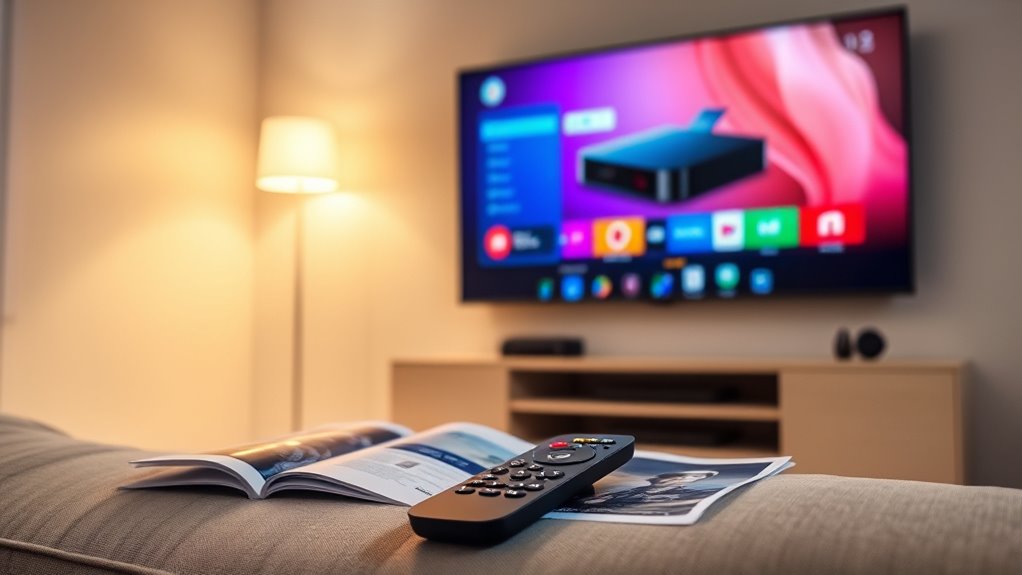

To know if you have a smart TV, start by checking the model number on the sticker or label—search it online for specifics. Then, explore the settings menu for internet connectivity options and app availability. Look for built-in apps like Netflix or access to a dedicated app store. Also, inspect the remote control for dedicated streaming buttons or voice control features. Each of these clues can tell you more about your TV’s capabilities.
Checking the TV Model Number
One of the simplest ways to determine if you have a smart TV is by checking the model number. Locate the brand logo, usually found on the front or back of your TV. Once you’ve identified it, search online for the model number, typically printed on a sticker or label. This number can reveal essential information about your TV’s capabilities. If it’s a recent model from brands like Samsung, LG, or Sony, chances are it’s smart. Smart TVs typically support internet connectivity, streaming apps, and more. By understanding your model number, you gain insight into your TV’s features and whether it aligns with your desire for modern viewing freedom. So, take a moment to check—it’s worth it!
Examining the TV Settings Menu
After checking the model number, the next step is to examine the TV settings menu. This menu can reveal whether your TV has smart capabilities. Here’s what to look for:
After identifying the model number, check the TV settings menu to uncover potential smart features and functionalities.
- Network Settings: If you see options for connecting to Wi-Fi or wired networks, your TV likely supports smart features.
- User Interface Customization: A settings menu that allows you to adjust various aspects, like themes or layouts, indicates an advanced user interface typical of smart TVs.
- Software Updates: Look for options to check for updates. Smart TVs regularly receive software updates to enhance functionality.
Identifying Built-in Apps
How can you tell if your TV has built-in apps? Start by checking the menu or home screen. If you see icons for popular streaming services like Netflix, Hulu, or YouTube, your TV likely has built-in features that support these platforms. You can also look for an app store specific to your TV brand, which indicates app availability. If your TV allows you to download additional applications, that’s another sign of smart capabilities. Finally, consult your TV’s manual or the manufacturer’s website for detailed specifications. By identifying these elements, you’ll know if you’re equipped to enjoy a world of entertainment at your fingertips, enhancing your viewing freedom.
Looking for Internet Connectivity Options
To fully leverage the built-in apps on your TV, you’ll want to explore its internet connectivity options. Understanding these options can enhance your viewing experience and provide access to a world of content. Here are three key connectivity features to look for:
- Wi-Fi Capability: Check if your TV supports Wi-Fi, allowing you to connect wirelessly to your home network. This offers flexibility and eliminates cable clutter.
- Ethernet Port: A wired connection can provide a more stable internet experience. If your TV has an Ethernet port, consider using it for reliable streaming.
- Network Settings: Access the settings menu to see available networks and configure your connection preferences.
Inspecting Remote Control Features
Have you ever wondered what features your remote control has that could indicate whether you own a smart TV? Start by looking at the remote control types you have. If it includes dedicated buttons for popular streaming services like Netflix or Hulu, it’s a good sign you’ve got smart features. Voice control is another indicator; if your remote has a microphone, you likely own a smart TV that supports voice commands. Additionally, check for a menu button that allows access to apps and settings, which is typical for smart TVs. If your remote features a touchpad or motion controls, it’s further evidence of smart capabilities. Overall, examining your remote can provide essential clues about your TV’s intelligence.
Frequently Asked Questions
Can I Use a Regular TV as a Smart TV?
You can use a regular TV as a smart TV by connecting streaming devices like Roku or Chromecast. Confirm device compatibility with your TV’s inputs, and you’ll access a world of streaming options easily.
What Brands Are Known for Their Smart TVS?
Samsung models excel in design, while LG technology offers impressive visuals. Sony features enhance user experience, and Roku interface simplifies navigation. Vizio options provide great value, and Hisense performance guarantees quality at a budget-friendly price.
Do Smart TVS Require Software Updates?
Yes, smart TVs do require software updates. In fact, 70% of users receive update notifications at least quarterly, ensuring enhanced features and security. Regular software upgrades keep your TV running smoothly and efficiently.
Can Smart TVS Connect to Bluetooth Devices?
Yes, smart TVs often have Bluetooth compatibility, allowing you to connect various devices. You can easily pair your Bluetooth headphones, speakers, or controllers, enhancing your viewing or gaming experience without the hassle of wires.
Are There Security Risks With Using a Smart TV?
Using a smart TV can feel like inviting a stranger into your living room. There’re privacy concerns and data tracking risks; hackers might exploit vulnerabilities, so always stay informed and take precautions to protect your information.
