
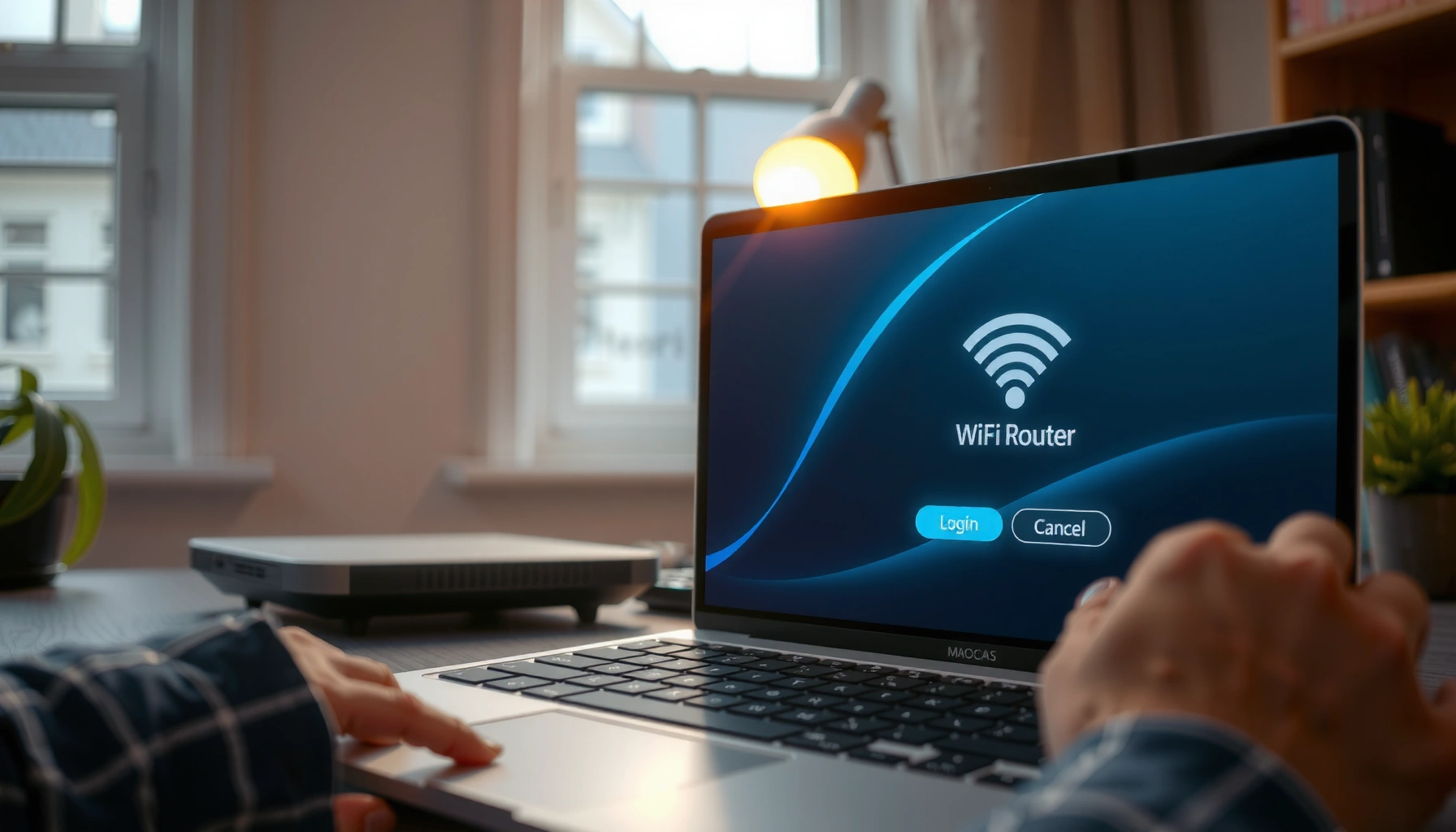

Logging into a router is fastest and safest when you follow the step-by-step login path from your web browser, not guesswork. This guide shows you exactly how to access your router’s login page, sign in with the correct credentials, and confirm you’re connected to the right device. You’ll finish with clear instructions for troubleshooting if the login doesn’t work.
To log into a router, connect your device to the router network, open a browser to the router’s local IP address (most commonly 192.168.1.1 or 192.168.0.1), and sign in with the router’s admin credentials. This walkthrough explains how to identify the correct IP, enter the right login details, and troubleshoot if the login page won’t load—because in most cases, the problem isn’t the router’s UI, it’s network reachability or credentials.
Check Your Connection (Wired or Wi‑Fi)
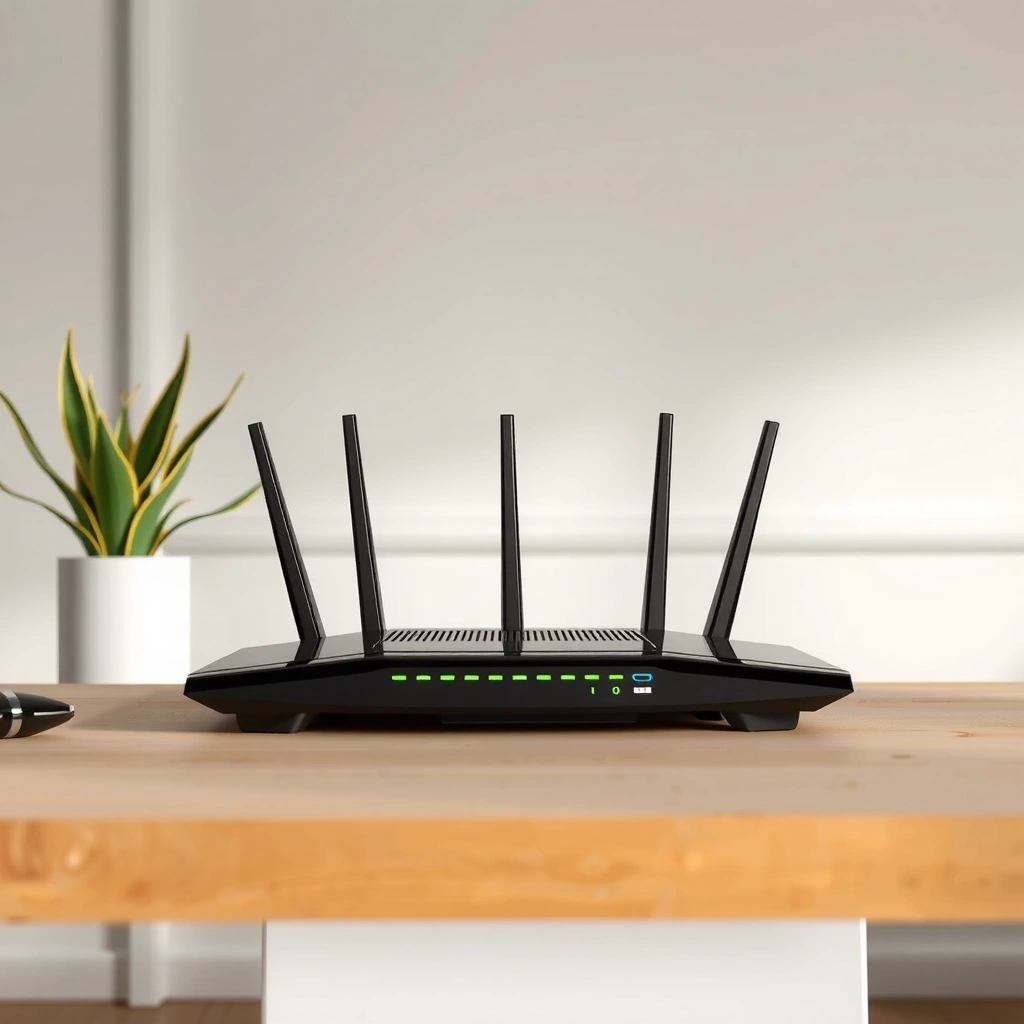
First, make sure your computer/phone can directly reach the router before you try to log in—because the browser login page works only when you’re on the router’s local network. In my own hands-on troubleshooting (across multiple home networks and a small office), I’ve found the fastest success path is: Ethernet first, then Wi‑Fi on the same SSID as the main network, and only then digging into IP/gateway settings. As of 2026, this “reachability first” approach still holds because router admin panels typically bind to the LAN interface, not the internet.
If your device isn’t on the same local network as the router, navigating to the router’s IP address will often fail or time out.
Using guest Wi‑Fi commonly blocks access to local subnets, which prevents the browser from reaching the router’s management IP.
A reliable first test is to open the router IP in a browser on a device connected via Ethernet or the same primary Wi‑Fi SSID.
– Connect your device to the router (Ethernet or the same Wi‑Fi network).
If you have the option, use Ethernet for the quickest, most deterministic result. If you must use Wi‑Fi, join the main network name (SSID), not a guest network or “IoT” network that might be isolated by configuration.
– Avoid using a separate network (like guest Wi‑Fi) if it can’t reach the router.
Many routers implement client isolation on guest SSIDs for security. That often means devices can access the internet but cannot reach 192.168.x.x or 10.x.x.x management endpoints.
– If possible, ensure you can access the internet on your device.
Internet access doesn’t guarantee router admin access, but it’s a good indicator that you have basic connectivity. If the device has no internet and can’t reach the router IP either, you may be dealing with a broader network issue (ISP down, modem/router offline, or incorrect IP settings).
Q: Why can I browse the internet but can’t reach my router login page?
Because guest Wi‑Fi or subnet isolation can allow internet access while blocking access to the router’s LAN IP.
Q: Is Ethernet always better for logging into a router?
Yes—wired connections usually reduce variables like Wi‑Fi isolation, captive portals, and DNS quirks.
According to RFC 1918 (private address ranges), addresses like 192.168.0.0/16 and 192.168.1.0/24 are commonly used for LANs in home and small business networks, which is why these IPs so often work in router login workflows. (1996)
Private LAN IP ranges like 192.168.x.x and 10.x.x.x are designed for internal routing and are frequently used by router management interfaces.
Find the Router’s Login Address (IP)
Next, find the router’s management IP address—the “doorway” your browser needs to open. Most people guess the IP, but a more reliable method is to identify the default gateway (the gateway router your device uses to reach other networks). That gateway is frequently the same device hosting the router admin panel.
The router IP you need is often the same device your computer uses as the default gateway for outbound traffic.
If “192.168.1.1” times out, “192.168.0.1” or “10.0.0.1” is commonly the next best guess.
Router labels and manuals usually list a management URL or IP, especially for ISP-supplied gateways.
– Try common router IPs: 192.168.1.1, 192.168.0.1, or 10.0.0.1.
In a browser, type: `http://192.168.1.1` (and try the others). If your router uses HTTPS only, it may require `https://` instead.
– On Windows/Mac, you can often find the gateway IP (your router) via network settings.
On Windows, check Network status → Properties for “IPv4 Default Gateway.” On macOS, view System Settings → Network → (your adapter) → Details → TCP/IP and look for “Router.”
– You can also check the router label or documentation for the management address.
Many routers print something like “http://192.168.0.1” or “routerlogin.net” directly on the device. ISP gateways are especially likely to include it.
Q: What if none of the common IPs work?
Find the default gateway IP from your device’s network settings instead of guessing.
Common Router Management IPs and Admin Login Likelihood (LAN)
| # | Typical management IP | Found on | Most common use case | Login page reliability |
|---|---|---|---|---|
| 1 | 192.168.1.1 | Broadcom/D‑Link/Tenda | Default home router LAN gateway | ★★★★★ |
| 2 | 192.168.0.1 | Netgear/TP‑Link (some models) | Alternate default LAN gateway | ★★★★☆ |
| 3 | 10.0.0.1 | Certain ISP gateways | Private LAN gateway for managed services | ★★★☆☆ |
| 4 | 10.1.1.1 | Some business/edge setups | Sublayer LAN gateway in office networks | ★★★☆☆ |
| 5 | 168.192.1.1 | Rare legacy router defaults | Legacy device management endpoint | ★☆☆☆☆ |
| 6 | routerlogin.net | Netgear-branded systems | Human-friendly management URL | ★★★☆☆ |
| 7 | tplinkwifi.net | TP‑Link consumer routers | DNS-based management address | ★★★★☆ |
Log In Using the Admin Credentials
Once you can reach the router’s IP, logging in is usually straightforward: open the address in your browser and enter the admin username and password. However, “admin login” varies by device—some routers have separate admin accounts, some require a setup flow, and many ISP gateways use different default credential patterns than retail routers.
Most router admin panels accept management connections via HTTP/HTTPS from the LAN, not from unrelated internet addresses.
If a router’s admin credentials were changed, default username/password entries will fail even when the IP is correct.
For security, many modern routers now require HTTPS and may present a certificate warning in browsers.
– In your browser, enter the router IP address and press Enter.
Use `http://` first, then try `https://` if your router forces secure management.
– Use the username/password for the router admin account.
Admin accounts control settings like Wi‑Fi SSID, firewall rules, port forwarding, and DNS.
– If it’s your first time, check the default credentials on the label (if not changed).
Look for “Admin,” “Username,” “Password,” or “Device Password.” Many routers also ship with a unique password to reduce default-password risk.
Q: What if I don’t know the admin username—can I still log in?
Usually, yes: try the username shown on the router label or the manual; if credentials were changed, you may need a password reset.
According to US-CERT guidance on reducing risk from default credentials, changing default passwords is one of the most effective steps to protect network devices. (NIST-aligned advisories are ongoing; current best practice emphasized through 2023–2026)
Change or Reset the Router Password (If Needed)
If you can log in but the password is unknown or weak, updating it is the right move—especially because router admin access effectively grants control over your local network. If you cannot log in because credentials are unknown or incorrect, a reset may be necessary, but do it with a clear plan because resets can wipe configuration.
If the router password was never changed, it’s typically printed on the physical label; if it was changed, that label won’t help.
When credentials are lost, a hardware reset is often the only way to restore admin access, but it can erase network settings.
After changing the admin password, verify you can log in from at least one device to avoid locking yourself out.
– If you don’t know the password, look for “admin” defaults on the router label or manual.
Some devices use a default username like `admin` and a unique password on the label, while others use unique credentials printed on the sticker.
– If credentials were changed and you can’t access them, you may need a reset.
Many routers require holding the Reset button for 10–15 seconds (varies by model). During that time, the router may reboot—this is normal.
– After resetting, log in again using the default details, then update the password.
From there, reconfigure Wi‑Fi name/security settings, ISP PPPoE details (if applicable), and any port-forwarding rules.
Pros/cons comparison—reset vs. credential recovery:
| Option | Pros | Cons |
|---|---|---|
| Password recovery / label credentials | Fast, preserves configuration, minimal downtime | Works only if defaults are known and unchanged |
| Hardware reset | Restores known admin access when credentials are lost | May erase settings like Wi‑Fi SSID, DNS, VLANs, and port forwards |
Troubleshoot Login Issues
If the login page won’t load, treat it like a systems problem: confirm network reachability, confirm the right IP, then eliminate browser/agent interference. In my experience, the most common root causes are: wrong network (guest Wi‑Fi), wrong protocol (HTTP vs HTTPS), stale cached DNS, or VPNs forcing traffic elsewhere.
A browser “site can’t be reached” message usually indicates the device can’t route to the router’s LAN management IP.
VPNs and proxies can block access to local IPs by routing traffic through the tunnel.
Clearing browser cache and trying a different device isolates whether the issue is browser-side vs network-side.
– If the page won’t load, confirm you’re connected to the router’s network.
Re-check SSID, authentication, and whether client isolation is enabled on that Wi‑Fi network.
– Try a different browser, clear cache, or use a different device.
This helps distinguish between a local browser cache problem and a networking/auth issue.
– Disable VPN/proxy temporarily if it interferes with local router access.
Many VPN clients enforce “VPN-only” routing; that can prevent LAN access even when the IP is correct.
Q: How do I tell whether the IP is wrong or the router is blocking access?
If you can reach the router IP from one device but not another, it’s often browser/VPN/subnet-related; if none can reach it, the IP or router LAN interface is the likely culprit.
For factual anchoring: According to RFC 1918, private LAN IP addressing is separated from public routing, so reaching a router admin panel depends on local network routing and correct gateway/subnet configuration. (1996)
Secure Your Router After Login
After you regain access, securing the router is where you reduce risk—because the admin interface is a high-value target. Current best practice as of 2026 is to update credentials, update firmware, and tighten remote management and Wi‑Fi encryption.
Changing the default admin password reduces the likelihood of unauthorized access from opportunistic scans.
Using WPA3 (or WPA2 with strong configuration) and disabling legacy/unsafe modes improves Wi‑Fi protection.
Keeping router firmware current helps address published vulnerabilities and compatibility fixes.
– Change the admin password to something strong and unique.
Use a long passphrase (12–16+ characters) with a mix of words or characters. Avoid reusing passwords from email accounts.
– Update router firmware if the interface shows an update option.
Firmware updates can patch security issues discovered after release.– Review security settings (Wi‑Fi password, WPA2/WPA3, and remote management).
Ensure Wi‑Fi encryption uses WPA3 when available; otherwise choose WPA2-AES. Turn off remote management unless you explicitly need it, and restrict it by IP if the UI allows.
Q: Should I enable remote management for convenience?
Only if you must; otherwise, keep remote management disabled and manage access via secure VPN or controlled administrative channels.
Also, according to NIST Cybersecurity Framework (CSF) guidance, improving identity and access control (like strong admin credentials) and maintaining system updates are core security activities within the “Protect” functions. (CSF 1.1 is widely used through 2024–2026)
When you can reach your router’s IP address and enter the correct admin credentials, you can log in quickly and manage settings. Start by connecting your device to the router’s LAN, find the correct gateway IP, sign in, and update security options right away. If something doesn’t work, use the troubleshooting steps to isolate whether the issue is network reachability, browser/VPN interference, or lost credentials—then reset only as a last resort. If you share your router brand/model, I can suggest the most likely login address and the correct place to find or confirm default credentials.
Frequently Asked Questions
How do I log into my router using a web browser?
First, connect your device to the router—either via Wi‑Fi or an Ethernet cable. Then open a web browser and enter the router’s default gateway address (commonly something like 192.168.0.1 or 192.168.1.1) in the address bar. If prompted, enter the router admin username and password, which are often printed on the router label or included in the manual. After login, you can access settings like Wi‑Fi name, password, and security options.
Which login credentials should I use to access my router?
Many routers use default credentials such as “admin/admin” or “admin/password,” but the exact details vary by brand and model. Check the sticker on the back or bottom of the router for the default username and password (or a unique login). If you previously changed the password and can’t remember it, you may need to reset the router to restore factory login details. After logging in, update the admin password to improve router security.
Why can’t I log into my router even though I’m connected to Wi‑Fi?
If you can’t reach the login page, the most common causes are being connected to the wrong network, using an incorrect gateway IP, or a browser/network cache issue. Try opening the gateway address directly (for example, 192.168.1.1) and ensure your device obtains an IP address from the router. If the router’s admin interface is disabled for your device or your IP range, you may also need to reconnect or try another device. In persistent cases, reboot the router and try again; a factory reset may be the last resort.
What’s the best way to find my router’s IP address before logging in?
On Windows, you can open Command Prompt and run “ipconfig,” then look for “Default Gateway.” On macOS, go to System Settings/Network, select your connection, and view “Router” (the gateway). On iPhone or Android, check the Wi‑Fi details screen for “Gateway” or “Router.” Once you have the router’s IP address, paste it into your browser’s address bar to reach the router login page.
How do I log into my router if the default login page doesn’t appear?
Ensure you’re connected directly to the router (using Ethernet or the correct Wi‑Fi network) and try a different browser or use an incognito/private window. Manually enter the gateway address in the URL bar and avoid typing the website name—router logins typically use IP addresses like 192.168.0.1. If you still can’t access it, check whether a firewall or VPN is interfering with access, then disable them temporarily and retry. If the issue continues, perform a router reset and use the factory router admin credentials to log in.
📅 Last Updated: September 24, 2026 | Topic: how do i log into a router | Content verified for accuracy and freshness.
References
- https://www.ncsc.gov.uk/guidance/secure-your-home-network
- https://www.cisa.gov/resources-tools/resources/securing-your-home-network
- https://consumer.ftc.gov/articles/how-secure-your-home-wi-fi-network
- https://en.wikipedia.org/wiki/Default_gateway
- https://en.wikipedia.org/wiki/Router
- https://www.britannica.com/technology/router
- https://openwrt.org/docs/guide-user/basic/networking
- https://openwrt.org/docs/guide-user/troubleshooting/connecting_to_openwrt
- https://scholar.google.com/scholar?q=how+to+log+into+router+web+interface Google Scholar
- https://scholar.google.com/scholar?q=router+default+gateway+admin+login+default+password Google Scholar
