
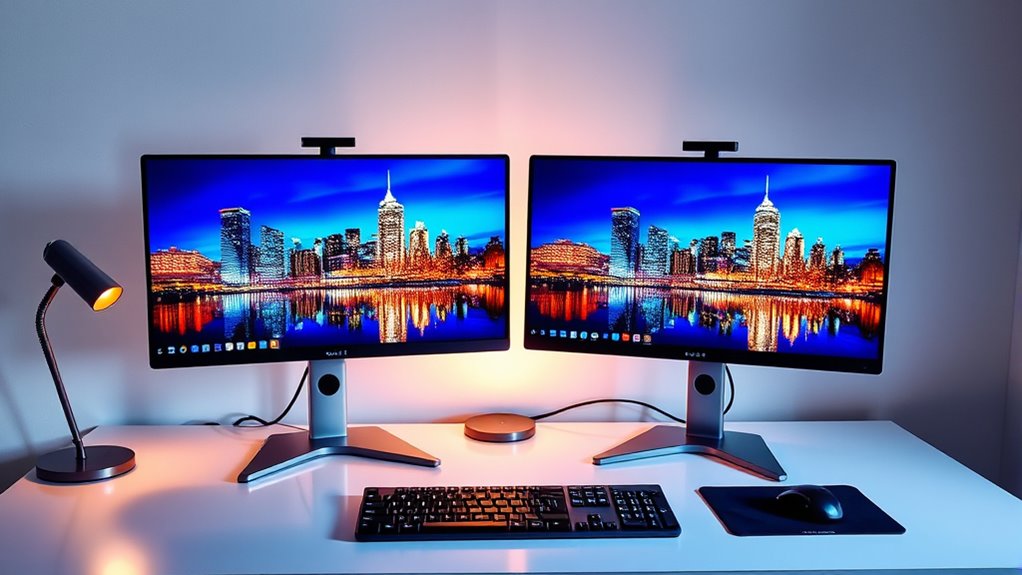

To set up dual monitors, first, check that your graphics card supports multiple displays and guarantee you have compatible outputs like HDMI or DisplayPort. Choose monitors that are similar in size and resolution for a seamless experience. Connect the monitors to your computer using the appropriate cables and configure the display settings in your operating system. Adjust each monitor’s resolution and orientation for ideal clarity. If you follow these steps, you’ll access a more efficient workflow ahead.
Understanding the Requirements for Dual Monitors
Before you can enjoy the benefits of dual monitors, you need to confirm that your setup meets specific requirements. First, check your graphics card; it must support multiple displays. Most modern cards will have at least two outputs, but verify the types—HDMI, DisplayPort, or DVI—compatible with your monitor types. You don’t want to be stuck with mismatched connections. Additionally, ascertain your computer’s operating system can handle dual displays; Windows and macOS have built-in support. Also, consider the resolution and refresh rates of the monitors; they should ideally match for a seamless experience. Finally, assess your workspace to accommodate the physical setup, ensuring you have the necessary desk space and cable management solutions for a tidy arrangement.
Choosing the Right Monitors for Your Setup
When selecting monitors for your dual setup, consider both size and resolution to guarantee peak performance. Larger screens can enhance multitasking, while higher display resolutions provide clearer visuals, which is essential for tasks requiring precision. Balancing these factors will help create an efficient and enjoyable workspace.
Monitor Size Considerations
Choosing the right monitor size is essential for optimizing your dual monitor setup, as it can greatly impact your productivity and comfort. Consider the monitor dimensions that best fit your workspace; typically, 24 to 27 inches strikes a balance between visibility and desk space. Pay attention to screen ratios as well; a 16:9 aspect ratio is common and works well for most tasks, while ultrawide options offer expansive horizontal space for multitasking. Confirm both monitors are of similar sizes and ratios to create a cohesive visual experience. This uniformity also minimizes eye strain and enhances workflow efficiency. Ultimately, selecting monitors that suit your needs and preferences allows for a more liberated and productive working environment.
Display Resolution Options
Selecting the right display resolution is essential for your dual monitor setup, as it directly affects image clarity and overall productivity. You’ll want to match the resolution settings of both monitors to guarantee a seamless experience. Common resolutions include 1920×1080 (Full HD) and 2560×1440 (Quad HD), but consider your specific needs. If you’re working with high-resolution content, higher settings may be beneficial.
Additionally, explore display scaling options to adjust text and icon sizes for better visibility. This is particularly important if you’re using monitors with different resolutions. Remember, effective use of resolution settings and scaling options can enhance your workflow, making multitasking smoother and reducing eye strain.
Connecting Your Monitors to Your Computer
Before you connect your monitors to your computer, you’ll need to check compatibility requirements for both the monitors and your graphics card. Make sure you have the proper cables—such as HDMI, DisplayPort, or VGA—to establish a secure connection. Once connected, you’ll configure the display settings to optimize your dual-monitor experience.
Check Compatibility Requirements
When setting up dual monitors, it’s important to confirm your computer can support them. Check your graphics card specifications to verify it can handle multiple monitor types. You’ll want to ascertain that your operating system supports dual displays as well. Here’s a quick compatibility checklist:
| Component | Checkpoints | Notes |
|---|---|---|
| Graphics Card | Supports multiple outputs | Look for HDMI, DisplayPort |
| Monitor Types | Compatible resolutions | Check max resolution |
| Operating System | Supports multiple displays | Windows, macOS, Linux |
Use Proper Cables
To successfully connect your monitors to your computer, you’ll need the right cables that match both your graphics card and your monitor inputs. Common cable types include HDMI, DisplayPort, and VGA. HDMI is widely supported and can carry both video and audio, while DisplayPort offers higher resolutions and refresh rates, ideal for gaming. VGA is older but may still be relevant for legacy monitors.
When selecting cables, pay attention to cable lengths too. Make sure they’re long enough to reach from your computer to your monitors without tension or stretching. If you need to traverse a large distance, consider active cables or signal boosters to maintain quality. Choosing the right combination of cable types and lengths is essential for a seamless dual-monitor experience.
Configure Display Settings
Once you’ve connected your monitors with the appropriate cables, you’ll need to configure the display settings to guarantee both screens function correctly. Start by accessing your computer’s display settings. Here, you can adjust the display layout to match your preferred arrangement, whether it’s extending or duplicating the screens. You’ll also want to set the screen orientation for each monitor—landscape or portrait—depending on your needs.
| Setting Type | Description |
|---|---|
| Display Layout | Choose between Extend or Duplicate |
| Screen 1 Orientation | Landscape or Portrait |
| Screen 2 Orientation | Landscape or Portrait |
| Resolution | Set ideal resolution for clarity |
| Refresh Rate | Adjust for smooth motion |
Configuring these options guarantees an efficient multi-monitor experience.
Configuring Display Settings in Windows
Although configuring display settings in Windows may seem intimidating, it’s a straightforward process that can greatly enhance your multitasking capabilities with dual monitors. Start by right-clicking on the desktop and selecting “Display settings.” Here, you’ll see both monitors represented. You can rearrange them to match your physical setup by dragging the displays into the desired order, ensuring a seamless shift between screens. Adjust the resolution and scaling for each monitor to optimize clarity and usability. Don’t forget to select “Extend these displays” to fully utilize the multi-tasking benefits, allowing you to drag windows across screens effortlessly. Once you’re satisfied with the display arrangement, click “Apply,” and enjoy your enhanced workspace.
Configuring Display Settings in Macos
Configuring display settings on macOS is a seamless experience that enhances your productivity with dual monitors. To set up your external display, go to System Preferences, then Displays. Here, you’ll find options to adjust your display arrangement. You can drag the display icons to match their physical layout on your desk. Below is a quick reference table for display settings:
| Setting | Description |
|---|---|
| Display Arrangement | Adjust the position of your monitors |
| Resolution | Change the display resolution |
| Refresh Rate | Modify the refresh rate for performance |
| Color Profile | Select a color profile for accuracy |
Once configured, enjoy the freedom of multitasking effectively across both screens!
Tips for Optimizing Your Dual Monitor Experience
To make the most of your dual monitor setup, it’s essential to implement a few key strategies that enhance efficiency and comfort. First, establish clear workspace organization by designating specific tasks for each monitor. For instance, keep communication apps on one screen while using the other for primary work. This approach optimizes your multitasking strategies, allowing seamless shifts between tasks. Additionally, adjust monitor heights to align your line of sight, reducing neck strain. Utilize software tools that support window management for easy resizing and positioning of applications. Finally, consider color calibration for consistent visuals, enhancing your overall experience. By applying these tips, you’ll create a productive environment that caters to your unique workflow needs.
Frequently Asked Questions
Can I Use Different Brand Monitors for Dual Setup?
Yes, you can use different brand monitors in a dual setup. Just verify monitor compatibility by checking resolution and refresh rates. Adjust your display settings accordingly to optimize performance and achieve a seamless experience.
What Is the Maximum Resolution for Dual Monitors?
The maximum resolution for dual monitors can reach up to 8K, depending on your graphics card’s capabilities and monitor compatibility. Always check specifications to guarantee peak performance and avoid resolution limitations when setting up.
How Do I Switch Between Monitors Quickly?
You can quickly switch between monitors using keyboard shortcuts like Windows + P. Adjust your display settings to optimize your experience, allowing seamless navigation and enhancing your productivity across multiple screens. Enjoy the freedom of multitasking!
Will Dual Monitors Affect My Computer’s Performance?
Will dual monitors slow your computer down? It might, depending on your graphics requirements. More screens increase performance impact, especially if your system’s hardware isn’t optimized for multitasking. Confirm your GPU can handle the workload effectively.
Can I Use a TV as a Second Monitor?
Yes, you can use a TV as a second monitor. Just confirm the TV’s compatible with your computer. Adjust your display settings to extend or mirror your screen, optimizing resolution for the best experience.
