
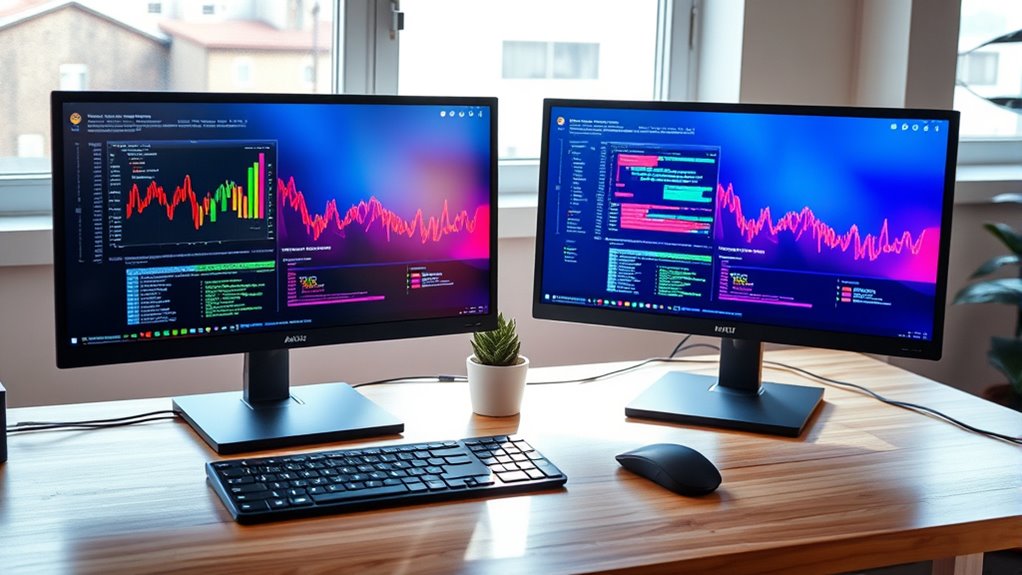

To use two monitors, first, choose monitors that fit your workspace and offer high resolution. Connect them to your computer via compatible ports like HDMI or DisplayPort. Once connected, configure display settings to match each monitor’s native resolution and decide on orientation—landscape or portrait. Manage windows by snapping them into place and using virtual desktops for better organization. If you encounter issues, check cable connections and update graphics drivers. There’s more to explore on optimizing your multi-monitor setup.
Choosing the Right Monitors for Your Setup
When choosing the right monitors for your setup, consider at least three key factors: size, resolution, and panel type. First, monitor specifications dictate your experience—larger screens offer more workspace but can take up valuable desk real estate. Next, screen resolution is essential; higher resolutions like 1440p or 4K provide sharper images, enhancing productivity and visual comfort. Finally, the panel type impacts color accuracy and viewing angles. IPS panels are great for vibrant colors, while TN panels often have faster response times. Balancing these factors guarantees you select monitors that not only fit your aesthetic but also serve your functional needs, promoting a seamless multitasking experience and expanding your creative freedom.
Connecting Your Monitors to Your Computer
To successfully connect your monitors to your computer, start by identifying the available ports on both the monitors and your computer. Common cable types include HDMI, DisplayPort, VGA, and DVI. Verify your chosen cables match the ports on both devices. Check monitor compatibility, as some monitors may require specific resolutions or refresh rates to function correctly. If you’re using different cable types, adapters may be necessary, but make certain they support the required specifications. Once you have the appropriate cables and adapters, plug them into the respective ports on your computer and monitors. Finally, power on your monitors, and they should automatically be detected by your computer, ready for your dual-monitor setup.
Configuring Display Settings for Optimal Use
Configuring display settings is essential for optimizing your dual-monitor setup. To get the most out of your monitors, you’ll want to adjust both the display resolution and monitor orientation according to your needs.
- Set the display resolution to match each monitor’s native settings for crystal-clear visuals.
- Choose the right monitor orientation—landscape or portrait—based on your tasks, like coding or reading documents.
- Utilize extended display mode to maximize your workspace, allowing for seamless multitasking.
Tips for Managing Windows Across Multiple Screens
After optimizing your display settings, the next step is effectively managing windows across your screens. Good window organization can greatly enhance your productivity. Here are some tips to streamline your workflow:
| Action | Description |
|---|---|
| Snap Windows | Use snapping features to align windows quickly. |
| Virtual Desktops | Create separate desktops for different tasks. |
| Keyboard Shortcuts | Learn shortcuts for quick window movement. |
| Taskbar Customization | Pin applications for easy access. |
| Focus Mode | Use full-screen mode to minimize distractions. |
Troubleshooting Common Dual Monitor Issues
While dual monitors can greatly enhance your productivity, they may also present some common issues that can disrupt your workflow. Here are a few troubleshooting tips to resolve these problems:
Dual monitors boost productivity but can lead to common issues; troubleshooting can help maintain your workflow.
- Check cable compatibility: Verify that the cables used for your monitors are compatible with both the monitors and your computer. Poor connections can lead to display issues.
- Adjust screen resolution: Mismatched screen resolutions can cause distortions. Make sure both monitors are set to their recommended resolutions for ideal display.
- Update graphics drivers: Outdated drivers can hinder performance. Regularly check for updates to verify your graphics card is functioning properly.
Frequently Asked Questions
Can I Use Different Brands of Monitors Together?
Yes, you can use different brands of monitors together, as long as they meet basic monitor compatibility requirements. Mixed brands often work well, allowing you to enjoy varied features while maximizing your workspace efficiency.
How Do I Adjust Monitor Height for Comfort?
To adjust monitor height for comfort, use adjustable monitor stands to achieve an ergonomic setup. Confirm the top of the screen is at or just below eye level, reducing neck strain and promoting better posture.
Is There a Limit to How Many Monitors I Can Use?
You can technically connect multiple monitors, but it depends on your graphics card’s capabilities and monitor compatibility. Most setups support two to four monitors, so check your specs for ideal performance and freedom in multitasking.
Do I Need Special Cables for Dual Monitor Setups?
Yes, you’ll need specific cables for dual monitor setups. Depending on your monitors, you might use HDMI cables, DisplayPort cables, or DVI connections. VGA connections are also an option, though they’re less common nowadays.
Can I Mirror My Display Instead of Extending It?
Yes, you can mirror your display. In your display settings, select mirror mode to replicate your screen across both monitors. This option’s great for presentations or sharing content without needing to extend your workspace.
