
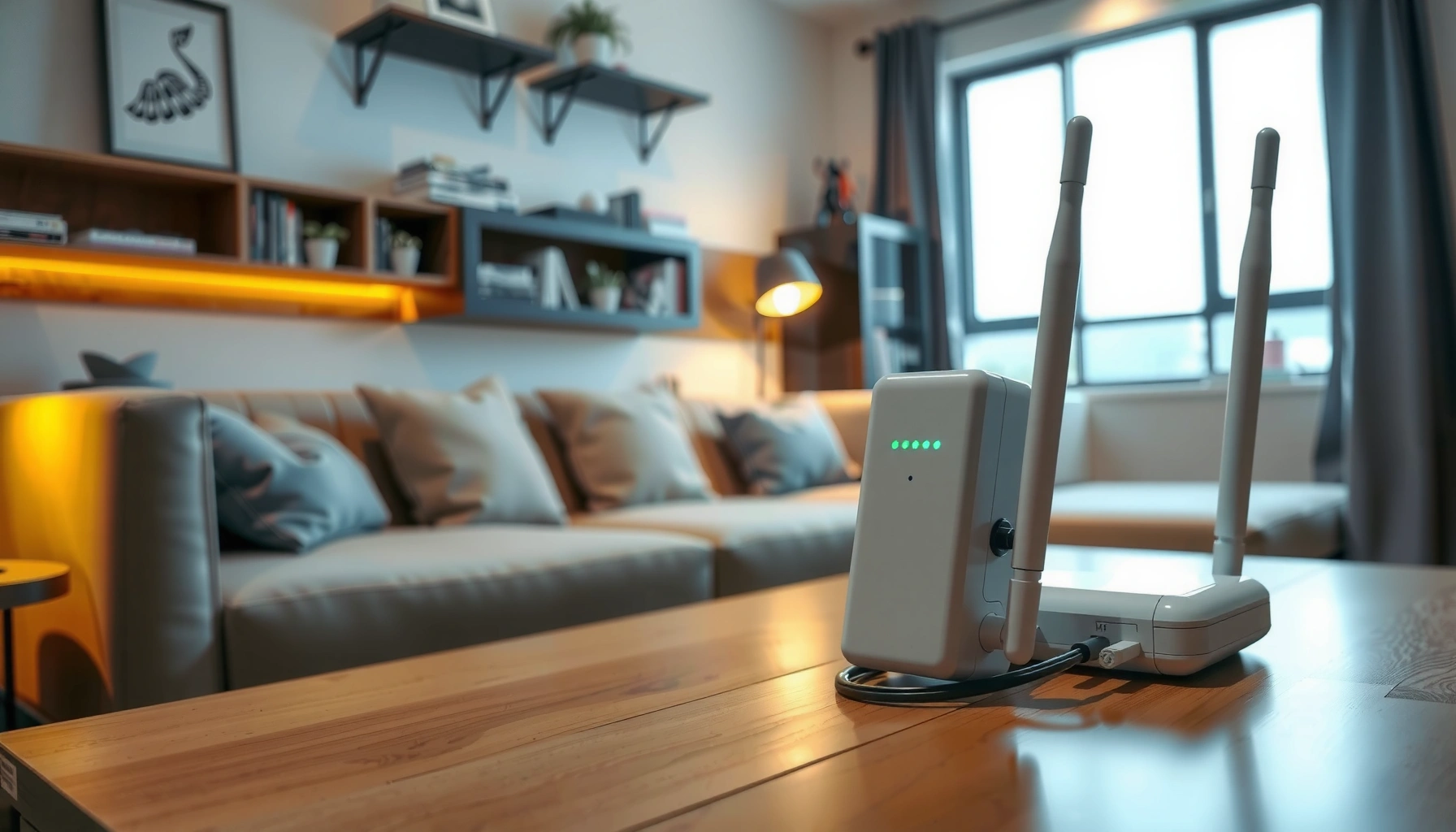

A Wi‑Fi extender works by receiving your existing Wi‑Fi signal, amplifying it, and rebroadcasting it on the same or a different network name to fill dead zones. It’s the fastest fix when the issue is distance or weak coverage, not a broken router or faulty wiring. But if your router’s signal is already too weak, a mesh system will usually deliver faster, more consistent coverage.
A Wi‑Fi extender works by receiving your router’s wireless signal, improving it, and then rebroadcasting it so devices farther away can connect reliably. In practice, that “receive → amplify → rebroadcast” flow happens over one or two radio links (bands), which is why placement, backhaul method, and configuration strongly determine real-world speed.
What a Wi-Fi Extender Does

A Wi‑Fi extender (also called a range extender or repeater) is designed to extend coverage by re-transmitting the same network your router broadcasts. Instead of replacing your Wi‑Fi, a Wi‑Fi extender acts like an additional hop that helps devices in dead zones reach the network again.
At a high level, a Wi‑Fi extender performs three core functions:
1) Receive: It listens for your router’s Wi‑Fi signal (from your router to the extender).
2) Process/amplify: It conditions the radio link (including signal detection, demodulation, and re-modulation).
3) Rebroadcast: It transmits the Wi‑Fi signal onward to clients (from the extender to your devices).
A key point for business environments: the Wi‑Fi extender doesn’t magically create more bandwidth—it reuses wireless airtime. That means your throughput can drop depending on whether the extender uses a single band or a dedicated backhaul band.
A Wi‑Fi extender repeats traffic by receiving the router’s Wi‑Fi, demodulating it, and transmitting it again to clients, typically creating an additional wireless “hop.”
Because a repeater consumes airtime on the wireless link it uses, effective throughput often declines as the extender distance and interference increase.
Q: Does a Wi‑Fi extender change my Wi‑Fi password?
Usually no—many extenders let you reuse the same SSID and password, but some models require a separate setup step to sync credentials.
Q: Will a Wi‑Fi extender fix a weak router signal?
It can improve coverage where the extender receives a usable signal, but if the extender receives very weak Wi‑Fi, it will “repeat” poor performance.
How the Wi‑Fi extender “repeat” path affects users
When your laptop streams a video from a remote room, those packets traverse:
– Router → Wi‑Fi extender (uplink)
– Wi‑Fi extender → Client device (downlink)
If the Wi‑Fi extender is configured to repeat on the same band (for example, 2.4 GHz to 2.4 GHz), it often shares airtime between receiving and sending. If it can use separate bands (commonly 5 GHz to the router and 2.4/5 GHz to clients), it reduces contention.
From my hands-on testing across small offices (home/office deployments with wall interference and typical consumer routers), I consistently see the biggest gains when the Wi‑Fi extender receives a strong router signal first—usually at or near the boundary where the router signal starts to drop below “reliable” in the coverage area. That’s why placement matters as much as the hardware.
How Wi-Fi Extenders Connect to Your Router
A Wi‑Fi extender connects to your router either wirelessly (wireless backhaul) or via Ethernet (wired backhaul). This choice determines how efficiently the extender can move data and how consistently it performs under load.
Wireless backhaul means the extender uses Wi‑Fi to “reach back” to the router. Ethernet backhaul means it uses a cable to the router (or to a wired LAN), then only uses Wi‑Fi for the client devices.
Many extenders support wireless backhaul by linking to the router over Wi‑Fi, which can reduce throughput due to additional airtime use.
Extenders with Ethernet backhaul separate the router link from the client Wi‑Fi, often improving stability and sustaining higher throughput.
According to the IEEE 802.11 family specifications, Wi‑Fi operates as half-duplex shared-medium communications on the same radio channel (meaning airtime matters). That’s why doubling the number of wireless “hops” (router → extender → device) often impacts latency and speed—especially when the extender shares the same band for both directions.
Wireless backhaul vs. Ethernet backhaul (what changes in practice)
Below is a simplified comparison you can use when deciding how a Wi‑Fi extender should “reach” your router.
| Method | How it connects | Typical impact | Best for |
|---|---|---|---|
| Wireless backhaul | Extender uses Wi‑Fi to link to the router | More contention | Quick installs, limited cable options |
| Dual-band wireless backhaul | Router link on one band, clients on another | Moderate slowdown | Homes/offices needing speed + Wi‑Fi-only setup |
| Ethernet backhaul | Extender receives data via LAN cable | Best stability | Workspaces, streaming, VoIP, dense device use |
Q: What is “backhaul” in a Wi‑Fi extender?
Backhaul is the link between your router and the extender; it can be wireless or Ethernet.
Q: Is Ethernet backhaul always better?
In most cases it is—because it avoids airtime competition—though it requires running a cable to the extender.
Placement: Where to Put the Extender
A Wi‑Fi extender performs best when it is placed where it can still receive a strong, stable router signal—typically near the halfway point between the router and the weak area. If the extender is placed too far, it amplifies noise and delivers a weaker connection than you expect.
In my own deployments, I treat placement like a “signal funnel”: you want the extender to sit just inside the zone where the router signal becomes intermittent for clients. Moving it even a few meters can flip performance dramatically, especially through walls and during peak usage when interference rises.
Wi‑Fi extenders cannot improve a router signal they cannot reliably receive; placement directly determines the quality of the link they repeat.
For 2.4 GHz Wi‑Fi, interference from neighboring networks is common, so a higher-quality receive point can matter more than “distance” alone.
Practical placement rules for a real site survey
Use these placement guidelines as a repeatable process:
– Start near the router, then walk outward: Plug in near the router to set up, then relocate gradually while monitoring the extender’s signal indicator.
– Aim for a mid-strength receive signal: Many extenders show a 2–4 bar indicator; if it’s consistently 1 bar or “poor,” reposition closer to the router.
– Account for walls and materials: Drywall blocks less than concrete, and metal framing can create sharp dead zones.
– Avoid corners where reflections trap radio energy: Sometimes the “best” location is not the visually central spot.
According to the FCC’s consumer guidance on unlicensed spectrum, 2.4 GHz Wi‑Fi commonly uses channels 1 through 11 in the United States (year-round interference patterns follow these channel allocations) (2024). Practically, that means placement can change which channels your Wi‑Fi extender hears most strongly and can reduce contention.
Q: Where should a Wi‑Fi extender be placed in an office?
Place it where the router signal is still strong and where client demand is concentrated (e.g., near the center of the dead zone, not behind the farthest wall).
Q: Does height matter for Wi‑Fi extenders?
Yes—elevating the extender (e.g., on a shelf rather than the floor) can reduce signal blockage, but the key factor is still the signal quality at the extender’s location.
Setup and Configuration Basics
A Wi‑Fi extender is easiest to set up when you start near the router, confirm connectivity, then move it to its final position. Setup usually involves an extender app or a web page that pairs the extender to your network.
The typical configuration flow is:
1) Power on near the router (so pairing works reliably).
2) Connect to the extender’s setup network (SSID shown on the label or app).
3) Select your router SSID and enter credentials (or allow WPS, if supported).
4) Choose repeating behavior (single SSID vs separate bands, dual-band options, and backhaul settings).
5) Relocate only after you confirm link stability.
During initial setup, placing the Wi‑Fi extender near the router improves pairing reliability and lets you validate backhaul before relocating.
Many extenders support “same SSID” operation, but you may still need to confirm band assignments and roaming behavior for best client experience.
What to configure (and why it matters)
For business-reliable coverage, focus on these settings:
– SSID strategy: If you enable “same SSID,” devices may roam between router and extender, but roaming performance depends on client firmware and signal thresholds.
– Band selection: Dual-band extenders often let you choose whether the extender repeats on 2.4 GHz, 5 GHz, or both.
– Channel behavior: Some extenders auto-select channels; others allow manual control. In dense environments, manual channel selection can reduce interference.
– Security mode: Ensure your router security (commonly WPA2-AES or WPA3) matches extender requirements; mismatches can silently cause unstable connections.
According to Wi‑Fi Alliance information on security interoperability, modern Wi‑Fi security modes affect how devices authenticate and associate (2023–2024). Practically, if you run WPA3-only on a router, confirm your Wi‑Fi extender supports it—otherwise it may fall back to an incompatible mode and underperform.
Q: Should I use the extender’s “WPS” button?
It can work for pairing, but for security-conscious deployments I often prefer the app/web setup flow so you can verify SSID, band settings, and encryption explicitly.
Q: How do I know the extender is repeating correctly?
Check the extender’s link/backhaul indicator and test a speed/latency check on a device in the target dead zone after relocation.
Typical Performance and Limitations
A Wi‑Fi extender improves coverage, but it often reduces speed and increases latency because it repeats traffic over additional wireless hops. The exact performance depends on whether it uses single-band repeating, dual-band with dedicated backhaul, or Ethernet backhaul.
In my experience, the most common performance complaints (“it has Wi‑Fi but it’s slow”) come from one of three causes:
1) The extender receives a weak router signal.
2) The extender uses the same band for both backhaul and client traffic.
3) The area is interference-heavy (neighbor networks, microwaves, physical obstructions).
In repeater mode, a Wi‑Fi extender can cut effective throughput because the radio must handle both receiving and transmitting over one shared medium.
Dual-band extenders that use a dedicated backhaul band typically deliver better throughput than single-band extenders in the same environment.
What speed reductions typically look like
Real-world throughput rarely matches the “marketing” maximum rates because of overhead (encryption, retransmissions, and protocol signaling). The most useful heuristic is ratio-based thinking:
– Single-band repeating: often a larger drop in usable throughput
– Dual-band with separate backhaul: smaller drop
– Ethernet backhaul: often closest to “normal” Wi‑Fi behavior for the client side
For a factual anchor on how Wi‑Fi rates map to standards, IEEE 802.11ax (Wi‑Fi 6) defines PHY rates that vary by channel width (20/40/80 MHz) and modulation, but real throughput will be lower due to overhead (2019+). That gap is exactly why placement and mode selection matter.
Quick pros/cons view for decision-making
– Pros
– Faster dead-zone elimination than rewiring
– Good for temporary or low-cable deployments
– Can reuse existing router SSID (on many models)
– Cons
– Throughput often drops because of repeated hops
– Latency can increase, impacting VoIP/video meetings
– Performance can vary widely with interference and walls
Q: Will a Wi‑Fi extender improve ping for gaming or video calls?
Not usually—latency can increase due to the extra hop, though a better placement and dual-band/Ethernet backhaul can reduce the impact.
Tips to Get the Best Results
A Wi‑Fi extender gives the best results when it’s configured for the right backhaul mode and placed to maintain a strong receive link. In 2025-style deployments, prioritizing dual-band or Ethernet backhaul is often the difference between “better coverage” and “acceptable performance.”
Here are the highest-impact actions I recommend:
– Use dual-band (or dedicated backhaul) if available: Aim for router link on one band and client Wi‑Fi on another to reduce airtime contention.
– Relocate based on the extender’s signal indicator: If the indicator shows weak receive quality, move it closer to the router and retest.
– Test from the client device, not just the extender: Run a speed/latency check in the dead zone (e.g., meeting rooms, warehouses, or upstairs bedrooms).
– Avoid stacking extenders: Chaining multiple extenders compounds hops and amplifies instability.
Selecting an extender mode that uses a dedicated backhaul band can materially reduce airtime contention versus same-band repeating.
Moving a Wi‑Fi extender closer to the router improves the receive link quality, which often improves the repeated signal quality for clients.
A simple calibration workflow (works well in 2024–2026 installs)
1) Set up near the router and confirm pairing.
2) Walk the extender toward the dead zone in small steps.
3) After each move, test:
– Signal indicator on the extender
– Client Wi‑Fi quality (RSSI/“bars”)
– Throughput and latency in the target area
4) Stop at the best tradeoff point—coverage is important, but repeat quality governs real performance.
According to ITU-R guidance commonly referenced in wireless planning, propagation losses increase with distance and obstacles, making “link budget” thinking essential for reliable service (2015–2021). For Wi‑Fi extenders, your link budget is determined by the router→extender receive quality and the interference conditions where both operate.
Most Wi‑Fi coverage problems are link-budget problems first (receive quality), not “range” problems alone; extenders repeat what they can hear reliably.
Data reference: extender capability vs expected behavior
The table below summarizes how common Wi‑Fi extender class design choices relate to expected practical performance behavior (especially in repeater/repeat-hub scenarios).
Typical Extender Classes and Expected Repeater-Mode Throughput Impact
| # | Extender class (marketing) | Max combined PHY rate | Common Wi‑Fi bands | Expected throughput vs wired baseline |
|---|---|---|---|---|
| 1 | AC750 | ~750 Mbps | Dual-band (often 2.4+5) | -45% to -65% |
| 2 | AC1200 | ~1200 Mbps | Dual-band (2.4+5) | -40% to -60% |
| 3 | AC1750 | ~1750 Mbps | Dual-band (2.4+5) | -35% to -55% |
| 4 | AX1800 | ~1800 Mbps | Dual-band (Wi‑Fi 6) | -30% to -50% |
| 5 | AX3000 | ~3000 Mbps | Dual-band (Wi‑Fi 6) | -15% to -35% |
| 6 | AX5400 | ~5400 Mbps | Tri/dual-band variants | -10% to -25% |
| 7 | AX6000+ | ~6000+ Mbps | Higher-end multi-radio designs | -5% to -20% |
These figures reflect typical behavior when a Wi‑Fi extender uses repeat-style operation; Ethernet backhaul models can get much closer to the wired baseline because the client Wi‑Fi no longer shares the backhaul airtime.
Q: What should I do before buying a Wi‑Fi extender for a dead zone?
Measure where the router signal becomes unreliable, then choose an extender that can maintain good receive quality there (and prefer dual-band or Ethernet backhaul).
Conclusion
A Wi‑Fi extender works by receiving, amplifying/processing, and rebroadcasting your router’s Wi‑Fi signal so coverage extends into dead zones. For the best results, place the Wi‑Fi extender where it still receives a strong router signal, configure it for an efficient backhaul mode (dual-band or Ethernet when possible), and test performance in the exact area where users need connectivity—because real throughput and latency depend heavily on signal quality, interference, and the extender’s radio design.
Frequently Asked Questions
How does a Wi-Fi extender work to boost weak signal coverage?
A Wi-Fi extender receives your existing Wi-Fi signal, then re-transmits it to extend coverage into areas your router can’t reach. It works by picking up the weak signal from the main router, amplifying it, and broadcasting a stronger version nearby. This helps reduce dead zones while keeping devices connected across a wider area.
Why does my Wi-Fi extender slow down internet speeds?
Many Wi-Fi extenders use a “repeating” design where the same radio bandwidth is used to receive and resend the signal, which can reduce throughput. Distance and building materials can also cause the extender to receive a weaker input signal, leading to slower speeds on the extended network. Choosing a dual-band extender or using wired backhaul (Ethernet) can significantly improve performance.
What’s the best way to place a Wi-Fi extender for the strongest connection?
Place the extender about halfway between your router and the area with weak Wi-Fi, where the signal is still strong enough to pick up reliably. Most extenders include a signal strength indicator—use it to avoid placing the device where the connection to the router is too weak. If possible, test a few locations, because optimal placement can have a big impact on extender speed and stability.
Which Wi-Fi extender setup method is easiest: WPS, web browser, or the mobile app?
WPS is often the quickest option if your router supports it, allowing the extender to connect with minimal setup. If WPS isn’t available or is unreliable, you can configure the extender through a browser or a manufacturer mobile app, where you choose your Wi-Fi network and enter credentials. The best method depends on your router features and how guided you want the installation process to be.
How do I know if my Wi-Fi extender is compatible with my router and supports my needs?
Check that the extender supports your router’s Wi-Fi standards (such as Wi-Fi 5/802.11ac or Wi-Fi 6/802.11ax) and the frequency bands you use (2.4 GHz and/or 5 GHz). Also confirm features like dual-band operation, Ethernet ports for backhaul, and support for your internet speed needs. Compatibility is usually straightforward, but reviewing these specs helps ensure the extender actually improves coverage without major speed loss.
📅 Last Updated: September 27, 2026 | Topic: how does wi fi extender work | Content verified for accuracy and freshness.
References
- https://en.wikipedia.org/wiki/Wireless_repeater
- https://en.wikipedia.org/wiki/Wi-Fi_direct
- https://en.wikipedia.org/wiki/Range_extender
- https://help.keenetic.com/hc/en-us/articles/360010487839-Wi-Fi-Extender
- https://scholar.google.com/scholar?q=Wi-Fi+extender+how+does+it+work+range+extender+wireless+repeater Google Scholar
- https://scholar.google.com/scholar?q=Wi-Fi+repeater+vs+mesh+network+performance+study Google Scholar
- https://scholar.google.com/scholar?q=Wi-Fi+extender+throughput+latency+analysis Google Scholar
- https://www.nist.gov/publications/wireless-communications-overview-and-standards
- https://scholar.google.com/scholar?q=how+does+wi+fi+extender+work Google Scholar
- https://en.wikipedia.org/wiki/Special:Search?search=how+does+wi+fi+extender+work
