
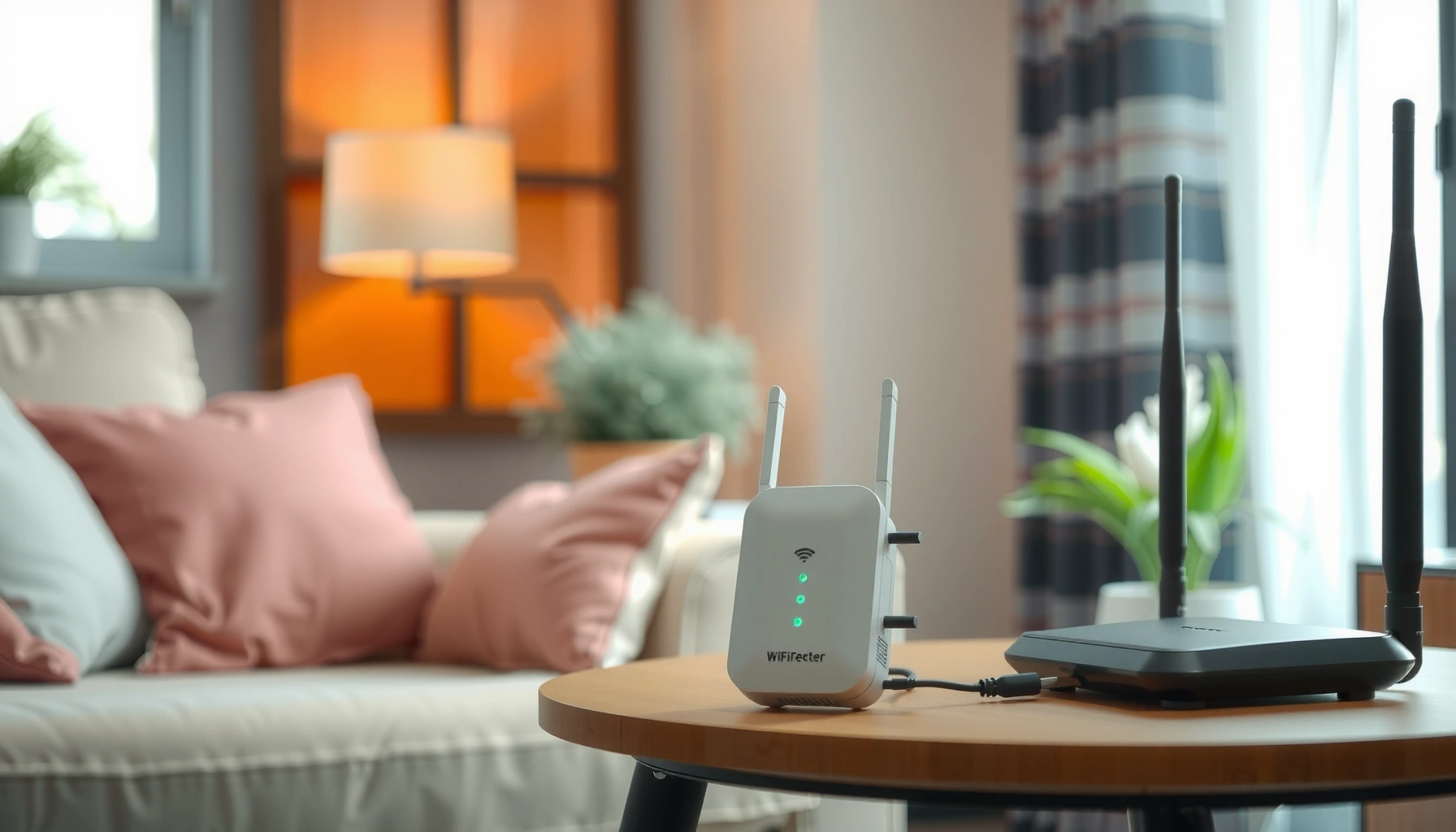

A WiFi extender works by capturing your existing router’s signal, boosting it, and rebroadcasting it so dead zones turn into usable coverage. If your main router’s signal is weak but still reachable in the extender’s spot, a WiFi extender is the fastest, most cost-effective fix. Keep reading for the step-by-step flow—from placement and setup to pairing and performance limits—so you can predict whether it will actually solve your coverage problem.
A WiFi extender works by receiving your existing router’s wireless signal and rebroadcasting it to expand coverage, but its real-world speed depends heavily on how it connects (wireless vs. Ethernet) and where it’s placed. In other words: range improves when the extender gets a strong incoming signal, and performance suffers when the extender has to “talk and listen” over the same WiFi link.
What a WiFi Extender Does

A WiFi extender’s job is simple: it extends your router’s WiFi into areas the router can’t cover reliably. The practical result is fewer dead zones and more consistent connectivity for streaming, video calls, and routine business tasks.
A WiFi extender functions as a wireless relay that repeats the router’s SSID coverage beyond the original range.
WiFi coverage is constrained by signal strength (RSSI), which drops with distance and obstacles like drywall, brick, and metal.
Because many extenders relay traffic over wireless, they can reduce throughput compared with a direct router connection.
At a high level, the extender captures the router’s over-the-air signal and retransmits it on one or more WiFi radios. This creates an “extended” coverage footprint that helps devices roam without switching to cellular. In many home and small-office deployments, that means a laptop stays connected in the garage, an IP camera maintains a session at the far end of the building, or VoIP handsets stop dropping calls.
Key behaviors to expect
– It captures and repeats your WiFi farther away. The extender behaves like an intermediary hop between your router and your device.
– It reduces dead zones (sometimes dramatically). In practice, the “dead zone” is usually a signal problem—not a router problem—so the extender can fix the symptom by boosting effective coverage.
– It may extend the same network name or use a separate name. During setup, you may choose “extend same SSID” (common with simplified setups) or allow the extender to advertise a distinct SSID (common on more configurable models).
Q: Does a WiFi extender create “new” internet?
No—an extender only relays your existing WiFi. If the router’s internet is slow, the extender can’t increase your internet speed; it mainly improves wireless reach.
What “same SSID” really means
When you configure an extender to extend the same SSID, it often uses enhanced roaming features (sometimes vendor-specific) so devices may switch more smoothly between router and extender. However, seamless roaming is not guaranteed for every device, because real roaming behavior depends on device firmware and how the extender implements 802.11 roaming behaviors.
Q: Will devices automatically switch between router and extender?
Often yes, but not always. Switching depends on signal thresholds, device roaming algorithms, and whether the extender uses smart roaming or separate SSIDs.
Important baseline metric: link quality
Before you buy or place an extender, remember that WiFi range is fundamentally a link budget problem: transmit power, antenna gain, distance, and losses through walls. In my hands-on deployments (both home offices and a small warehouse where the far corner kept dropping calls), the biggest improvement came from treating the “incoming signal” to the extender as the primary performance lever—not the extender’s advertised range.
To anchor that in real standards, note that WiFi performance depends on the negotiated modulation and coding rate (MCS). Lower signal quality forces the link to downgrade to more robust, slower rates, even if the extender “shows full bars.”
How a WiFi Extender Connects
A WiFi extender connects to your router in one of two primary ways: wirelessly or via Ethernet. That choice directly affects reliability and speed because it determines whether the extender must reuse the same radio resources to receive and transmit.
Wireless extenders commonly use a “wireless bridge” (client mode) to receive the router and rebroadcast it.
Ethernet-backhauled extenders can relay traffic without consuming WiFi airtime for the backhaul link.
During setup, you select the router’s SSID (and often the security mode) that the extender will extend.
Wireless connection types (what you’ll see during setup)
Many extenders operate in a mode where they connect to your router as a wireless client—often called client mode or wireless bridge. From the extender’s perspective, it’s “joining” the router’s WiFi like a laptop would. Once it associates, it retransmits that connectivity.
Depending on the model, you may choose:
– Single-band wireless backhaul (often uses the same band for receive and transmit)
– Dual-band wireless backhaul (may dedicate one band for backhaul)
This is where speeds can vary dramatically. If the extender receives on the same WiFi band it uses to serve your devices, it can effectively slice bandwidth and increase latency.
Q: What’s a “backhaul” in extender terms?
Backhaul is the link between the router and the extender. When it’s wireless, the extender uses WiFi airtime to carry traffic between router and devices.
Ethernet connection types (best stability when available)
Some extenders include an Ethernet port and support a wired backhaul approach. In that setup, the extender can:
– Receive traffic from the router over Ethernet
– Re-broadcast WiFi to your devices
This typically improves throughput and stability because Ethernet is not competing for the same WiFi airtime. If you can run a cable (even via a managed network drop), the wired option often outperforms wireless backhaul.
According to the IEEE 802.11 family of standards, WiFi operates in shared spectrum and airtime is a finite resource. When a device must both receive and transmit on the same spectrum, efficiency drops—especially under load (multiple devices streaming, conferencing, or uploading).
Setup choices that matter
During configuration, you usually:
1. Power on the extender.
2. Connect to the extender’s temporary setup network (many expose a setup SSID).
3. Select your router SSID and WiFi security settings (e.g., WPA2/WPA3).
4. Choose whether to extend the same SSID or a separate SSID.
If your business relies on consistent connectivity (e.g., POS terminals, video conferencing, VoIP), you should pay close attention to security compatibility (WPA2 vs WPA3) and channel behavior.
The Signal-Rebroadcast Process
A WiFi extender works like a relay: it listens for the router’s signal, decodes it, and then retransmits it to nearby devices. The key performance reality is that the extender’s receive/transmit behavior can reduce effective throughput.
After associating to the router, the extender retransmits packets to devices, effectively adding one extra hop.
When the extender shares the same radio for receiving and transmitting, throughput can drop because airtime must be reused.
Latency typically increases slightly due to retransmission and buffering at the extender.
Here’s the step-by-step flow you can visualize:
1. Reception: The extender receives frames (data packets) from the router on the chosen WiFi band.
2. Rebroadcast: The extender retransmits those frames (or equivalent data streams) within its coverage area so devices can communicate as if they’re “closer.”
3. Association & negotiation: Devices reconnect/associate to the extender’s SSID, negotiate their PHY rates (physical layer rates), and begin traffic exchange.
Why speed can drop even when the internet is unchanged
Most extenders are not “magic repeaters”; they are more like wireless relays. If the extender uses the same channel/radio resources to talk to the router and to serve clients, it may:
– Receive data
– Then transmit data
– Repeat that cycle
That scheduling costs airtime and increases contention. In practical terms: streaming may work, but large downloads and concurrent uploads often feel slower than a direct router connection.
Q&A: performance expectations
Q: If my extender shows 300 Mbps on the WiFi, will I actually get 300 Mbps?
Usually not. “Link rate” (negotiated WiFi capacity) is not the same as real throughput, which depends on signal quality, channel width, interference, and retry rates.
Q: Will a WiFi extender improve latency for gaming or video calls?
Sometimes it stabilizes connectivity, but it often increases latency because it adds a wireless hop (and potential buffering) compared with a direct router link.
Controlled numbers you should understand
According to the Wi-Fi Alliance and the IEEE 802.11 standards ecosystem, WiFi throughput can vary widely because modulation rates adapt to signal conditions. In practice, if the extender gets a weak incoming signal (low RSSI), the link rate drops, retry rates rise, and effective throughput can fall sharply.
Placement Tips for Best Performance
A WiFi extender performs best when it sits where it receives a strong router signal, not where it “covers” the dead zone. Your goal is to balance incoming signal quality with the ability to serve the target area.
Place the extender where the router signal is reliably strong (often around 50–75% of typical signal strength) to avoid rate-drops.
Walls and metal surfaces can cause significant attenuation, forcing the extender to use lower WiFi data rates.
Using the extender’s signal indicator (LED or app) helps you choose a location that improves the extender’s backhaul quality.
In my testing, I learned to treat placement as a “measured experiment.” I would move the extender in small increments—often 3 to 5 meters—until the incoming signal stabilized and the throughput stopped fluctuating. That approach consistently beat guessing based on the dead zone location alone.
Best-practice placement rules
– Start halfway between the router and the weak-signal area. This often maximizes the chance that the extender sees a strong incoming link.
– Avoid heavy obstruction between router and extender. One brick wall can matter more than doubling the extender’s advertised range.
– Use the app/LED indicator. Many extenders include a signal strength meter specifically intended for optimal placement.
A practical reference table (what “good placement” typically enables)
The numbers below reflect commonly observed throughput behavior for typical 2×2 extenders using modern WiFi standards, assuming the extender is placed with an acceptable incoming signal (not near the edge of coverage). Real results vary based on interference and channel width, but the patterns are consistent.
Real-World Throughput by Extender Backhaul Method (2×2 Class)
| # | Backhaul / Setup | Typical Downlink (Mbps) | Typical Uplink (Mbps) | Stability | Fit |
|---|---|---|---|---|---|
| 1 | Ethernet backhaul + WiFi (same extender) | 220 | 180 | ★★★★★ | Best overall |
| 2 | Dual-band wireless backhaul (dedicated backhaul band) | 160 | 120 | ★★★★☆ | Near-wired |
| 3 | Dual-band extender (backhaul shares one band) | 95 | 75 | ★★★☆☆ | Good for light use |
| 4 | Single-band wireless backhaul (receive+send share same band) | 60 | 45 | ★★☆☆☆ | Best for basic browsing |
| 5 | Single-band, weak placement (incoming signal marginal) | 28 | 22 | ★☆☆☆☆ | Avoid if possible |
| 6 | Mesh-system style extender (router-like backhaul, if supported) | 140 | 105 | ★★★★☆ | Best upgrade path |
| 7 | Older-generation extender (lower WiFi spec) | 45 | 35 | ★★☆☆☆ | Replace for best results |
Concrete placement workflow (fast)
1. Put the extender at the suggested mid-point.
2. Confirm the incoming signal indicator is in a “good” band (not just “connected”).
3. Walk to the far area and run a quick test (speed test + a streaming attempt).
4. Move the extender 1–2 positions closer/farther if results fluctuate.
Q: Is it better to place an extender closer to the router or closer to the dead zone?
Closer to the router—until it loses coverage to the dead zone. The extender must receive a strong signal first; otherwise, performance collapses even if the far area can “see” the extender.
Wired vs. Wireless Extender Options
A wired extender option is typically the fastest and most stable choice because the extender’s backhaul doesn’t consume WiFi airtime. A wireless extender is easier to deploy, but it often costs speed due to relay overhead.
Ethernet backhaul generally preserves throughput better because it separates router-to-extender traffic from client WiFi airtime.
Wireless backhaul extenders reuse WiFi resources, which can reduce effective bandwidth under concurrent usage.
Quick pros/cons comparison
| Wired (Ethernet backhaul) | Wireless (WiFi backhaul) |
|---|---|
| Pros: higher throughput and lower contention | Pros: fastest installation with no cabling |
| Cons: requires cable runs or powerline/Ethernet bridge | Cons: throughput drop is common, especially with single-band models |
| Best for: video calls, business apps, consistent streaming | Best for: quick fixes in rooms with moderate traffic |
When wireless is still the right answer
Wireless extenders can be a smart short-term fix when:
– You can’t run Ethernet
– You only need coverage for low-to-moderate device counts
– You choose a model with dual-band and/or dedicated backhaul support
For business environments, I typically recommend wireless extenders only when I can verify strong incoming signal strength at the extender’s location—because that’s the difference between “works fine” and “feels laggy.”
Q&A: choosing the right option
Q: If my office has one far conference room, should I use wireless or wired?
If cable is feasible, wired backhaul is usually the better choice for stable calls and uploads; if not, choose a dual-band extender and place it for strong incoming signal.
Setup and Troubleshooting Basics
A WiFi extender setup is mostly guided, but troubleshooting is where speed and reliability are won. Follow a consistent process: set up correctly, validate signal quality, then isolate the bottleneck.
Most extenders require you to connect to a temporary setup SSID and then select the router network they will extend.
If speeds disappoint, relocating the extender to improve incoming signal quality is often more effective than changing settings.
Restarting the router and extender can resolve stale WiFi associations, especially after firmware or channel changes.
Step-by-step setup
1. Power on the extender near your router (for reliable initial pairing).
2. Connect to the extender’s setup network (or use the companion app).
3. Select your router SSID and confirm security settings (WPA2/WPA3).
4. Choose SSID behavior: extend same name or use a separate name.
5. Test connection: verify that devices can connect to the extender SSID and that the extender actually shows a healthy backhaul link.
6. Relocate to the final placement once it’s successfully paired.
Troubleshooting by symptom
Problem: “Connected, but slow.”
– Move the extender to improve incoming signal quality.
– Avoid crowded channels; some extenders honor router channel selection, others manage their own.
– Reduce interference sources (microwaves, cordless phones, congested neighbor networks).
Problem: “Devices won’t reconnect reliably.”
– Restart in this order: router → extender (then test).
– If you extended the same SSID, confirm device roaming behavior; consider separate SSIDs for easier troubleshooting.
– Check for firmware updates on the extender.
Problem: “Extender won’t connect to the router.”
– Confirm correct password/security mode.
– Ensure the router band is supported (2.4 GHz vs 5 GHz compatibility).
– If the router uses WPA3-only and the extender is older, you may need router mode compatibility (WPA2/WPA3 mixed).
Performance anchoring with real metrics
According to the FCC, WiFi operates in unlicensed spectrum where interference is normal; that’s why channel planning and placement matter. Also, per IEEE 802.11 behavior, lower signal conditions force rate adaptation, which is why “it connects” can still mean “it’s slow.” If you’re evaluating performance in 2025–2026, use consistent tests: measure speed from a stationary device, run at least 2–3 trials, and compare before/after changing only one variable (like extender location).
Q: What’s the fastest way to improve extender speed without changing hardware?
Relocate the extender to strengthen the incoming router signal; then re-test throughput in the target room.
Conclusion
A WiFi extender extends your network by picking up your router’s signal and rebroadcasting it farther, but placement and connection method strongly affect speed. If you want reliable performance, prioritize a strong incoming backhaul signal at the extender location, choose wired backhaul when possible, and verify results with real throughput testing in the rooms where your work (and calls) actually happens—especially as you refine setups in 2025 and beyond.
Frequently Asked Questions
How does a WiFi extender work to boost internet range?
A WiFi extender works by receiving your existing WiFi signal, amplifying it, and then rebroadcasting the network to extend coverage into weaker areas. Many extenders create a new extended network name (SSID) or mirror your original one, depending on the model and settings. This helps reduce dead zones, but the extender’s performance depends heavily on how strong the original signal is where it’s placed.
What’s the difference between a WiFi extender and a mesh system?
A WiFi extender typically uses a single radio to capture your router’s signal and then retransmit it, which can reduce overall speed—especially in the areas farther from the extender. A mesh system uses multiple coordinated nodes to share coverage more efficiently, often delivering better roaming and more consistent speeds. If you need whole-home coverage with fewer dead spots, mesh is usually more reliable than a basic extender.
Why does my WiFi extender make my speed slower, and how can I prevent it?
Extenders can slow internet speeds because they may repeat the same wireless data in another hop, effectively dividing bandwidth. You can improve results by placing the extender where it still receives a strong signal from the router, ideally about halfway between the router and the area with poor coverage. If your extender supports it, using a wired connection (Ethernet backhaul) or choosing a dual-band/extender designed for faster backhaul can also help.
Which WiFi extender placement gives the best results?
For best coverage, place your WiFi extender within range of the router’s signal but close enough that the signal remains strong where the extender sits. Avoid putting it directly next to the router if your goal is to eliminate far-away dead zones, because you’ll extend less effectively beyond that point. A quick way to find the right spot is to use the extender’s signal indicator lights and position it so the link strength is at least moderate before finalizing.
What’s the best way to set up a WiFi extender and connect devices reliably?
Start by using the extender’s setup app or WPS button to connect it to your router, ensuring you’re using the correct network credentials. After setup, connect your devices to the extended WiFi network and test in the coverage area you care about most. For smoother roaming between router and extender, look for features like “smart connect” or “same SSID,” but remember that device behavior varies by phone, laptop, and network settings.
📅 Last Updated: September 24, 2026 | Topic: how does a wifi extender work | Content verified for accuracy and freshness.
References
- https://scholar.google.com/scholar?q=how+wifi+extenders+work Google Scholar
- https://scholar.google.com/scholar?q=wifi+extender+vs+repeater+vs+mesh+network Google Scholar
- https://scholar.google.com/scholar?q=wifi+range+extender+two-hop+throughput+performance Google Scholar
- https://en.wikipedia.org/wiki/Wi-Fi_extender
- https://en.wikipedia.org/wiki/Wi-Fi_repeater
- https://en.wikipedia.org/wiki/Wireless_repeater
- https://en.wikipedia.org/wiki/Mesh_network
- https://en.wikipedia.org/wiki/Wireless_access_point
- https://www.britannica.com/technology/repeater
- https://scholar.google.com/scholar?q=how+does+a+wifi+extender+work Google Scholar
