
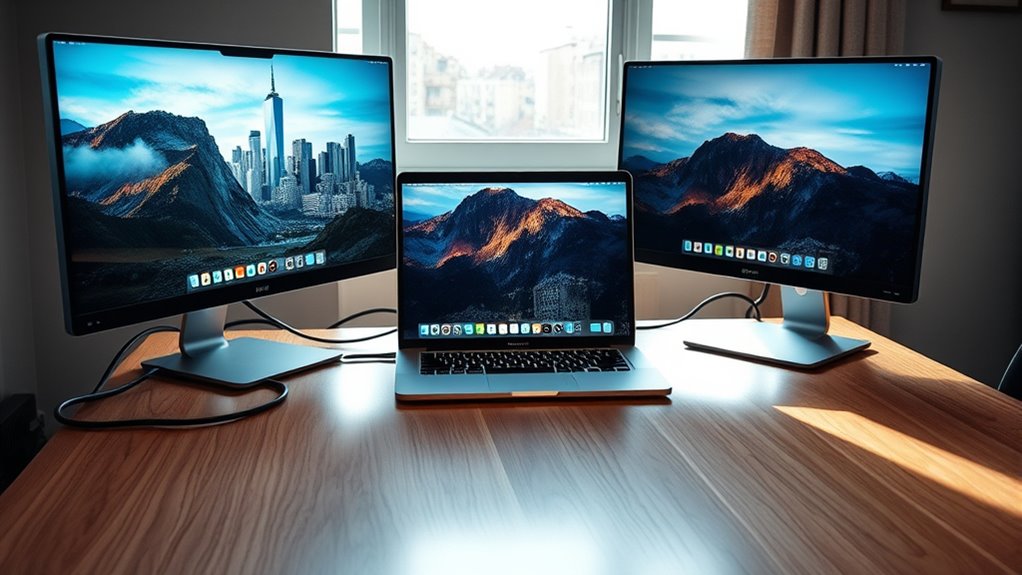

The number of external monitors your MacBook Pro can support depends on the model. The 13-inch can handle up to two 4K displays, the 14-inch supports two 6K monitors, while both the 15-inch and 16-inch models can connect up to four external displays. Connection options like Thunderbolt and HDMI enhance versatility, but be aware of compatibility issues and configuration limitations. If you want to optimize your setup, there’s more to explore about maximizing your multi-monitor experience.
Understanding MacBook Pro Models
When you’re looking to understand how many monitors your MacBook Pro can support, it’s essential to take into account the specific model you own. Each model has unique MacBook Pro features that influence its ability to handle external displays. For instance, the newer models equipped with advanced display technology often support multiple 4K monitors, while older versions may have limitations. You’ll want to check your model’s specifications for details on maximum resolution and refresh rates, as these factors directly affect performance. Knowing whether your MacBook Pro uses Thunderbolt 3 ports or HDMI connections is also vital, since these interfaces dictate the number of monitors you can connect. Understanding these elements empowers you to utilize your setup to its fullest potential.
Display Support for MacBook Pro 13-inch
When it comes to the MacBook Pro 13-inch, you’ll want to know how many external displays you can connect and their resolution capabilities. This model typically supports a limited number of monitors, and understanding your connection options is vital for maximizing your setup. Let’s explore the specifics of display support to guarantee you get the most out of your device.
Maximum External Displays
How many external displays can your MacBook Pro 13-inch support? If you’re looking to enhance your workspace with a multi display setup, you’ll be pleased to know that it can support up to two external monitors. Here’s a quick breakdown of monitor compatibility:
- Two 4K displays at 60Hz are supported via Thunderbolt 3 ports.
- One 5K display at 60Hz can also be connected, allowing for stunning visuals.
- Daisy chaining is possible with compatible monitors to expand your setup further.
Resolution Limitations
Understanding resolution limitations is essential for getting the most out of your MacBook Pro 13-inch’s external display capabilities. When connecting external monitors, you’ll want to take into account resolution scaling to guarantee peak performance and clarity. Your MacBook Pro supports various resolutions, but monitor compatibility can affect your experience.
Here’s a quick reference table to help you understand supported resolutions:
| Resolution | Max Number of Monitors |
|---|---|
| 3840 x 2160 | 1 |
| 2560 x 1600 | 2 |
| 1920 x 1080 | 2 |
| 1680 x 1050 | 2 |
| 1280 x 800 | 2 |
Keep these limitations in mind as you explore your multi-monitor setup for the best results.
Connection Options Available
Your MacBook Pro 13-inch offers several connection options to expand its display capabilities, allowing for versatile multi-monitor setups. To maximize monitor compatibility, you’ll want to take into account the following connection options:
- Thunderbolt 3 (USB-C): Use this for high-speed connections with compatible monitors.
- HDMI Adapter: An HDMI adapter can connect to most TVs and monitors, providing flexibility in your setup.
- DisplayPort Adapter: If you’re using professional monitors, a DisplayPort adapter will guarantee high-resolution support.
Using the right connection adapters is essential for achieving peak performance. Always check your monitors’ specifications to verify compatibility. With these options, you can create a multi-monitor environment that enhances your productivity and creativity.
Display Support for MacBook Pro 14-inch
When considering the display support for the MacBook Pro 14-inch, it’s essential to know the maximum resolution it can handle and the types of external connections available. This model offers impressive performance with multiple monitors, allowing you to expand your workspace effectively. Understanding these aspects will help you optimize your setup for productivity.
Maximum Display Resolution Supported
The MacBook Pro 14-inch can support up to two external displays with a maximum resolution of 6K at 60Hz, offering an impressive level of detail for professional tasks. This capability enables you to work with stunning visuals and precise colors, essential for design and editing work.
Here’s a quick overview of the supported formats:
- 6K Resolution: Ideal for high-end graphics.
- 4K Resolution: Perfect for most professional tasks.
- 1080p Resolution: Great for everyday use and streaming.
With these maximum resolutions, you can enjoy a seamless multi-monitor setup, enhancing your productivity and creative freedom. Whether you’re editing videos or working on complex projects, this flexibility truly elevates your experience.
External Display Connections Available
MacBook Pro 14-inch models offer multiple external display connections, making it easy to set up a versatile workspace. You can connect up to two external displays via Thunderbolt 4 ports, supporting high resolutions and refresh rates. This flexibility lets you mix and match different monitor types, but be aware of potential display compatibility issues. Depending on your setup, using adapters might be necessary, which can introduce their own challenges. Cable quality considerations are also essential; low-quality cables can lead to signal degradation or connectivity problems. By investing in reliable cables and understanding the connection options available, you can maximize your display capabilities and create an efficient, multi-screen environment tailored to your needs.
Performance With Multiple Monitors
Supporting up to two external displays, the MacBook Pro 14-inch excels in performance, ensuring a smooth workflow with various applications. You’ll appreciate its ability to enhance your productivity through multi-tasking efficiency while enjoying impressive gaming performance. Here are some key advantages:
- Seamless Multi-Tasking: You can easily manage multiple applications across screens, reducing the need to switch windows constantly.
- Enhanced Gaming Experience: With advanced graphics capabilities, you can game on high settings without lag, even when using multiple displays.
- Improved Collaboration: Working with teams becomes easier; you can share content on one screen while keeping notes or communication open on another.
Display Support for MacBook Pro 15-inch
When it comes to display support, the 15-inch MacBook Pro excels by accommodating up to four external monitors simultaneously. You’ll find that this setup allows for impressive multitasking capabilities, enhancing your workflow. Each monitor can support a display resolution of up to 4096 x 2304 pixels, guaranteeing crisp visuals for all your tasks. For peak performance, make sure your monitors have compatible connections, such as Thunderbolt 3 or HDMI. This compatibility means you can easily connect high-resolution displays without hassle. Whether you’re editing videos, designing graphics, or managing multiple applications, the 15-inch MacBook Pro offers the flexibility and power you need. Embrace the freedom of a multi-monitor setup to elevate your productivity and creativity.
Display Support for MacBook Pro 16-inch
The 16-inch MacBook Pro takes display support to the next level by allowing you to connect up to four external monitors as well. This significant enhancement boosts your 16-inch performance, making it ideal for multitasking and creative endeavors. To guarantee the best display calibration, here are three key factors to take into account:
- Resolution: Each external monitor can support up to 6K resolution, guaranteeing sharp visuals.
- Color Accuracy: High-quality displays are essential for tasks requiring precise color representation.
- Refresh Rate: A higher refresh rate enhances fluidity, especially for video editing or gaming.
With this setup, you’ll experience unparalleled flexibility and freedom, allowing you to customize your workspace to suit your needs perfectly.
Connecting Monitors via Thunderbolt 3
Connecting monitors via Thunderbolt 3 offers a streamlined and efficient way to expand your MacBook Pro’s display capabilities. With Thunderbolt specifications supporting up to two 4K displays or a single 5K display, you can truly enhance your workspace. This technology utilizes a USB-C connector, ensuring versatility and ease of use. Thanks to its DisplayPort compatibility, you can connect a variety of monitors without hassle. Just make sure to use high-quality cables to maintain peak performance. Whether you’re multitasking or diving into graphic-intensive tasks, Thunderbolt 3 provides the bandwidth needed for smooth visuals. Embrace the freedom of an expansive setup, and enjoy the boost in productivity that comes with connecting additional monitors to your MacBook Pro.
Using HDMI for External Monitors
Using HDMI for external monitors provides a straightforward alternative to Thunderbolt 3 connections for MacBook Pro users. With HDMI, you can easily expand your workspace without complex adapters. Here are a few key points to reflect on:
- HDMI options: Most modern monitors support HDMI, making it a versatile choice for various setups.
- Cable length: You can find HDMI cables in various lengths, allowing you to position your monitors wherever you prefer.
- Resolution support: HDMI can deliver high-definition resolutions, ensuring your visuals are crisp and clear.
Limitations of Multiple Displays
While expanding your workspace with multiple displays can enhance productivity, there are limitations to take into account when using a MacBook Pro. First, your monitor setup may be restricted by the number of ports available on your device. For instance, older models might only support one external display, while newer ones can handle more. Additionally, display compatibility is essential; not all monitors work seamlessly with macOS, which can lead to performance issues or resolution constraints. Moreover, running multiple high-resolution displays can strain your MacBook’s GPU, potentially causing lag or overheating. Being aware of these limitations will help you make informed decisions about your multi-monitor experience and optimize your workspace effectively.
Configuring Your External Monitor Setup
When setting up your external monitors, it’s essential to know how many displays your MacBook Pro can support. You’ll also want to understand the different connection types available and how to arrange your displays for ideal productivity. Getting these configurations right can considerably enhance your workflow.
Maximum Monitor Count
Most MacBook Pro models can support multiple external monitors, but the exact number depends on the specific model and its graphics capabilities. To maximize your setup, consider the following:
- M1 and M2 models: Typically support up to 2 external monitors, depending on the configuration and monitor compatibility.
- Intel models: Can handle up to 4 external displays, given they have the right graphics card and sufficient bandwidth.
- Display adapters: Using the correct display adapters can enhance monitor compatibility, allowing you to connect different types of displays.
Understanding these factors helps you configure your external monitor setup effectively while enjoying a seamless multi-display experience. Make sure to check your model’s specifications for the best results!
Connection Types Explained
Understanding the various connection types available is essential for configuring your MacBook Pro’s external monitor setup. Different cable types can affect your connection compatibility, so knowing your options is key.
| Connection Type | Cable Type | Max Resolution |
|---|---|---|
| HDMI | HDMI cable | 4K @ 60Hz |
| DisplayPort | DisplayPort cable | 8K @ 60Hz |
| USB-C | USB-C cable | 5K @ 60Hz |
Display Arrangement Settings
Configuring your external monitor setup involves adjusting display arrangement settings to guarantee an ideal workflow. To optimize your monitor preferences, follow these steps:
- Open System Preferences: Navigate to the Apple menu, select “System Preferences,” and then click on “Displays.”
- Arrange Displays: In the “Arrangement” tab, you can drag the display icons to match your physical setup. This helps you control cursor movement seamlessly between screens.
- Set Main Display: Click the white menu bar and drag it to your preferred monitor, designating it as the primary display.
Tips for Optimal Multi-Monitor Performance
While using multiple monitors with your MacBook Pro can markedly enhance productivity, there are several strategies you can employ to guarantee peak performance. Start with monitor calibration tips; confirming each screen’s color and brightness match can reduce eye strain and improve visual coherence. Next, consider performance boosting techniques like adjusting your display settings for ideal resolution and refresh rates. This secures smoother shifts and reduces lag. Don’t forget to manage your applications efficiently—closing unused programs can free up resources. Finally, keep your software updated; Apple often releases enhancements that improve multi-monitor support. By implementing these strategies, you can create a seamless multi-monitor experience that maximizes your efficiency and enjoyment.
Frequently Asked Questions
Can I Use a USB-C Hub for More Monitors?
Yes, you can use a USB-C hub for more monitors, provided it’s compatible. However, hub performance can vary; verify it supports your desired resolution and refresh rate for ideal display experience.
What Is the Maximum Resolution Supported for External Displays?
You’ll find that the maximum display resolution for external displays connected to your MacBook Pro can reach up to 6K at 60Hz, offering impressive clarity and vibrant colors across various external display options.
Are There Any Compatibility Issues With Non-Apple Monitors?
You won’t hit many walls when connecting non-Apple monitors; however, compatibility can waver based on monitor types and connection cables. It’s wise to check specs to guarantee a smooth, liberated setup experience.
How Can I Troubleshoot Connection Problems With External Monitors?
To troubleshoot connection problems with external monitors, check your display settings and verify correct cable types are used. Try different ports and cables, restart your MacBook, and update your software for best performance.
Will Using Multiple Monitors Drain My Macbook’s Battery Faster?
Yes, using multiple monitors can drain your MacBook’s battery quicker due to increased energy consumption. To optimize battery life, consider adjusting display brightness and using energy-efficient settings while managing your external displays.
