
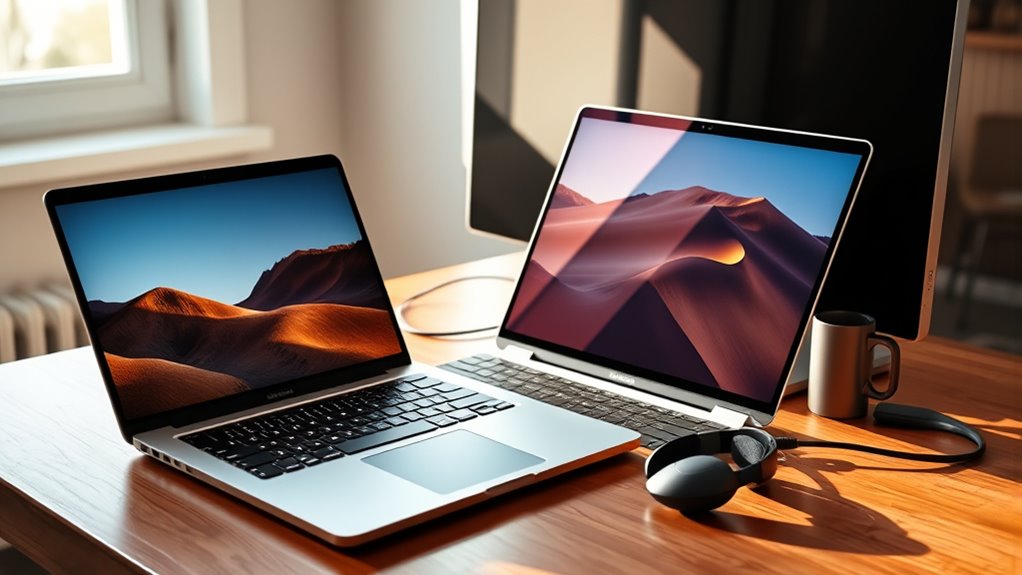

To add a monitor to your laptop, first check compatibility by matching your laptop’s output capabilities to the monitor type. Gather the required cables, like HDMI or DisplayPort, and connect them while both devices are powered off. Once connected, power on the devices and adjust the display settings by accessing “Display settings” on your laptop. You can optimize your setup for various tasks, enhancing your workflow considerably. Keep going to discover more tips for maximizing your dual-screen experience.
Understanding Monitor Compatibility
Before you connect a monitor to your laptop, it’s vital to understand compatibility factors that can affect performance. First, consider the monitor types available, such as LCD, LED, or OLED, and verify they match your laptop’s output capabilities. Each monitor type may have different performance characteristics that influence your experience. Next, resolution compatibility is significant; your laptop’s graphics card must support the monitor’s resolution for ideal display quality. For instance, if your laptop can only output 1080p, connecting a 4K monitor won’t deliver the expected clarity. Always verify specifications to confirm a seamless connection, maximizing your productivity and enhancing your freedom to work or play on a larger screen without technical limitations.
Required Cables and Adapters
Once you’ve confirmed your monitor’s compatibility with your laptop, the next step is to gather the required cables and adapters for connection. Depending on your laptop and monitor, you’ll primarily need HDMI options or DisplayPort types. HDMI is widely used for its simplicity and ability to carry both video and audio signals, making it a popular choice. If your devices support higher resolutions or refresh rates, look for HDMI 2.0 or higher. On the other hand, DisplayPort offers superior performance for gaming and professional applications, especially with multi-monitor setups. Make sure you have the correct cable length and any necessary adapters for seamless connectivity. This preparation sets the stage for an ideal dual-screen experience.
Connecting Your Monitor
To connect your monitor to your laptop, start by making certain your devices are powered off. Next, identify the appropriate cable based on your monitor types—common options include HDMI, DisplayPort, or VGA. Connect the cable from the monitor’s input to the laptop’s output port. Once connected, power on both devices.
Keep in mind that different monitor types support various display resolutions, so verify your monitor is capable of the resolution you want to use. Check the manufacturer’s specifications if you’re unsure. If your laptop has multiple output options, choose the one that best matches your monitor to achieve peak performance. This simple connection process sets the stage for an enhanced multi-screen experience.
Configuring Display Settings
Now that your monitor is connected, configuring the display settings is vital to optimize your viewing experience. Start by right-clicking on your desktop and selecting “Display settings.” Here, you’ll see options for multiple displays. Choose how you want to use the monitor—extend, duplicate, or use it as the primary display. Adjust the display resolution to match your monitor’s recommended settings for clarity. Higher resolutions provide better image quality, while lower ones may be necessary for performance. Make certain to apply changes and check for any adjustments needed to scale the display correctly. Finally, verify that the orientation is set according to your preference—landscape or portrait—to enhance usability. You’re now set up for an efficient multi-monitor workspace!
Optimizing Your Dual-Screen Experience
After you’ve configured your display settings, the next step is optimizing your dual-screen experience for enhanced productivity. To maximize dual screen productivity, consider your screen layout. Arranging your displays based on tasks can streamline your workflow markedly. Here’s a simple guide to help you:
| Task Type | Primary Screen | Secondary Screen |
|---|---|---|
| Document Editing | Main | Reference Material |
| Web Browsing | Main | Notes |
| Graphic Design | Main | Palette |
| Video Conferencing | Main | Chat/Notes |
Frequently Asked Questions
Can I Use Multiple External Monitors With My Laptop?
Yes, you can use multiple external monitors with your laptop, but verify your laptop’s compatibility supports it. Also, consider the monitor resolution to achieve ideal display quality across all connected screens.
Will Adding a Monitor Drain My Laptop’s Battery Faster?
Yes, adding a monitor can increase battery consumption. For instance, if you’re streaming a movie on a second screen, your laptop’s power management might struggle, leading to faster battery drain. Consider adjusting settings for efficiency.
What Are the Benefits of a Dual-Screen Setup?
A dual-screen setup boosts your productivity by allowing you to manage multiple applications simultaneously. You’ll enjoy enhanced multitasking, reducing the time spent switching between windows and making your workflow more efficient and seamless.
How Do I Choose the Right Monitor Size?
How do you envision your workspace? For the right monitor size, consider your monitor resolution and screen aspect; typically, a 24-27 inch display strikes a balance, offering ample space without overwhelming your view.
Can I Connect a Monitor Wirelessly to My Laptop?
Yes, you can connect a monitor wirelessly to your laptop using technologies like wireless display or screen mirroring. Just make certain your laptop and monitor support these features for seamless connectivity and enhanced flexibility.
