

To add apps on your Sharp Smart TV, you need to access the TV’s app store, browse for the desired apps, and install them directly. This straightforward process allows you to customize your viewing experience with all your favorite streaming services and applications. With an abundance of apps available, from popular streaming platforms to niche services, enhancing your entertainment options is just a few clicks away.
Accessing the Home Screen
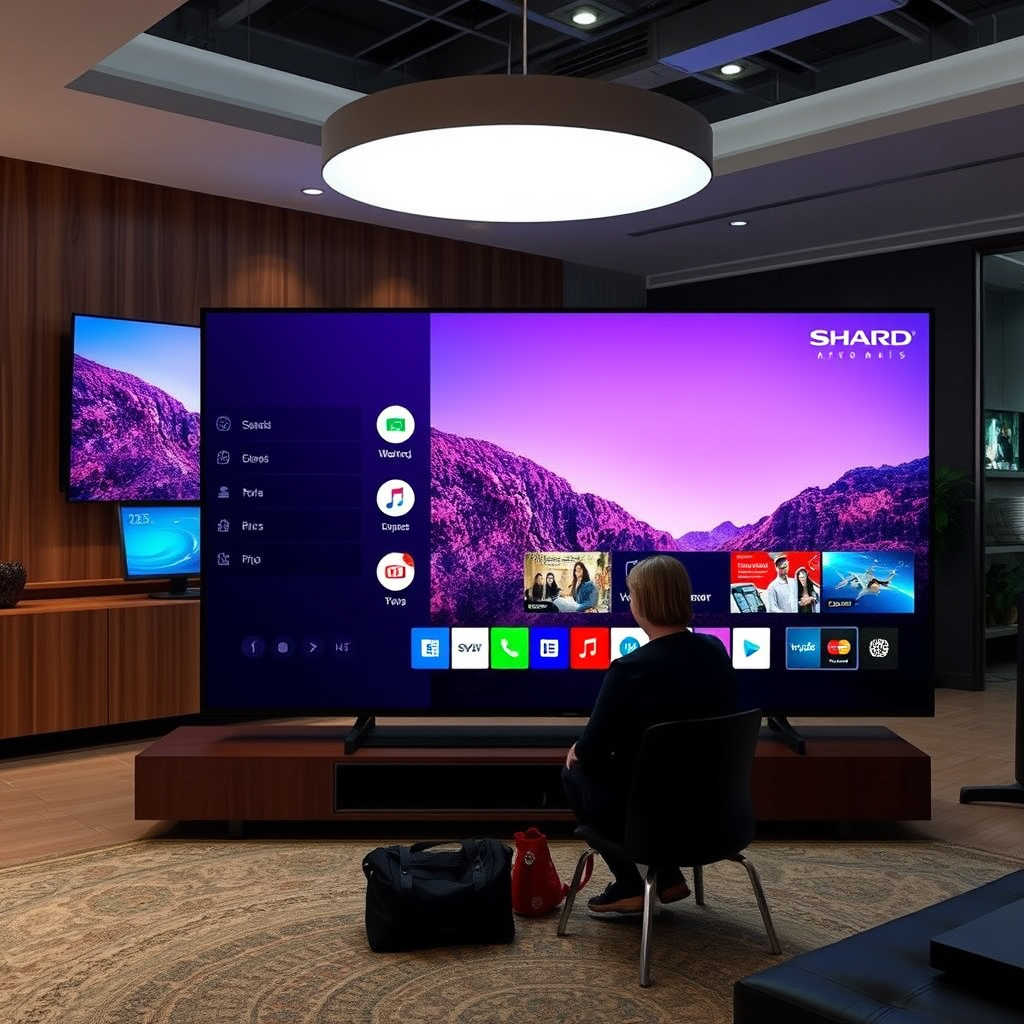
To begin adding apps to your Sharp Smart TV, the first step is gaining access to the home screen. This is where you’ll find the main menu and all the functionalities your TV offers.
– Press the “Home” button: Locate the “Home” button on your remote control; pressing it will bring up the main menu on your screen.
– Navigate to the “Apps” section: Scroll through the menu options until you find the “Apps” section. This area contains the built-in app store, where you can explore the available applications.
The home screen is your gateway to a wide range of entertainment options, ensuring you can always find something to watch or engage with.
Browsing the App Store
Once you’ve accessed the app store on your Sharp Smart TV, you can begin the process of discovering and browsing through various applications.
– Explore featured and popular apps: The app store will typically showcase a selection of featured and popular apps right on the main page. This can help you discover trending services that you might not have known about.
– Utilize the search function: If you’re looking for a specific app, use the search function available in the app store. Simply type the name of the app using your remote, and the store will display the matching results.
Exploring the app store is essential for finding the right apps that meet your entertainment needs, whether you’re interested in streaming movies, music, or even games.
Installing New Apps
Installing new apps on your Sharp Smart TV is a simple and efficient process.
– Select the app you wish to install: When you find an app you want to add, click on it to access its details page. This page usually contains information about the app, including a description, user ratings, and screenshots.
– Click on the “Install” button: Once you’ve decided to proceed, click on the “Install” button. The app will begin downloading and installing on your TV. Depending on your internet speed, this process should take only a few moments.
Adding apps not only enhances your viewing options but also allows you to keep up with new content and features that apps continuously update.
Popular Streaming Apps for Sharp Smart TV (2024)
| # | App Name | Monthly Cost | User Rating | Content Variety |
|---|---|---|---|---|
| 1 | Netflix | $15.49 | ★★★★☆ | Extensive |
| 2 | Amazon Prime Video | $14.99 | ★★★★☆ | Varied |
| 3 | Hulu | $7.99 | ★★★★☆ | Diverse |
| 4 | Disney+ | $7.99 | ★★★★☆ | Family-Friendly |
| 5 | YouTube | Free | ★★★★★ | Vast |
| 6 | Peacock | $4.99 | ★★★★☆ | Good |
| 7 | Apple TV+ | $4.99 | ★★★★☆ | Curated |
Managing Installed Apps
After successfully installing your desired apps, managing them effectively is crucial for optimizing your viewing experience.
– Access installed apps: Return to the “Apps” section on the home screen to find all your installed applications. Here, you can easily navigate through your favorite apps.
– Rearranging apps: If you prefer certain apps to appear first, you can rearrange their order. Highlight the app you want to move, press the options button on your remote, and select the rearrange option.
– Updating or uninstalling apps: To keep your apps functioning optimally, regularly check for updates. If you find that an app is no longer useful, you can uninstall it by selecting the app and choosing the uninstall option.
Active management of your apps can enhance performance and ensure that you have quick access to your favorites.
Troubleshooting App Installation Issues
Occasionally, you may encounter issues while trying to install new apps. Here are some troubleshooting steps to resolve common problems.
– Check your internet connection: Ensure your Sharp Smart TV is connected to the internet. A stable connection is necessary for downloading apps.
– Restart your TV: If an app fails to install, try restarting your TV. This can often resolve temporary glitches that may be affecting the installation process.
– Look for system updates: Sometimes, your TV’s operating system may require an update to support new apps. Check for any available system updates through the settings menu.
By following these troubleshooting steps, you can quickly rectify any challenges you face during the app installation process.
Updating Your Sharp Smart TV
Keeping your Sharp Smart TV updated is essential for ensuring optimal performance and compatibility with new apps.
– Check for software updates regularly: Regular updates can improve your TV’s functionality and add new features. To check for updates, go to the “Settings” menu, then navigate to “System Updates.”
– Follow the prompts: Your TV will guide you through the update process. Make sure to follow any prompts carefully to complete the update successfully.
Staying updated not only enhances your app experience but also ensures that your TV operates smoothly with the latest features and security enhancements.
Exploring Additional Features
Apart from adding and managing apps, your Sharp Smart TV offers various additional features that can further enhance your viewing experience.
– Screen mirroring: This feature allows you to display content from your mobile device directly on your TV screen. It’s particularly useful for sharing photos or videos during gatherings.
– Voice control: If your model supports it, utilizing voice control can significantly streamline navigating through apps and content. You can simply speak commands rather than using the remote.
– Connecting external devices: Consider connecting external devices such as streaming boxes or gaming consoles. These devices can provide access to additional apps and content not available on the TV’s native app store.
Exploring these features can help you get the most out of your Sharp Smart TV, providing a richer and more versatile entertainment setup.
Adding apps on your Sharp Smart TV is a simple process that involves accessing the app store, selecting your desired applications, and managing them through your home screen. By following the outlined steps, you can easily customize your viewing experience and keep your TV updated for optimal performance. Don’t hesitate to explore all available features to enrich your entertainment setup further. Start enhancing your entertainment experience today!
Frequently Asked Questions
How do I add apps to my Sharp Smart TV?
To add apps to your Sharp Smart TV, start by pressing the ‘Home’ button on your remote. Navigate to the ‘Apps’ section, then select ‘App Store.’ From there, you can browse or search for specific apps. Once you find an app you want, click ‘Install’ to download it.
What to do if an app won’t install on my Sharp Smart TV?
If an app won’t install on your Sharp Smart TV, first ensure that your TV is connected to the internet. Check for any system updates by going to ‘Settings’ and selecting ‘Software Update.’ If the app still won’t install, try restarting your TV and attempting the installation again.
Why can’t I find certain apps on my Sharp Smart TV?
You may not be able to find certain apps on your Sharp Smart TV because not all apps are available for every TV model. Some apps may be restricted due to regional availability or compatibility issues with your TV’s operating system. Consider checking the app’s official website for compatibility information.
Which apps are recommended for Sharp Smart TVs?
Recommended apps for Sharp Smart TVs include popular streaming services like Netflix, Hulu, and Amazon Prime Video, as well as utility apps like YouTube and Spotify. Depending on your interests, you might also enjoy gaming apps or news apps that enhance your viewing experience.
How do I delete apps from my Sharp Smart TV?
To delete apps from your Sharp Smart TV, navigate to the ‘Apps’ section and locate the app you want to remove. Highlight the app, press the ‘Options’ button on your remote, and select ‘Uninstall’ or ‘Delete.’ Confirm your choice, and the app will be removed from your TV.
References
- https://www.lifewire.com/how-to-add-apps-to-your-sharp-smart-tv-4774261
https://www.lifewire.com/how-to-add-apps-to-your-sharp-smart-tv-4774261 - SharpUSA Support
https://support.sharpusa.com/ - Google Scholar Google Scholar
https://scholar.google.com/scholar?q=how+to+add+apps+on+a+sharp+smart+tv - Google Scholar Google Scholar
https://scholar.google.com/scholar?q=Sharp+smart+TV+apps+installation - Google Scholar Google Scholar
https://scholar.google.com/scholar?q=adding+applications+to+smart+TVs - Sharptvusa –
https://www.sharptvusa.com/faq/ - how to add apps on a sharp smart tv – Search results
https://en.wikipedia.org/wiki/Special:Search?search=how+to+add+apps+on+a+sharp+smart+tv - https://www.ncbi.nlm.nih.gov/search/research-articles/?term=how+to+add+apps+on+a+sharp+smart+tv
https://www.ncbi.nlm.nih.gov/search/research-articles/?term=how+to+add+apps+on+a+sharp+smart+tv
