
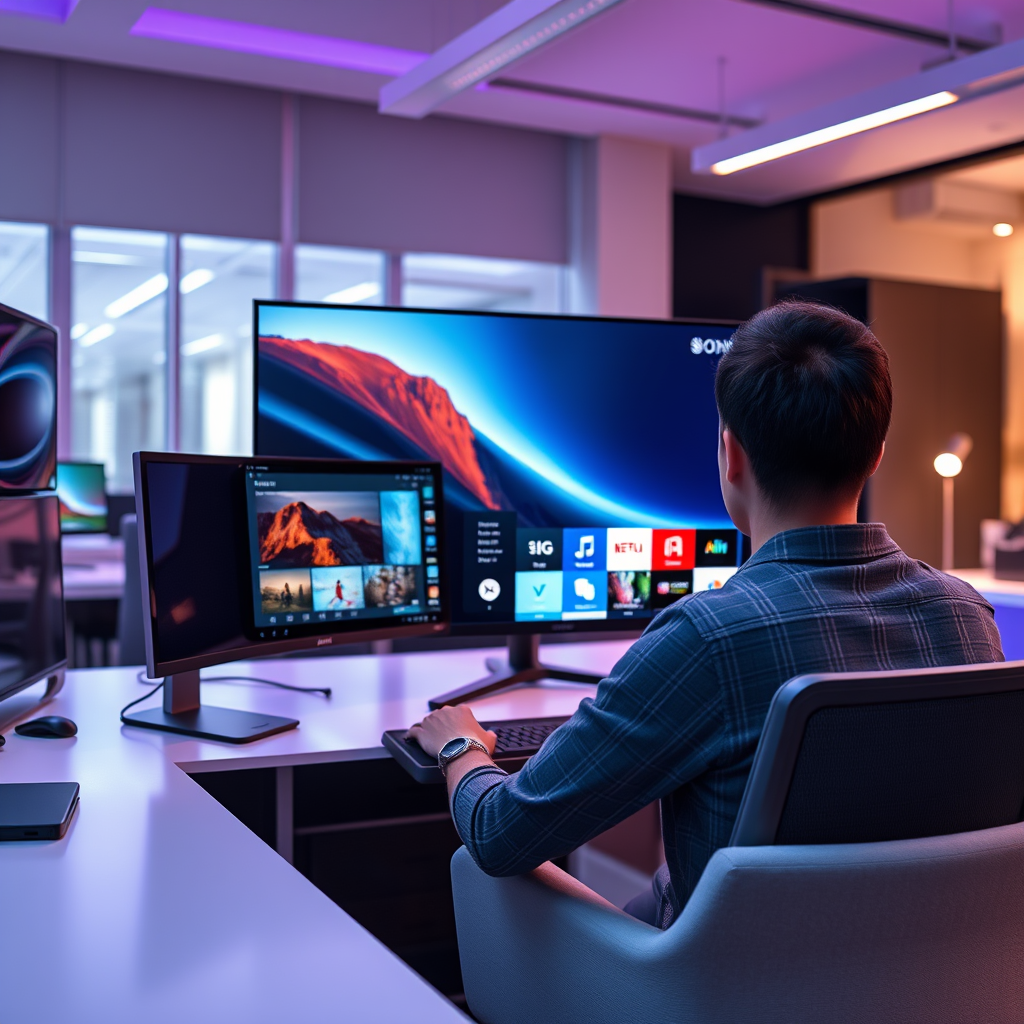

To add apps on your Sony Smart TV, simply access the Google Play Store from your TV’s home screen and browse or search for the apps you want to install. This straightforward process allows you to enhance your viewing experience with various streaming services, games, and utilities. In this guide, we will walk you through the steps to easily find and install your favorite applications.
Accessing the Home Screen
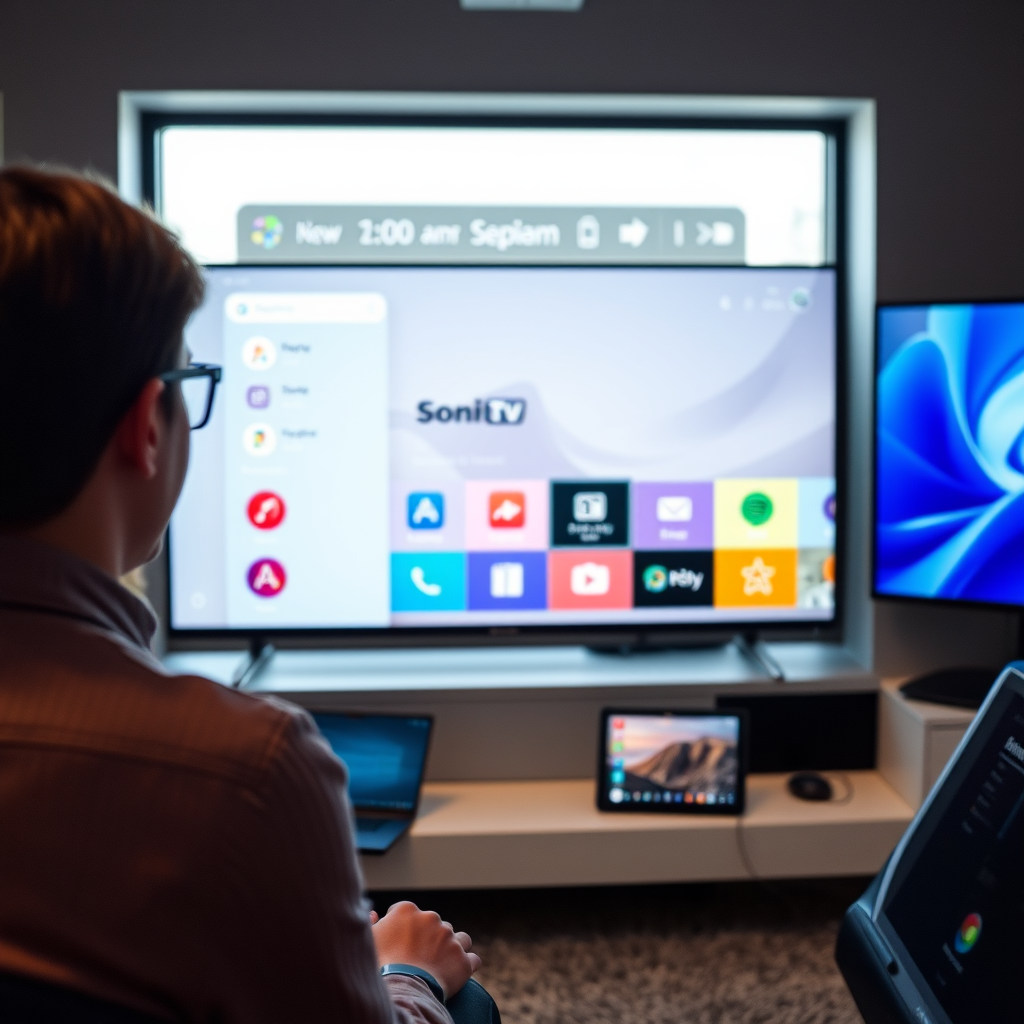
The first step to adding apps on your Sony Smart TV is accessing the home screen. This is your central hub for navigating through various functionalities of your television. To do this, press the “Home” button on your remote control. Upon doing so, you will be greeted with a well-organized layout that displays your installed applications, recommended content, and various categories such as Movies, TV Shows, and Apps. Familiarizing yourself with this layout is crucial as it provides easy navigation to the Google Play Store, where you can find new applications to enhance your viewing experience.
Opening the Google Play Store
Once you are on the home screen, the next step is to open the Google Play Store. Locate the Google Play Store icon, which is typically represented by a colorful triangle. Click on this icon to enter the store. Before you start browsing for apps, ensure that your Sony Smart TV is connected to the internet. A stable internet connection is vital for smooth app browsing and downloading. If you encounter any issues connecting to the internet, refer to your TV’s network settings to troubleshoot the connection.
Searching for Apps
With the Google Play Store open, you can begin your search for apps. If you have specific applications in mind, utilize the search function by entering their names directly into the search bar. This is particularly useful for finding popular streaming services like Netflix, Hulu, or Disney+. Alternatively, you can browse through various categories to discover new and trending apps. Categories such as “Top Free,” “Top Paid,” and “New Releases” are great starting points for exploring popular choices that suit your interests.
Top 7 Apps for Sony Smart TV (2024)
| # | App Name | Category | Rating | Price |
|---|---|---|---|---|
| 1 | Netflix | Streaming | ★★★★☆ | Subscription |
| 2 | YouTube | Video Sharing | ★★★★★ | Free |
| 3 | Spotify | Music | ★★★★☆ | Subscription |
| 4 | Amazon Prime Video | Streaming | ★★★★☆ | Subscription |
| 5 | Hulu | Streaming | ★★★★☆ | Subscription |
| 6 | Disney+ | Streaming | ★★★★★ | Subscription |
| 7 | Tubi | Streaming | ★★★★☆ | Free |
Installing Apps
After finding the app you wish to install, select it to view more details. This will provide you with information such as the app description, user ratings, and screenshots. Once you are satisfied with your choice, proceed to click the “Install” button. The installation process typically takes just a few moments, depending on your internet speed. Once installed, the app will automatically appear on your home screen or in the app section, making it easy for you to access it whenever you like.
Managing Installed Apps
Managing your installed apps effectively can enhance your overall experience with your Sony Smart TV. You can access your installed apps either directly from the home screen or by navigating to the apps section. If you find that you have too many apps cluttering your screen, you can easily rearrange them according to your preference. To move an app, highlight it and use the directional keys on your remote to shift it to your desired location. Additionally, if there are apps you no longer use, you can uninstall them to free up space. To do this, highlight the app you wish to remove, press the options button on your remote, and select “Uninstall.”
Troubleshooting Installation Issues
Despite the user-friendly interface, you may occasionally encounter installation issues. If an app fails to install, the first step is to check your internet connection. A weak or unstable connection can hinder the installation process. If the connection appears to be fine, try restarting your TV to refresh the system. Sometimes, a simple reboot can resolve minor glitches. If problems persist, consider checking for software updates for your TV, as outdated software can affect app performance.
Keeping Apps Updated
Keeping your apps updated is essential for optimal performance and security. Regularly check for updates in the Google Play Store to ensure you have the latest features and fixes. Many apps receive updates that enhance functionality, introduce new content, or improve security measures. To make this process easier, you can enable automatic updates in your TV’s settings. This ensures that your apps remain current without requiring manual intervention, allowing you to focus on enjoying your viewing experience.
In summary, adding apps to your Sony Smart TV is a straightforward process that involves accessing the Google Play Store, searching for your desired applications, and installing them with ease. Additionally, managing your apps effectively and keeping them updated can significantly enhance your entertainment experience. With this knowledge, you can explore the vast world of applications available, tailoring your viewing experience to meet your preferences and interests. Enjoy discovering new content and features that your Sony Smart TV has to offer!
Frequently Asked Questions
How do I add new apps to my Sony Smart TV?
To add new apps on your Sony Smart TV, first, press the Home button on your remote. Navigate to the Google Play Store icon, then select it. From there, you can browse or search for the apps you want to install. Once you find the desired app, click “Install” to add it to your TV.
What should I do if I can’t find the app I want on my Sony Smart TV?
If you can’t find a specific app in the Google Play Store on your Sony Smart TV, it may not be available for your device. Ensure your TV’s software is up to date, as some apps require the latest version to function. You can also check the app’s official website for compatibility or alternative ways to access the content.
Why is my Sony Smart TV not allowing app installations?
If your Sony Smart TV is not allowing app installations, it might be due to insufficient storage space or a software issue. Check your TV’s storage by going to Settings > Storage and see if there is enough space. Additionally, ensure that your TV’s firmware is updated to the latest version, as outdated software can restrict app functionality.
Which apps are best to install on a Sony Smart TV?
The best apps to install on a Sony Smart TV depend on your interests, but popular choices include Netflix, Hulu, YouTube, and Amazon Prime Video for streaming. Additionally, consider installing Spotify for music, and various game apps if you’re a gaming enthusiast. Always check for user reviews and ratings to find the most suitable apps for your needs.
How can I uninstall apps from my Sony Smart TV?
To uninstall apps from your Sony Smart TV, press the Home button, then navigate to Settings. Select “Apps,” find the app you wish to remove, and choose “Uninstall.” Confirm your choice, and the app will be removed from your device, freeing up storage space for new installations.
References
- https://www.sony.com/electronics/support/articles/00008456#using-apps
https://www.sony.com/electronics/support/articles/00008456#using-apps - https://www.sony.com/electronics/support/articles/00008456#troubleshooting
https://www.sony.com/electronics/support/articles/00008456#troubleshooting - https://www.sony.com/electronics/support/articles/00008456#updates
https://www.sony.com/electronics/support/articles/00008456#updates - Google Scholar Google Scholar
https://scholar.google.com/scholar?q=how+to+add+apps+on+a+sony+smart+tv - Google Scholar Google Scholar
https://scholar.google.com/scholar?q=installing+applications+on+Sony+TV - Google Scholar Google Scholar
https://scholar.google.com/scholar?q=Sony+Smart+TV+application+guide - https://www.lifewire.com/how-to-add-apps-to-sony-smart-tv-4778471
https://www.lifewire.com/how-to-add-apps-to-sony-smart-tv-4778471 - how to add apps on a sony smart tv – Search results
https://en.wikipedia.org/wiki/Special:Search?search=how+to+add+apps+on+a+sony+smart+tv
