

To add the Peacock app to your LG Smart TV, simply access the LG Content Store from your TV’s main menu and search for “Peacock.” Once found, you can easily download and install the app to start streaming your favorite shows and movies. This guide will walk you through the entire process step by step, ensuring that you can enjoy a wide array of entertainment on your LG Smart TV.
Peacock, NBCUniversal’s streaming service, offers a robust selection of movies, shows, live sports, and news. With its user-friendly interface and compatibility with various devices, it has become a popular choice among streaming enthusiasts. By following the steps outlined in this guide, you’ll be able to enhance your viewing experience with the Peacock app on your LG Smart TV.
Accessing the LG Content Store
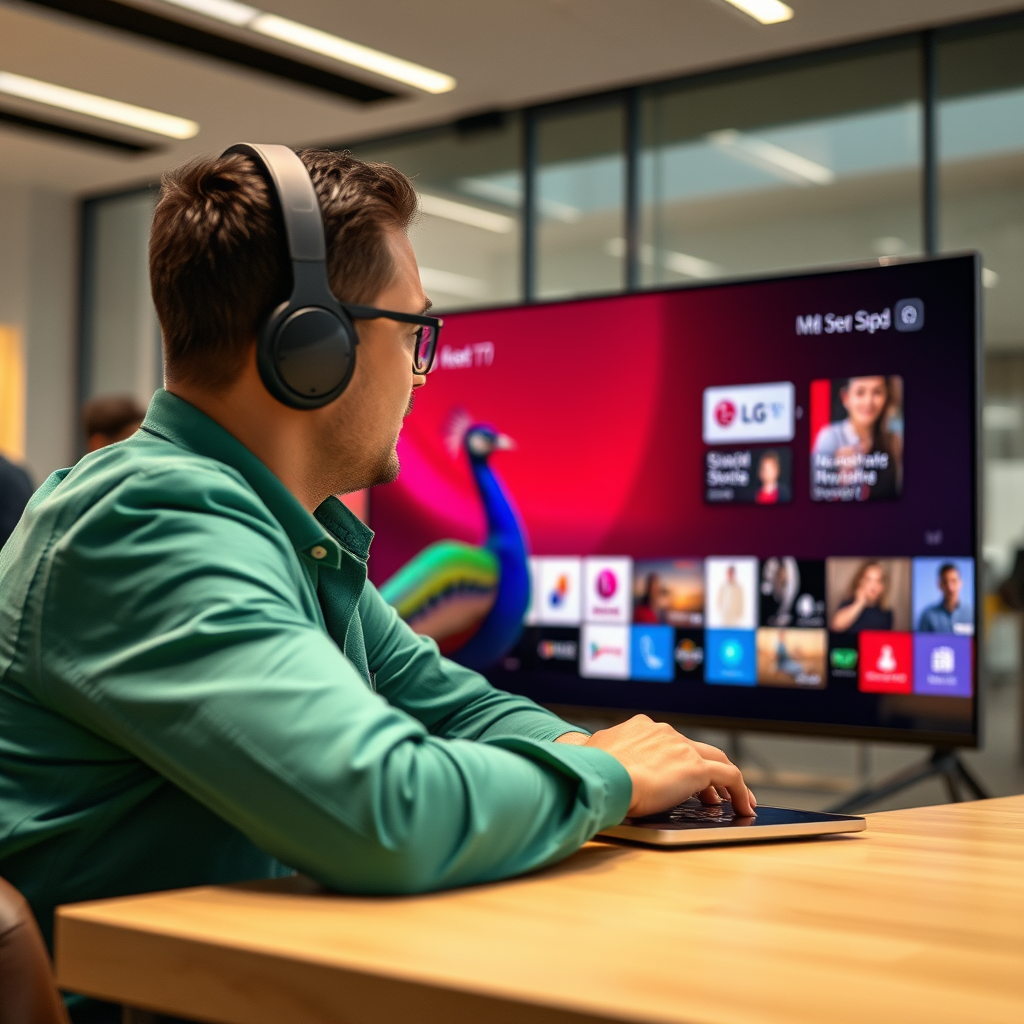
To begin the installation of the Peacock app, you need to access the LG Content Store. This platform serves as the central hub for downloading applications on your LG Smart TV.
1. Navigate to the Home Screen: Turn on your LG Smart TV. Using your remote, press the “Home” button to bring up the main menu.
2. Locate the LG Content Store Icon: Look for the “LG Content Store” icon, typically represented by a shopping bag or store symbol. It is usually found among other application icons on the main menu.
The LG Content Store is designed to be intuitive, making it easy for users to browse and download applications tailored to their interests.
Searching for the Peacock App
Once you are in the LG Content Store, the next step is to locate the Peacock app.
1. Use the Search Function: At the top of the LG Content Store, you will find a search bar. Click on it and type in “Peacock.”
2. Ensure Internet Connectivity: Before searching, make sure your TV is connected to the internet. A stable connection is crucial for a smooth search experience and downloading applications without interruption.
The search should yield the Peacock app among the results, allowing you to proceed with the installation.
Installing the Peacock App
After successfully finding the Peacock app, the next step is to install it onto your LG Smart TV.
1. Open the App Details: Click on the Peacock app icon to view its details, including its description, features, and user ratings.
2. Select the Install Option: On the app details page, look for the “Install” button. Clicking this will start the download process. Wait for a few moments while the app is being installed on your TV.
3. Completion Notification: Once installed, you will receive a notification confirming the successful installation of the Peacock app.
This process is straightforward, allowing you to quickly add the app to your device.
Peacock App Features Comparison
| # | Feature | Availability | Price | User Rating |
|---|---|---|---|---|
| 1 | Movies | Yes | Free/Premium | ★★★★☆ |
| 2 | TV Shows | Yes | Free/Premium | ★★★★☆ |
| 3 | Live Sports | Yes | Premium | ★★★☆☆ |
| 4 | Original Series | Yes | Premium | ★★★★☆ |
| 5 | News | Yes | Free | ★★★★☆ |
| 6 | User Profiles | Yes | Free | ★★★★★ |
| 7 | Watchlists | Yes | Free | ★★★★☆ |
Opening and Setting Up Peacock
Once the installation is complete, you can now open and set up the Peacock app on your LG Smart TV.
1. Return to the Home Screen: Press the “Home” button on your remote to access your main menu again.
2. Locate the Peacock App: Scroll through your installed applications until you find the Peacock app icon.
3. Launch the App: Click on the Peacock app icon to open it. You will be greeted with the app’s welcome screen.
4. Set Up Your Account: Follow the on-screen instructions to either create a new account or log in to your existing Peacock account. If you are new to Peacock, you will need to provide an email address and create a password.
5. Explore Content: Once logged in, take a moment to familiarize yourself with the layout and available content categories.
Setting up the Peacock app is a seamless process, ensuring that you can start enjoying your favorite shows and movies in no time.
Troubleshooting Common Installation Issues
While the installation process is generally straightforward, you may encounter some common issues. Here are a few troubleshooting tips:
1. App Not Appearing: If the Peacock app does not show up in your search results, double-check to ensure that your LG Smart TV software is updated to the latest version. To do this, go to the “Settings” menu, select “About This TV,” and check for any available software updates.
2. Connection Issues: If you face any connectivity problems while searching for the app, restart your Wi-Fi router and check your internet connection. A stable internet connection is essential for downloading apps successfully.
3. Restart Your TV: If the app still does not appear or if you encounter any other issues, try restarting your LG Smart TV. Sometimes, a simple reboot can resolve minor glitches.
4. Check Compatibility: Ensure that your LG Smart TV model supports the Peacock app. Older models may not have access to the latest applications.
By following these troubleshooting steps, you can effectively address any issues that may arise during the installation process.
Exploring Peacock Features
Once you have successfully installed and set up the Peacock app, it’s time to explore its features and content offerings.
1. Content Categories: Peacock offers a diverse range of content categories, including Movies, TV Shows, Live TV, and Sports. You can easily navigate these categories using the app’s menu.
2. Watchlists: Create personalized watchlists to keep track of your favorite shows and movies. This feature allows you to curate your viewing experience based on your interests.
3. Personalized Recommendations: The app uses algorithms to provide recommendations based on your viewing history, making it easier to discover new content that aligns with your preferences.
4. Parental Controls: If you have children, take advantage of the parental control features that allow you to restrict access to certain content.
5. Live Streaming Events: Stay updated with live sports events and news broadcasts, providing a comprehensive viewing experience beyond on-demand content.
By familiarizing yourself with these features, you can maximize your enjoyment of the Peacock app on your LG Smart TV.
Enjoying Peacock on Your LG Smart TV
With the Peacock app successfully installed and set up, you can now dive into a world of entertainment.
1. Start Streaming: Browse through the vast library of movies, shows, and live events. Whether you’re in the mood for a classic film, the latest TV series, or live sports, Peacock has something for everyone.
2. Consider Premium Plans: While Peacock offers a free tier, exploring premium subscription plans can unlock additional content and features, including access to more movies and shows, ad-free viewing, and exclusive originals.
3. Share with Family and Friends: The app allows multiple user profiles, so you can share your account with family and friends without mixing up your viewing preferences.
4. Stay Updated: Keep an eye on new releases and rotating content. Peacock frequently updates its offerings, ensuring that there is always something new to watch.
By embracing the full range of features available on Peacock, you can enhance your streaming experience on your LG Smart TV.
In conclusion, adding the Peacock app to your LG Smart TV opens the door to a rich library of entertainment options. By following the outlined steps, from accessing the LG Content Store to troubleshooting installation issues, you can enjoy a seamless streaming experience. Explore all the features Peacock has to offer, and consider upgrading your subscription for even more content. Happy streaming!
Frequently Asked Questions
How can I download the Peacock app on my LG Smart TV?
To download the Peacock app on your LG Smart TV, navigate to the LG Content Store from your TV’s home screen. Once there, use the search function to find “Peacock,” then select the app and click the “Install” button. After the installation is complete, you can open the app and log in or create a new account to start streaming.
Why is the Peacock app not appearing on my LG Smart TV?
The Peacock app may not appear on your LG Smart TV if your device is not compatible or if it requires a software update. Ensure that your LG Smart TV is running the latest firmware by checking for updates in the settings menu. If the app still does not show up, it may be due to regional restrictions; check if Peacock is available in your area.
What should I do if the Peacock app is not working on my LG Smart TV?
If the Peacock app is not working on your LG Smart TV, try restarting the app or your TV. You can also check your internet connection to ensure it is stable. If problems persist, consider uninstalling and reinstalling the app or performing a factory reset on your TV as a last resort.
Which LG Smart TV models support the Peacock app?
Most LG Smart TV models released in 2018 or later support the Peacock app, including those running webOS 3.5 or higher. You can verify compatibility by visiting the LG website or checking the specifications of your specific model. If your TV is older, you may need to use an external streaming device to access Peacock.
How can I cast content from my mobile device to the Peacock app on my LG Smart TV?
To cast content from your mobile device to the Peacock app on your LG Smart TV, ensure both devices are connected to the same Wi-Fi network. Open the Peacock app on your mobile device, select the content you want to watch, and tap the cast icon. Choose your LG Smart TV from the list of available devices to start streaming directly on your TV.
References
- Product Support: Help Library | LG USA Support
https://www.lg.com/us/support/help-library/how-to-install-apps-on-lg-smart-tv-CT10000018-20150107443134 - Google Scholar Google Scholar
https://scholar.google.com/scholar?q=how+to+add+peacock+app+to+lg+smart+tv - Google Scholar Google Scholar
https://scholar.google.com/scholar?q=install+apps+on+LG+Smart+TV - https://www.lifewire.com/how-to-install-apps-on-lg-smart-tv-5078003
https://www.lifewire.com/how-to-install-apps-on-lg-smart-tv-5078003 - how to add peacock app to lg smart tv – Search results
https://en.wikipedia.org/wiki/Special:Search?search=how+to+add+peacock+app+to+lg+smart+tv - https://www.ncbi.nlm.nih.gov/search/research-articles/?term=how+to+add+peacock+app+to+lg+smart+tv
https://www.ncbi.nlm.nih.gov/search/research-articles/?term=how+to+add+peacock+app+to+lg+smart+tv
