


To add wireless speakers to your TV, you will need to ensure your TV supports Bluetooth or Wi-Fi connectivity and then follow a few straightforward steps to pair the speakers. This guide will walk you through the process, helping you enhance your viewing experience with improved sound quality. The integration of wireless speakers can significantly elevate your home entertainment setup, providing a more immersive audio experience without the clutter of wires.
Understanding Wireless Speaker Types
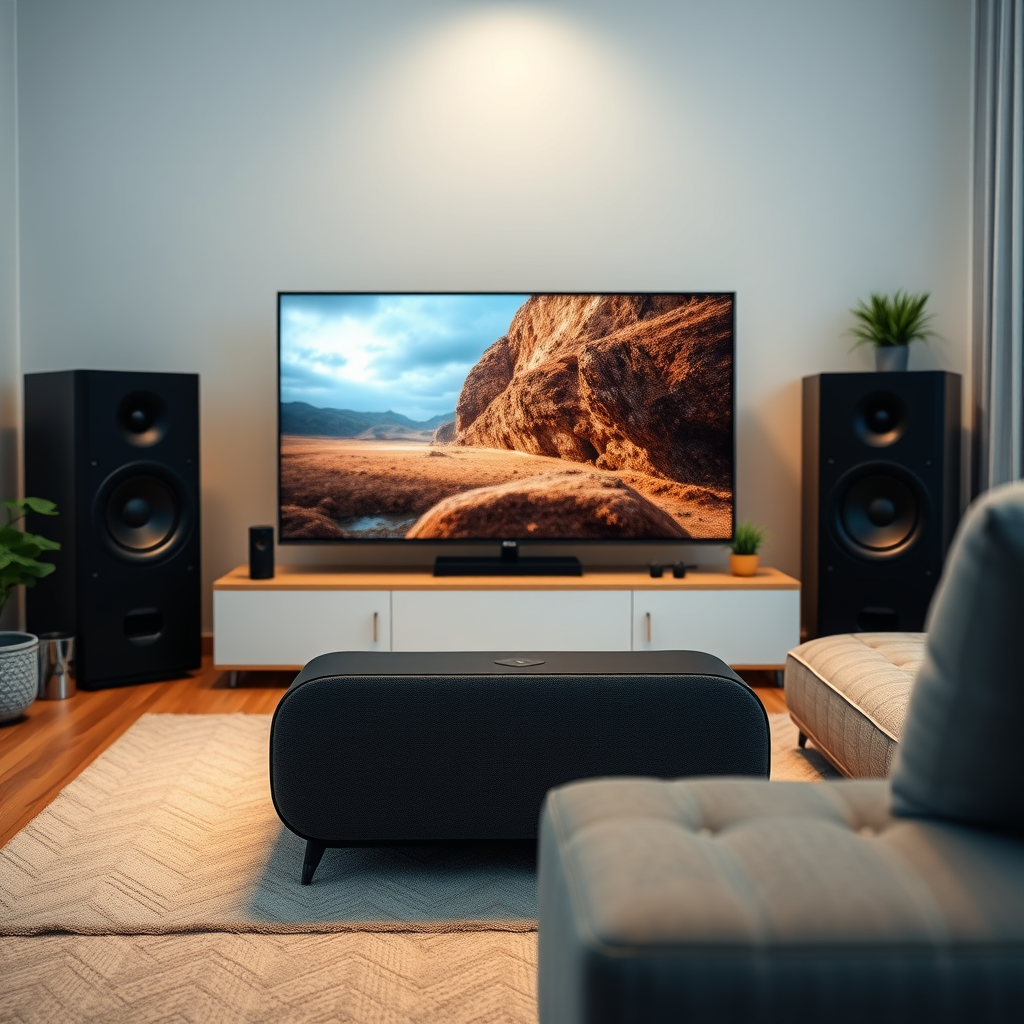
When considering wireless speakers, it’s essential to understand the two primary types: Bluetooth and Wi-Fi speakers.
Bluetooth speakers are typically easier to set up and are compatible with most devices, including TVs, smartphones, and tablets. They connect directly to your TV via Bluetooth, allowing for straightforward audio streaming. However, they may be limited in range and audio quality compared to their Wi-Fi counterparts.Wi-Fi speakers, on the other hand, connect through your home network, allowing for greater range and typically superior audio quality. They often support multi-room audio systems and can be controlled via smartphone apps or voice control. Understanding these differences will help you choose the right type that matches your TV’s capabilities and your specific audio needs.
Checking TV Compatibility
Before diving into the setup, it’s vital to check if your TV supports Bluetooth or Wi-Fi connectivity. Most modern smart TVs come equipped with these features, but older models may not.
To check Bluetooth capability, navigate to your TV’s settings menu and look for audio or connectivity options. If you find Bluetooth settings, your TV supports this feature. For Wi-Fi, ensure your TV is connected to your home network and can access online content, which typically indicates Wi-Fi capability.
Additionally, keeping your TV’s software updated is crucial for optimal performance. Manufacturers regularly release firmware updates that can enhance Bluetooth and Wi-Fi functionalities, ensuring compatibility with newer devices.
Setting Up Wireless Speakers
Once you’ve confirmed your TV’s compatibility, setting up your wireless speakers is the next step. Here are step-by-step instructions for both Bluetooth and Wi-Fi speakers.
Connecting Bluetooth Speakers
1. Turn on your Bluetooth speaker: Ensure it’s fully charged or plugged in.
2. Set your speaker to pairing mode: This is often done by pressing a designated Bluetooth button until you see a flashing light.
3. Access your TV’s settings: Navigate to the Bluetooth settings in your TV’s menu.
4. Select your speaker: From the list of available devices, choose your wireless speaker.
5. Confirm the connection: Once paired, you should hear a confirmation sound from the speaker.
Connecting Wi-Fi Speakers
1. Download the speaker’s app: Most Wi-Fi speakers require the manufacturer’s app to establish a connection.
2. Connect your TV to the same Wi-Fi network: Ensure your TV and speaker are on the same network for proper pairing.
3. Open the app and follow setup instructions: The app will guide you through connecting the speaker to your network and the TV.
4. Select your TV within the app: This will allow you to stream audio directly from your TV to the speaker.
Top Wireless Speaker Brands for TVs (2024)
| # | Brand | Type | Sound Quality | Price Range |
|---|---|---|---|---|
| 1 | Sonos | Wi-Fi | ★★★★★ | $199-$499 |
| 2 | Bose | Bluetooth/Wi-Fi | ★★★★☆ | $149-$399 |
| 3 | JBL | Bluetooth | ★★★★☆ | $79-$299 |
| 4 | Samsung | Wi-Fi | ★★★★ | $150-$450 |
| 5 | Apple HomePod | Wi-Fi | ★★★★★ | $299 |
| 6 | Sony | Bluetooth/Wi-Fi | ★★★★☆ | $99-$399 |
| 7 | Ultimate Ears | Bluetooth | ★★★★ | $69-$249 |
Adjusting Audio Settings
After successfully connecting your wireless speakers, configuring your TV’s audio settings is crucial for optimal sound output. Here are some tips to ensure you get the best audio experience:
1. Select the correct audio output: Navigate to your TV’s audio settings and ensure the output is set to the connected wireless speakers.
2. Adjust sound modes: Many TVs offer various sound modes (such as movie, music, or sports) that can enhance audio depending on what you are watching. Experiment with these settings to find the best fit for your viewing experience.
3. Manage sound delay: Wireless speakers may introduce latency, causing a slight delay between the video and audio. Look for options in your TV settings to adjust audio delay or lip-sync settings, which can help synchronize the sound with the video.
Troubleshooting Common Issues
Pairing issues between your TV and wireless speakers can occur. Here are some common problems and their solutions:
– Connection failure: Ensure that both your TV and speakers are within range of each other and that Bluetooth is enabled on your TV.
– Audio lag: If you experience a delay in audio, check for any sound delay settings on your TV or speaker, and adjust accordingly.
– Poor sound quality: If the sound quality is lacking, ensure that your speaker’s firmware is updated and that there are no obstructions between the speaker and the TV.
For improving connectivity, ensure your Wi-Fi signal is strong and consider reducing the distance between your TV and speakers.
Enhancing Your Audio Experience
To further enhance your audio experience, consider the placement of your wireless speakers. Here are some recommendations:
– Speaker positioning: Place speakers at ear level for optimal sound clarity. If using multiple speakers, space them evenly around your room to create a surround sound effect.
– Adding a subwoofer: For a richer audio experience, consider integrating a subwoofer into your setup. This can significantly enhance bass and overall sound quality, especially for action movies and music.
– Experiment with sound settings: Take the time to adjust different audio settings based on your content type. Some speakers may have built-in equalizers or sound profiles that can enhance your listening experience.
Incorporating wireless speakers into your TV setup can significantly elevate your home entertainment experience. By understanding the types of speakers, ensuring compatibility, and properly setting them up, you can enjoy superior sound quality. Follow the steps outlined above, and don’t hesitate to explore additional audio options to further enhance your setup!
Frequently Asked Questions
How do I connect wireless speakers to my TV?
To connect wireless speakers to your TV, first ensure your TV supports Bluetooth or Wi-Fi connectivity. For Bluetooth, put your speakers in pairing mode, then navigate to your TV’s settings to find and select the speakers. For Wi-Fi, use the TV’s app or settings menu to connect to the same network as your speakers, following on-screen prompts to complete the setup.
What are the best wireless speakers for TV use?
The best wireless speakers for TV use often include models like the Sonos One, Bose SoundLink, or JBL Charge, which offer excellent sound quality and compatibility. When choosing wireless speakers, consider factors such as sound performance, battery life, connectivity options, and whether they support surround sound to enhance your viewing experience.
Why is there a delay when using wireless speakers with my TV?
A delay when using wireless speakers with your TV typically occurs due to audio latency, which is the time it takes for sound to transmit wirelessly. To minimize this, look for low-latency Bluetooth codecs like aptX or connect speakers directly via Wi-Fi. Additionally, check your TV settings for any audio delay adjustments that can help synchronize the sound with the video.
Which wireless speaker setup is best for a home theater experience?
For the best home theater experience, consider a surround sound wireless speaker system like the Sonos Surround Set or the Bose Home Speaker 500. These setups often include a combination of soundbars and satellite speakers that work together to create immersive audio. Make sure the system supports your TV’s audio formats and connects seamlessly for optimal performance.
How can I troubleshoot connectivity issues with my wireless speakers and TV?
To troubleshoot connectivity issues between your wireless speakers and TV, first ensure both devices are powered on and within range. Check if the speakers are in pairing mode and confirm that Bluetooth or Wi-Fi is enabled on your TV. If problems persist, try rebooting both devices, resetting the speakers, and checking for any software updates that may improve connectivity.
References
- Wireless speaker
https://en.wikipedia.org/wiki/Wireless_speaker - https://scholar.google.com/scholar?q=how+to+add+wireless+speakers+to+tv Google Scholar
https://scholar.google.com/scholar?q=how+to+add+wireless+speakers+to+tv - Google Scholar Google Scholar
https://scholar.google.com/scholar?q=wireless+speakers+setup+guide - Google Scholar Google Scholar
https://scholar.google.com/scholar?q=wireless+audio+technology+for+tv - how to add wireless speakers to tv – Search results
https://en.wikipedia.org/wiki/Special:Search?search=how+to+add+wireless+speakers+to+tv - https://www.ncbi.nlm.nih.gov/search/research-articles/?term=how+to+add+wireless+speakers+to+tv
https://www.ncbi.nlm.nih.gov/search/research-articles/?term=how+to+add+wireless+speakers+to+tv
