
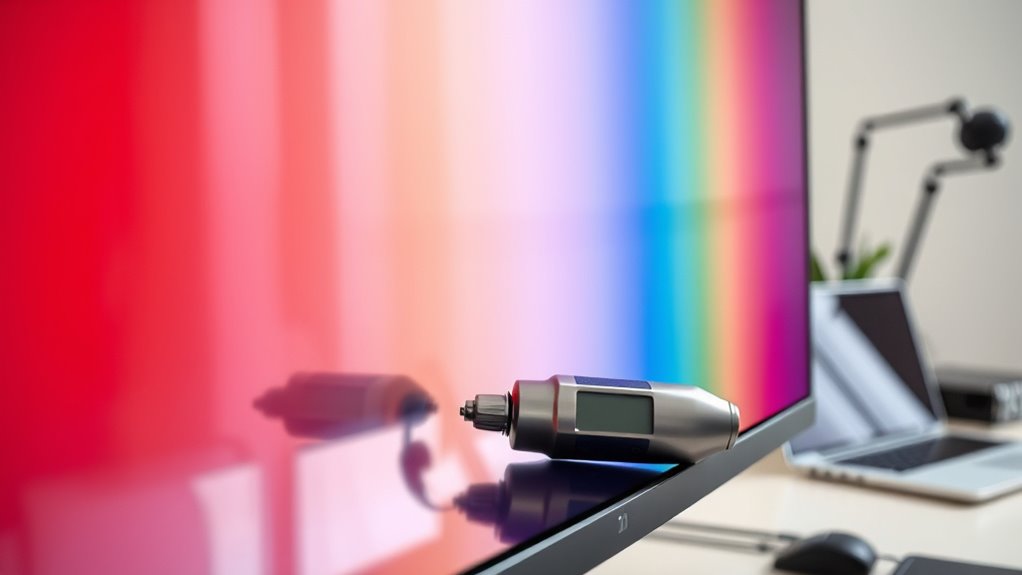

To calibrate your monitor color, start by preparing your workspace with neutral lighting and positioning your monitor at eye level. Use a colorimeter for precise measurement and software for adjustments. Set brightness to 50-70% and contrast to 70-90%. Adjust the color temperature for your environment, balancing brightness and contrast for ideal visuals. Regularly verify calibration with reference images and maintain accuracy by checking calibrations every month. Discovering more techniques will enhance your calibration skills considerably.
Understanding Monitor Color Calibration
Understanding monitor color calibration is essential for anyone looking to achieve accurate and consistent visuals. Your color perception can easily be skewed by uncalibrated displays, leading to misinterpretations of what you see. Many believe calibration is unnecessary, but that’s one of the biggest calibration myths. It’s not just about making colors look pretty; it’s about ensuring what you see on screen aligns with reality, especially for tasks like graphic design or photography. By calibrating your monitor, you’re freeing yourself from inconsistencies that can hinder your work. Embrace the process, and you’ll reveal the true potential of your display, enhancing both your creativity and productivity. After all, an accurate monitor empowers you to communicate your vision effectively.
Tools You Need for Calibration
To achieve accurate monitor color calibration, you’ll need a few essential tools at your disposal. First, invest in high-quality calibration devices like colorimeters or spectrophotometers. These devices measure your monitor’s output and help guarantee it aligns with established color standards, giving you reliable results. You’ll also want calibration software to guide you through the process, making adjustments based on the device readings. Additionally, having a reference print or a color chart can help you visually verify your settings against real-world colors. Remember, the right tools not only enhance your calibration experience but also empower you to release your creativity with true-to-life colors. Embrace these tools, and you’ll enjoy a more vibrant and accurate visual workspace.
Preparing Your Workspace
After gathering your calibration tools, the next step is to set up your workspace for ideal results. Proper workspace lighting is essential for accurate color perception, so take a moment to optimize your environment. Here’s how to prepare:
- Choose neutral lighting: Use soft, white bulbs to minimize color distortion.
- Control natural light: Close curtains or blinds to avoid fluctuating light conditions.
- Position your monitor: Make sure it’s at eye level and away from direct light sources.
- Minimize distractions: Keep the area tidy and free from clutter that could divert your focus.
With these adjustments, your workspace will be primed for precise calibration, allowing you to release your creative potential without the hindrance of poor lighting.
Adjusting Brightness and Contrast
Once you’ve prepared your workspace, the next critical step is adjusting your monitor’s brightness and contrast settings. Fine-tuning brightness levels enhances visibility, while proper contrast settings improve detail clarity. Start by setting your brightness to a comfortable level; too high can cause glare, and too low can strain your eyes.
Use the table below to guide your adjustments:
| Setting | Recommended Levels |
|---|---|
| Brightness | 50-70% |
| Contrast | 70-90% |
| Dark Scenes | Lower brightness |
| Bright Scenes | Higher brightness |
Make small adjustments, checking your display’s output until it feels right. This balance empowers you to enjoy your monitor’s full potential, ensuring a visually pleasant experience.
Setting the Color Temperature
To achieve accurate color representation, you need to grasp the concept of color temperature, which affects how colors appear on your screen. Adjusting your monitor settings to the right temperature can enhance your viewing experience and guarantee consistency across devices. Let’s explore how to fine-tune this setting for ideal results.
Understanding Color Temperature
While calibrating your monitor’s color, understanding color temperature is vital, as it directly influences how your images and videos appear. Color temperature, measured in Kelvin, affects color perception and can dramatically alter temperature effects in your visuals. Here’s what you need to know:
- Warm colors (below 3000K) create a cozy and inviting feel, enhancing reds and yellows.
- Neutral colors (around 5000K) provide a balanced look, ideal for natural lighting.
- Cool colors (above 6500K) evoke a clean, modern aesthetic, emphasizing blues and greens.
- Daylight (approximately 6500K) replicates natural sunlight, essential for accurate color representation.
Adjusting your monitor’s color temperature helps guarantee that your creative freedom isn’t compromised by inaccurate visuals.
Adjusting Monitor Settings
Adjusting your monitor settings, particularly the color temperature, is key to achieving accurate and pleasing visuals. Start by exploring your monitor presets; many displays offer settings like “sRGB” or “Adobe RGB” that align with specific tasks. These presets can considerably simplify your calibration process. If your monitor supports custom display profiles, consider creating one tailored to your unique environment and preferences.
Adjust the color temperature to match your lighting conditions—6500K is a standard for most applications. Experiment with warmer or cooler tones until you find a balance that feels right. Remember, the goal is to create a visual experience that enhances your work without distortion. Take control of your display, and let your monitor reflect your artistic vision.
Utilizing Calibration Software
Calibration software plays an essential role in achieving accurate monitor colors, offering you a variety of tools and settings to fine-tune your display. By utilizing this software, you can create custom color profiles tailored to your unique preferences and needs. Here’s how it can enhance your experience:
Calibration software is vital for precise monitor colors, enabling personalized profiles that elevate your digital experience.
- Automated adjustments: Let the software guide you through one-click calibrations for quick results.
- Custom profiles: Save multiple color profiles for different tasks, like gaming or graphic design.
- Visual aids: Use built-in test patterns to visualize color accuracy and contrast.
- Detailed reporting: Access thorough reports that track your calibration history and adjustments.
With the right calibration software, you’ll enjoy vibrant colors and a more immersive experience, giving you the freedom to create and enjoy your digital world.
Manual Calibration Techniques
Although automated tools simplify the calibration process, mastering manual calibration techniques can greatly enhance your monitor’s color accuracy. To start, adjust your monitor’s brightness and contrast settings. This sets a solid foundation for color accuracy. Next, focus on the RGB values, tweaking them until you achieve a balanced look. Pay close attention to skin tones and grayscale; these are often calibration challenges. You’ll want to use reference images to guide your manual adjustments, ensuring you’re on track. Finally, don’t forget to regularly revisit your settings, as ambient light changes can affect your monitor’s appearance. Embracing these techniques empowers you to take control of your display, achieving vibrant, true-to-life colors that reflect your vision.
Fine-Tuning Color Settings
After establishing a solid foundation with manual calibration techniques, it’s time to focus on fine-tuning your color settings for maximum accuracy. This step enhances your color perception by making specific visual adjustments. Here’s how to achieve ideal results:
- Adjust Brightness: Verify your monitor isn’t too bright or too dim, as this affects color perception.
- Tweak Contrast: Balancing contrast helps in distinguishing between shades and enhancing details.
- Refine Saturation: Modify saturation levels to prevent colors from appearing washed out or overly vivid.
- Set Color Temperature: Choose a color temperature that complements your working environment for a more natural visual experience.
These adjustments will elevate your monitor’s performance, allowing you to enjoy a true-to-life viewing experience.
Verifying Calibration Results
Once you’ve fine-tuned your monitor’s color settings, it’s essential to verify the calibration results to confirm everything appears as intended. Start with calibration checks using reference images or color swatches that you’re familiar with. Observe how the colors render; they should match your expectations for accuracy and vibrancy. Pay close attention to gradients and skin tones, as these are often the most telling indicators of color consistency. Utilize software tools designed for this purpose, which can help highlight any discrepancies. Don’t hesitate to make minor adjustments if needed. This process not only guarantees your work looks its best but also enhances your creative freedom, allowing you to trust your monitor’s output in various applications.
Maintaining Color Accuracy Over Time
To guarantee your monitor maintains color accuracy over time, regular calibration is essential, especially as factors like aging components and ambient lighting can subtly alter its performance. You’ll want to keep an eye on color drift and adjust your calibration frequency accordingly. Here are some tips to help you maintain that vibrant color fidelity:
Regular monitor calibration is crucial for maintaining color accuracy as aging components and lighting changes can affect performance.
- Calibrate every month to catch any early color drift.
- Monitor ambient light changes; adjust your settings if necessary.
- Use quality calibration tools for precise adjustments.
- Check manufacturer recommendations for ideal calibration frequency.
Frequently Asked Questions
How Often Should I Recalibrate My Monitor?
You should recalibrate your monitor every month or two. Monitor drift can subtly alter colors over time, affecting your work. Staying consistent with calibration frequency guarantees your display remains true to your creative vision.
Can I Use My Monitor for Gaming After Calibration?
Absolutely, you can use your monitor for gaming after calibration. In fact, improved color accuracy enhances gaming performance, providing a more immersive experience. Enjoy vibrant visuals while maintaining accuracy that elevates your gameplay to the next level.
Does Monitor Calibration Affect Other Devices?
Calibration mainly affects your monitor’s color perception, but it doesn’t directly alter other devices. However, if you’re sharing visuals, guarantee device compatibility to maintain consistent color representation across all screens for a seamless experience.
Is Professional Calibration Worth the Cost?
Yes, professional calibration’s worth the cost analysis if you prioritize color accuracy for tasks like graphic design or video editing. It guarantees your display meets industry standards, enhancing your creative freedom and productivity considerably.
What if My Monitor Has No Calibration Settings?
If your monitor lacks calibration settings, don’t worry—about 70% of users find alternative calibration methods effective. You can explore software solutions that mimic professional calibration, ensuring your display meets your visual needs without extensive hardware adjustments.
