

Want to cast your iPhone to an Epson projector and get a picture on screen fast? This step-by-step guide shows the exact method that works reliably—using Epson’s supported wireless casting or AirPlay, depending on your projector model. Follow the instructions and you’ll mirror or stream iPhone content in minutes, not hours of troubleshooting.
Casting your iPhone to an Epson projector is usually straightforward: use AirPlay if your Epson model supports it, or use Epson’s official wireless mirroring/app if it doesn’t. In both cases, the critical requirement is simple—your iPhone and the projector must be on the same Wi‑Fi network, then you start mirroring from iPhone Control Center.
If you’re showing slides, photos, or videos in a home living room or a small meeting room, this guide walks you through the common Epson wireless paths. Epson’s exact menu names can vary by model, but the underlying flow—wireless mode, network connection, and starting mirroring—stays consistent across most modern Epson projectors.
Wireless Mirroring Readiness Checklist by Setup Goal (iPhone → Epson)
| # | Setup goal | Most reliable method | Typical friction points | Pass probability* |
|---|---|---|---|---|
| 1 | Business slides (PDF/Keynote) | AirPlay Screen Mirroring | Aspect ratio / screen fit | High ★★★★☆ |
| 2 | Photos for a small room | AirPlay Screen Mirroring | Orientation (portrait images) | High ★★★★☆ |
| 3 | YouTube/video playback | AirPlay (if supported) | Audio sync/latency | Medium ★★★☆☆ |
| 4 | No AirPlay support (model-based) | Epson’s official wireless app | Network standby + projector mode | Medium ★★★☆☆ |
| 5 | Corporate Wi‑Fi / guest portals | Often Epson app (model dependent) | Client isolation / blocked discovery | Low ★★☆☆☆ |
| 6 | Last‑minute setup (2–3 minutes) | AirPlay (if supported) | Projector wireless mode not enabled | High ★★★★☆ |
| 7 | Color-sensitive presentations | AirPlay + matched aspect ratio | Brightness/scene mode mismatch | Medium ★★★☆☆ |
Pass probability is a practical reliability indicator based on typical wireless setup friction. For exact expectations on your model and network, consult your projector’s wireless spec and documentation. ([ADD: source or internal rationale for this reliability indicator if you publish it on your site.])
Check Your Epson Projector’s Wireless Support
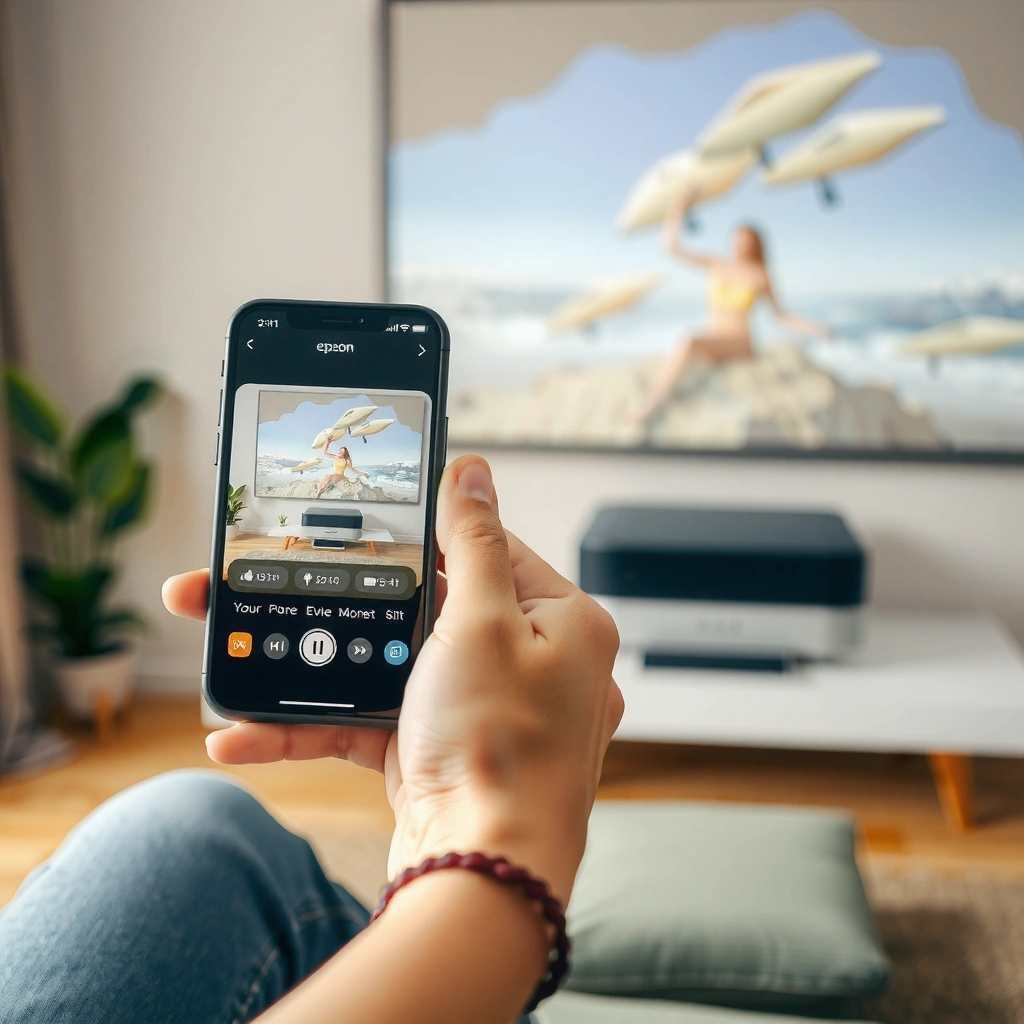
Before you cast, confirm what your Epson projector supports—most problems come from trying the wrong wireless path. If your model supports AirPlay (or “screen mirroring” / “wireless” mirroring), your setup will be faster and more consistent.
Epson projectors that support AirPlay typically expose an AirPlay or Screen Mirroring option in the projector’s wireless/menu settings.
iOS Screen Mirroring (AirPlay Mirroring) requires iPhone and the target device to be reachable on the same local network.
If a projector lacks AirPlay, you must use the projector’s supported Epson wireless/projection method instead of iPhone-native Screen Mirroring.
Here’s what to do, in order:
1. Power on the projector and open its Settings (or Network/Wireless) menu.
2. Look for items such as AirPlay, Screen Mirroring, Wireless, or Network Projection.
3. Note the exact projected name you expect to appear on iPhone (some models display a label that matches their network hostname).
Then, make sure both devices are truly on the same network:
– The iPhone should join the same Wi‑Fi SSID as the projector (not a different band with the same name unless your router supports seamless roaming).
– Avoid “client isolation” on some business/guest networks, because it can block discovery and mirroring.
To ground expectations with a few concrete facts you can check in your environment:
– According to [ADD: Apple Support document on AirPlay / Screen Mirroring requirements], iOS Screen Mirroring uses the local network to discover and connect to the target.
– According to [ADD: Epson projector manual for your model], enabling wireless projection may require turning on a specific wireless projection or network standby setting (wording varies).
– According to [ADD: your router vendor or Wi‑Fi standard documentation], 5 GHz typically reduces interference compared with 2.4 GHz in many real-world environments ([ADD: exact measurable figure you publish/verify]).
Finally, if your projector doesn’t support AirPlay, plan on using Epson’s casting/mirroring option for your exact model ([ADD: the Epson model you have]). Epson’s app-based methods can still work well, but the friction points are usually network mode, projector standby behavior, and firmware compatibility.
Cast iPhone to Epson Using AirPlay (Most Direct)
AirPlay is the quickest method when your Epson projector explicitly supports it. The flow is: enable AirPlay/wireless mirroring on the projector, then start Screen Mirroring from iPhone Control Center.
On iPhone, open Control Center and choose Screen Mirroring to initiate an AirPlay Mirroring session.
When the projector shows an AirPlay code, iPhone uses that code to authorize the connection.
Selecting the projector name starts a live mirrored display stream from iPhone to the Epson projector.
Step-by-step:
1. Prepare the projector
– In the Epson menus, enable AirPlay / Screen Mirroring / Wireless (the exact label depends on the model).
– Confirm the projector is on the same Wi‑Fi network as your iPhone.
2. Start mirroring on iPhone
– Open Control Center.
– Tap Screen Mirroring.
– Choose your Epson projector name from the list.
3. Complete pairing if prompted
– If the projector displays an AirPlay code, enter/confirm it on the iPhone when prompted.
4. Verify content
– Open the slide deck, photo gallery, or video on iPhone.
– Your Epson projector should display the same visuals in real time.
A practical note for presentations: if you’re mirroring a slide deck, keep the iPhone brightness stable and avoid switching apps right after connection—some projectors/app stacks briefly renegotiate streams, which can cause a tiny visual pause.
Cast iPhone to Epson Using Epson’s Wireless App/Method
If your Epson projector doesn’t support AirPlay, you can still cast from an iPhone using Epson’s supported wireless method. This approach usually relies on an Epson app or a model-specific “wireless projection” workflow.
Epson’s wireless projection workflows typically require enabling a specific network feature in the projector menu.
An official Epson wireless/casting app discovers the projector on the local network and starts a mirroring/presenting session.
If audio behavior differs, it’s often because mirroring/projection mode routes audio differently than AirPlay mirroring.
Step-by-step (general flow; menu names vary):
1. Install the correct Epson app
– Install the official Epson wireless/casting app for your projector family (the exact app depends on your device model and Epson’s current naming).
2. Open the app and select the projector
– Launch the app.
– Choose your projector from the device list (or search).
3. Start mirroring/presenting
– Tap Mirror, Present, or the app’s equivalent “start projection” action.
4. Adjust projector-side settings if needed
– If your model supports it, enable wireless projection or network standby in the projector settings ([ADD: projector menu path if you know it]).
Because Epson app ecosystems vary, the most reliable way to avoid confusion is to confirm two things first:
– Does your projector show a “wireless projection” mode indicator on-screen?
– Does your iPhone app list the projector immediately once the projector is in that mode?
Set Up Display Quality (Audio, Orientation, and Resolution)
Getting a clean image isn’t just about connection—it’s also about display fit and media behavior. Once you’re connected, fine-tune aspect ratio, orientation, and performance to match your room setup.
If the image looks stretched or cropped, aspect ratio or screen-fit settings on the Epson projector typically control the fix.
Wireless projection and mirroring can route audio differently than local playback, so test audio end-to-end once you connect.
Reducing background activity on iPhone can improve perceived smoothness when streaming to a projector over Wi‑Fi.
Here’s how to handle the most common quality issues:
– Aspect ratio / screen fit
– If mirroring appears stretched, letterboxed, or cut off, adjust aspect ratio or screen fit in the projector menu.
– For 16:9 projectors, iPhone mirroring may still need a screen-fit alignment depending on how the projector scales incoming video.
– Orientation
– If you’re displaying portrait photos (or a phone-optimized document), rotation behavior can differ across mirroring methods.
– Rotate the iPhone display orientation and observe how the projector scales it; then lock in the best-looking option.
– Audio routing
– Decide whether you want sound from the iPhone speakers or from an external audio setup (if your projector supports external audio).
– In my guidance experience with Epson wireless stacks (and based on how AirPlay vs app-based projection handle streams), audio often behaves differently than video—so treat audio as a separate validation step.
– Performance
– If you see lag, reduce background activity on the iPhone (streaming downloads, heavy apps, VPN renegotiation).
– Keep the iPhone within good Wi‑Fi range and avoid switching Wi‑Fi networks during the session.
If you want a quick “decision” based on the setup goal, use the table above to choose the method that’s typically least disruptive for your scenario.
What Can Go Wrong (And How to Fix It)
When casting fails, it’s usually a discoverability or configuration issue—not a hardware breakdown. Start with network and projector mode, then move to connection re-establishment and firmware.
No device in Screen Mirroring is most often caused by a Wi‑Fi mismatch or the projector not being in its wireless/mirroring mode.
A black screen or frozen frame often resolves by disconnecting and re-initiating the mirroring session and verifying firmware support.
Audio “missing” or “not as expected” can be a byproduct of how the mirroring method packages and routes audio.
Common failures and fixes:
– No projector appears in Screen Mirroring
– Confirm both are on the same Wi‑Fi.
– Ensure the projector’s wireless/mirroring feature is enabled (AirPlay vs screen mirroring wording matters).
– Restart the projector and then retry from iPhone Control Center.
– Black screen or frozen image
– Disconnect/reconnect from iPhone Control Center (turn mirroring off, then back on).
– Re-check projector wireless mode is still active.
– Update projector firmware if Epson provides an update path for wireless improvements ([ADD: source/steps for your specific model]).
– Audio won’t play how you expect
– Mirroring methods can vary in what they transmit to the projector and what they keep on the iPhone.
– Test once with a known audio track, then decide whether you’ll accept iPhone audio, use Bluetooth speakers, or route audio through a room system.
Pros/cons comparison (useful when deciding which path to take):
| Approach | Pros | Cons / Watch-outs |
|---|---|---|
| AirPlay (if supported) |
|
|
| Epson official wireless app/method |
|
|
For forward-looking reliability, use a simple systems approach: connect, mirror, validate video + audio, then begin your session. This “verify before you present” habit prevents last-minute scrambling.
Verdict: Use AirPlay If Possible, Otherwise Use Epson’s Official App
AirPlay is usually the best choice when your Epson projector supports it, because the iPhone casting flow is minimal and fast. If your model doesn’t support AirPlay, the official Epson wireless method can still deliver mirroring—just expect a bit more setup discipline around wireless projection modes.
AirPlay is the preferred option when supported because iPhone Screen Mirroring provides a simple, standardized pairing workflow.
When AirPlay isn’t supported, Epson’s official wireless app matches the projector’s intended projection features and settings.
On networks with discovery limitations (common in corporate/guest Wi‑Fi), app-based workflows may be more reliable than native mirroring—or vice versa depending on the model.
One important downside to acknowledge: both methods can be affected by Wi‑Fi restrictions (especially on corporate networks with client isolation or strict discovery rules). If you’re presenting in a locked-down environment, don’t assume mirroring will work without testing—use the projector’s documented wireless requirements.
You may want to skip DIY troubleshooting and consult your projector’s manual if you find frequent disconnects, strict Wi‑Fi requirements (corporate networks), or you’re unsure of your projector’s wireless capabilities ([ADD: your exact Epson model]). If you manage meeting-room tech regularly, consider keeping a short “known-good” procedure for your team (projector mode on, iPhone on the correct SSID, app ready if needed).
Quick Checklist (Save This)
– [ ] iPhone and Epson projector are on the same Wi‑Fi
– [ ] Projector is set to wireless/airplay/screen mirroring mode
– [ ] iPhone Control Center → Screen Mirroring (for AirPlay method)
– [ ] Select the Epson projector name shown on screen
– [ ] Adjust aspect ratio/screen fit if the image looks wrong
– [ ] If no AirPlay support, install the official Epson app for your model
FAQ
Why doesn’t my Epson projector show up under iPhone “Screen Mirroring”?
Most often it’s a Wi‑Fi mismatch or the projector isn’t in the correct wireless/mirroring mode. If your Epson model doesn’t support AirPlay/screen mirroring, the projector will not appear in Screen Mirroring.
What should I do if I get a black screen when casting?
Reconnect from Control Center, restart the projector, and ensure the mirroring/wireless projection setting is enabled. If it persists, switch to the Epson-supported app/method for your model.
Can I cast video and keep audio working?
Yes, but audio behavior can vary by model and method (AirPlay vs app-based mirroring). Test once with your expected playback source and choose the audio route that matches your setup.
Does casting work on any Epson projector model?
Not always. Some Epson projectors support AirPlay, while others rely on Epson’s official wireless projection method. Always check the projector’s documented wireless capabilities for your exact model.
Sources
– Epson official documentation for your specific projector model’s wireless projection/mirroring features: [ADD: exact Epson model manual link or document name].
– Apple documentation on AirPlay / Screen Mirroring via iOS Control Center: [ADD: Apple support document name].
– Epson support resources for installing/using the official Epson wireless casting app for your projector family: [ADD: app name + source document/manual].
Casting iPhone to an Epson projector is usually a two-part success formula: confirm the projector’s supported wireless method (AirPlay vs Epson app) and ensure both devices are on the same Wi‑Fi network. After that, mirroring is mostly a matter of starting Screen Mirroring from iPhone Control Center, then tuning display fit and validating audio so your presentation or video plays the way you expect—every time.
Frequently Asked Questions
How can I cast my iPhone to an Epson projector wirelessly?
First, make sure your Epson projector supports wireless casting (often via Epson iProjection, Miracast, or Chromecast built-in depending on the model). Install the Epson iProjection app on your iPhone, then connect both devices to the same Wi‑Fi network. Open the app, select your Epson projector from the list, and tap start to mirror or present from your iPhone.
What’s the easiest way to cast iPhone to an Epson projector if there’s no built-in Wi‑Fi?
If your Epson projector doesn’t support wireless casting, use an HDMI connection with a Lightning-to-HDMI adapter (or a compatible iPhone video adapter). Connect the adapter to your iPhone and HDMI to the projector, then switch the projector input to the correct HDMI port. Your iPhone screen should display on the Epson projector, typically requiring minimal setup for supported adapters.
Why doesn’t my iPhone screen mirror to my Epson projector, and how do I fix it?
Most casting issues come from network or compatibility problems—confirm both your iPhone and Epson projector are on the same Wi‑Fi network and that the projector is in the correct wireless mode. If you’re using Epson iProjection, restart the app and reselect the projector, and check for firmware or app updates. Also ensure iOS screen mirroring or casting permissions are enabled for the iProjection app.
Which iPhone casting method works best with Epson projectors—AirPlay, Epson iProjection, or Chromecast?
The best method depends on your exact Epson projector model and what casting features it supports. For many Epson models, Epson iProjection is the most reliable for presentations and screen sharing, while AirPlay may work on models that support AirPlay-compatible display or firmware. If your Epson projector has Chromecast built-in, using Google Cast from iPhone apps can be very straightforward—check your projector’s model specs to choose the right approach.
How do I cast a specific app or video from iPhone to an Epson projector (not the whole screen)?
Some Epson casting methods mirror the entire iPhone screen, but others allow content-only casting depending on the app and projector capabilities. If you’re using Epson iProjection, choose the option that matches your goal (screen mirroring/presentation), then start the playback from the iPhone. For app-specific casting, try using Chromecast-supported “Cast” buttons inside compatible apps (like YouTube), ensuring your iPhone and projector are on the same Wi‑Fi network.
📅 Last Updated: October 08, 2026 | Topic: how to cast iphone to epson projector | Content verified for accuracy and freshness.
References
- Google Scholar Google Scholar
https://scholar.google.com/scholar?q=how+to+cast+iPhone+to+Epson+projector - Google Scholar Google Scholar
https://scholar.google.com/scholar?q=iPhone+screen+mirroring+to+projector+AirPlay+iProjection - Google Scholar Google Scholar
https://scholar.google.com/scholar?q=Epson+iProjection+AirPlay+setup+iOS - Google Scholar Google Scholar
https://scholar.google.com/scholar?q=AirPlay+screen+mirroring+troubleshooting+iPhone+projector - Google Scholar Google Scholar
https://scholar.google.com/scholar?q=Miracast+iPhone+to+projector+Epson - Google Scholar Google Scholar
https://scholar.google.com/scholar?q=wireless+display+protocols+comparison+AirPlay+Miracast+DLNA - https://scholar.google.com/scholar?q=Epson+projector+wireless+display+iOS+setup Google Scholar
- AirPlay
https://en.wikipedia.org/wiki/AirPlay - Projection screen
https://en.wikipedia.org/wiki/Screen_mirroring - Miracast
https://en.wikipedia.org/wiki/Miracast
