
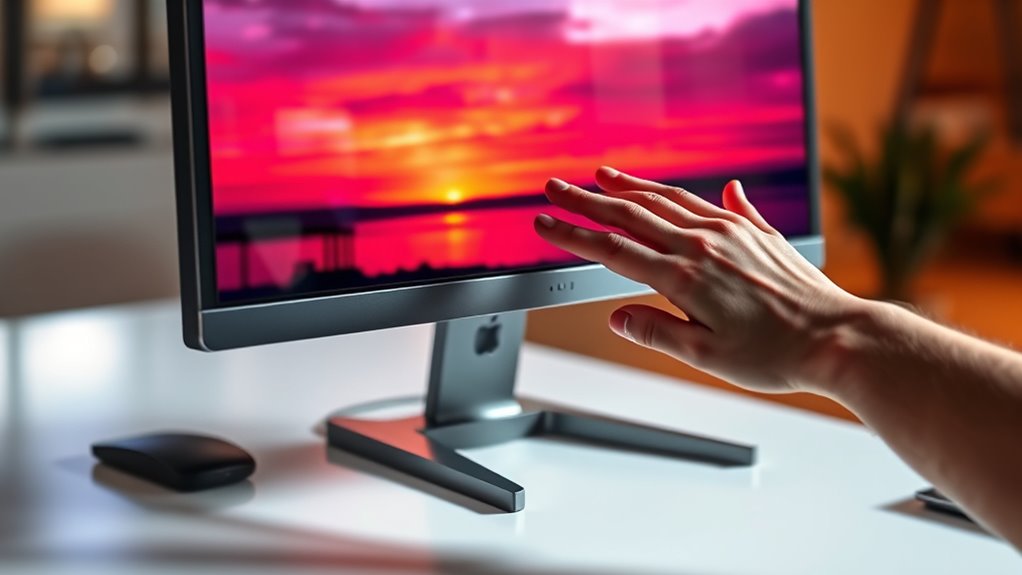

To change the brightness on your monitor, you’ll typically use the on-screen display (OSD) controls. For Windows PCs, right-click the desktop, select “Display settings,” and adjust the brightness slider. On a Mac, go to System Preferences, then “Displays,” and find the brightness slider. If you’re using an external monitor, use the physical buttons on the device. If you want more precise control and tips, there’s plenty to explore on brightness optimization.
Understanding Monitor Brightness
Understanding monitor brightness is essential for optimizing your viewing experience. The right brightness can enhance clarity and reduce eye strain, making your time in front of the screen more enjoyable. Modern monitor technology offers various brightness levels, allowing you to customize your display to your environment.
To achieve the best results, you’ll want to perform display calibration. This process helps guarantee that colors appear accurate and that brightness levels suit your needs. When calibrating, consider your lighting conditions; a brighter room may require a higher brightness setting, while dimmer spaces can benefit from lower levels. By understanding these elements, you’ll gain greater control over your display, allowing for a more comfortable and personalized viewing experience.
Adjusting Brightness on Windows PCs
Adjusting brightness on Windows PCs is a straightforward process that can greatly enhance your viewing comfort. To start, right-click on your desktop and select “Display settings.” Here, you’ll find a slider labeled “Change brightness.” Move it left or right to adjust according to your preference. For more precise monitor calibration, consider using third-party software that can help fine-tune brightness perception based on ambient light conditions. Additionally, explore the “Night light” feature to reduce blue light exposure and improve eye comfort during late hours. Remember, finding the right brightness level can alleviate eye strain and make your overall experience more enjoyable. Take a moment to adjust it according to your unique needs and environment.
Changing Brightness on Mac Computers
To change brightness on your Mac, you can use System Preferences for detailed adjustments. Don’t forget about the keyboard brightness controls for quick tweaks. If you’re using an external monitor, you’ll need to adjust the settings directly on that device.
Using System Preferences
Have you ever wondered how to quickly change your monitor’s brightness on your Mac? It’s simple! Start by clicking the Apple icon in the top left corner and selecting “System Preferences.” From there, choose “Displays.” You’ll see a brightness slider that allows you to adjust the brightness to your preference. If you want to fine-tune your display, look for the “Display Calibration” option. This helps guarantee that the colors and brightness levels are just right for your needs. Remember, adjusting your monitor’s brightness can enhance your viewing experience and reduce eye strain. With these system settings, you’ll have full control over your display’s brightness in no time!
Keyboard Brightness Controls
If you’re looking for a quick way to change your monitor brightness without diving into menus, keyboard brightness controls on your Mac can be a real lifesaver. Here’s how to use those handy keyboard shortcuts for brightness functions:
- Locate the brightness keys: These are usually represented by a sun icon on the F1 and F2 keys.
- Adjust brightness: Press the F1 key to decrease brightness, or the F2 key to increase it.
- Check the display: Watch the screen to see the changes in real-time.
- Fine-tune your settings: Repeat until you reach your desired brightness level.
Using these keyboard shortcuts makes adjusting your monitor brightness quick and effortless, giving you the freedom to tailor your screen to your environment.
External Monitor Adjustments
Adjusting the brightness on an external monitor connected to your Mac can enhance your viewing experience considerably. Depending on the external monitor types, you may need to follow different steps for display calibration. Here’s a quick guide to help you adjust brightness settings:
| Step | Action |
|---|---|
| Identify Monitor | Check the type of external monitor. |
| Access Settings | Use monitor buttons or on-screen menu. |
| Adjust Brightness | Navigate to brightness settings. |
| Save Settings | Confirm changes before exiting. |
| Test Display | Open a document to check brightness. |
Modifying Brightness on External Monitors
Modifying brightness on external monitors can enhance your viewing experience greatly. By adjusting the brightness, you can achieve better color calibration and improve contrast settings for your specific needs. Here’s how to do it:
- Access Monitor Menu: Use the buttons on your monitor to bring up the settings menu.
- Select Brightness Option: Navigate to the brightness settings.
- Adjust Brightness Level: Increase or decrease the brightness to your preference.
- Save Changes: Confirm your adjustments, ensuring they enhance your viewing comfort.
Using Monitor On-Screen Display (OSD) Controls
To adjust your monitor’s brightness, you’ll first need to access the On-Screen Display (OSD) menu. This menu provides various settings, including brightness controls, that you can customize. Once you’re in, just follow the prompts to find and adjust the brightness level to your preference.
Accessing OSD Menu
Before you can change your monitor’s brightness, you’ll need to access the On-Screen Display (OSD) menu, which is typically done using the buttons located on the monitor itself. Here’s how to navigate the OSD effectively:
- Locate the Buttons: Find the buttons, usually on the bottom or side of your monitor.
- Power On the Monitor: Confirm your monitor is turned on; it’s essential for OSD navigation.
- Press the Menu Button: Hit the designated menu button to enter the OSD settings.
- Navigate Through Options: Use the arrow buttons to scroll through the OSD settings until you find brightness adjustments.
Once you’ve accessed the OSD menu, you’re one step closer to achieving your ideal display settings.
Adjusting Brightness Settings
Now that you’ve accessed the OSD menu, you can easily adjust the brightness settings to suit your preference. Look for the brightness option, which is often labeled clearly. Use the arrow keys to increase or decrease the brightness until it feels comfortable for your eyes.
Next, you might want to check the contrast settings, as they can enhance your viewing experience. Adjust the contrast to balance the brightness, ensuring that colors appear vivid without losing detail.
Additionally, consider tweaking the color temperature; warmer tones can reduce eye strain during long sessions. Remember, finding the right combination of brightness, contrast, and color temperature can lead to a more enjoyable and personalized monitor experience.
Brightness Adjustment for Laptops
While adjusting the brightness on your laptop may seem straightforward, it can vary depending on your operating system and hardware. Here are some quick ways to manage your laptop display and tackle screen dimming:
- Keyboard Shortcuts: Most laptops have dedicated keys (often marked with a sun icon) for brightness control.
- Action Center: On Windows, click the Action Center icon and use the brightness slider.
- System Preferences: On macOS, go to System Preferences > Displays to adjust the brightness.
- Battery Settings: Some laptops allow you to adjust brightness based on power settings; check your battery options.
Experiment with these methods to find what works best for your laptop, and enjoy the freedom of a perfectly lit screen!
Software Solutions for Brightness Control
Have you ever wondered how software can enhance your control over monitor brightness? Using specific software applications can give you precise adjustments that built-in settings might lack. Programs like f.lux or Windows Night Light not only allow for brightness calibration but also help reduce eye strain by adjusting color temperature based on the time of day.
For more advanced control, consider using display calibration software. These tools let you create custom profiles, ensuring your monitor displays colors accurately while adjusting brightness to your liking.
Simply download the application, follow the setup instructions, and start fine-tuning your monitor’s brightness. With these software solutions, you’ll have the freedom to create a superior viewing experience tailored just for you.
Tips for Optimal Brightness Settings
Adjusting your monitor’s brightness isn’t just about making it brighter or dimmer; it’s about finding the right balance for your specific environment and needs. To optimize your brightness settings, consider these tips:
- Assess Ambient Lighting: Adjust brightness based on your room’s lighting. If it’s bright, increase the brightness; in darker settings, lower it.
- Use Color Calibration: Verify your monitor is color calibrated for accurate colors, which can affect perceived brightness.
- Test Different Settings: Experiment with various brightness levels to find what feels comfortable for your eyes.
- Take Breaks: Regularly rest your eyes to prevent strain, especially if you’re working in front of the screen for long periods.
Finding your ideal brightness can enhance your viewing experience considerably.
Frequently Asked Questions
Can Brightness Affect My Monitor’s Lifespan?
Yes, brightness can affect your monitor’s longevity. Higher brightness levels may lead to screen burn-in and reduce lifespan. To maintain ideal performance, adjust brightness settings appropriately and avoid extreme levels for extended periods.
Is There a Recommended Brightness Level for Gaming?
For ideal gaming performance, aim for a brightness level around 70-80%. This range enhances visual comfort without straining your eyes, ensuring an enjoyable experience during long gaming sessions. Adjust to your environment for best results.
How Does Ambient Light Impact Brightness Settings?
Ambient light dramatically influences your viewing experience; studies show 80% of users adjust brightness based on surroundings. By making brightness adjustments, you can enhance comfort and reduce eye strain, allowing for a more enjoyable experience.
Can I Automate Brightness Changes Based on Time of Day?
Yes, you can automate brightness adjustments based on time of day. Use software or settings that support brightness automation, allowing your monitor to adapt automatically for ideal comfort and energy efficiency throughout the day.
Will Changing Brightness Affect Color Accuracy?
Changing brightness can affect color accuracy; studies show a 20% variance in hues. For precise color calibration, make certain your monitor settings are adjusted accordingly, balancing brightness while maintaining the integrity of the colors you see.
