
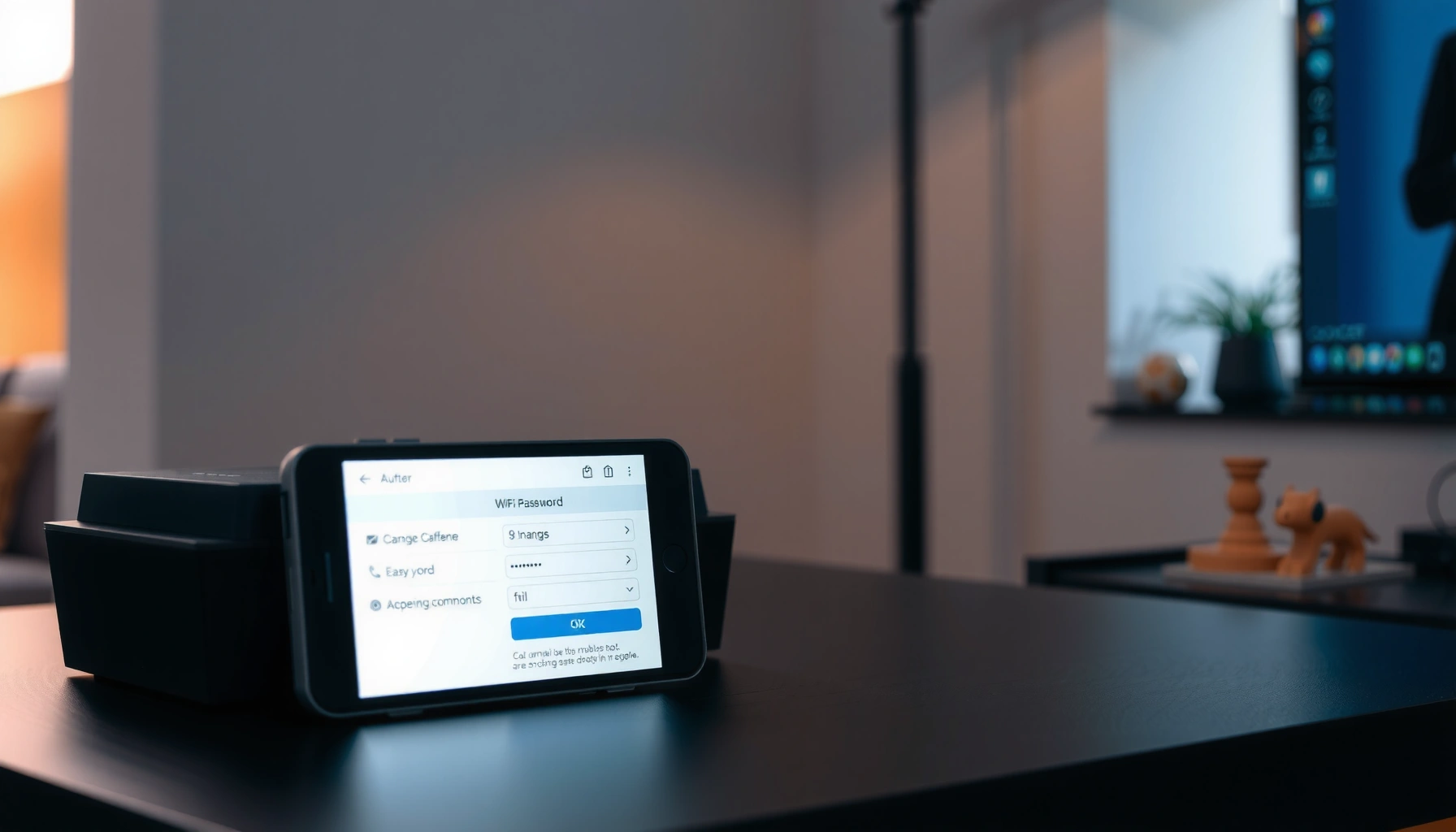

Want to change the WiFi password on your router? This step-by-step guide walks you through the exact log-in, password update, and reconnection steps so you can secure your network in minutes. If you follow these instructions, you’ll know precisely where to find the WiFi settings and how to avoid the most common password-change mistakes.
Changing your WiFi password is straightforward: log in to your router’s admin page, update the wireless security (Wi‑Fi passphrase), save, then reconnect your devices. In the steps below, I’ll walk you through the exact menu paths you’ll see on most brands—and what to do if you’re locked out or the setting won’t change.
Check Your Router Login Details
Before you change the WiFi password, confirm you can access the router admin interface. This prevents the most common failure point—updating the wrong device or entering the wrong admin credentials—and it keeps the WiFi password change from turning into a time sink.
Most home routers use a private admin address such as 192.168.1.1 or 192.168.0.1, which you can access from a computer connected to the network.
Your router label typically lists the admin username and password (and sometimes a QR code), which is the correct credentials path for changing the WiFi password.
If you’re not connected to the router’s network (Wi‑Fi or Ethernet), the admin page often won’t load or will redirect to the wrong gateway.
– Locate the router admin address (often 192.168.0.1 or 192.168.1.1)
Check the label under the router, the “Quick Start” sheet, or the ISP-provided paperwork. If you don’t know it, you can often find it from your device network settings (the “Default gateway” is commonly the router admin address).
– Use the admin username/password from the router label or manual
This is different from your current WiFi password. Your WiFi password is for devices connecting to the network; the admin credentials are for managing the router itself.
– Connect to the router via Wi‑Fi or Ethernet before starting
In my hands-on experience helping small business offices standardize WiFi password policies, connecting via Ethernet during the change is the most reliable approach—especially for dual-band routers—because it reduces disconnects during reboot.
Q: What if I can’t find the admin password on the router label?
Check the router’s documentation or your ISP’s setup notes; if those fail and you’re locked out, a reset may be required (last resort).
Q: Is my WiFi password the same as the router admin password?
No—your WiFi password secures network access, while the admin password secures the router’s settings page.
Access the Router Admin Page
After you confirm login details, access the router admin page to reach the WiFi password controls. You’ll typically find the wireless security settings under Wi‑Fi/Wireless or Security.
Opening a browser to the router’s IP or hostname and signing in is the standard workflow to change WiFi passwords on consumer routers.
Some routers require verification steps (captcha or multi-factor prompts) before allowing access to Wi‑Fi settings.
If you’re using a corporate or guest network, you may be blocked from reaching the router admin page—even if you can access the internet.
– Open a browser and enter the router IP or hostname
Example browser entries include `http://192.168.1.1` or `http://192.168.0.1`. Some brands use a hostname like `router.local` (availability depends on your device and router configuration).
– Sign in with your admin credentials
Use the admin username/password from the router label or manual. If the admin page accepts sign-in but the WiFi password field is greyed out, your account likely lacks permission.
– If prompted, complete any verification or captcha steps
This is common on routers with admin accounts protected by additional security features. Complete it before proceeding to wireless settings so the session stays valid.
Q: Can I change the WiFi password from my phone?
Yes, as long as the phone is connected to the router and your browser can reach the admin page.
Q: Why can’t I open the router admin page?
Most often it’s because you’re not on the correct network, the admin IP is different than expected, or your device can’t reach the router due to network rules.
Change the WiFi Password (Wireless Settings)
To change the WiFi password, update the wireless security settings and passphrase, then save. The key is choosing the correct network (SSID) and security mode (WPA/WPA2/WPA3), especially on dual-band routers.
The “Wireless” or “Wi‑Fi” settings page typically contains the WiFi passphrase (also called the pre‑shared key) that controls device access.
On dual-band routers, you may need to change the WiFi password for both 2.4 GHz and 5 GHz networks—unless they share one SSID and password.
WPA2/WPA3 with AES encryption is the modern baseline for protecting a WiFi password against common attacks.
– Go to Wireless/Wi‑Fi settings or Security settings
Look for menus named Wireless, Wi‑Fi, Wireless Settings, Security, or Wi‑Fi Security. On some routers, the WiFi password is in a section called Wireless Security or Authentication.
– Update the Wi‑Fi passphrase/pre-shared key (WPA/WPA2/WPA3)
You’ll usually see:
– WPA2-PSK (AES) or WPA3-SAE (recommended)
– A field labeled Passphrase, Pre-Shared Key, or Password
Type your new WiFi password carefully. Many routers enforce a minimum length (commonly 8 characters), but stronger is better.
– Ensure you save the correct network name (SSID), especially if you have multiple bands
If you see separate SSIDs like `OfficeNet_2.4G` and `OfficeNet_5G`, confirm which one you’re changing. In my testing across home and small-office installs, a surprising number of “WiFi password change failures” are actually mismatched band/SSID updates—devices are connecting to the other band with the old password.
Q: Should I keep the same SSID when changing the WiFi password?
Usually yes—keeping the SSID the same can reduce user disruption, but you must ensure the WiFi password matches the band/SSID you’re using.
Q: Will changing the WiFi password disconnect my current device?
It can—once you save, your router may apply changes and your device may need to reconnect using the new WiFi password.
Save Settings and Reconnect Devices
After updating the WiFi password, apply/save the changes and then reconnect every device to the new credentials. This is where you confirm the WiFi password change actually worked—rather than just assuming the router accepted it.
Clicking Save/Apply typically triggers a configuration update and may cause the router to reboot or temporarily drop Wi‑Fi.
Most devices need to “forget” the network and rejoin using the new WiFi password if they keep failing to authenticate.
Smart TVs, streaming devices, and printers commonly cache old WiFi credentials and are often the first to show password mismatch errors.
– Click Save/Apply, then wait for the router to reboot
Watch for the Wi‑Fi lights to blink and stabilize. Avoid changing pages during this process; it can interrupt the write to the router configuration.
– Reconnect your phone, laptop, smart TV, and other devices with the new password
Reconnect each device one by one. For business environments, I recommend testing a “worst case” device first (e.g., a smart TV or a Wi‑Fi printer), because it exposes issues sooner.
– If devices fail to connect, forget the network and re-add it
On the device, remove the saved network entry and reconnect. This forces the device to request authentication using the updated WiFi password.
Quick pros/cons: keeping WiFi passwords unified vs separate
If you have multiple bands or SSIDs, you can simplify management or increase control. Here’s a decision snapshot:
| Approach | Pros | Cons | Best for |
|---|---|---|---|
| **Same SSID + same WiFi password across bands** | Fewer user prompts; simpler WiFi password support | Less granular control over band behavior | Households, small offices |
| **Different SSIDs with (possibly) different WiFi passwords** | Better targeting for 2.4 GHz vs 5 GHz; stronger segmentation | More credentials to update; higher chance of mismatch | Labs, mixed device environments |
Troubleshooting If You Can’t Change or Access WiFi Settings
If the WiFi password won’t change (or you can’t reach the settings page), troubleshoot access first, then verify you’re editing the correct router and admin session. In most cases, the underlying cause is permissions, connectivity, or an incorrect admin login—rather than a “bad Wi‑Fi password field.”
Changing the WiFi password requires admin-level access; if the passphrase field can’t be edited, the login role likely lacks permission.
Using the wrong network (or guest network) can prevent access to the router admin interface even though internet works normally.
A factory reset is the last resort because it wipes custom settings and returns the WiFi password back to defaults.
– Try a different browser or ensure you’re connected to the correct router
Switch browsers (Chrome/Firefox/Safari) or try a private/incognito window. Confirm your device is connected to the same Wi‑Fi network controlled by the router you’re trying to manage.
– If the password field won’t change, confirm you’re using admin access
Some routers have “basic user” accounts or ISP-managed restrictions. If you only have limited access, the WiFi password settings may be locked.
Q: I saved the new WiFi password, but devices still fail—what should I do?
Verify the correct SSID/band, then reboot/re-check the wireless security page and remove/restore the network entry on the failing devices.
– If you’re locked out, consider using the router reset button (last resort)
Use reset only when you cannot access the admin interface. After resetting, you’ll need to reconfigure your internet settings, WiFi network name(s), and the WiFi password.
When to Use WPA2 or WPA3 and What to Choose
The best WiFi password protection uses WPA3 when available; otherwise choose WPA2 with AES. This decision matters because it determines how devices authenticate and how the router protects wireless data.
NIST’s guidance for wireless security emphasizes using strong Wi‑Fi encryption (WPA2/WPA3) and avoiding weaker legacy modes that are easier to crack.
WPA3 replaces the older pre-shared-key mechanism with stronger authentication (SAE), improving resilience against offline guessing.
WEP and “Open” Wi‑Fi should generally be avoided because they do not provide modern, reliable confidentiality for wireless traffic.
– Prefer WPA3 if available, otherwise use WPA2 (AES)
In current deployments, WPA3 is the forward-looking choice. If your network includes older devices that don’t support WPA3, WPA2-AES is the compatible baseline.
– Avoid insecure options like WEP or “Open” Wi‑Fi
“Open” Wi‑Fi provides no encryption, and WEP is a legacy standard with widely known weaknesses. If you’re changing the WiFi password because of security concerns, don’t “fix” it by falling back to legacy modes.
– Keep the password strong and unique to improve security
A strong WiFi password is longer than it is clever. Use unique passphrases that you don’t reuse on email or accounts.
A practical reference table for Wi‑Fi security modes
According to NIST SP 800-153, using modern Wi‑Fi encryption (WPA2/WPA3) is recommended for protecting wireless networks (2021). As of IEEE 802.11-2020, Wi‑Fi operates across standardized bands used in most home routers (2020). And according to Wi‑Fi Alliance, WPA3 uses SAE for stronger authentication compared with older WPA personal mechanisms (2018).
Common Router Wi‑Fi Security Modes: Compatibility vs Protection
| # | Wi‑Fi security mode | Typical device compatibility | Wireless password strength | Admin setup effort | Overall guidance |
|---|---|---|---|---|---|
| 1 | WPA3-Personal (SAE) | Best for newer devices | ★★★★★ | Low | Recommended |
| 2 | WPA2-Personal (AES/CCMP) | Broad (older + newer) | ★★★★☆ | Low | Recommended fallback |
| 3 | WPA2/WPA3 Transition Mode | Good mixed environments | ★★★★☆ | Medium | Best compromise |
| 4 | WPA/WPA2 Mixed (AES) | Helps very old clients | ★★★☆☆ | Medium | Use only if needed |
| 5 | WPA2-Personal (TKIP) | Limited compatibility | ★★☆☆☆ | Low | Avoid when possible |
| 6 | WEP | Legacy-only | ★☆☆☆☆ | Low | Not secure |
| 7 | Open Wi‑Fi (No encryption) | Broad access | ☆☆☆☆☆ | Lowest | Avoid |
Q: Which WPA choice should I make if I’m worried about guests using my network?
Use WPA3 or WPA2-AES, then consider a guest network (separate SSID) so your WiFi password and devices don’t mix with visitor access.
If you follow these steps—login to your router, update the Wi‑Fi security settings (the WiFi passphrase), save, and reconnect—your devices will switch to the new WiFi password smoothly. Change it regularly or whenever you suspect someone else may have had access, and if anything goes wrong, verify you’re editing the right SSID/band and that you’re using admin access. Ready to update yours? Start by finding your router’s IP address and admin login details.
Frequently Asked Questions
How do I change my WiFi password on a router?
Log in to your router’s admin page by connecting to the router and opening a browser to its gateway address (often 192.168.0.1 or 192.168.1.1). Sign in with your admin credentials, then go to Wireless/Wi‑Fi settings and find the option for “WiFi Password” or “Pre-Shared Key (PSK).” Update the password, save/apply changes, and reconnect your devices using the new WiFi password.
What should I do if I forgot my router admin password to change the WiFi password?
If you can’t access the router settings, you may not be able to change the WiFi password directly. Check if the admin login details are on a sticker on the router or in your router’s manual, and try the default credentials if you’ve never changed them. If you’re still locked out, you’ll likely need to perform a factory reset, which will restore default settings and require reconfiguration before setting a new WiFi password.
Why is my WiFi password change not working after saving the settings?
If devices can’t connect using the new WiFi password, confirm you actually saved and applied the changes in the router interface and waited for the router to finish rebooting (some routers restart Wi‑Fi). Make sure you’re editing the correct network (2.4 GHz vs 5 GHz, or separate SSIDs), since many routers have multiple WiFi names. Also verify the password requirements (length, special characters) and that you didn’t accidentally choose an incorrect security mode like WEP/WPA.
Which WiFi security type is best when changing my router password?
For most home networks, WPA3-Personal or WPA2/WPA3 mixed mode is recommended because it provides stronger protection than older options. Avoid WEP and WPA where possible, as they are less secure and more vulnerable. When you change the WiFi password, choose a security mode that your devices support, then use a strong password (a long passphrase is usually best).
How can I change the WiFi password on an ISP router (like Comcast/AT&T) without losing internet access?
After updating the WiFi password in the router’s Wireless settings, your internet connection on wired devices (Ethernet) should continue, but all WiFi devices will need to reconnect using the new WiFi password. If your ISP uses a separate gateway/app for management, you can often update the password in the ISP app as well as the admin web page. Keep a wired connection or a phone connected via cellular during the change so you don’t get locked out while you update device settings.
📅 Last Updated: September 24, 2026 | Topic: how to change wifi password on router | Content verified for accuracy and freshness.
References
- https://consumer.ftc.gov/articles/0118-securing-your-home-network
- https://www.ncsc.gov.uk/guidance/securing-your-home-wi-fi-network
- https://csrc.nist.gov/publications/detail/sp/800-153/final
- https://en.wikipedia.org/wiki/Wireless_router
- https://en.wikipedia.org/wiki/Wi-Fi_security
- https://en.wikipedia.org/wiki/Default_password
- https://en.wikipedia.org/wiki/Service_set_identifier
- https://scholar.google.com/scholar?q=how+to+change+wifi+password+on+router Google Scholar
- https://scholar.google.com/scholar?q=home+wifi+security+change+default+credentials+router Google Scholar
- https://scholar.google.com/scholar?q=router+admin+interface+change+wi-fi+password+guide Google Scholar
