
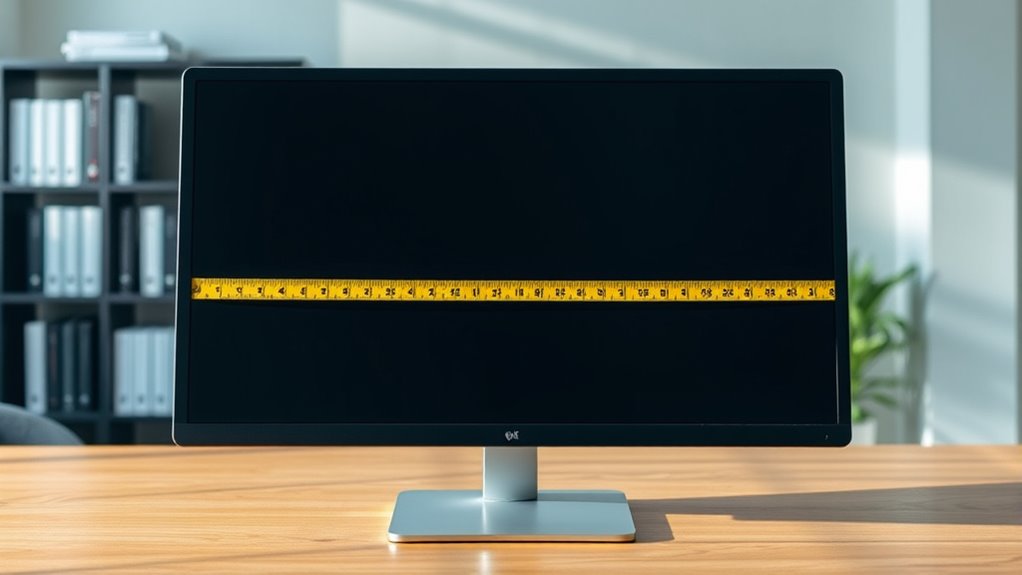

To check your monitor size, measure the diagonal length of the screen from the top-left corner to the bottom-right corner, avoiding the bezels. A flexible measuring tape works best for accuracy. You can also find specifications online by searching the model number, usually found on the back of the monitor. Additionally, check the display settings on your device for resolution details. Understanding these factors will help you choose the right monitor for your needs. More insights await!
Understanding Monitor Size Terminology
When you’re shopping for a monitor, understanding the terminology can make a big difference in your decision-making process. Knowing the screen dimensions is essential as it affects your viewing experience. Monitors are typically measured in inches, referring to the diagonal length of the screen. You’ll encounter terms like aspect ratio, which describes the width-to-height relationship, and resolution, indicating the pixel count that determines image clarity. Familiarizing yourself with these terms helps you evaluate options effectively. Additionally, consider the monitor’s refresh rate and response time, as they impact performance for activities like gaming or graphic design. By grasping monitor terminology, you empower yourself to choose a monitor that best suits your needs and preferences.
Measuring Diagonal Screen Size
Understanding the terminology is just the first step; knowing how to measure your monitor’s size accurately is equally important. To determine the diagonal screen size, you’ll want to focus on the display dimensions. Start by identifying the top-left corner and the bottom-right corner of the screen. Use measuring techniques that allow you to capture this diagonal distance without any obstruction. It’s essential to measure only the viewable area, so avoid including the bezels. This measurement, usually expressed in inches, is what manufacturers refer to when stating the monitor size. By knowing how to measure effectively, you’ll guarantee you choose a monitor that fits your needs and space perfectly, giving you the freedom to enjoy your viewing experience.
Using a Measuring Tape
To measure your monitor size accurately, you’ll need a measuring tape. Focus on measuring the diagonal length from one corner of the screen to the opposite corner, as this is the standard method. Also, understanding aspect ratios can help you interpret the size in relation to the monitor’s shape.
Tools Required for Measuring
Having the right tools makes measuring your monitor size much easier, and a measuring tape is essential for this task. This simple yet effective measuring tool allows you to take accurate measurements of your monitor’s dimensions without hassle. When choosing a measuring tape, opt for one that’s flexible and easy to read, ensuring you can get precise readings.
You’ll find that using measuring tools like a tape measure can streamline the process, helping you avoid guesswork. Make sure to measure from edge to edge to get the most accurate dimensions. By using a measuring tape, you empower yourself to know your monitor size accurately, enabling you to make informed decisions about your workspace and setup.
Measuring Diagonal Length
Measuring the diagonal length of your monitor is a straightforward process that yields vital information about its size. To get started, grab a measuring tape and extend it from one corner of the screen to the opposite corner. Make certain to measure only the visible screen area, excluding any bezels. This measurement is essential since different monitor types can vary greatly in size, impacting your screen usage. Once you have the diagonal length, you can compare it with other monitors to find the right fit for your needs. Whether you’re gaming, working, or streaming, knowing your monitor size helps optimize your experience and guarantees you have the freedom to enjoy your content without limitations.
Understanding Aspect Ratios
While knowing your monitor’s diagonal size is important, understanding its aspect ratio is equally essential for determining how the screen will display content. The aspect ratio indicates the relationship between width and height, impacting your viewing experience. Here’s why aspect ratio matters:
- Aspect ratio importance: It affects how images and videos are presented.
- Common aspect ratios: 16:9 is standard for HDTVs, while 4:3 was typical for older monitors.
- Widescreen benefits: Wider ratios enhance cinematic experiences.
- Productivity gains: Ultrawide monitors (21:9) offer more screen real estate for multitasking.
- Gaming experience: Many games are optimized for specific ratios, influencing gameplay.
Understanding these factors helps you choose a monitor that fits your needs and enhances your freedom while using technology.
Finding Monitor Specifications Online
To find your monitor’s specifications online, start by visiting the manufacturer’s website for detailed info. You can also check the retailer’s product page for quick access to specs. If you have the monitor model number handy, it can help streamline your search considerably.
Manufacturer’s Website
If you’re looking to find the specifications of your monitor, checking the manufacturer’s website is a straightforward solution. Most manufacturers provide detailed information about their products, including the monitor dimensions and display specifications. Here’s how you can do it:
- Go to the manufacturer’s homepage.
- Use the search bar to enter your monitor’s model number.
- Look for the product page that lists specifications.
- Check the “Specifications” or “Technical Details” section.
- Note down the monitor dimensions and any additional relevant details.
Retailer Product Page
When you’re unable to find your monitor’s specifications on the manufacturer’s website, checking retailer product pages can be an effective alternative. Retailers often provide detailed information about the monitors they sell, including essential retailer specifications. Look for sections that list product dimensions, as these will give you a clear idea of the monitor’s size. Pay attention to the format, too; some retailers might show dimensions in inches while others use centimeters. Additionally, customer reviews can offer insights into the monitor’s performance and real-world usage. By examining multiple retailer pages, you can gather extensive information that helps you make an informed decision about your monitor’s size and suitability for your needs.
Monitor Model Number
Finding your monitor’s specifications online can be straightforward, especially if you have the model number on hand. This number is essential for uncovering detailed information about your monitor’s features and screen technologies. Here’s how you can easily find what you need:
- Search the model number on the manufacturer’s website.
- Look for product specifications or support sections.
- Check online marketplaces for user reviews and additional details.
- Visit tech forums where enthusiasts discuss monitor features.
- Use comparison sites to see specs side-by-side with other models.
Checking the Monitor’s Model Number
How can you quickly identify your monitor’s model number? Start by checking the back of your monitor. Most manufacturers place a sticker or label that contains essential information, including the model number. It’s often near the power input or along the bottom edge. Knowing your monitor’s model number is vital for determining monitor compatibility with other devices or accessories. If the label isn’t easily accessible, you might also find the model number in the user manual that came with your monitor. Additionally, understanding the screen dimensions can help you select the right monitor for your needs. Once you have the model number, you can look up specifications online to confirm it meets your requirements.
Using Built-in Display Settings
Although checking your monitor’s physical dimensions is straightforward, using built-in display settings can provide you with accurate information without needing to measure manually. Here’s how you can find screen dimensions and display resolution through your operating system:
- Windows: Right-click on the desktop, select “Display settings,” and check the resolution listed.
- Mac: Go to “System Preferences,” click “Displays,” and see the resolution under “Display.”
- Linux: Open “Settings,” navigate to “Displays,” and find the resolution information.
- Graphics Control Panel: Use your graphics card’s software for detailed display info.
- Third-party Apps: Consider downloading apps that can provide in-depth monitor specs.
This method helps you easily identify your monitor’s capabilities without any hassle.
Comparing Monitor Size to Screen Aspect Ratio
When choosing a monitor, understanding the relationship between size and screen aspect ratio is vital. Monitor dimensions, including height and width, directly impact how content displays. The aspect ratio, typically 16:9 or 21:9, defines the screen’s shape and influences your viewing experience. For example, a 27-inch monitor with a 16:9 aspect ratio will have different dimensions compared to a 27-inch monitor with a 21:9 aspect ratio. The latter offers a wider view, ideal for multitasking or immersive gaming. It’s important to evaluate both factors to guarantee you select a monitor that fits your needs and preferences. By analyzing monitor dimensions alongside the aspect ratio, you can make a more informed decision that aligns with your lifestyle and usage.
Considering Screen Resolution
Screen resolution plays an important role in determining the clarity and detail of the images displayed on your monitor. When evaluating screen resolution, you’ll want to pay attention to pixel density, which directly affects screen clarity. Higher pixel density means sharper images and finer details. Here are some key aspects to take into account:
- Resolution Types: Common options include Full HD, 4K, and 8K.
- Aspect Ratio: Wider screens often enhance viewing experiences.
- Usage: Gaming, graphic design, and general browsing may require different resolutions.
- Size Compatibility: Make sure your monitor size matches the resolution for best clarity.
- Viewing Distance: Closer viewing may benefit from higher resolutions.
Choosing the right resolution is vital for enjoying your visual content fully.
Tips for Choosing the Right Monitor Size
Choosing the right monitor size can greatly enhance your computing experience, whether you’re working, gaming, or enjoying media. Start by considering your desk space and how far you’ll sit from the screen. For an ideal viewing experience, aim for a screen size that fits comfortably within your line of sight. Generally, a 24 to 32-inch monitor works well for most users. Make sure that your setup promotes an ergonomic position; the top of the screen should be at or just below eye level to reduce strain. Additionally, think about your primary use—larger screens are excellent for multitasking, while smaller screens can be more manageable for focused tasks. Balance your preferences with practical considerations for a superior setup.
Frequently Asked Questions
Can Monitor Size Affect Gaming Performance?
Yes, monitor size can affect gaming performance. Larger screens often support higher resolutions, enhancing visuals, but if refresh rates drop, it might lead to lag. Balance size, resolution, and refresh rate for ideal gaming experience.
How Do I Know if My Monitor Is Too Big?
If you’re straining your neck or eyes, your monitor’s likely too big. Check the monitor dimensions against your viewing distance; ideally, you should sit about 1.5 to 2.5 times the diagonal screen size away.
What Is the Best Monitor Size for Home Office Use?
For home office use, a 24 to 32-inch monitor is ideal. This size promotes an ergonomic setup, ensuring comfort. Pair it with a high screen resolution to enhance clarity and productivity during long hours.
Do Larger Monitors Consume More Power?
Yes, larger monitors typically consume more power due to their size and brightness. However, choosing energy-efficient models can help minimize power consumption, allowing you to enjoy a bigger display without a significant impact on your electricity bill.
Can I Use Multiple Monitors of Different Sizes?
Sure, using multiple monitors of different sizes is like mixing colors on a palette. Just verify monitor compatibility and adjust screen resolution for peak performance. It offers flexibility, enhancing your workspace creatively and functionally.
