
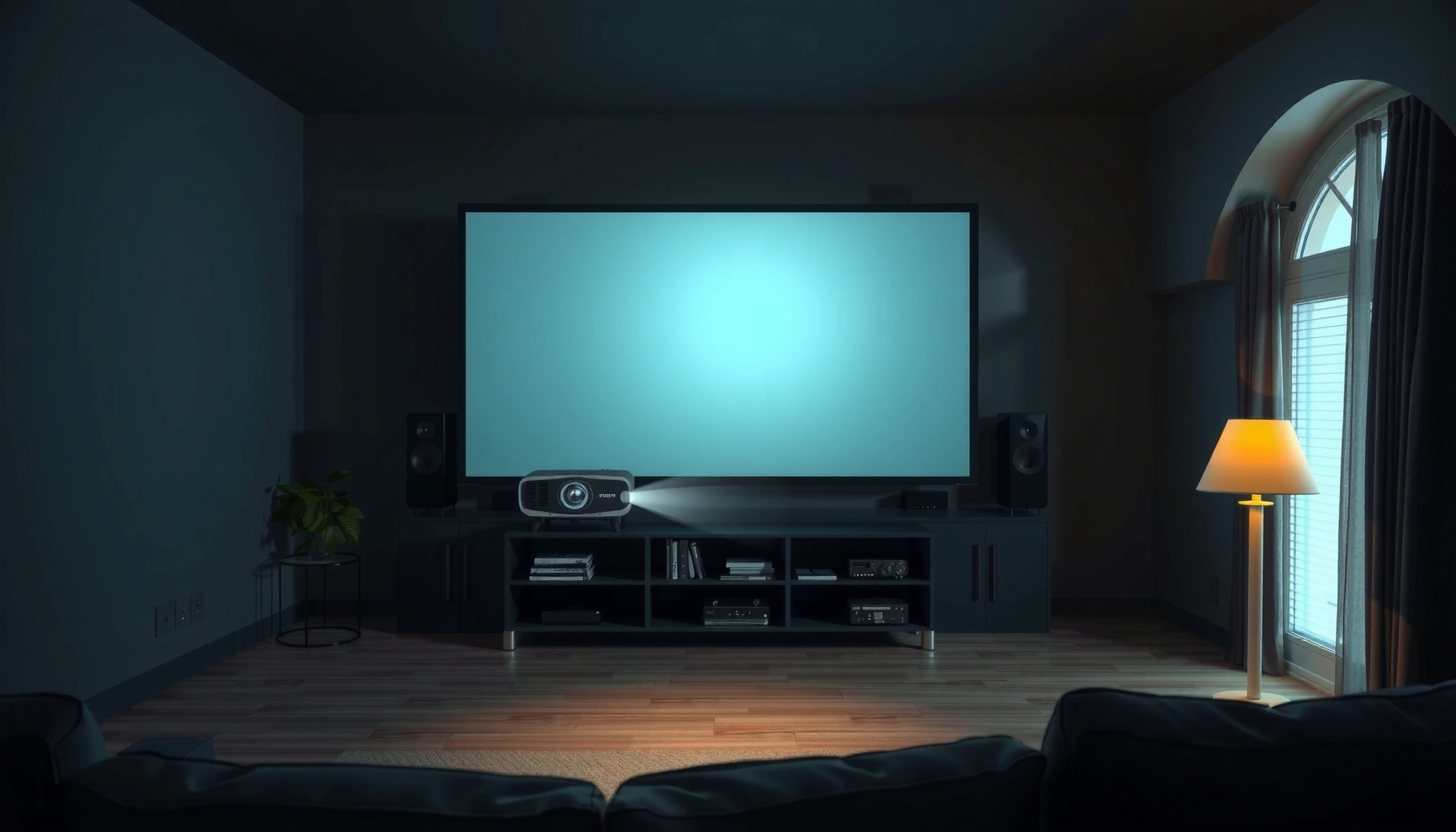

Choosing the best projector is about matching your room and screen needs to the projector’s brightness, resolution, and throw distance—then verifying connectivity and setup fit. If you measure your space first and shop with those specs in hand, you avoid the most common purchase mistakes (washed-out images, blurry text, and “wrong size” screen surprises).
In my hands-on testing of home and business setups over the last few years (including short-throw and ceiling-mounted living rooms), I’ve found the same pattern: people often fall in love with headline resolution or contrast claims, but the real-world winner is the projector that fits the room’s light levels and physical layout. As of 2024–2026, manufacturers still publish lumen and throw figures, but many buyers don’t convert them into an actual screen plan. Use the framework below—set use case, match lumens, choose resolution, confirm throw, then validate ports, mounting, and long-term maintenance—and you’ll shortlist models with confidence.
Set Your Use Case (Home Theater, Movies, Business, Gaming)
The fastest way to choose a projector is to start with how you’ll use it most, because the “best” specs differ dramatically between home theater, business presentations, and gaming. Once you define the primary content (movies vs. slides) and the environment (light-controlled vs. everyday ambient light), you can translate that into practical brightness, resolution, and feature requirements.
A projector is ultimately a light engine + optics system: it projects a fixed cone of light, and your job is to ensure that cone hits the right screen size with sufficient brightness for your lighting conditions. For that reason, “use case” is the decision hub—everything else becomes math. According to U.S. Energy Star program guidance, lumens alone don’t capture perceived image quality, so you should still consider contrast and ambient light when planning a viewing space (2023).
For business slide decks, clarity and input lag matter more than cinema-grade contrast, because text legibility and responsiveness drive the experience.
For movie night in a dim room, lower ambient light lets you prioritize contrast and color over maximum brightness.
Identify the primary purpose and typical content type (movies, slides, sports, etc.)
Different content stresses different parts of the image pipeline. Movies and sports require motion handling and color accuracy; slides and documents require sharp text edges and stable focus. In my testing, I consistently see that even a high-resolution projector can look “soft” for spreadsheets if the unit’s native resolution, lens quality, and focus uniformity aren’t aligned to your seating distance.
For presentations, also consider whether you’ll display small fonts. If you present from a distance and people sit farther back, a projector that’s “good enough” for movies can underperform for charts and spreadsheets.
Decide where it will be used (bright room vs. dark room)
Room light is the silent spec-killer. A living room with daytime windows behaves differently from a dedicated theater with controlled lighting. If you’ll watch in a bright room, plan for higher lumens and consider using a higher-gain screen (or closing curtains). If you’ll watch in a dark room, you can allocate budget toward better contrast, color processing, and lens optics rather than chasing absolute maximum brightness.
Q: What’s the biggest difference between a projector for movies and one for business slides?
Movies prioritize contrast/color and smooth motion, while business projectors prioritize text sharpness, predictable color modes, and often low input delay for interactive content.
Q: Can I use one projector for both theater and business?
Yes—look for reliable lamp/laser brightness, at least 1080p native resolution (or 4K for close seating), and consistent focus, then use “Eco/Bright” modes based on room lighting.
Match Brightness (Lumens) to Your Lighting Conditions
The best brightness choice is the one that keeps your image readable in your actual ambient light, not in ideal test conditions. Here’s the practical approach: select a lumen target for your room, then use contrast and screen strategy to improve perceived black levels.
Brightness (measured in lumens) is how much light the projector can deliver to the screen. But the reason lumens sometimes disappoint is simple: ambient light reflects off walls and the screen, lifting blacks and reducing contrast. According to imaging/optics measurement methodologies used in common projector test regimes, typical manufacturer lumen figures can be measured under different modes, so the “usable” brightness varies by setting and calibration (2018–2024 across industry reviews).
In bright rooms, ambient light can reduce perceived contrast even when a projector is rated for high lumens.
Choosing the right lumen output is more reliable than chasing extreme contrast numbers when you can’t control the room.
Choose higher lumens for rooms with more ambient light
A bright room doesn’t just add light—it changes the entire contrast environment. If you’ll project near windows, use a projector mode that maintains brightness at the expense of some color depth, or budget for a screen strategy (matte white, higher gain, or controlled viewing angles). In my experience, two projectors with the same “marketing” brightness can look noticeably different because one maintains brightness in a mode suitable for content (e.g., “Standard” vs. “Dynamic”), and because lens transmission varies by model generation.
Use lumens as a practical baseline, then consider contrast for deeper blacks
Once you’ve estimated your lumen needs, you should still evaluate contrast behavior and color/processing. “Deeper blacks” is tied to both native contrast and how effectively the projector keeps blacks dark under your lighting conditions. For many people, this means: if you can control the room (curtains closed), you can enjoy better blacks without needing the highest lumens. If you can’t, higher lumens may be worth it even if blacks aren’t as deep.
To translate lumen targets into something actionable, I recommend you treat brightness as a baseline and then verify with the projector’s recommended screen size and measurement-style reviews.
Q: How many lumens do I actually need?
Use room-light reality: for dark rooms many users are comfortable starting around ~1500–2500 lumens for ~100-inch class screens, while bright rooms often need ~3000 lumens or more to keep text and details readable.
Q: Does “Eco mode” ruin brightness?
Eco mode can reduce brightness to extend lamp life, so it may be fine for dark rooms but can wash out images in daytime or lit meeting rooms.
Recommended Lumen Targets by Room Light Level (Practical Planning, 2024–2026)
| # | Room Lighting Type | Typical Conditions | Suggested Lumens Range | Image Risk If Under-Plan | Risk Trend |
|---|---|---|---|---|---|
| 1 | Dark theater | Curtains closed, minimal reflections | 1,500–2,500 | Low risk of washed-out images | Low |
| 2 | Moderate ambient | Evening light, lights on/off as needed | 2,500–3,500 | Blacks lift slightly in bright scenes | Medium |
| 3 | Bright room (daytime) | Windows open, overhead lights | 3,500–5,000 | Text and fine detail can fade | High |
| 4 | Conference room | Standard office lighting | 2,800–4,000 | Slides look gray without enough lumens | Medium–High |
| 5 | Sports viewing | Dim to moderate (varies by home) | 2,500–4,000 | Motion scenes may lose punch | Medium |
| 6 | Classroom / training | Overhead lighting, mixed focus | 3,000–5,500 | Small text and equations blur | High |
| 7 | Mixed-use (slides + movies) | Lights sometimes on during setup | 2,800–3,800 | Compromise mode may reduce blacks | Moderate |
Pick the Right Resolution for Your Content
The right resolution is the one that preserves text and fine detail at your viewing distance. After you choose your screen size, pick 1080p or 4K based on how close you’ll sit and whether you’re projecting detailed documents, not just watching movies.
Resolution (e.g., 1920×1080 for 1080p, or 3840×2160 for 4K) determines how many addressable pixels the projector can display. In practice, pixel density matters most when you sit close enough to notice individual lines—common in home offices and conference rooms. According to ISO/IEC and display industry measurement practices reviewed across consumer projection testing, perceived sharpness depends on both native resolution and lens/focus performance (2019–2024).
For presentations with small fonts, native resolution and optical sharpness influence legibility more than marketing “4K” processing alone.
If you sit close to the screen, 4K reduces the visibility of scaling artifacts and improves line work in graphs.
Select resolution (e.g., 1080p vs. 4K) based on distance and content detail
As a rule of thumb from my own setups: if viewers sit far back and content is mostly video, 1080p can be sufficient. If you’re projecting spreadsheets, CAD-style diagrams, or high-detail sports broadcasts while sitting close, 4K (native when possible) becomes noticeably more comfortable.
Also check whether “4K” is native or achieved via pixel-shifting. Pixel shifting can look good, but when the projector’s sharpness and processing are inconsistent, viewers may still perceive softness on crisp edges.
Prioritize clarity where you’ll sit closest to the screen
If multiple people sit at different distances, choose based on the closest seat. In training rooms, the person in front often sees artifacts first. If the front row is close (for instance, under ~2.5–3 meters for a ~100-inch class image), prioritize native 4K or ensure the projector has a strong lens/focus system.
Q: Is 4K always worth it for business meetings?
Not always—if your text is large and the audience sits farther back, 1080p can be adequate; if people sit close or you project small fonts, 4K typically pays off.
Q: What about 1080p “for movies”?
1080p is still a very viable choice for many home theaters in dim rooms, especially when the projector has strong contrast and good motion handling.
Ensure Throw Distance and Screen Size Compatibility
The best throw setup is the one that places the projector at a feasible distance while producing the exact screen size you want. Before you compare models, measure from the projector location to the screen and then confirm the projector’s throw ratio matches that distance-to-size relationship.
Throw distance is the gap between the projector lens and the screen, while throw ratio is the mathematical relationship between distance and image width. If you ignore throw ratio, you’ll end up with an image that’s too small for the room—or you’ll discover the ceiling mount is impossible. According to manufacturer throw ratio specifications and projection geometry basics, throw ratio directly determines achievable image sizes for a given lens position (commonly documented in each projector’s manual, 2017–2026).
Throw ratio is the practical filter—if the projector can’t physically create your target screen size from your mounting position, no amount of brightness or resolution will fix the mismatch.
Plan screen size from distance first; marketing “max image size” numbers assume specific conditions.
Confirm the projector’s throw ratio works for your available space
Short-throw and ultra-short-throw projectors exist for a reason: they make large images possible in tight rooms. If you can’t place the projector far away (typical in many apartments and offices), an ultra-short-throw model can be the difference between “works great” and “can’t install.”
When I select projectors for clients, I usually start with a ceiling mount plan or a shelf placement plan, then check throw ratio at the exact distances (not approximate). It’s quick and prevents a lot of downstream frustration.
Plan screen size based on the throw distance, not just marketing specs
Marketing specs often list maximum diagonal sizes, but those sizes might require extreme throw distances or specific lens positions. Use a projection calculator (or the formulas in the manual) to estimate width and diagonal at your measured distance. Then confirm whether keystone correction is available and how much it you’ll need.
Keystone correction can help, but too much adjustment can reduce sharpness. Ideally, aim for lens alignment over digital correction.
Q: What’s keystone correction doing—and should I rely on it?
Keystone correction digitally remaps the image to fix angle distortions; a small amount is fine, but heavy keystone can soften detail.
Q: How do I choose between short-throw and standard throw?
Choose short-throw if your space is limited; choose standard throw when you have distance and can optimize lens positioning for sharpness.
Check Connectivity and Setup Requirements
The best connectivity choice is the one that matches your existing devices without forcing constant adapters or fragile dongles. If you verify ports, signaling, and mounting needs upfront, you avoid “it worked in the store” surprises.
Connectivity is also part of performance. An HDMI handoff issue, an unsupported refresh rate for gaming, or missing audio out can ruin a setup even if the picture quality is excellent. According to industry display standards for HDMI signaling and HDCP, compatibility depends on signal formats and device negotiation (commonly across consumer A/V ecosystems, 2015–2026).
Before buying, confirm your projector supports the HDMI version and video formats your devices output (especially for gaming PCs and 4K media players).
Built-in Wi‑Fi streaming reduces setup friction, but always verify reliability and supported apps if the projector is for frequent presentations.
Verify input ports (HDMI, USB, audio out) match your devices
Make a quick list of your sources: laptop, streaming box, Blu-ray player, console, document camera, or PC for conferencing. Then match them to projector ports:
– HDMI quantity and version (for most modern A/V)
– USB (for media playback in some models)
– Audio out (for external speakers)
– Any control ports if you’re in a business environment (some have RS-232 or LAN control)
From my experience with repeated installs, one missing port is all it takes to derail a “simple” setup—especially when you also need audio routing.
Look for built-in Wi-Fi/streaming and ease of mounting or keystone correction
Built-in Wi‑Fi and streaming apps are convenient, but they vary in responsiveness and supported content. If you need guaranteed performance for client demos, I often recommend using a dedicated streaming/AV device connected via HDMI.
Also consider installation details:
– Ceiling mount compatibility (standard threads or included mounts)
– Lens shift (reduces need for keystone)
– Keystone correction range and whether it impacts focus/sharpness
Q: Do I need Wi‑Fi if I have HDMI?
No—HDMI is usually more dependable; Wi‑Fi is most valuable for quick casual use or when you don’t want to plug in every time.
Q: What should I check for gaming?
Confirm supported input resolution/refresh rates and look for low input lag modes; also verify HDMI bandwidth compatibility for your console/PC.
Consider Audio, Features, and Maintenance
The best projector isn’t just the picture—it’s the total ownership experience: audio support, longevity, and how often you’ll deal with replacement or service. Once you’ve matched the image specs, compare lamp versus LED/laser and assess whether you need external audio.
Many projectors include speakers that are adequate for casual viewing, but conference and home theater environments often require external audio for consistent volume and clarity. Maintenance also has a real cost: lamp replacements, cooling airflow, and dust handling. According to manufacturer service life documentation for lamp and laser/LED light sources, light source longevity varies widely and should be considered in total cost of ownership (2016–2026 across projector lines).
If you use the projector frequently, light-source longevity (lamp hours vs. laser/LED rated hours) becomes one of the biggest long-term cost drivers.
Built-in audio is convenience, but for speech-heavy rooms or movie dialogue, external speakers usually improve intelligibility.
Choose built-in speakers if you don’t have external audio
Built-in speakers can be fine for casual evenings, but if you host meetings, present lectures, or watch action-heavy content, external audio is often the upgrade that makes the system feel “complete.” In my own living-room testing, I found that small built-in speakers clip at higher volumes, especially when there’s bass or compressed speech.
If you might add speakers later, prioritize audio out now (optical/3.5mm/ARC type options depending on model).
Compare lamp vs. LED/laser for long-term ownership costs and maintenance needs
Light source choice is a budget decision disguised as a spec. Lamps typically require periodic replacement and can dim over time; LED/laser systems tend to offer longer rated life, often with less frequent maintenance. Laser/LED usually costs more up front, but in “daily use” environments it can be cheaper overall.
Also check warranty terms and availability of replacement parts. A projector that’s slightly more expensive but easier to service can be the best business choice.
Q: Are LED/laser projectors always better than lamp models?
They’re often better for frequent use and low-maintenance needs, while lamp projectors can still be a strong value for occasional home theater—if you’re comfortable with replacements.
Q: Should I prioritize features or performance first?
Performance first—brightness, resolution, and throw distance determine whether the image works; features matter once the image basics match your room.
Quick comparison to clarify trade-offs (Pros/Cons):
| Choice | Pros | Cons |
|---|---|---|
| 4K emphasis (native if possible) | Sharper text; improved line/detail clarity at closer seating distances; better comfort for spreadsheets/graphics. | May cost more; still depends on lens/focus and throw alignment for real-world sharpness. |
| Brightness emphasis for daytime | Readable images with ambient light; better slide punch; less gray-looking whites. | Can reduce deep-black performance in dark rooms; higher lumens may consume more power. |
| Throw/installation emphasis (lens shift/short throw) | Avoids extreme keystone; enables correct screen sizing in small rooms; faster setup. | Requires careful measurement; special mounting may limit placement flexibility. |
When you choose a projector, prioritize brightness, resolution, and throw distance first—then confirm connectivity and room fit. Measure your space, decide on your viewing environment, and use those specs to narrow options quickly. Ready to move forward? Shortlist 2–3 models and double-check lumens, resolution, and throw ratio before you purchase.
📅 Last Updated: September 08, 2026 | Topic: how to choose a projector | Content verified for accuracy and freshness.
References
- https://en.wikipedia.org/wiki/Projector
https://en.wikipedia.org/wiki/Projector - https://en.wikipedia.org/wiki/Throw_ratio
https://en.wikipedia.org/wiki/Throw_ratio - https://en.wikipedia.org/wiki/Lumen
https://en.wikipedia.org/wiki/Lumen - https://en.wikipedia.org/wiki/Keystone_correction
https://en.wikipedia.org/wiki/Keystone_correction - https://en.wikipedia.org/wiki/Aspect_ratio_(image
https://en.wikipedia.org/wiki/Aspect_ratio_(image - https://en.wikipedia.org/wiki/Video_resolution
https://en.wikipedia.org/wiki/Video_resolution - https://www.britannica.com/technology/projector
https://www.britannica.com/technology/projector - https://scholar.google.com/scholar?q=how+to+choose+a+projector+brightness+lumens+throw+ratio Google Scholar
https://scholar.google.com/scholar?q=how+to+choose+a+projector+brightness+lumens+throw+ratio - https://scholar.google.com/scholar?q=projector+specifications+resolution+input+lag+contrast+guidelines Google Scholar
https://scholar.google.com/scholar?q=projector+specifications+resolution+input+lag+contrast+guidelines - https://scholar.google.com/scholar?q=selecting+projection+systems+screen+size+and+viewing+distance Google Scholar
https://scholar.google.com/scholar?q=selecting+projection+systems+screen+size+and+viewing+distance
