
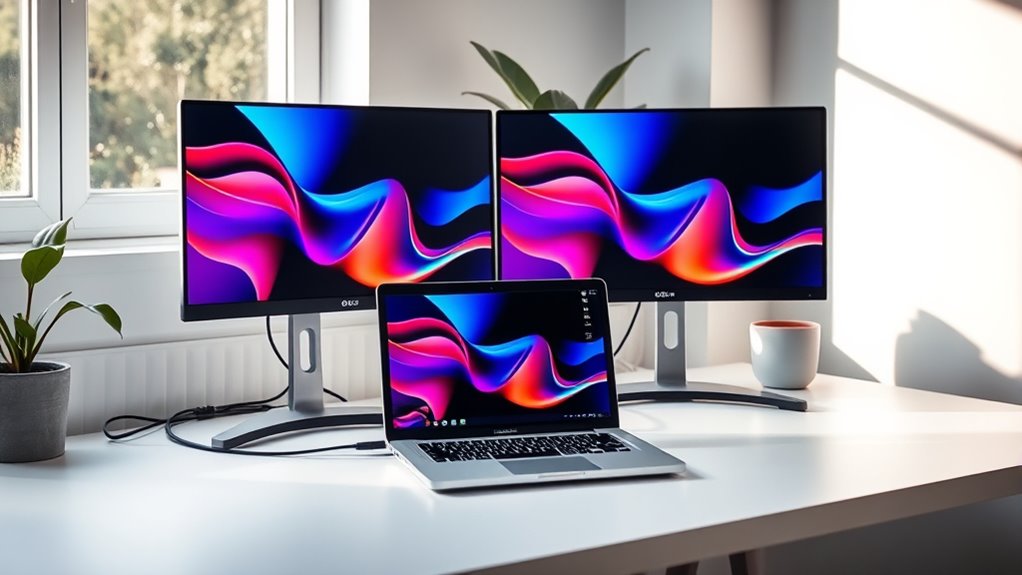

To connect two monitors to your laptop, first check your laptop’s display ports, like HDMI or USB-C, and verify they match the monitors’ inputs. Choose the appropriate cables or adapters, then connect the first monitor and adjust your display settings. Next, add the second monitor and configure it as needed. You can optimize your dual-monitor setup for better productivity. For common troubleshooting tips and maintenance advice, continue exploring further.
Understanding Your Laptop’s Display Ports
When you’re looking to connect two monitors to your laptop, understanding the available display ports is essential. Your laptop might come equipped with various port variations, such as HDMI, DisplayPort, USB-C, or even VGA. Each of these ports supports different display types and resolutions, so knowing which ones you have can help you make the right connections. HDMI is common for high-definition displays, while DisplayPort is great for multiple monitors. USB-C ports, if available, can also carry video signals, offering a sleek connection option. Before you plunge into it, take a moment to check your laptop’s specifications. This way, you’ll know what cables and adapters you might need to create a seamless multi-monitor setup.
Checking Compatibility With Monitors
Before you connect your monitors, it’s essential to ascertain they’re compatible with your laptop. Checking the right monitor specifications can save you time and frustration later on. Here are some key factors to take into account:
Ensure your monitors are compatible with your laptop to avoid future hassles. Check key specifications before connecting.
- Display Ports: Verify your monitors have compatible ports with your laptop.
- Resolution: Ensure that your laptop can support the desired display resolution of both monitors.
- Refresh Rate: Check if your laptop can handle the refresh rate for smooth visuals.
- Graphics Card: Make sure your laptop’s graphics card can support dual displays.
- Operating System: Confirm that your OS can manage multiple monitors efficiently.
Choosing the Right Cables and Adapters
Choosing the right cables and adapters is essential for successfully connecting your monitors to your laptop. First, identify the cable types compatible with both your laptop and monitors, such as HDMI, DisplayPort, or VGA. HDMI is common for most modern devices, while VGA is often found on older models. Once you know your cable types, consider your adapter options. If your laptop has only one HDMI port but you need to connect multiple monitors, you might need a splitter or a multi-port adapter. Be sure to check the resolution and refresh rate supported by your cables and adapters, as this can affect your display quality. Ultimately, the right combination will enhance your multitasking experience.
Connecting the First Monitor
To connect your first monitor, start by checking the available ports on your laptop. Once you know what connections you have, choose the right cable to link your monitor. Finally, you’ll need to adjust your display settings to guarantee everything works smoothly.
Check Laptop Ports
Checking your laptop’s ports is essential for connecting your first monitor. Depending on your laptop design, you might find various port types that will determine how you can set up your display. Here’s what to look for:
- HDMI: Common for video and audio.
- DisplayPort: Great for higher resolutions.
- USB-C: Versatile and can carry video signals.
- VGA: Older standard, primarily for legacy monitors.
- Mini DisplayPort: Similar to DisplayPort, but smaller.
Once you identify the available ports, you can choose the right connection method. This step is vital as it sets the foundation for an enhanced multitasking experience. So, take a moment to explore your laptop’s capabilities before moving forward!
Choose Right Cable
Once you’ve identified the ports on your laptop, it’s important to select the right cable to connect your first monitor. The most common cable types are HDMI, DisplayPort, VGA, and DVI. Choose an HDMI or DisplayPort cable if your devices support them, as they typically offer better quality and higher resolutions. If you’re using an older monitor, you might need a VGA or DVI cable instead.
When selecting a cable, pay attention to cable lengths too. Measure the distance between your laptop and monitor to guarantee you get a cable long enough to reach without creating clutter. With the right cable types and lengths, you’ll be one step closer to enjoying an expanded workspace.
Adjust Display Settings
After connecting your first monitor, it’s time to adjust the display settings to confirm everything works seamlessly. You’ll want to verify your visuals are optimized for a smooth experience. Here are some adjustments to contemplate:
- Check resolution settings: Make sure the resolution matches the monitor’s capabilities for clarity.
- Adjust display scaling: This helps with readability, especially on larger screens.
- Select display mode: Choose between duplicate, extend, or second screen only, depending on your needs.
- Rearrange displays: Position the monitors to match your physical setup.
- Calibrate color settings: Verify colors look consistent across both screens.
Adding the Second Monitor
To add a second monitor to your laptop, start by checking your laptop’s compatibility to verify it supports multiple displays. Next, select the correct cables based on the ports available on your laptop and the monitor. Once everything’s connected, you’ll need to configure the display settings to get your second screen up and running.
Check Laptop Compatibility
Before diving into setting up a second monitor, it’s crucial to check your laptop’s compatibility. This guarantees you can enjoy the expanded workspace without any hiccups. Here are key aspects to take into account:
- Laptop Specifications: Verify if your laptop can support dual displays.
- Operating System: Confirm your OS can handle multiple monitors.
- Ports Available: Check for HDMI, DisplayPort, or USB-C options.
- Graphics Card: Ensure your graphics card can manage an additional monitor.
- Maximum Resolution: Know the maximum resolution your laptop can support for each monitor.
Choose Correct Cables
Choosing the right cables is essential for successfully adding a second monitor to your laptop. First, identify the cable types compatible with your laptop and the second monitor. Common options include HDMI, DisplayPort, VGA, and DVI. Each cable type has its own advantages, so pick one that meets your needs for resolution and refresh rate.
Next, consider cable lengths. You’ll want a length that allows comfortable placement of your monitors without being too short or excessively long. If you’re using your laptop in a flexible workspace, longer cables might give you the freedom to rearrange your setup easily. Once you have the correct cable types and lengths, you’ll be ready to connect your second monitor smoothly.
Configure Display Settings
Once you’ve connected your second monitor, it’s essential to configure your display settings to verify everything works seamlessly. Follow these steps to confirm your setup is just right:
- Right-click on your desktop and select “Display settings.”
- Adjust the display arrangement by dragging the monitor icons to match their physical position.
- Choose the appropriate screen resolution for each monitor to enhance clarity.
- Set your primary display by selecting the monitor where you want your main tasks to appear.
- Click “Apply” to save your settings and check how everything looks.
Configuring Display Settings
While connecting two monitors to your laptop is a great way to expand your workspace, properly configuring the display settings is crucial for ideal performance. Start by right-clicking on your desktop and selecting “Display settings.” Here, you’ll see both monitors represented. Adjust the display resolution for each monitor to guarantee clarity and sharpness. It’s usually best to match them to the native resolution of the monitors. Next, set the screen orientation—decide if you want them in landscape or portrait mode, depending on your tasks. Remember to drag the monitors in the settings to match their physical arrangement on your desk. Once you’ve made these adjustments, you’ll enjoy a seamless dual-monitor experience tailored to your preferences.
Optimizing Your Dual-Monitor Setup
To get the most out of your dual-monitor setup, it’s crucial to adjust a few key settings. By refining your displays, you can fully leverage the dual display advantages and enhance your productivity. Here are some tips to take into account:
- Adjust resolution: Ascertain both monitors use the best resolution for clarity.
- Set display orientation: Choose landscape or portrait mode based on your tasks.
- Use taskbar settings: Extend your taskbar across both screens for easier access.
- Organize windows: Utilize window snapping to manage multiple applications efficiently.
- Calibrate color settings: Match colors between monitors for a seamless experience.
With these tweaks, you’ll notice a significant productivity enhancement, making multitasking a breeze!
Troubleshooting Common Connection Issues
Even with an optimized dual-monitor setup, you might encounter connection issues that can disrupt your workflow. Some common issues include your monitors not being detected, flickering screens, or incorrect resolutions. Start by checking your cables; verify they’re securely connected and not damaged. If one monitor isn’t recognized, try switching the ports or using a different cable. Additionally, updating your graphics drivers can resolve many problems. Use the display settings on your laptop to adjust resolution and orientation, as misconfigurations can lead to display issues. If problems persist, restarting your laptop can refresh connections. These troubleshooting tips can help restore your dual-monitor functionality, allowing you to work freely and efficiently.
Frequently Asked Questions
Can I Connect Two Monitors Wirelessly to My Laptop?
Yes, you can connect two monitors wirelessly to your laptop using wireless display technology. Check your laptop’s connection options, and verify both monitors support this feature for a seamless experience without cables.
What if My Laptop Has Only One Video Output?
If your laptop has only one video output, you can use USB adapters or docking stations to connect multiple monitors. These options expand your setup, giving you greater flexibility and productivity for your work or entertainment.
Are There Any Software Requirements for Dual-Monitor Setups?
Think of your dual-monitor setup as a concert; without the right instruments, the music’s off. You’ll need updated graphics drivers and proper display settings to guarantee everything harmonizes perfectly for that expansive workspace.
Can I Use Different Monitor Brands and Models Together?
Yes, you can use different monitor brands and models together. Just verify monitor compatibility and adjust your display settings accordingly to achieve the best resolution and performance for your dual-monitor setup. Enjoy your expanded workspace!
Will Connecting Multiple Monitors Affect My Laptop’s Performance?
Yes, connecting multiple monitors can impact your laptop’s performance due to resource allocation. It may strain your CPU and GPU, especially during demanding tasks, so make certain your laptop’s specifications can handle the extra load effectively.
