


Connecting a non-smart TV to the internet wirelessly is not only possible but can also greatly enhance your viewing experience. The most straightforward method involves using a streaming device, enabling you to access a plethora of online content without needing a smart TV. In this article, you will discover various methods and devices to connect your non-smart TV to the internet, allowing you to enjoy streaming services, online videos, and more.
Understanding Your Non-Smart TV
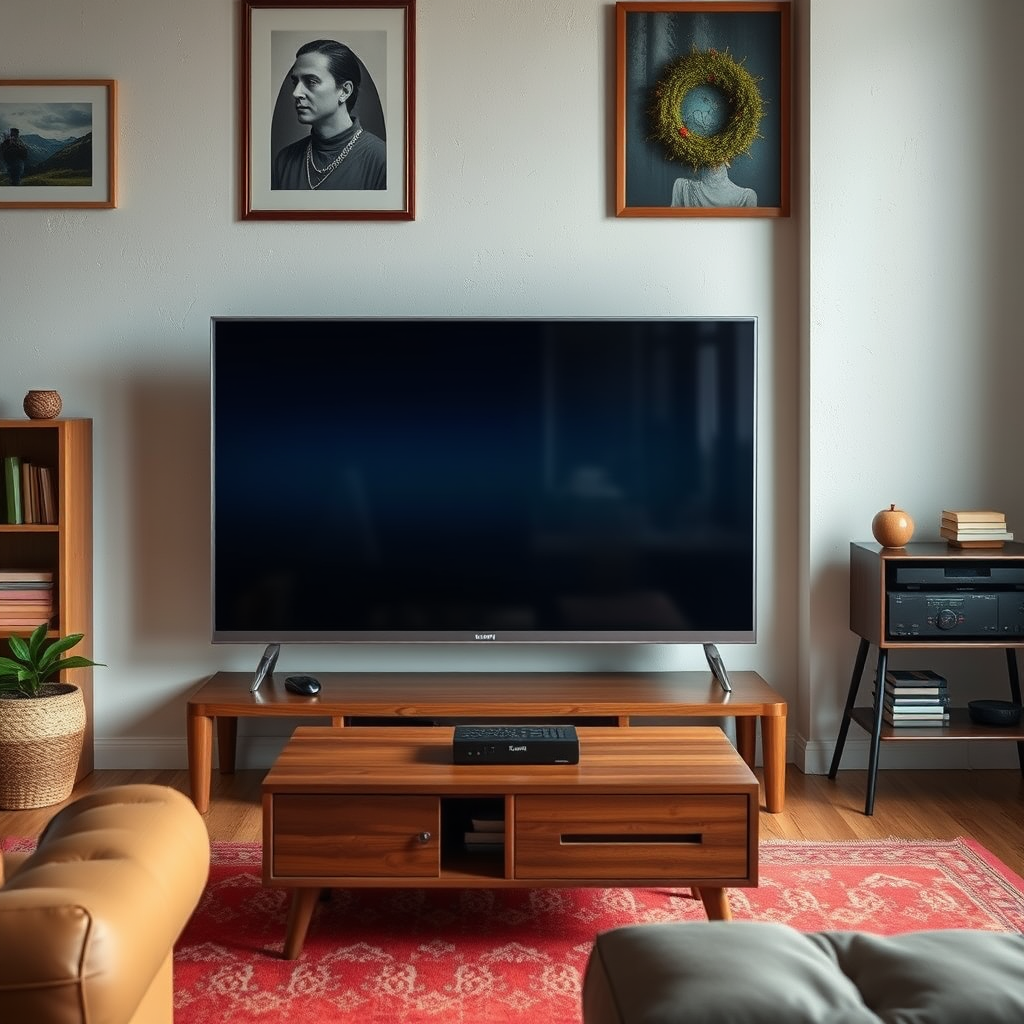
Before attempting to connect your non-smart TV to the internet, it’s crucial to understand its capabilities. Start by identifying the available ports on your TV, such as HDMI, USB, or component inputs. These ports will determine which devices you can connect.
Next, ascertain the model and year of your TV. Older models may have limitations on compatibility with newer devices, so knowing your TV’s specifications will help you choose the right streaming technology. For instance, if your TV is more than a decade old, it may lack HDMI ports and require alternative connection methods.
Using a Streaming Device
One of the most popular and effective ways to connect a non-smart TV to the internet is by using a streaming device. Devices such as Roku, Amazon Fire Stick, and Google Chromecast offer a user-friendly interface and access to numerous streaming services like Netflix, Hulu, and YouTube.
To set up a streaming device, follow these steps:
1. Connect the Device: Plug the streaming device into an available HDMI port on your TV.
2. Power On: Connect the device to a power source using the provided adapter.
3. Switch Input: Change the TV input to the corresponding HDMI port.
4. Connect to Wi-Fi: Follow the on-screen instructions to connect the device to your Wi-Fi network.
This method not only gives you access to streaming platforms but often includes additional features like screen mirroring and voice control.
Utilizing a Laptop or Computer
Another method to connect your non-smart TV to the internet is by using a laptop or computer. This can be done through HDMI or wireless casting technologies.
To connect via HDMI:
1. Connect the Laptop: Use an HDMI cable to link your laptop to the TV.
2. Select the Input Source: Change the TV to the correct HDMI channel.
3. Share Your Screen: Adjust your laptop display settings to duplicate or extend your screen.
For wireless casting, if your laptop supports it, you can cast content to your TV using devices like Chromecast or Miracast, depending on your TV’s capabilities.
Additionally, you can share your computer’s internet connection with the TV using software that supports screen sharing or mirroring.
Leveraging Game Consoles
If you own a game console such as an Xbox or PlayStation, you can use it to connect your non-smart TV to the internet. Most modern consoles come equipped with built-in Wi-Fi capabilities and support various streaming apps.
To connect your console:
1. Connect to Wi-Fi: Access the settings on your console and navigate to the network settings to connect to your Wi-Fi network.
2. Download Apps: Install your preferred streaming applications from the console’s app store.
3. Launch Content: Use the console’s interface to access and stream content directly to your TV.
This method is particularly appealing for gamers, allowing them to combine gaming and streaming in one device.
Exploring Wireless HDMI Transmitters
Wireless HDMI transmitters are another effective solution for connecting a non-smart TV to the internet. These devices transmit audio and video signals wirelessly from your computer or streaming device to your TV.
Before purchasing a wireless HDMI transmitter, consider the following factors:
– Range: Ensure the transmitter can cover the distance between your source device and the TV.
– Compatibility: Check that the transmitter works with your specific non-smart TV model.
– Latency: Look for transmitters with low latency to ensure smooth streaming, especially for gaming or fast-paced content.
Wireless HDMI transmitters can significantly simplify your setup by eliminating the need for multiple cables, providing a clean and organized entertainment space.
Setting Up a Smart Blu-ray Player
A smart Blu-ray player can serve as a bridge between your non-smart TV and the internet. Many modern Blu-ray players come with built-in Wi-Fi and access to streaming apps.
To set up a smart Blu-ray player:
1. Connect the Player: Use an HDMI cable to connect the Blu-ray player to your TV.
2. Power On: Turn on the player and your TV, then select the correct HDMI input.
3. Connect to Wi-Fi: Access the network settings on the Blu-ray player to connect to your Wi-Fi.
4. Download Applications: Install and launch streaming applications available on the player.
This method is beneficial for those who already own a Blu-ray player, allowing for an efficient use of existing equipment.
Troubleshooting Connectivity Issues
While connecting a non-smart TV to the internet wirelessly is generally straightforward, you may encounter some common issues. Here are a few troubleshooting tips:
– Network Strength: Ensure that your Wi-Fi signal is strong. If necessary, relocate your router or consider using Wi-Fi extenders to enhance coverage.
– Device Compatibility: Confirm that the streaming device or adapter you are using is compatible with your TV model.
– Software Updates: Keep your streaming device and applications updated to the latest versions to avoid bugs and connectivity issues.
– Restart Devices: Sometimes simply restarting your TV, router, or streaming device can resolve connectivity issues.
By understanding these potential problems and their solutions, you can optimize your setup for a seamless streaming experience.
Top Streaming Devices for Non-Smart TVs (2024)
| # | Device | Price | Streaming Services | User Rating |
|---|---|---|---|---|
| 1 | Roku Streaming Stick 4K | $49.99 | Netflix, Hulu, Disney+ | ★★★★☆ |
| 2 | Amazon Fire Stick 4K | $49.99 | Netflix, Prime Video, Hulu | ★★★★★ |
| 3 | Google Chromecast | $29.99 | Netflix, YouTube, Spotify | ★★★★☆ |
| 4 | Apple TV 4K | $179.00 | Apple TV+, Netflix, Hulu | ★★★★★ |
| 5 | NVIDIA Shield TV | $199.99 | Netflix, Hulu, Disney+ | ★★★★☆ |
| 6 | Roku Express | $29.99 | Netflix, Hulu, YouTube | ★★★★☆ |
| 7 | Amazon Fire TV Cube | $119.99 | Netflix, Prime Video, Hulu | ★★★★☆ |
By following these methods, you can effortlessly connect your non-smart TV to the internet wirelessly, unlocking a world of streaming possibilities and modern content consumption. Each option has its benefits, so choose based on your preferences, available devices, and setup. Whether through a streaming device, laptop, game console, or smart Blu-ray player, you can enjoy your favorite shows and movies online, enriching your entertainment experience.
Frequently Asked Questions
How can I connect my non-smart TV to the internet wirelessly?
To connect a non-smart TV to the internet wirelessly, you can use a streaming device like Roku, Amazon Fire Stick, or Google Chromecast. These devices plug into the HDMI port of your TV and allow you to connect to your Wi-Fi network, enabling access to various streaming services and apps.
What devices can I use to make my non-smart TV wireless?
You can use devices such as a streaming media player, a gaming console, or a wireless HDMI transmitter. Each of these options can connect to your Wi-Fi network and stream content to your non-smart TV, effectively giving it smart capabilities.
Why should I consider using a wireless adapter for my non-smart TV?
A wireless adapter can be a cost-effective solution to make your non-smart TV capable of streaming content without the need to upgrade to a smart TV. It allows you to access popular streaming services and browse the internet wirelessly, enhancing your viewing experience.
Which streaming device is best for connecting a non-smart TV to Wi-Fi?
The best streaming device for connecting a non-smart TV to Wi-Fi depends on your needs, but popular options include Roku Express for its affordability, Amazon Fire Stick for its extensive app library, and Google Chromecast for its ease of use with mobile devices. Consider factors such as app availability, user interface, and price to find the best fit for you.
How do I set up my streaming device to connect my non-smart TV to the internet?
To set up your streaming device, start by plugging it into an available HDMI port on your non-smart TV and connecting the power supply. Follow the on-screen instructions to select your Wi-Fi network, enter the password, and complete the setup process. Once connected, you can start streaming your favorite shows and movies.
References
- Smart TV
https://en.wikipedia.org/wiki/Smart_TV - https://www.lifewire.com/how-to-connect-non-smart-tv-to-internet-4687119
https://www.lifewire.com/how-to-connect-non-smart-tv-to-internet-4687119 - Google Scholar Google Scholar
https://scholar.google.com/scholar?q=connect+non-smart+tv+to+internet+wireless - Google Scholar Google Scholar
https://scholar.google.com/scholar?q=non-smart+TV+internet+connection - Google Scholar Google Scholar
https://scholar.google.com/scholar?q=how+to+connect+TV+to+WiFi - https://www.lifewire.com/how-to-use-an-ethernet-cable-to-connect-your-tv-4687116
https://www.lifewire.com/how-to-use-an-ethernet-cable-to-connect-your-tv-4687116 - Google Scholar Google Scholar
https://scholar.google.com/scholar?q=how+to+connect+non+smart+tv+to+internet+wireless - how to connect non smart tv to internet wireless – Search results
https://en.wikipedia.org/wiki/Special:Search?search=how+to+connect+non+smart+tv+to+internet+wireless - https://www.ncbi.nlm.nih.gov/search/research-articles/?term=how+to+connect+non+smart+tv+to+internet+wireless
https://www.ncbi.nlm.nih.gov/search/research-articles/?term=how+to+connect+non+smart+tv+to+internet+wireless
