


Connecting a soundbar to your Roku TV is a straightforward process that enhances your audio experience. In just a few steps, you can easily set up your soundbar to enjoy better sound quality during your favorite shows and movies. This guide will walk you through the various methods to connect your soundbar, ensuring you get the best audio performance possible.
Understanding the Connection Options
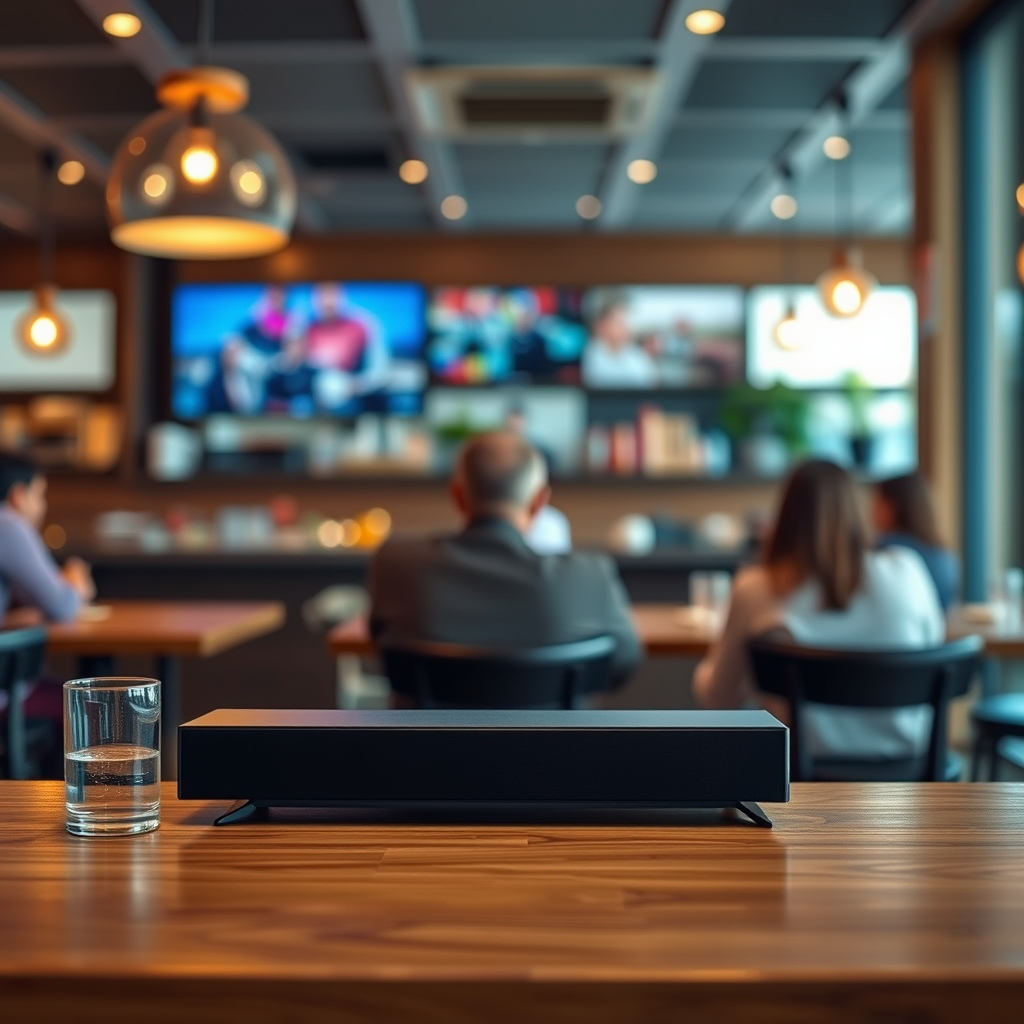
When setting up your soundbar with a Roku TV, you have multiple connection options to choose from, each offering different benefits based on your equipment.
– HDMI ARC: This is the most convenient method, utilizing a single HDMI cable to transmit both audio and video signals. HDMI ARC (Audio Return Channel) allows for two-way communication between your soundbar and Roku TV, simplifying control with a single remote.
– Optical Cable: If your devices do not support HDMI ARC, an optical cable is a reliable alternative. This method also delivers high-quality audio, supporting formats like Dolby Digital, but requires a separate connection for video.
By understanding these options, you can choose the best method that fits your setup and preferences.
Setting Up via HDMI ARC
Setting up your soundbar using HDMI ARC is generally the preferred method due to its simplicity and efficiency.
– Check Compatibility: Before proceeding, confirm that both your Roku TV and soundbar support HDMI ARC. This is typically indicated by a label on the HDMI ports (look for “ARC” on the HDMI port of both devices).
– Connect the Cable: Begin by connecting one end of the HDMI cable to the HDMI ARC port on your Roku TV and the other end to the HDMI ARC port on your soundbar. Make sure to use high-speed HDMI cables for optimal performance.
– Configure Settings: After connecting the cable, turn on both devices. Access your Roku TV settings by navigating to Settings > Audio > HDMI ARC. Ensure that HDMI ARC is enabled and adjust any audio settings as necessary to optimize sound output.
Using HDMI ARC not only simplifies the connection but can also enhance the sound quality, providing a seamless audio experience.
Connecting with Optical Cable
If your devices do not support HDMI ARC, an optical cable provides a high-quality audio alternative.
– Locate the Optical Port: Find the optical audio output on your Roku TV, typically labeled as “Optical” or “Digital Audio Out,” and the optical input on your soundbar.
– Connect the Cable: Insert the optical cable securely into both ports. It is important to ensure that the connectors are firmly in place to avoid any audio dropouts.
– Adjust Audio Settings: Go to the Roku TV’s settings by navigating to Settings > Audio > Audio Output. Select “Optical” as your audio output option. This will direct the sound to your soundbar instead of the built-in TV speakers.
Using an optical cable is a straightforward solution that maintains sound quality, making it a good choice for those with older equipment.
Pairing Bluetooth Soundbars
For those who prefer a wireless option, many soundbars now feature Bluetooth connectivity, allowing for a wireless audio experience.
– Activate Bluetooth: First, ensure that Bluetooth is enabled on both your Roku TV and soundbar. This usually involves pressing a button on the soundbar to make it discoverable.
– Pair the Devices: On your Roku TV, navigate to Settings > Bluetooth > Pair new device. Select your soundbar from the list of available devices to establish the connection.
– Test the Connection: Once paired, play some audio content to ensure that the sound is coming through the soundbar. Adjust the volume levels as necessary to achieve your desired sound quality.
Bluetooth pairing offers flexibility and convenience, particularly for users who wish to avoid cables altogether.
Troubleshooting Common Issues
Even with the best setups, you may encounter a few common issues when connecting your soundbar to a Roku TV. Here are some troubleshooting tips:
– No Sound: If you hear no sound, double-check that all cables are securely connected. Also, ensure that the correct audio output is selected in your Roku TV settings.
– Audio Lag: If you experience a delay between the video and audio, adjust the audio delay settings on your Roku TV or soundbar. Many soundbars have a “lip-sync” feature that helps synchronize audio and video.
– Connection Drops: For Bluetooth connections, ensure that your soundbar is within a reasonable range of the Roku TV. If the connection continues to drop, consider reconnecting the devices or checking for interference from other wireless devices.
By addressing these common issues, you can ensure a smoother and more enjoyable audio experience.
Enhancing Your Audio Experience
Once your soundbar is connected, consider exploring additional features that can significantly enhance your audio experience.
– Adjust Sound Settings: Many soundbars come equipped with various sound modes, such as surround sound and equalizer settings. Take the time to explore these options to find the best sound profile for your preferences.
– Volume Control: Learn how to manage volume levels between your Roku TV and soundbar. In many cases, you can control the soundbar’s volume with your Roku remote, simplifying the user experience.
– Firmware Updates: Regularly check for firmware updates on both your Roku TV and soundbar. Manufacturers often release updates that improve performance and add new features, ensuring your devices operate optimally.
By taking advantage of these features, you can significantly enhance your viewing and listening experience.
Top Soundbars for Roku TV (2024)
| # | Soundbar Model | Audio Format | Connectivity | User Rating |
|---|---|---|---|---|
| 1 | Sonos Beam | Dolby Digital | HDMI, Optical, Bluetooth | ★★★★☆ |
| 2 | Bose Soundbar 700 | DTS, Dolby Atmos | HDMI, Optical, Wi-Fi | ★★★★★ |
| 3 | Yamaha YAS-209 | Dolby Digital | HDMI, Optical, Bluetooth | ★★★★☆ |
| 4 | Samsung HW-Q60T | Dolby Digital, DTS | HDMI, Optical, Bluetooth | ★★★★☆ |
| 5 | LG SN7Y | Dolby Atmos | HDMI, Optical, Bluetooth | ★★★★☆ |
| 6 | Vizio SB36512-F6 | Dolby Atmos | HDMI, Optical, Bluetooth | ★★★★★ |
| 7 | JBL Bar 2.1 | Dolby Digital | HDMI, Optical, Bluetooth | ★★★★☆ |
Connecting a soundbar to your Roku TV is simple and significantly improves your viewing experience. Whether you choose HDMI ARC, optical, or Bluetooth, following the steps outlined will get you set up in no time. If you encounter issues, refer to the troubleshooting section for quick fixes. Ready to elevate your audio experience? Get started with these connections today!
Frequently Asked Questions
How do I connect my soundbar to a Roku TV using HDMI?
To connect your soundbar to a Roku TV using HDMI, first ensure both devices have HDMI ARC (Audio Return Channel) ports. Connect one end of an HDMI cable to the HDMI ARC port on your Roku TV and the other end to the HDMI ARC port on your soundbar. Make sure to enable the ARC feature in your TV’s audio settings for proper audio output.
What are the best methods to connect a soundbar to a Roku TV?
The best methods to connect a soundbar to a Roku TV include using HDMI ARC, optical audio cables, or Bluetooth. HDMI ARC is preferred for its simplicity and ability to transmit high-quality audio. Alternatively, an optical cable can also deliver excellent sound quality, while Bluetooth offers a wireless option but may have slight audio lag.
Why isn’t my soundbar producing sound when connected to my Roku TV?
If your soundbar is not producing sound after connecting it to your Roku TV, first check the audio settings on your TV to ensure the sound output is set to the correct device. Also, confirm that the soundbar is powered on and the volume is turned up. If you’re using HDMI ARC, ensure the feature is enabled in the TV’s settings.
Which settings should I adjust on my Roku TV for optimal soundbar performance?
For optimal soundbar performance on your Roku TV, navigate to the audio settings and select the appropriate output source, such as HDMI ARC or optical. Additionally, adjust the audio mode to ‘Stereo’ or ‘Surround’ depending on your soundbar’s capabilities, and consider enabling features like “Night Mode” or “Volume Leveling” for enhanced listening experiences.
How do I troubleshoot audio issues between my Roku TV and soundbar?
To troubleshoot audio issues between your Roku TV and soundbar, start by checking all cable connections to ensure they are secure. Then, verify that the audio output on the Roku TV is set correctly to the soundbar. If issues persist, try power cycling both devices and updating the Roku TV software to the latest version, as this can resolve compatibility problems.
References
- https://support.roku.com/article/208754428-how-to-connect-your-soundbar-to-your-roku-streaming-device
https://support.roku.com/article/208754428-how-to-connect-your-soundbar-to-your-roku-streaming-device - https://www.pcmag.com/how-to/how-to-connect-a-soundbar-to-your-tv
https://www.pcmag.com/how-to/how-to-connect-a-soundbar-to-your-tv - https://www.lifewire.com/how-to-connect-a-soundbar-to-your-tv-4685792
https://www.lifewire.com/how-to-connect-a-soundbar-to-your-tv-4685792 - Google Scholar Google Scholar
https://scholar.google.com/scholar?q=how+to+connect+soundbar+to+roku+tv - https://scholar.google.com/scholar?q=soundbar+setup+with+roku+TV Google Scholar
https://scholar.google.com/scholar?q=soundbar+setup+with+roku+TV - Google Scholar Google Scholar
https://scholar.google.com/scholar?q=Roku+TV+audio+output+options - Roku
https://www.roku.com/products/roku-tv - how to connect soundbar to roku tv – Search results
https://en.wikipedia.org/wiki/Special:Search?search=how+to+connect+soundbar+to+roku+tv - https://www.ncbi.nlm.nih.gov/search/research-articles/?term=how+to+connect+soundbar+to+roku+tv
https://www.ncbi.nlm.nih.gov/search/research-articles/?term=how+to+connect+soundbar+to+roku+tv
