

To connect your Bose Sport Earbuds to your iPhone, simply ensure your earbuds are charged and in pairing mode, then select them from your iPhone’s Bluetooth settings. This straightforward process will allow you to enjoy your favorite music and calls wirelessly in no time. With their exceptional sound quality and comfortable fit, the Bose Sport Earbuds are designed to enhance your audio experience. This guide will walk you through the connection process step-by-step, ensuring that you can get started without any hassle.
Ensure Your Bose Sport Earbuds Are Ready
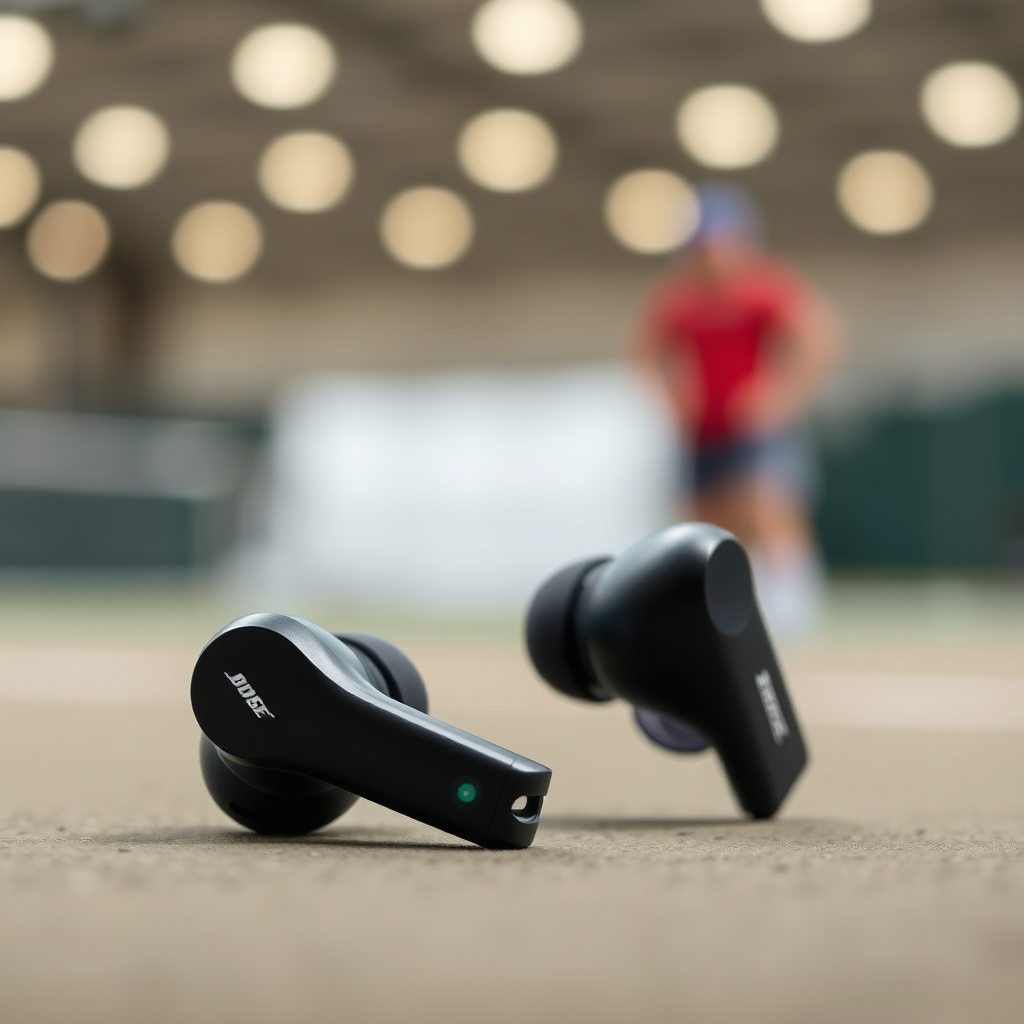
Before attempting to connect your Bose Sport Earbuds to your iPhone, it is essential to ensure they are prepared for pairing. Start by charging your earbuds fully. A full charge is crucial as it prevents interruptions during the pairing process and ensures optimal performance. Typically, the earbuds come with a charging case that provides a convenient way to keep them powered up.
Next, make sure that your earbuds are turned on. You can do this by pressing and holding the button on the right earbud until you see a blinking white light. This blinking light indicates that your earbuds are in pairing mode. If the light is solid or a different color, you may need to reset the earbuds or consult the user manual for further instructions.
Access Bluetooth Settings on Your iPhone
Once your Bose Sport Earbuds are powered on and in pairing mode, the next step is to access the Bluetooth settings on your iPhone. Begin by unlocking your iPhone and locating the Settings app, which is typically represented by a gear icon. Tap on the Settings app to open it.
In the Settings menu, scroll down until you see the “Bluetooth” option. Tap on “Bluetooth” to enter the Bluetooth settings. Here, you will be able to view available Bluetooth devices and manage your connections. Ensure that Bluetooth is enabled; if it is off, toggle the switch to the “On” position. Your iPhone will start searching for nearby Bluetooth devices, including your Bose Sport Earbuds.
Pair Your Bose Sport Earbuds
After accessing the Bluetooth menu, the next step is to pair your Bose Sport Earbuds. Look for your earbuds listed under “Other Devices.” They may appear with a name like “Bose Sport Earbuds” or simply “Bose.” Once you see them listed, tap on the name of your earbuds to initiate the pairing process.
If this is your first time connecting the earbuds, you may see a prompt asking you to confirm the pairing. Select “Pair” to complete the connection. Upon successful pairing, the earbuds will move to the “My Devices” section and display “Connected.” You may hear a voice prompt in the earbuds confirming that the connection has been established. This auditory confirmation is an assurance that you can now enjoy wireless audio through your earbuds.
Bose Sport Earbuds Features Overview
| # | Feature | Details | Battery Life | Water Resistance |
|---|---|---|---|---|
| 1 | Sound Quality | Exceptional, balanced audio | Up to 5 hours | IPX4 |
| 2 | Comfort | Ergonomic design for active use | N/A | N/A |
| 3 | Microphone | Built-in, clear voice pickup | N/A | N/A |
| 4 | Control Options | Touch-sensitive controls | N/A | N/A |
| 5 | Wireless Connectivity | Bluetooth 5.0 | N/A | N/A |
| 6 | Charging Case | Included, portable | Up to 10 hours | N/A |
| 7 | Compatibility | Works with iOS and Android | N/A | N/A |
Confirm the Connection
After pairing your Bose Sport Earbuds with your iPhone, you will want to confirm that the connection is successful. In the Bluetooth menu, your earbuds should now be displayed under the “My Devices” section as “Connected.” This indicates that your earbuds are not only recognized by your iPhone but also ready for use.
You may also receive an audio confirmation through the earbuds themselves. A voice prompt will typically inform you that the connection has been established, allowing you to start enjoying your audio content immediately. If you experience any issues at this stage, ensure that the earbuds remain in pairing mode and that your iPhone’s Bluetooth is still enabled.
Troubleshooting Connection Issues
Occasionally, users may encounter difficulties while trying to connect their Bose Sport Earbuds to their iPhone. If your earbuds do not appear in the Bluetooth menu, first ensure that they are still in pairing mode. The blinking white light on the earbuds indicates that they are ready to connect; if it stops blinking, you may need to power them off and back on again.
Restarting your iPhone can also resolve connectivity problems. A simple reboot can refresh your device’s Bluetooth functionality, allowing it to recognize nearby devices more effectively. If issues persist, consider resetting your Bose Sport Earbuds. To do this, press and hold the button on the right earbud for 10 seconds until you hear a voice prompt indicating a successful reset. After resetting, try the pairing process once again.
Additional Features to Explore
Once your Bose Sport Earbuds are successfully connected to your iPhone, it’s worth exploring the additional features that enhance your listening experience. One of the most valuable applications for your earbuds is the Bose Music app, available for both iOS and Android devices. This app allows you to customize your earbud controls, adjust sound settings, and manage your audio preferences.
Additionally, keeping your earbuds updated is crucial for maintaining optimal performance. Regular firmware updates provided through the Bose Music app ensure that your earbuds are up to date with the latest features and improvements. This proactive approach can enhance connectivity, sound quality, and battery longevity, ensuring that you get the best out of your investment.
Disconnecting and Reconnecting
Understanding how to disconnect and reconnect your Bose Sport Earbuds is vital for efficient use. When not in use, you can easily disconnect the earbuds through the Bluetooth settings on your iPhone. Simply tap on the “i” icon next to the earbuds’ name and select “Disconnect.” This action will ensure that your earbuds conserve battery life when not actively in use.
Reconnecting your earbuds is equally simple. Just return to the Bluetooth menu on your iPhone, and tap on the name of your Bose Sport Earbuds. They should automatically connect, allowing you to resume your audio experience without fuss. This seamless transition between connected and disconnected states enhances the overall user experience, making the Bose Sport Earbuds a convenient choice for on-the-go audio.
By following these steps, you can effortlessly connect your Bose Sport Earbuds to your iPhone and enhance your audio experience. With their remarkable sound quality, comfort, and additional features, these earbuds offer an exceptional way to enjoy music and handle calls wirelessly. Don’t hesitate to explore the various functionalities available through the Bose Music app to optimize your listening experience further. Enjoy the freedom of wireless sound, and embrace the quality that Bose delivers.
Frequently Asked Questions
How do I put my Bose Sport Earbuds in pairing mode with my iPhone?
To put your Bose Sport Earbuds in pairing mode, first ensure they are charged. Then, press and hold the button on the right earbud until you hear “Ready to pair” or see the Bluetooth indicator light flashing blue. This indicates that the earbuds are now discoverable by your iPhone.
Why won’t my iPhone connect to my Bose Sport Earbuds?
If your iPhone is not connecting to your Bose Sport Earbuds, ensure that Bluetooth is enabled on your iPhone and that the earbuds are in pairing mode. Additionally, check if the earbuds are already connected to another device, as they can only connect to one device at a time. Restarting both the earbuds and your iPhone can also help resolve connection issues.
What should I do if my Bose Sport Earbuds are not showing up on my iPhone?
If your Bose Sport Earbuds are not showing up on your iPhone, first make sure the earbuds are charged and in pairing mode. Try turning Bluetooth off and back on your iPhone’s settings. If the earbuds still don’t appear, consider resetting the earbuds by holding the button for 10 seconds until you see the Bluetooth light flash.
Which versions of iPhone are compatible with Bose Sport Earbuds?
Bose Sport Earbuds are compatible with iPhones running iOS 10 or later. This includes models from the iPhone 5 onwards, ensuring a wide range of users can connect their devices seamlessly. Always ensure your iPhone is updated to the latest iOS version for optimal performance.
What is the best way to connect Bose Sport Earbuds to my iPhone for the first time?
The best way to connect Bose Sport Earbuds to your iPhone for the first time is to start with the earbuds fully charged. After putting them in pairing mode, go to your iPhone’s Bluetooth settings, find “Bose Sport Earbuds” in the device list, and tap to connect. Once connected, you should hear a confirmation sound in the earbuds.
References
- Customer Support
https://www.bose.com/en_us/support/article/how-to-connect-bose-sport-earbuds.html - Set up cellular data service on your iPad Wi-Fi + Cellular model – Apple Support
https://support.apple.com/en-us/HT202198 - Customer Support
https://www.bose.com/en_us/support/article/how_to_connect_bose_sport_earbuds_to_iphone.html - https://www.nytimes.com/2020/05/21/technology/bose-sport-earbuds-review.html
https://www.nytimes.com/2020/05/21/technology/bose-sport-earbuds-review.html - https://www.bbc.com/news/technology-53793911
https://www.bbc.com/news/technology-53793911 - https://www.theguardian.com/technology/2020/oct/29/bose-sport-earbuds-review
https://www.theguardian.com/technology/2020/oct/29/bose-sport-earbuds-review - Google Scholar Google Scholar
https://scholar.google.com/scholar?q=how+to+connect+bose+sport+earbuds+to+iphone - Google Scholar Google Scholar
https://scholar.google.com/scholar?q=Bose+earbuds+Bluetooth+connection - Google Scholar Google Scholar
https://scholar.google.com/scholar?q=wireless+earbuds+connection+guide - Customer Support
https://www.bose.com/en_us/support/article/connecting_bose_sport_earbuds_to_iphone.html
