
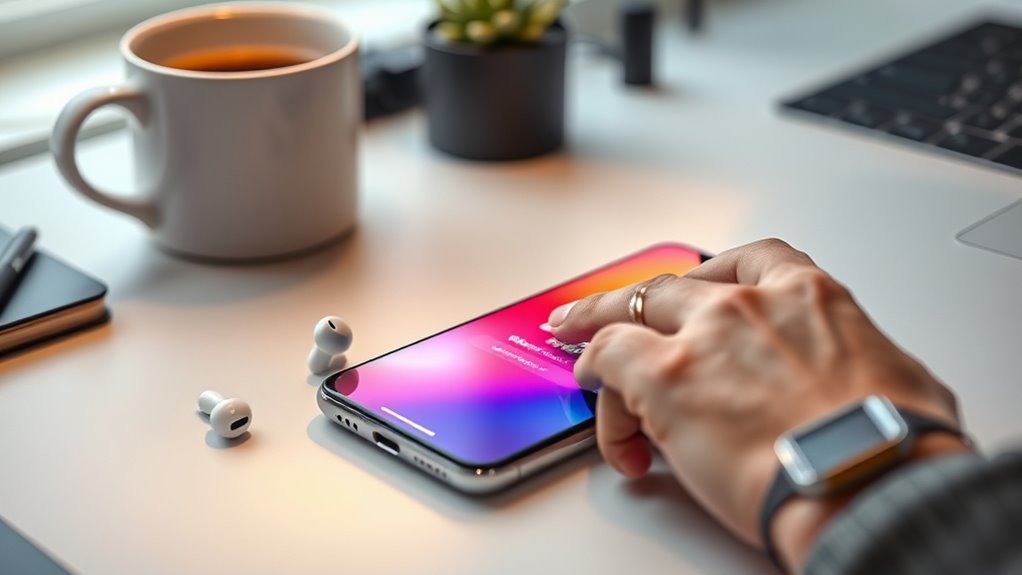

To connect your earbuds to your phone, first verify compatibility. Charge your earbuds fully before use and turn on Bluetooth in your phone’s settings. Put your earbuds in pairing mode, then search for them in the device list on your phone. Select your earbuds to confirm the connection. If you run into any issues, toggle Bluetooth off and on or reset the earbuds. Stay tuned for tips on optimizing your audio experience and maintaining connections.
Understanding Your Earbuds and Phone Compatibility
Before you plunge into connecting your earbuds to your phone, it’s important to understand their compatibility. Different earbud types, like wired or wireless, can affect how they connect to various phone brands. Wired earbuds typically use a 3.5mm jack or USB-C connector, while wireless options often rely on Bluetooth technology. Check your phone’s specifications to see which earbud types it supports. For instance, some Android devices may not have a headphone jack, requiring you to use Bluetooth earbuds instead. Likewise, iPhones have shifted to Lightning connectors, making compatibility essential. By ensuring your earbuds match your phone’s requirements, you’ll enjoy seamless audio experiences without frustration. So, take a moment to verify compatibility before diving in!
Charging Your Earbuds Before Use
Charging your earbuds is essential for making sure they work properly when you’re ready to use them. Before you plunge into your favorite tunes, follow these steps to maximize battery life:
- Check Charging Indicators: Make certain your earbuds are seated correctly in their charging case; the indicators should light up to show they’re charging.
- Full Charge: Aim to fully charge your earbuds before first use. This helps calibrate the battery and improves overall performance.
- Regular Maintenance: Keep an eye on battery life and recharge when it drops below 20%. Frequent charging can help maintain battery health.
Activating Bluetooth on Your Phone
To connect your earbuds to your phone, you first need to activate Bluetooth. Head to your Bluetooth settings and enable Bluetooth mode to start the pairing process. Once that’s done, you can easily pair your new devices and enjoy your music wirelessly.
Accessing Bluetooth Settings
Activating Bluetooth on your phone is a straightforward process that usually takes just a few taps. To access Bluetooth settings, follow these steps:
- Open Settings: Look for the gear icon on your home screen or app drawer.
- Navigate to Bluetooth: Scroll down until you find the Bluetooth option. Tap on it to enter the Bluetooth settings.
- Check Device Compatibility: Confirm your earbuds are compatible with your phone’s Bluetooth version to avoid connection issues. Also, consider Bluetooth security settings to keep your connections safe.
Once you’ve accessed these settings, you’re one step closer to enjoying your earbuds wirelessly. Embrace the freedom of movement without tangled wires holding you back!
Enabling Bluetooth Mode
Before you can connect your earbuds, you’ll need to enable Bluetooth mode on your phone. Start by swiping down from the top of your screen to access the quick settings menu. Look for the Bluetooth icon; it usually resembles a stylized “B.” Tap it to activate Bluetooth functionality. You might see a notification indicating that Bluetooth is on. If your phone doesn’t show the icon, head to the Settings app, find the Bluetooth section, and toggle it on. This step is essential for utilizing your earbud features, ensuring they can communicate with your phone. Once Bluetooth is enabled, you’re ready to take the next step toward enjoying your favorite tunes wirelessly.
Pairing New Devices
Now that Bluetooth is enabled on your phone, it’s time to pair your earbuds. The pairing process is straightforward, but keep in mind the device compatibility to guarantee a smooth connection. Follow these steps:
- Put your earbuds in pairing mode: This usually involves pressing and holding a button until you see a light blink.
- Access your phone’s Bluetooth settings: Open the Bluetooth menu and look for new devices.
- Select your earbuds: Once they appear on the screen, tap on them to complete the pairing.
After these steps, you should be connected and ready to enjoy your music or calls wirelessly. Embrace the freedom of movement and sound that comes with your new earbuds!
Putting Your Earbuds in Pairing Mode
To connect your earbuds to your phone, you’ll first need to put them in pairing mode. This process can vary slightly based on the earbud brands you’re using, but the general pairing methods are similar. Start by ensuring your earbuds are charged. Then, typically, you’ll press and hold the power button or a dedicated pairing button until you see a flashing light or hear a sound indicating they’re ready to pair. Some models may require you to open the charging case while others need you to tap a specific touch sensor. Once your earbuds are in pairing mode, they’ll be discoverable to your phone, allowing you to connect and enjoy your favorite tunes with freedom and ease.
Searching for Devices on Your Phone
Once your earbuds are in pairing mode, it’s time to search for devices on your phone. Depending on your phone brand, the steps might vary slightly, but the process is generally straightforward. Here’s what to do:
- Open your phone’s Bluetooth settings.
- Verify Bluetooth is turned on; this allows your phone to discover various earbud types.
- Look for your earbuds in the list of available devices.
If you’re using brands like Apple, Samsung, or Google, you’ll find the connection process user-friendly. Don’t forget, once you select your earbuds from the list, they’ll be ready to use. Enjoy the freedom of wireless listening and take your music wherever you go!
Selecting Your Earbuds From the List
Once you’ve accessed your phone’s Bluetooth settings, you’ll see a list of available devices. Look for your earbuds in this list, which should appear as a recognizable name. Selecting them will start the pairing process, allowing you to connect seamlessly.
Bluetooth Settings Access
As you explore your phone’s Bluetooth settings, you’ll need to locate your earbuds among the list of available devices. Here’s how to guarantee you find them effectively while keeping bluetooth security in mind:
- Scan for Devices: Make sure your earbuds are in pairing mode. This will allow your phone to detect them easily.
- Check Device Compatibility: Verify your earbuds are compatible with your phone’s Bluetooth version. This can prevent connection issues down the line.
- Select Your Earbuds: Once you see your earbuds on the list, tap to select them. If prompted, confirm the pairing process.
Device Pairing Process
After scanning for devices in your Bluetooth settings, it’s time to select your earbuds from the list of available options. Look for the name of your earbuds, which usually reflects the brand or model. Tap on it, and your phone will attempt to connect. Depending on your earbud features, you might hear a confirmation tone or see a notification indicating a successful connection. If prompted, confirm any pairing requests on your phone. Once connected, you’re ready to enjoy your favorite tunes or take calls wirelessly. Don’t forget to check your phone settings if you’re having trouble; sometimes, toggling Bluetooth off and on can refresh the connection process, making it easier to select your earbuds. Enjoy the freedom!
Confirming the Connection
How can you be confident your earbuds are properly connected to your phone? Follow these simple steps for connection confirmation and to guarantee you’re enjoying the best audio quality:
- Check Bluetooth Settings: Open your phone’s Bluetooth settings and see if your earbuds appear as “Connected.”
- Test Audio Playback: Play a song or video. If you hear sound through your earbuds, they’re connected!
- Adjust Volume: Make sure the volume is turned up. If the audio is too low or nonexistent, you may need to reconnect.
Troubleshooting Common Connection Issues
If you’re having trouble connecting your earbuds to your phone, there are a few common issues to check. Start by reviewing your Bluetooth settings to guarantee they’re correct, and consider resetting your earbuds if necessary. Finally, make sure your device software is up to date, as this can often resolve connectivity problems.
Check Bluetooth Settings
While troubleshooting connection issues with your earbuds, it’s essential to check your phone’s Bluetooth settings first. Ensuring your device is compatible with your earbuds’ specifications can save you time and frustration. Here are three key steps to follow:
- Enable Bluetooth: Make sure Bluetooth is turned on within your phone’s settings.
- Check Device List: Look for your earbuds in the list of paired devices. If they’re not visible, try refreshing the list.
- Forget and Re-pair: If your earbuds appear but won’t connect, forget the device and attempt to pair them again.
Reset Earbuds
Resetting your earbuds can often resolve persistent connection issues. To do this, follow the specific resetting procedures for your model, which you can usually find in the user manual or online. Generally, you’ll need to hold down the power button or a combination of buttons until you see a light flash or hear a sound indicating a reset. This process restores your earbuds to factory settings, eliminating any glitches that might be causing connection problems. After resetting, make sure to re-pair your earbuds with your phone. If you still face issues, try disconnecting other Bluetooth devices nearby, as they can interfere with the connection. Enjoy the freedom of seamless listening once your earbuds are reconnected!
Update Device Software
Keeping your device software up to date is essential for a smooth connection between your earbuds and phone. Software updates often include improvements for device compatibility, which can resolve connection issues. Here’s what you should do:
- Check for Updates: Go to your phone’s settings and look for software updates to guarantee you’re using the latest version.
- Install Updates: If an update is available, download and install it. This can enhance performance and connectivity.
- Restart Your Device: After updating, restart your phone to guarantee all changes take effect.
Adjusting Sound Settings for Optimal Experience
To guarantee you get the best audio experience from your earbuds, adjusting your phone’s sound settings is essential. Start by tweaking the sound equalizer settings to match your music preferences. Whether you enjoy bass-heavy tracks or clearer vocals, customizing these settings can enhance your listening experience. Don’t forget about volume level adjustments; keeping the sound at a comfortable level can prevent ear fatigue.
Here’s a quick reference table to help you optimize your settings:
| Setting | Adjustments | Recommended Level |
|---|---|---|
| Bass | +2 to +4 | Moderate |
| Treble | +1 to +3 | Balanced |
| Mid-range | 0 to +1 | Neutral |
| Volume | 70% or lower | Safe for ears |
| Surround Sound | On/Off | Based on preference |
Enjoy your music to the fullest!
Tips for Maintaining Your Earbuds’ Connection
While you might think your earbuds will always maintain a strong connection, several factors can affect their performance. To guarantee a seamless experience, follow these tips:
- Proper Earbud Storage: Always store your earbuds in a case to protect them from dust and moisture. This prevents damage that could hinder connectivity.
- Cable Management: If you’re using wired earbuds, avoid tangling the cables. Twists and knots can lead to wear and tear, impacting audio quality and connection strength.
- Regular Cleaning: Clean your earbuds regularly to remove debris from the earpieces and connectors. Dirt can interfere with the connection and sound quality.
Frequently Asked Questions
Can I Connect My Earbuds to Multiple Devices Simultaneously?
You can’t connect most earbuds to multiple devices simultaneously. However, if your earbuds support multi-device pairing, they can switch between devices easily. Just make certain Bluetooth connectivity is enabled on the devices you want to connect.
What Should I Do if My Earbuds Won’t Turn On?
If your earbuds won’t turn on, try charging them for at least 30 minutes. Check for battery issues and reset them if needed. For earbud troubleshooting, consult the user manual for specific solutions.
How Do I Reset My Earbuds to Factory Settings?
To reset your earbuds to factory settings, hold the power button for about 10 seconds until they flash. This earbud troubleshooting method helps clear any issues, restoring them to original settings for peak performance.
Are My Earbuds Waterproof or Water-Resistant?
Your earbuds’ waterproof or water-resistant status depends on their ratings. Check the specifications for IP ratings or water tests. If they’re rated for water resistance, they’ll handle splashes, but avoid submerging them.
Do My Earbuds Support Voice Assistants Like Siri or Google Assistant?
Many earbuds today boast voice assistant compatibility, with over 60% featuring this capability. Check your earbuds’ specifications to discover if they support Siri or Google Assistant, enhancing your hands-free experience and freedom.
