
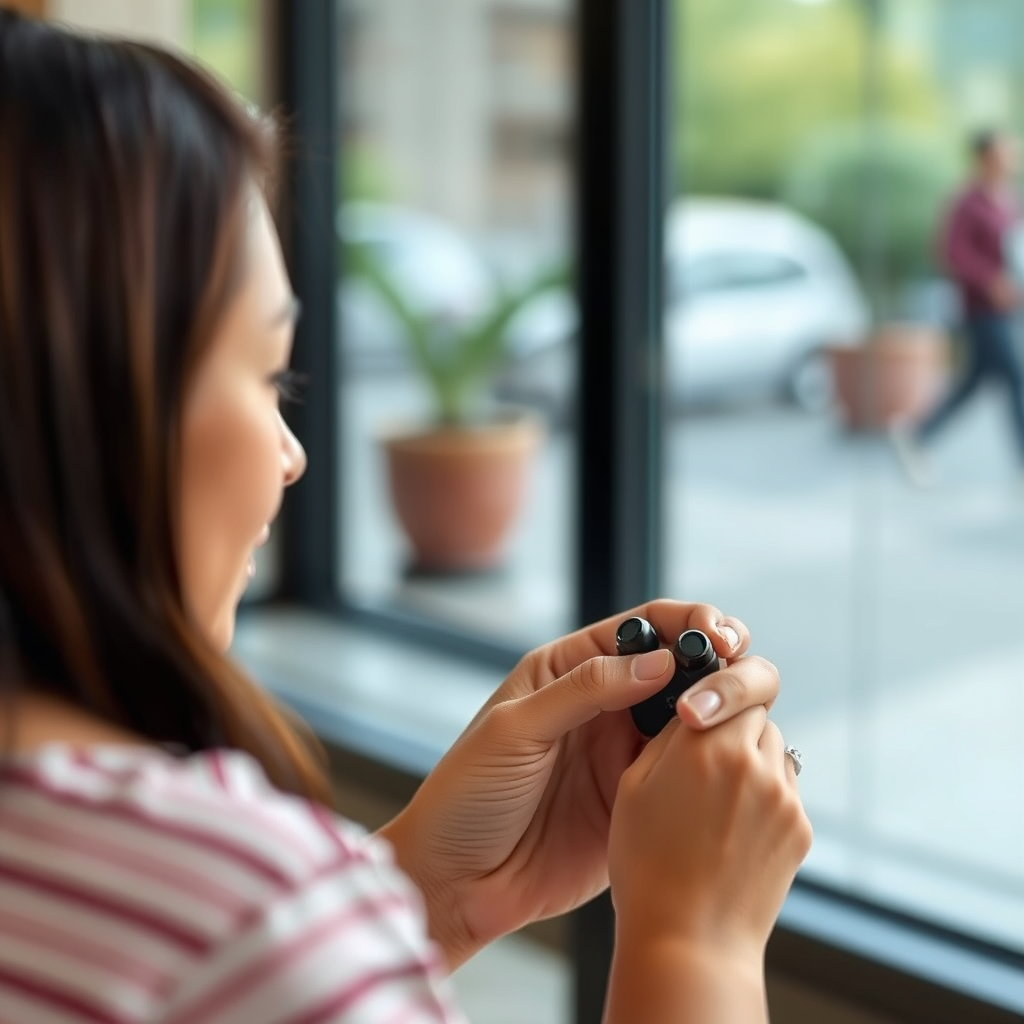

You can connect your Heyday wireless earbuds by ensuring they are charged, placing them in pairing mode, and selecting them on your device’s Bluetooth settings. This guide will take you through the steps in detail, making it easy to enjoy your favorite audio with these earbuds.
Understanding Your Heyday Wireless Earbuds

Heyday wireless earbuds are designed to deliver a high-quality audio experience with a sleek, modern aesthetic. Featuring Bluetooth 5.0 technology, they provide a stable connection and extended range, allowing users to enjoy music, podcasts, and calls without interruptions. The earbuds come equipped with a built-in microphone, touch controls, and a compact charging case that enhances portability and convenience.
One of the essential aspects of using Heyday earbuds is ensuring they are fully charged before attempting to connect. The earbuds typically offer a battery life of up to 6 hours on a single charge, with an additional 18 hours provided by the charging case. Therefore, it’s advisable to check the battery status before initiating the connection process to avoid disruptions during usage.
Preparing for Connection
To prepare for connecting your Heyday wireless earbuds, start by charging them correctly. The earbuds can be charged by placing them in their case, which should be connected to a power source via a USB cable. It is crucial to allow them to charge for at least 30 minutes, or until the LED indicator on the case shows a solid light, indicating a full charge.
Next, check for compatibility with your device. Heyday wireless earbuds are compatible with a wide range of devices, including smartphones, tablets, and laptops that support Bluetooth. Ensure that the device you intend to connect to has Bluetooth capability enabled and is within a reasonable distance from the earbuds for optimal performance.
Activating Pairing Mode
To connect your Heyday wireless earbuds to your device, you first need to activate pairing mode. This can be done by taking the earbuds out of the charging case. They will automatically power on and enter pairing mode. You may also need to press and hold the touch control on either earbud for a few seconds until you see the LED light flashing, indicating that they are ready to pair.
Common indicators that show your earbuds are in pairing mode include a flashing blue light on the earbuds. This visual cue signifies that the earbuds are discoverable by your device and ready for connection.
Heyday Wireless Earbuds Features Comparison (2024)
| # | Feature | Description | Battery Life | Price |
|---|---|---|---|---|
| 1 | Bluetooth Version | 5.0 | 6 hours | $49.99 |
| 2 | Charging Case | Included | 18 hours | Included |
| 3 | Microphone | Built-in | N/A | N/A |
| 4 | Touch Controls | Yes | N/A | N/A |
| 5 | Water Resistance | IPX4 | N/A | N/A |
| 6 | Noise Cancellation | No | N/A | N/A |
| 7 | Charging Time | 1.5 hours | N/A | N/A |
Connecting to Your Device
Once your Heyday wireless earbuds are in pairing mode, the next step is to connect them to your device. Begin by navigating to the Bluetooth settings on your device. For smartphones, this is typically found in the Settings app under “Bluetooth.” Make sure Bluetooth is turned on, and wait for your device to scan for available devices.
On iOS devices, you will see a list of nearby Bluetooth devices. If using an Android device, the process is similar. Look for the name of your Heyday earbuds in the list, which typically appears as “Heyday Earbuds” or a similar designation. Select it, and your device will attempt to establish a connection.
If the earbuds do not appear in the Bluetooth list, consider these troubleshooting tips: ensure the earbuds are charged and in pairing mode, restart the Bluetooth on your device, or reset the earbuds by placing them back in the charging case and taking them out again.
Finalizing the Connection
After successfully connecting your Heyday wireless earbuds, you can confirm the connection by checking the Bluetooth settings on your device. The device should indicate that it is connected to the earbuds. Additionally, you may hear an audio prompt from the earbuds confirming the connection.
To enhance your listening experience, it’s recommended to manage the audio settings on your device. This includes adjusting the volume to a comfortable level and exploring equalizer settings if available. Ensuring the sound is balanced can significantly improve your audio experience, whether you’re listening to music, making calls, or watching videos.
Maintaining Your Heyday Wireless Earbuds
To prolong the life of your Heyday wireless earbuds, it is essential to follow best practices for battery maintenance and longevity. Regularly charge the earbuds and avoid letting the battery fully deplete, as this can affect the overall battery health. Additionally, when storing the earbuds, keep them in a dry, cool place within the charging case to protect them from moisture and physical damage.
Cleaning your earbuds is equally important. Use a soft, dry cloth to wipe the exterior of the earbuds and a cotton swab to gently clean the speaker mesh. Avoid using harsh chemicals or soaking the earbuds in water, as this can cause damage. Regular cleaning will help maintain audio quality and ensure comfortable usage.
In summary, connecting your Heyday wireless earbuds is straightforward when you follow the steps outlined above. Ensure your earbuds are charged, enter pairing mode, and access your device’s Bluetooth settings for a seamless connection. For more tips on maintaining your earbuds, consider exploring further resources. Enjoy your listening experience!
Frequently Asked Questions
How do I pair my Heyday wireless earbuds with my smartphone?
To pair your Heyday wireless earbuds with your smartphone, first ensure the earbuds are charged. Then, press and hold the power button on the earbuds until the LED light flashes, indicating they are in pairing mode. On your smartphone, go to the Bluetooth settings, find “Heyday Earbuds” in the list of available devices, and select it to establish the connection.
What should I do if my Heyday wireless earbuds won’t connect?
If your Heyday wireless earbuds won’t connect, try resetting them by turning them off and then holding the power button for about 10 seconds until the LED light flashes red and blue. Ensure that your device’s Bluetooth is turned on and not connected to another device. If problems persist, consider unpairing and re-pairing the earbuds.
Why are my Heyday wireless earbuds not charging properly?
If your Heyday wireless earbuds are not charging properly, ensure you are using the original charging cable and that it is securely connected to both the earbuds and a power source. Inspect the charging port for any debris or damage. If the issue continues, try a different USB port or charger to rule out any power source problems.
Which devices are compatible with Heyday wireless earbuds?
Heyday wireless earbuds are generally compatible with most Bluetooth-enabled devices, including smartphones, tablets, and laptops. For the best experience, ensure your device supports Bluetooth 4.0 or higher. Always check the product specifications for any device-specific compatibility notes.
What is the best way to maintain my Heyday wireless earbuds for longevity?
To maintain your Heyday wireless earbuds, regularly clean them with a soft, dry cloth and avoid exposing them to extreme temperatures or moisture. Store them in their case when not in use to protect them from dust and damage. Additionally, update the firmware regularly if your earbuds support it, as this can improve performance and battery life.
References
- Bluetooth
https://en.wikipedia.org/wiki/Bluetooth - https://www.ncbi.nlm.nih.gov/pmc/articles/PMC7209358/
https://www.ncbi.nlm.nih.gov/pmc/articles/PMC7209358/ - https://www.sciencedirect.com/topics/engineering/bluetooth
https://www.sciencedirect.com/topics/engineering/bluetooth - https://www.mayoclinic.org/healthy-lifestyle/consumer-health/in-depth/bluetooth-technology/art-20046322
https://www.mayoclinic.org/healthy-lifestyle/consumer-health/in-depth/bluetooth-technology/art-20046322 - https://www.cdc.gov/nceh/lead/faq/earbuds.htm
https://www.cdc.gov/nceh/lead/faq/earbuds.htm - Google Scholar Google Scholar
https://scholar.google.com/scholar?q=connecting+wireless+earbuds - Google Scholar Google Scholar
https://scholar.google.com/scholar?q=Bluetooth+earbuds+connectivity - Google Scholar Google Scholar
https://scholar.google.com/scholar?q=wiring+Bluetooth+earbuds - https://www.bbc.com/news/technology-54812477
https://www.bbc.com/news/technology-54812477 - https://www.nytimes.com/2020/12/01/technology/personaltech/wireless-earbuds-guide.html
https://www.nytimes.com/2020/12/01/technology/personaltech/wireless-earbuds-guide.html
