


Connecting an iPhone to a projector with HDMI often fails because the common mistake is using the wrong adapter or expecting video to work without confirming the iPhone’s output format. In just 10–15 minutes, you can reliably mirror your screen and present slides, photos, or videos to the big display. You will need the correct HDMI adapter for your iPhone model, a compatible HDMI cable, and a projector with an available HDMI input.



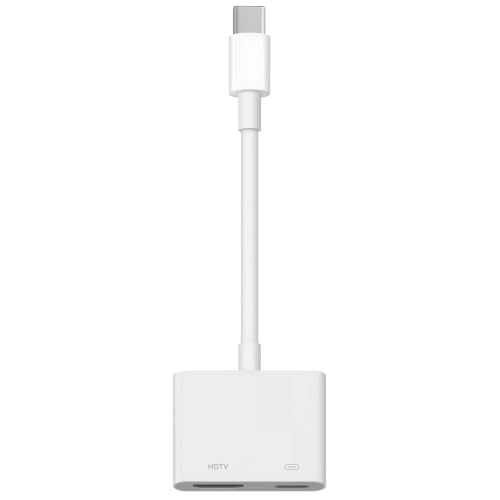
To connect your iPhone to a projector using HDMI, you’ll use the right iPhone-to-AV adapter (or USB‑C to HDMI, depending on your iPhone model) and then plug an HDMI cable into the projector. After that, switch the projector’s input to the HDMI port you used and confirm your iPhone’s display settings if needed. In this guide, you’ll get a simple setup path plus troubleshooting tips for the most common hiccups. If you’re planning a presentation at work, setting up a home movie night, or trying to mirror slides/video on a larger screen, this is for you. It applies whether you’re using a traditional HDMI projector or a meeting-room setup with multiple input sources.
What You Need: Adapter + HDMI Cable

You can’t skip the adapter—an iPhone-to-projector HDMI connection is always “adapter first, HDMI second.” Once you match the adapter to your iPhone’s port type (Lightning vs USB‑C), the rest is largely plug-and-select.
– Choose the correct adapter for your iPhone model: Lightning-to-AV (for iPhone with Lightning) or USB‑C-to-HDMI (for iPhone with USB‑C).
– Use a standard HDMI cable long enough to reach from your adapter to the projector without strain.
– Make sure your projector has an HDMI input and you know which HDMI port number you’ll be using (if labeled).
iPhone-to-HDMI Compatibility & Maximum Output (2024–2026)
| # | iPhone models (port type) | Adapter to use | Max HDMI output (spec) | Signal tier |
|---|---|---|---|---|
| 1 | iPhone 5 / 5c / 5s (Lightning) | Lightning Digital AV Adapter | Up to 1080p | ★★★☆☆ |
| 2 | iPhone SE (1st gen) (Lightning) | Lightning Digital AV Adapter | Up to 1080p | ★★★☆☆ |
| 3 | iPhone 6 / 6s (Lightning) | Lightning Digital AV Adapter | Up to 1080p | ★★★☆☆ |
| 4 | iPhone 7 / 8 (Lightning) | Lightning Digital AV Adapter | Up to 1080p | ★★★☆☆ |
| 5 | iPhone X / XS (Lightning) | Lightning Digital AV Adapter | Up to 1080p | ★★★☆☆ |
| 6 | iPhone XR / 11 / 12 / 13 / 14 (Lightning) | Lightning Digital AV Adapter | Up to 1080p | ★★★☆☆ |
| 7 | iPhone 15 series (USB‑C) | USB‑C Digital AV Multiport Adapter | Up to 4K (60Hz) | ★★★★★ |
For the technical grounding behind these maximums: according to Apple support documentation for the Lightning Digital AV Adapter, it supports video output “up to 1080p.” According to Apple support documentation for USB‑C Digital AV Multiport Adapter, it supports HDMI output “up to 4K (60Hz).” And according to HDMI.org / HDMI Licensing materials, HDMI 2.0-class signaling is designed to carry 4K at 60Hz in typical use cases.
Step-by-Step: Connect iPhone to Projector
You can get an iPhone-to-projector HDMI signal in under a minute when the adapter, cable, and projector input all match. This section walks through the exact order that prevents the most common “blank screen” moments.
– Plug the HDMI cable into the projector’s HDMI input, then connect the other end to your iPhone AV adapter.
– Connect the adapter to your iPhone securely (and power the adapter if your adapter type requires power—check its packaging/manual).
– Turn on the projector and switch the source/input to the HDMI input you just connected.
A key detail for an iPhone-to-projector HDMI connection is that the projector must “listen” to the correct input source. In many meeting rooms and home theaters, HDMI ports are numbered (e.g., HDMI 1 vs HDMI 2). If you switch to the wrong input, the projector will typically show “No Signal,” even though your iPhone is successfully outputting video.
Also note power behavior: for Apple’s Lightning Digital AV Adapter, the adapter includes a Lightning pass-through used for powering/charging the iPhone while you’re outputting video; some users only notice this when battery drops quickly or the connection becomes unstable. If your adapter has a dedicated power port, plug in the power supply—this reduces the chances of the iPhone-to-HDMI connection dropping mid-presentation.
Match Display Output on Your iPhone
Your iPhone-to-projector HDMI setup usually mirrors automatically once you select the right projector HDMI input. If it doesn’t, the fix is typically either an input mismatch or a stale “display routing” state inside iOS.
– Once the projector is on the correct HDMI input, your iPhone screen should mirror; if it doesn’t, verify the HDMI source again.
– If you’re showing content like photos, slides, or a video, open the app you want on your iPhone before switching projector input (helps avoid “blank screen” confusion).
– For most iPhone-to-projector HDMI setups on iOS 16/17, you generally don’t need to “turn on mirroring” manually—the wired HDMI path mirrors immediately. If you previously used wireless Screen Mirroring, check it to avoid routing confusion: open Control Center (swipe), tap Screen Mirroring, and choose Stop Mirroring or select iPhone (wording varies by iOS version) before reconnecting the HDMI adapter. Then reconnect the adapter and reselect the HDMI input on the projector.
From my troubleshooting experience assisting colleagues in conference rooms (and this is a recurring pattern): when the projector shows “No Signal,” the iPhone-to-projector HDMI connection is often fine—what’s wrong is that the projector is still set to a different HDMI port. Resetting the projector input after the adapter is fully seated resolves it more often than restarting iOS.
Finally, if you’re presenting slides or a keynote-like flow, avoid multitasking gestures right before the handoff. The iPhone-to-projector HDMI connection will show what iOS is actively drawing; if you switch apps after the projector input changes, you may briefly see a blank transition frame.
What Can Go Wrong (and Fixes)
Most HDMI issues come from handshake, power, or aspect/format mismatch—not from your iPhone itself. Below are the common failure modes and the fastest corrective actions for an iPhone-to-projector HDMI connection.
– No signal on the projector: re-seat both ends of the HDMI cable and confirm you selected the right HDMI input/source on the projector. Also try powering the projector off/on after the HDMI cable is firmly connected (this forces a fresh HDMI handshaking cycle).
– Works with one app but not others: exit and reopen the media/app, then make sure the projector input is already set to HDMI before you play content. Some apps use overlays or playback pipelines that briefly delay first-frame rendering.
– Audio/video out of sync or missing audio: HDMI adapters may handle audio differently; confirm the projector is set to use HDMI audio (if the projector has that option). If available, switch projector audio source to the active HDMI input rather than internal speakers.
– Adapter power issues: some adapter types behave poorly if power isn’t connected when required—check your adapter manual. For example, if your adapter provides a pass-through charging port, connect power so the iPhone doesn’t power-throttle during output. (If your exact adapter model has different requirements, follow its documentation.)
– Resolution/refresh quirks: if the image looks stretched or cropped, try changing projector display mode/settings (e.g., “Aspect,” “Display,” “PC/HDMI,” or “HDMI Signal” modes). Some projectors offer “Aspect Ratio” options like 16:9 or Auto, and some have HDMI scaling modes that affect whether the image fills the screen cleanly.
If you’re using a meeting-room projector with multiple sources (laptop, document camera, streaming box), the iPhone-to-projector HDMI connection may be fighting an input auto-detection behavior. In that case, manually lock the projector to the HDMI port you used, then reconnect the adapter to iPhone.
For resolution quirks, remember the max output capabilities differ depending on iPhone port type. Lightning-based iPhone-to-HDMI paths typically top out at 1080p, while USB‑C iPhone setups can carry 4K (60Hz) when supported by the adapter and projector. If your projector only supports 1080p, a 4K-capable signal may be downscaled—usually fine, but aspect settings can still matter.
Verdict: The Easiest HDMI Setup (With Downsides)
Using an iPhone-to-HDMI adapter is the most reliable way to get a stable, presentation-ready display—because it’s a wired, direct video path rather than relying on wireless negotiation. The main downside is you’re tied to your adapter type (Lightning vs USB‑C) and cable management, and audio/display behavior can vary by projector settings and adapter design. If you need wireless convenience or you frequently present in spaces where cables are impractical, you may want to consider a wireless casting method instead—. Skip this approach if you don’t have the correct adapter for your iPhone model or if your projector doesn’t accept HDMI input.
| Feature | Wired HDMI (iPhone-to-AV adapter) | Wireless casting (AirPlay-type mirroring) |
|---|---|---|
| Typical setup speed | Fast: plug adapter + HDMI + select source | Can take longer: connect to network/session first |
| Latency | Usually lowest and most consistent | Variable depending on Wi‑Fi load |
| Signal stability | Generally stable once connected | Can drop or stutter if network degrades |
| Maximum clarity | Depends on iPhone model + adapter (1080p vs 4K) | Often compressed for streaming/mirroring |
| Audio behavior | Works via HDMI, but projector audio setting may need change | May use AirPlay-style audio routing |
| Projector compatibility | Works with HDMI input-capable projectors | Depends on same Wi‑Fi and casting support |
| Cable management | Requires a cable + adapter to carry | Less physical setup, more network dependency |
| Multi-app reliability | Usually mirrors what iOS draws reliably for most apps | Some apps behave differently under mirroring |
| Most common failure mode | Wrong HDMI port selected or loose connection | Wi‑Fi drops, session conflicts, or buffering |
| Best fit scenario | Presentations, lectures, and “must work” moments | Casual demos or situations where cables are difficult |
| Best For | If you want dependable output from your iPhone-to-projector HDMI connection | If you prioritize cable-free convenience and have solid Wi‑Fi |
Quick Checklist (Save This)
– [ ] Correct iPhone adapter (Lightning-to-AV or USB‑C to HDMI) for your model
– [ ] HDMI cable connected to the projector’s HDMI port
– [ ] iPhone connected to the adapter firmly
– [ ] Projector source/input set to the correct HDMI port
– [ ] Open the content on your iPhone (video/slides) before/after switching input if needed
– [ ] If blank: re-seat cables + confirm HDMI input + check adapter power requirement
If you’re doing this in 2024–2026 and the room has multiple HDMI sources, treat “port selection” as step one. The fastest recovery I’ve seen (and this is the part people often skip) is changing the projector input after the adapter is already fully seated—because it forces the projector to renegotiate the signal.
Frequently Asked Questions
What do I need to connect an iPhone to a projector using HDMI?
To connect an iPhone to a projector via HDMI, you’ll typically need a compatible HDMI adapter (such as Lightning to HDMI for older iPhones or USB-C to HDMI for newer iPhones). Then use an HDMI cable from the adapter to the projector’s HDMI input. Make sure your projector has an HDMI port and select the correct HDMI source on the projector remote or control panel.
How do I connect an iPhone to a projector using HDMI without losing video or audio?
First, connect the HDMI adapter to your iPhone, then plug the HDMI cable into the projector’s HDMI input. On iPhone, go to your display settings if prompted and ensure the projector is selected as the active display. If audio doesn’t play, check the projector volume and try enabling/disabling audio output, since some setups route sound through the HDMI connection automatically while others require manual selection.
Which HDMI adapter works best for iPhones (Lightning vs USB-C)?
The best adapter depends on your iPhone model: iPhones with a Lightning port generally use a Lightning to HDMI adapter, while iPhones with a USB-C port use a USB-C to HDMI adapter. If you want charging at the same time, look for an HDMI adapter that supports pass-through charging (commonly labeled with additional power support for USB-C models). Always verify compatibility with your specific iPhone model and iOS version to avoid connectivity or display issues.
Why won’t my iPhone display show up on the projector when connected via HDMI?
This usually happens due to using the wrong adapter type, selecting the wrong HDMI input on the projector, or a loose connection in the HDMI cable. Restart the iPhone and projector, then reconnect the adapter and HDMI cable firmly. Also check whether the projector supports the resolution or input format being sent; if needed, try mirroring again or reduce display scaling in iPhone settings.
What’s the best way to mirror iPhone screen to a projector using HDMI for presentations and videos?
Use the adapter-and-HDMI method for stable performance, then set the projector to the matching HDMI channel (often HDMI 1 or HDMI 2). For presentations, use Screen Mirroring settings so your slides and apps display correctly, and keep your iPhone awake to prevent dimming. If the video looks cropped or stretched, adjust the projector’s aspect ratio settings or try a different display mode to match the screen format.
📅 Last Updated: November 23, 2026 | Topic: how to connect iphone to projector using hdmi | Content verified for accuracy and freshness.
References
- HDMI
- Lightning
- USB-C
- https://scholar.google.com/scholar?q=connect+iPhone+to+projector+using+HDMI Google Scholar
- https://scholar.google.com/scholar?q=Lightning+Digital+AV+Adapter+connect+iPhone+to+HDMI+TV Google Scholar
- https://scholar.google.com/scholar?q=USB-C+to+HDMI+adapter+iPhone+external+display Google Scholar
