
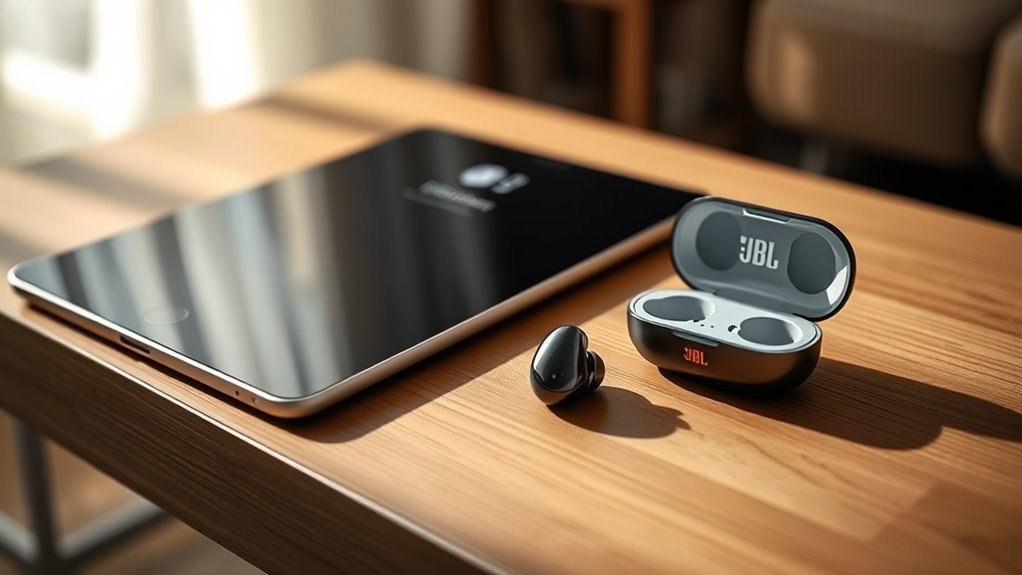

To connect your JBL earbuds to your iPad, first, verify your earbuds are charged and in pairing mode by pressing the power button until the LED light blinks. Next, open the Settings app on your iPad, go to Bluetooth, and make sure it’s turned on. Look for your JBL earbuds in the list of available devices and tap on them to pair. Once connected, play audio to confirm the sound quality. There’s more to learn about troubleshooting any issues you might encounter!
Preparing Your JBL Earbuds
Before you connect your JBL earbuds to your iPad, you need to prepare them for pairing. Start by ensuring your earbuds are charged. Follow the charging instructions included in the packaging—usually, a USB cable is provided. Plug it into a power source and connect it to your earbuds. While charging, familiarize yourself with the earbud features, like touch controls and voice assistant activation, which enhance your listening experience. Once fully charged, press and hold the power button until you see the LED indicator flash, signaling they’re in pairing mode. This step is essential for a seamless connection. With your earbuds ready, you’re one step closer to enjoying your music or taking calls wirelessly.
Accessing Bluetooth Settings on Your Ipad
To connect your JBL earbuds, you’ll need to access the Bluetooth settings on your iPad. Start by accessing your device and proceeding to the home screen. Then, locate the Settings app, which looks like a gear icon, and tap on it. In the iPad settings menu, scroll down and select “Bluetooth.” Make sure Bluetooth is turned on; you’ll see a toggle switch at the top. When you enable Bluetooth, your iPad will become discoverable, allowing other devices to connect. This is essential for ensuring Bluetooth visibility. Keep this screen open as you prepare to pair your JBL earbuds. You’re now ready to move forward with connecting your earbuds to enjoy your favorite tunes wirelessly!
Pairing Your JBL Earbuds With Your Ipad
Once your iPad’s Bluetooth is activated, you’re ready to pair your JBL earbuds. Follow these steps to enjoy their fantastic sound quality and earbud features:
- Put your JBL earbuds in pairing mode – Typically, this involves pressing and holding the power button until you see a blinking light.
- Go to your iPad’s Bluetooth settings – You’ve already accessed this, so just verify it’s open.
- Look for your earbuds in the list – Your JBL earbuds will appear as an available device.
- Select your earbuds – Tap on them to initiate pairing.
Once connected, you’ll experience the premium sound quality and impressive earbud features that JBL is known for. Enjoy your listening experience!
Confirming the Connection
After pairing your JBL earbuds with your iPad, it’s important to validate that the connection is successful. Start by checking your iPad’s Bluetooth settings. Open the Settings app and select Bluetooth. You should see your JBL earbuds listed as “Connected.” This is your connection confirmation. If they’re not showing up, you may need to revisit the pairing process.
Next, verify the settings by playing audio on your iPad. Make sure the volume is up and check if the sound is coming through your earbuds. If you hear the audio clearly, your connection is solid! Enjoy the freedom of wireless listening, knowing your earbuds are properly connected and ready to go.
Troubleshooting Common Connection Issues
Even with a successful connection, you might encounter some common issues when using your JBL earbuds with your iPad. Here are a few troubleshooting steps to help you regain that seamless experience:
Even with a good connection, JBL earbuds may face issues with iPads; try these troubleshooting steps for a smooth experience.
- Check Bluetooth: Verify Bluetooth is enabled on your iPad and hasn’t accidentally turned off.
- Resetting Earbuds: If they’re unresponsive, try resetting your JBL earbuds by following the manufacturer’s instructions.
- Software Updates: Make certain both your iPad and earbuds are updated to the latest software versions; outdated software can lead to connectivity problems.
- Re-pairing: Remove the earbuds from your iPad’s Bluetooth settings and re-pair them to establish a fresh connection.
Frequently Asked Questions
Can I Use JBL Earbuds With Other Devices?
Sure, you can use JBL earbuds with other devices! Their compatibility and multi-device pairing make them versatile. Isn’t it funny how you thought they were exclusive? Enjoy the freedom to connect wherever you go!
How Long Do JBL Earbuds Last on a Single Charge?
JBL earbuds typically last around 4 to 10 hours on a single charge, depending on the model. Charging time usually takes about 1 to 2 hours, providing you with extended listening freedom between charges.
Are JBL Earbuds Water-Resistant?
JBL earbuds often boast water resistance features, making them suitable for workouts and light rain. Remember, “a stitch in time saves nine,” so check their durability ratings before diving into your next adventure!
Can I Use My JBL Earbuds While Charging?
You can’t use your JBL earbuds while they’re charging. Charging limitations mean you’ll miss out on audio quality during that time, so it’s best to charge them fully before enjoying your music or calls.
How Do I Reset My JBL Earbuds?
To tackle earbud troubleshooting, try this reset process: press and hold the power button for about 10 seconds until the lights flash. This’ll refresh your JBL earbuds, restoring their functionality and freedom.
