
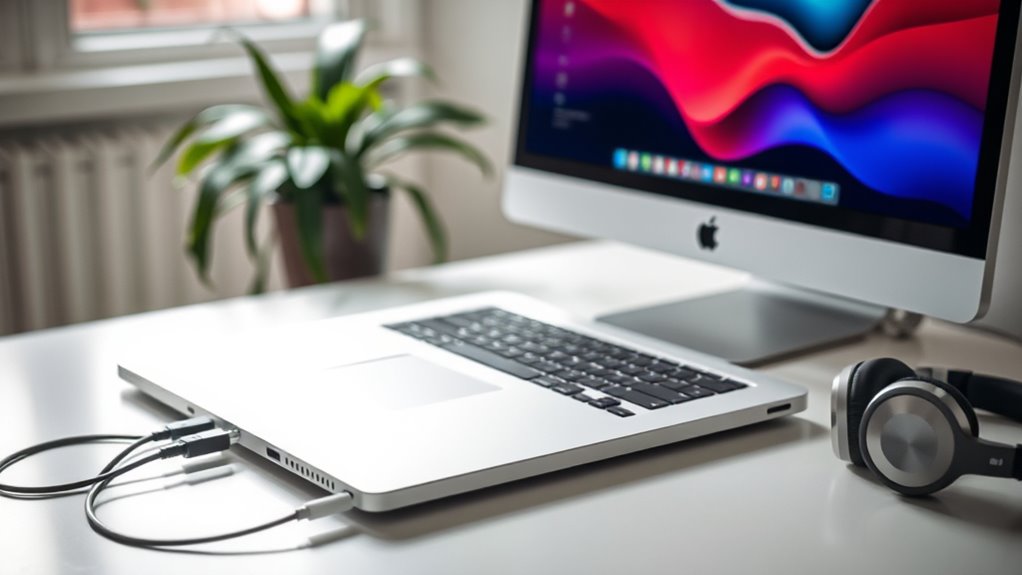

To connect a monitor to your MacBook, first check the available ports like Thunderbolt 3/USB-C or HDMI. Use the right cables or adapters for the connection, such as HDMI for standard setups or USB-C for newer models. Once connected, go to System Preferences, select Displays, and adjust settings as needed. You can also arrange your displays for maximum productivity. For more tips on enhancing your workspace, you can explore additional steps.
Understanding the Types of Monitors Compatible With Macbook
When you’re looking to connect a monitor to your MacBook, it’s essential to understand the types of monitors that are compatible with your device. You’ll want to focus on monitor specifications like resolution, refresh rate, and color accuracy to guarantee a seamless experience. Most MacBooks support DisplayPort, HDMI, and USB-C connections, so keep that in mind when choosing your monitor. Familiarize yourself with various display technologies such as LED, LCD, and OLED, as they can considerably impact your viewing experience. For instance, OLED offers deeper blacks and vibrant colors, while LED may be more budget-friendly. By knowing these details, you can make an informed choice that enhances your MacBook’s capabilities and gives you the freedom to create and enjoy content.
Required Cables and Adapters
To connect your MacBook to a monitor, you’ll need the right cables and adapters. Understanding the various cable types and any compatibility issues is vital for a smooth setup. Let’s walk through the essential components and steps to make certain you’re ready to connect your devices.
Cable Types Explained
Connecting a monitor to your MacBook hinges on the right cables and adapters. Start with HDMI cables for a straightforward connection, or opt for DisplayPort cables if you need higher resolutions. USB C cables are great for newer MacBooks, offering versatility and speed. If you’re connecting older monitors, you might encounter VGA or DVI cables; these require specific adapters. Thunderbolt cables, which support high data transfer rates, can also be used with compatible monitors. Remember to take into account cable lengths based on your setup—too short can limit your freedom to arrange your workspace. Verify you have the right adapter types handy to bridge any compatibility gaps between your MacBook and monitor.
Adapter Compatibility Issues
While you may have the right cables, adapter compatibility can still pose challenges when connecting your MacBook to a monitor. Different adapter types and compatibility standards can complicate your setup. To guarantee a smooth connection, keep these points in mind:
- Check your MacBook model: Different models support various adapters, so confirm compatibility.
- Know the monitor’s input: Verify the monitor accepts the adapter you’re using for seamless connectivity.
- Look for additional features: Some adapters offer extra ports, which can be handy for connecting more devices.
Connection Setup Steps
Setting up your monitor with a MacBook can be straightforward if you have the right cables and adapters. Start by checking your MacBook’s ports—USB-C, Thunderbolt, or HDMI—and choose the corresponding cable. If your monitor has HDMI, a simple HDMI to USB-C adapter might do the trick. For ideal monitor placement, position it at eye level, about an arm’s length away. Once connected, power on the monitor and go to System Preferences > Displays. Here, you can adjust resolution and orientation for display calibration. Make sure everything looks just right, and enjoy the expanded workspace! With the right setup, you can freely navigate your tasks without limitations.
Checking Your MacBook’s Ports
Before you connect a monitor to your MacBook, it’s essential to check the available ports. This will help you determine which cables and adapters you’ll need for a successful connection. Understanding your adapter options can guarantee compatibility and peak performance.
Identify Available Ports
To successfully connect a monitor to your MacBook, it is essential to identify the available ports on your device. Different monitor types and their respective port specifications can determine how you’ll make the connection. Here’s what to look for:
- Thunderbolt 3/USB-C: Supports various monitors with high resolutions and refresh rates.
- HDMI: Commonly used with many modern monitors; verify your MacBook has this port.
- Mini DisplayPort: This port is less common but still found on older models.
Understand Adapter Options
When connecting a monitor to your MacBook, understanding your adapter options is essential. Different MacBooks come with various ports, so knowing which adapter types to use will help you achieve the best connection. Here’s a quick overview of common connection standards:
| Adapter Type | Connection Standard |
|---|---|
| HDMI | For high-definition video |
| USB-C | Versatile and reversible |
| Thunderbolt 3 | Fast data transfer |
| Mini DisplayPort | For older displays |
Check your MacBook’s ports to determine which adapters you’ll need. Once you know your options, you can freedomfully connect your monitor and enhance your workspace.
Connecting the Monitor to Your MacBook
Connecting a monitor to your MacBook can considerably enhance your productivity and viewing experience. To get started, you’ll need to determine the right adapter and cable for your setup. Once you have those, follow these steps for a seamless connection:
- Connect the cable from your monitor to the appropriate port on your MacBook.
- Position your monitor for ideal viewing, ensuring it’s at eye level and comfortable for you.
- Adjust display preferences on your MacBook to select how you want the displays to work together.
Once connected, you can enjoy a larger workspace, making multitasking easier and more enjoyable. Remember, finding the right monitor positioning is key to maintaining comfort during long hours of use.
Configuring Display Settings on Macos
Configuring display settings on macOS is essential for optimizing your monitor experience. To adjust your display preferences, click on the Apple menu, then select “System Preferences,” followed by “Displays.” Here, you’ll find options tailored for your external monitor. You can choose to mirror your display or extend your desktop, giving you more freedom to work across screens. If you have multiple monitors connected, macOS will display each one, allowing you to rearrange them as needed. You can also set your primary display by dragging the menu bar to your preferred screen. Take the time to explore these settings; a little customization can greatly enhance your productivity and overall experience with your external monitor.
Adjusting Resolution and Orientation
Adjusting the resolution and orientation of your external monitor can greatly enhance your viewing experience. When you connect your MacBook, you’ll want to tweak the resolution settings and display orientation for ideal performance. Here’s how to do it:
- Access Display Settings: Go to System Preferences and click on Displays.
- Select Resolution: Choose the resolution that best fits your monitor’s capabilities. Higher settings provide sharper images.
- Adjust Orientation: If you prefer a different angle, select the desired display orientation (landscape or portrait) to suit your needs.
Using Multiple Displays
Have you ever wondered how to make the most of your workspace with multiple displays on your MacBook? Using dual displays can greatly boost your productivity. By extending your desktop, you can effortlessly juggle multiple applications, making multitasking a breeze. Imagine having your email open on one screen while working on a presentation on the other—this setup allows you to stay organized and focused. The dual display advantages also include reducing clutter on your main screen and providing a larger visual area for creative tasks. Plus, with just a few clicks in your display settings, you can customize the arrangement to fit your workflow perfectly. Embrace the freedom of working across screens and enjoy a more efficient workspace!
Troubleshooting Common Connection Issues
While connecting a monitor to your MacBook can enhance your productivity, it’s not uncommon to encounter some issues along the way. Here are some common errors you might face, along with troubleshooting tips to resolve them:
- No signal on the monitor: Check your cable connections and verify the monitor is powered on.
- Display flickering or distortion: Try adjusting the display settings in System Preferences or using a different cable.
- Resolution issues: Make certain your MacBook supports the monitor’s resolution; you can adjust this in the Display settings.
Enhancing Your Workspace With Display Arrangement
Once you’ve successfully connected your monitor to your MacBook, arranging your displays can greatly improve your workflow. A well-organized dual display setup enhances workspace productivity by allowing you to multitask efficiently. Start by positioning your external monitor at eye level to reduce strain and increase comfort. You can customize the display arrangement in System Preferences under “Displays.” Opt for either mirrored or extended display modes based on your needs. In extended mode, drag windows between screens easily, keeping your most used applications visible. Experiment with the layout until you find what feels right for you. This personalized setup not only boosts productivity but also creates a more enjoyable working environment. Enjoy the freedom that comes with a tailored workspace!
Frequently Asked Questions
Can I Connect a Monitor Wirelessly to My Macbook?
Yes, you can connect a monitor wirelessly to your MacBook using wireless display technology. Explore different connection methods like AirPlay or third-party apps to achieve a seamless, cable-free experience with your external display.
What Should I Do if My Monitor Isn’t Detected?
If your monitor’s playing hard to get, start with some monitor troubleshooting. Check your display settings; sometimes, it just needs a gentle nudge. Restart both devices, and verify cables are snug and secure.
How Do I Switch Between Multiple Connected Monitors?
To switch between multiple connected monitors, open your monitor settings. Adjust the display arrangement to choose which screen is primary. You can easily drag windows between monitors for a seamless experience. Enjoy your freedom!
Are There Any Recommended Brands for Macbook-Compatible Monitors?
You might consider brands like Dell, LG, and ASUS for MacBook-compatible monitors. Look for options that offer high display resolution, such as 4K, to enhance your experience while enjoying the freedom of multiple screens.
Will Connecting a Monitor Drain My Macbook’s Battery Faster?
Yes, connecting a monitor can affect your MacBook’s battery performance. However, with proper power management settings, you can minimize the impact. Using energy-saving modes and adjusting brightness helps you maintain battery life while using an external display.
