
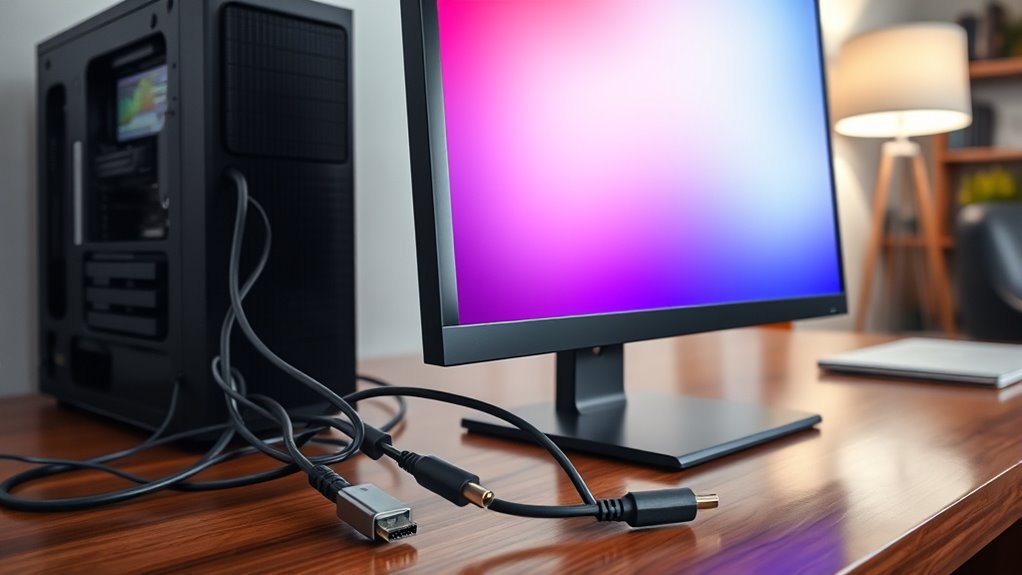

To connect your monitor to your PC, start by identifying the available ports like HDMI or DisplayPort on both devices. Use the appropriate cable and plug it in. Make sure your monitor is powered on and select the right input source. Next, configure your display settings for ideal clarity. If you encounter issues, check the cables and connections. There’s more to discover about enhancing your display experience and troubleshooting tips.
Understanding Monitor Connections
When you’re ready to connect your monitor to your PC, it’s essential to understand the different types of connections available. Knowing the various monitor types and their connection standards can make this process seamless. You’ll encounter HDMI, DisplayPort, VGA, and DVI, each offering unique benefits. HDMI is widely used for its versatility and support for high-definition video and audio. DisplayPort is ideal for high-resolution displays, while VGA and DVI are older standards that some monitors still utilize. Assess your monitor’s specifications and your PC’s compatibility to guarantee a proper connection. Embracing this knowledge empowers you to choose the right connection, revealing your monitor’s full potential and enhancing your overall computing experience.
Types of Cables You Might Need
When connecting your monitor to a PC, choosing the right cable is essential. You’ll likely encounter HDMI, VGA, and DVI options, each with its own benefits. Understanding these cable types will help you make the best choice for your setup.
HDMI Cable Options
To successfully connect your monitor to a PC, understanding the various HDMI cable options available is essential. There are several HDMI cable types, including Standard, High-Speed, and Premium High-Speed, each tailored for different needs. If you plan to stream 4K content or use 3D features, opting for High-Speed or Premium High-Speed cables guarantees peak performance.
When it comes to HDMI cable lengths, make certain to choose a length that suits your setup. Cables typically range from 3 feet to over 25 feet, but remember that longer cables can sometimes lead to signal degradation. By selecting the right HDMI cable type and length, you can enjoy a hassle-free connection and a fantastic viewing experience.
VGA and DVI Types
VGA and DVI cables are essential for connecting monitors to PCs, especially if you’re working with older hardware. VGA standards have been around for decades, making them a reliable choice for many setups. However, they can struggle with higher resolutions and might not deliver the crispest image quality.
On the other hand, DVI advantages include better video quality and support for higher resolutions, making them a great option if you want to maximize your display’s potential. When choosing between these cables, consider your monitor’s capabilities and your graphics card’s outputs. Whether you opt for VGA or DVI, make sure you have the right connectors to enjoy a seamless viewing experience on your PC.
Setting Up Your Monitor
Now that you’ve got your cables sorted, it’s time to set up your monitor. You’ll need to choose the right cables for a proper connection and adjust your display settings for peak performance. Let’s walk through these steps to guarantee everything looks great.
Choosing the Right Cables
When setting up your monitor, selecting the right cables is essential for ensuring ideal performance and compatibility. Start by checking your monitor and PC for available ports like HDMI, DisplayPort, or VGA. Each type has its advantages, so choose one that suits your needs. Be aware of potential cable compatibility issues; using the wrong cable could lead to subpar performance or connection failures. Additionally, don’t underestimate cable quality importance. Higher-quality cables can provide better signal integrity and durability, which is vital for a clear display. Investing in reliable cables not only enhances your viewing experience but also saves you from frequent replacements. Ultimately, the right cables will set you up for success in your computing journey.
Adjusting Display Settings
Once you’ve connected your monitor to your PC, it’s important to adjust the display settings for best viewing. Start by right-clicking on your desktop and selecting “Display settings.” Here, you can easily change the display resolution to match your monitor’s capabilities, enhancing clarity and sharpness. Choose a resolution that feels comfortable for your eyes and fits your tasks.
Next, consider the screen orientation. Depending on your work, you might prefer landscape or portrait mode. Adjust this in the same settings menu; it’s as simple as selecting your desired orientation from a dropdown menu.
Once you’ve made your changes, hit “Apply” to see how they look. Enjoy your newly set-up display!
Connecting via HDMI
Although connecting your monitor via HDMI is a straightforward process, it’s vital to follow the right steps to guarantee a proper setup. First, check your PC and monitor for HDMI ports. Using the right HDMI cable lengths is essential to avoid signal loss. If you’re experiencing HDMI compatibility issues, verify your devices support the same HDMI version.
Here’s a quick reference table:
| HDMI Cable Length | Best Use |
|---|---|
| 3 feet | Close setups |
| 6 feet | Standard desktop use |
| 10 feet | Moderate distance |
| 15 feet | Larger rooms |
| 25 feet | Home theater setups |
Once you’ve confirmed compatibility, simply plug the cable into both devices, and you’re ready to enjoy your display!
Using DisplayPort for High-Quality Video
If you’re looking to achieve high-quality video output, using DisplayPort can be an excellent choice. One of the DisplayPort advantages is its ability to support higher resolutions and refresh rates, making it perfect for gaming and professional work. With DisplayPort, you can enjoy smooth gameplay and crisp visuals without sacrificing quality. Additionally, DisplayPort compatibility is broad, as it works with many modern monitors and graphics cards. This means you won’t have to worry about finding the right connection for your devices. When connecting your monitor, just plug in the DisplayPort cable, and you’re set to experience stunning visuals. Embrace the freedom of superior video quality and make the most of your display setup with DisplayPort.
VGA and DVI Connections Explained
When connecting your monitor, understanding VGA and DVI connections is essential. You’ll find that VGA is an older analog option, while DVI offers digital formats for better quality. Let’s explore the basics of each type and how they compare regarding performance.
VGA Connection Basics
VGA and DVI connections are two of the most common methods for linking your monitor to a PC. When you’re using a VGA connection, it’s crucial to understand the VGA pinout explanation and the different VGA signal types to guarantee a solid display. Here’s what you should know about VGA:
- 15-pin connector: The VGA connector features three rows of five pins.
- Analog signal: VGA transmits an analog signal, which can lead to slight quality loss compared to digital connections.
- Resolution limits: VGA typically supports lower resolutions than digital alternatives, so your display may not look as sharp.
DVI Types Overview
DVI, or Digital Visual Interface, offers a range of connection types that cater to different display needs and technologies. Understanding the DVI connectors overview helps you choose the right one for your setup. There are primarily three DVI signal types: DVI-D (digital), DVI-A (analog), and DVI-I (integrated). Each serves specific purposes, ensuring compatibility with various monitors and graphics cards.
| DVI Type | Signal Type | Use Case |
|---|---|---|
| DVI-D | Digital | LCD monitors and projectors |
| DVI-A | Analog | Older VGA-compatible displays |
| DVI-I | Integrated | Versatile connection options |
Quality Comparison Factors
While both VGA and DVI connections serve the purpose of transmitting video signals, their quality can differ considerably based on several factors. Understanding these differences can help you make the best choice for your setup.
- Resolution Differences: DVI supports higher resolutions compared to VGA, making it better for modern displays.
- Refresh Rates: DVI can handle higher refresh rates, which is essential for gaming and fast-moving visuals.
- Signal Quality: DVI provides a digital signal, reducing interference and improving clarity compared to the analog signal of VGA.
Ultimately, if you’re looking for superior image quality and performance, DVI is the way to go. But if you’re using older equipment, VGA might still serve your needs just fine.
Configuring Display Settings on Your PC
Once you’ve successfully connected your monitor to your PC, the next step is configuring the display settings to guarantee an ideal viewing experience. Start by right-clicking on your desktop and selecting “Display settings.” Here, you can adjust the display resolution to make sure images look sharp and clear. Choose a resolution that matches your monitor’s specifications for the best results. Next, scroll down to find the refresh rate setting; it’s essential for smooth visuals, especially during gaming or video playback. Select a refresh rate that your monitor supports, typically 60Hz, 120Hz, or higher. Once you’ve made these adjustments, click “Apply” to save your changes. Enjoy your newly configured display that meets your unique preferences!
Troubleshooting Common Connection Issues
When connecting a monitor to your PC, you might encounter a few common issues that can disrupt your setup. First, verify your monitor is powered on and that the correct input source is selected. If your PC isn’t detecting the monitor, try the following:
- Check cable compatibility: Make sure the cables you’re using (HDMI, DisplayPort, etc.) match both your PC and monitor ports.
- Reconnect the cables: Sometimes a loose connection can prevent proper monitor detection.
- Update graphics drivers: Outdated drivers can lead to connection issues, so make sure your graphics drivers are up to date.
Dual Monitor Setup: An Overview
If you’re looking to enhance your productivity and multitasking capabilities, setting up a dual monitor configuration can be a game-changer. With the right monitor placement and screen resolution, you can create an efficient workspace that suits your needs.
Here’s a quick overview of dual monitor benefits:
| Benefit | Description |
|---|---|
| Increased Screen Space | More room for apps and windows |
| Enhanced Focus | Easily manage tasks side-by-side |
| Better Collaboration | Share screens effortlessly |
| Improved Workflow | Multitask without switching tabs |
| Customizable Layout | Arrange monitors as you prefer |
Tips for Optimizing Your Display Experience
With a dual monitor setup in place, you’re already on the right track to boosting your productivity. To further enhance your display experience, consider these tips:
- Employ display calibration techniques to guarantee colors and contrasts are accurate, improving visual comfort and reducing eye strain.
- Follow monitor ergonomics tips by positioning your screens at eye level and at arm’s length to promote better posture and reduce fatigue.
- Adjust screen brightness to match your environment, minimizing glare and making it easier on your eyes.
Frequently Asked Questions
Can I Use Multiple Monitors With Different Connection Types?
Yes, you can use multiple monitors with different connection types! Just make sure your graphics card supports various monitor types and connection options. This flexibility lets you create a customized, enchanting workspace that suits your needs perfectly.
What Should I Do if My Monitor Is Not Detected?
If your monitor’s not detected, start by checking cable issues. Verify connections are secure and cables are undamaged. Then, try monitor troubleshooting steps like restarting your PC or updating graphics drivers for better results.
How Do I Switch Between Multiple Connected Monitors?
To switch between multiple monitors, you can use monitor shortcuts like Windows + P. It’s quick! Alternatively, immerse yourself in display settings for a more tailored setup, giving you the freedom to choose your perfect workspace.
Are There Compatibility Issues Between Different Monitor Brands?
Yes, there can be compatibility issues between different monitor brands. It’s crucial to check monitor specifications and verify brand performance aligns with your setup for ideal results. Don’t compromise on quality; enjoy your visual freedom!
Can I Connect a Monitor Wirelessly to My PC?
Yes, you can connect a monitor wirelessly to your PC using wireless technology. Just confirm your PC supports it and check the display options to set it up properly for a seamless experience.
