
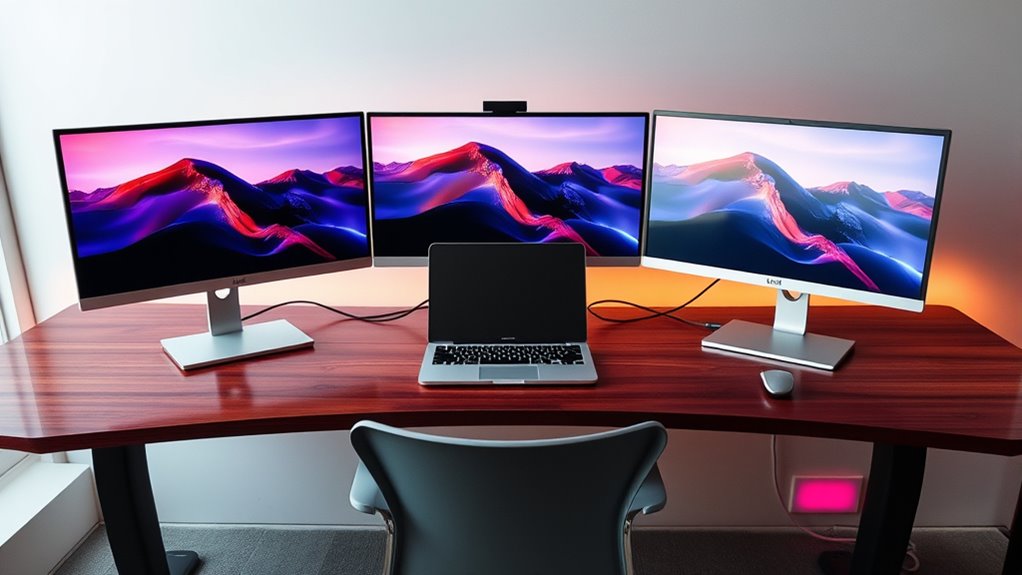

To connect multiple monitors, first check your computer’s compatibility with connections like HDMI or DisplayPort. Verify your graphics card supports multiple displays and review its specifications for maximum resolution. Use high-quality cables to avoid signal loss. Physically arrange your monitors, then configure display settings in Windows or macOS to match your layout and optimize resolutions. Address any common issues, such as resolution mismatches, to enhance usability. Discover more tips to maximize your multi-monitor experience.
Understanding Your Display Options
When setting up multiple monitors, it’s crucial to understand the different display options available. You’ll encounter various monitor types, including IPS, TN, and VA, each with unique characteristics suited for different tasks. When selecting monitors, consider the display resolutions, such as 1080p, 1440p, or 4K, as they greatly impact visual quality and workspace efficiency. Higher resolutions offer sharper images, while lower ones can lead to a less detailed experience. Additionally, verify your monitors have compatible connections, like HDMI, DisplayPort, or VGA. By grasping these display options, you can tailor your multi-monitor setup to maximize productivity and enjoy a more versatile workspace. Make informed choices that align with your preferences for freedom and functionality.
Checking Your Computer’s Compatibility
Before you can set up multiple monitors, it’s important to check your computer’s compatibility with them. Start by reviewing your system’s monitor specifications, including maximum resolution and refresh rates supported. You’ll also need to assess your graphics capabilities; not all GPUs can handle multiple displays simultaneously. Check if your graphics card has the necessary output ports, like HDMI or DisplayPort, to connect additional monitors. If your computer’s specifications fall short, consider upgrading your GPU or adding an external adapter. Finally, verify your operating system supports multi-monitor setups, as this can affect overall performance and functionality. By confirming these factors, you can guarantee a seamless multi-monitor experience that enhances your productivity and freedom.
Selecting the Right Cables and Adapters
Choosing the appropriate cables and adapters is essential for establishing a reliable multi-monitor setup that maximizes performance. You’ll need to identify the cable types supported by your monitors and computer, such as HDMI, DisplayPort, or VGA. Each cable type has its own advantages, with HDMI and DisplayPort generally offering better resolutions and refresh rates.
When it comes to adapter selection, guarantee compatibility with both your monitors and computer ports. For instance, if your graphics card has DisplayPort outputs and your monitor only accepts HDMI, you’ll need a DisplayPort to HDMI adapter. Investing in high-quality cables and adapters minimizes signal loss and guarantees a seamless multi-monitor experience. Take the time to choose wisely, and you’ll enjoy the freedom of an enhanced workspace.
Setting Up the Displays Physically
With the right cables and adapters in hand, it’s time to position your monitors for ideal performance and comfort. Begin with monitor placement; consider your primary screen as the focal point, ideally at eye level. Arrange secondary displays at a slight angle to minimize neck strain. Guarantee there’s enough space between monitors to avoid clutter.
Next, prioritize cable management. Use cable ties or clips to keep your cables organized and tangle-free, promoting a cleaner workspace. Route cables behind the desk or along the edges to maintain a tidy appearance and prevent accidental disconnections.
Configuring Display Settings on Windows
Once your monitors are physically set up, the next step is configuring the display settings in Windows to optimize your multi-monitor experience. Start by right-clicking on your desktop and selecting “Display settings.” Here, you’ll see your connected monitors. You can rearrange them by dragging and dropping to match their physical layout. Adjust the resolution for each monitor to guarantee clarity. Don’t forget about display scaling; this helps make text and icons more readable across different screen sizes. For advanced settings, click on “Advanced display settings” to fine-tune aspects like refresh rates. By customizing these settings, you’ll create a seamless and efficient workspace that enhances your productivity and freedom in using multiple displays.
Configuring Display Settings on Macos
To configure display settings on macOS, begin by steering to the Apple menu and selecting “System Preferences,” then click on “Displays.” Here, you’ll find options to manage your connected monitors effectively. You can adjust display preferences, including resolution and brightness, and arrange your screens to suit your workflow.
| Setting | Description |
|---|---|
| Resolution | Choose the desired pixel density |
| Brightness | Adjust screen brightness manually |
| Arrangement | Drag the displays to arrange them |
| Mirroring | Enable or disable mirrored displays |
| Color Profile | Select color settings for accuracy |
Utilizing these settings, you can optimize your screen arrangement for a more productive experience.
Tips for Organizing Your Workspace
As you set up multiple monitors, organizing your workspace becomes essential for maximizing productivity. Start by evaluating your workspace layout. Ideally, place your primary monitor directly in front of you for easy viewing. Arrange secondary monitors at slight angles for peripheral visibility, ensuring you can glance between screens without straining your neck. Use adjustable stands to maintain ergonomic height and reduce glare.
Keep cables tidy with clips or cable management sleeves to prevent clutter. Consider utilizing software tools that enhance your monitor arrangement, like virtual desktops or window managers, to streamline your workflow. Finally, personalize your space with minimal distractions, allowing for a more focused environment. This thoughtful organization can greatly enhance your efficiency and comfort while working with multiple monitors.
Troubleshooting Common Issues
If you’re experiencing issues with your multiple monitor setup, start by checking the cable connections to guarantee everything is securely plugged in. Next, updating your display drivers can resolve compatibility problems that might arise. Finally, adjusting your display settings may help optimize the arrangement and functionality of your monitors.
Check Cable Connections
Checking cable connections is essential for guaranteeing that your multiple monitors function properly. Start by verifying that you’re using the correct cable types—HDMI, DisplayPort, DVI, or VGA—based on the connection standards supported by your monitors and graphics card. Make sure each cable is securely plugged into both the monitor and the computer. If you’re experiencing issues, try reseating the cables or using different ports to rule out faulty connections. Ascertain the cables aren’t damaged or frayed, as this could lead to signal loss. If you’re using adapters, confirm they’re compatible with both your cable types and connection standards. A thorough check can often resolve common display issues and help you optimize your multi-monitor setup.
Update Display Drivers
Updating your display drivers is essential for ensuring that your multiple monitors function seamlessly. Outdated drivers can lead to compatibility issues, causing disruptions in display performance. To check for driver updates, visit your graphics card manufacturer’s website or use a dedicated update tool. This will help you find the latest drivers that enhance display compatibility and overall system performance. It’s vital to uninstall any previous versions before installing new ones to avoid conflicts. Regularly updating your drivers not only fixes existing issues but also optimizes features that can improve your multitasking experience. So, take control of your setup by keeping your display drivers up to date, ensuring you can fully utilize the freedom of multiple monitors.
Adjust Display Settings
While setting up multiple monitors can enhance productivity, adjusting display settings is essential for troubleshooting common issues that may arise. Start by checking your display resolution; mismatched resolutions can cause distortion or black screens. Right-click on your desktop, select “Display settings,” and verify each monitor is set to its native resolution. Next, focus on screen arrangement. Drag and drop the monitor icons to match your physical setup, verifying seamless movement of your cursor across screens. If you encounter flickering or lag, consider updating your graphics drivers or adjusting refresh rates. By fine-tuning these settings, you’ll maximize your multi-monitor experience and create a workspace that feels cohesive and efficient. Enjoy the freedom of a customized display environment!
Enhancing Productivity With Multiple Monitors
As you integrate multiple monitors into your workspace, you’ll likely discover significant enhancements in your productivity. The performance boost is evident as you can multitask more effectively, reducing the time spent switching between applications. This workflow enhancement allows for smoother shifts, letting you keep critical information readily available.
| Task Type | Benefits | Examples |
|---|---|---|
| Programming | Easier code comparison | IDE on one, docs on the other |
| Design Work | Enhanced creative space | Design software on one, inspiration on another |
| Data Analysis | Streamlined data visibility | Spreadsheets on one, reports on the other |
With multiple monitors, you’ll release a new level of efficiency, allowing you to focus on what truly matters.
Frequently Asked Questions
Can I Use Different Monitor Brands Together?
Yes, you can use different monitor brands together. Monitor compatibility primarily depends on resolution and connectivity options rather than brand. Just make certain your graphics card supports the configurations for mixed brands to function at peak performance.
How Do I Switch Between Multiple Monitors?
You can switch between multiple monitors easily; studies show dual monitors boost productivity by 20-30%. Just access your display settings, select the desired monitor, and adjust your monitor switching preferences to optimize your workspace.
Will Multiple Monitors Affect My Computer’s Performance?
Yes, multiple monitors can affect your computer’s performance, particularly if your graphics card isn’t powerful enough. It may struggle to handle increased workloads, leading to reduced frame rates and slower response times during intensive tasks.
Can I Connect Monitors Wirelessly?
Yes, you can connect monitors wirelessly, but it depends on your wireless technology and monitor compatibility. Confirm your devices support this feature to enjoy the freedom of a clutter-free workspace without sacrificing performance.
What Is the Maximum Number of Monitors I Can Use?
You can typically use up to six monitors, depending on your graphics card and system capabilities. Monitor limitations and display configurations vary, so check your hardware specifications to maximize your multi-monitor setup’s potential.
