
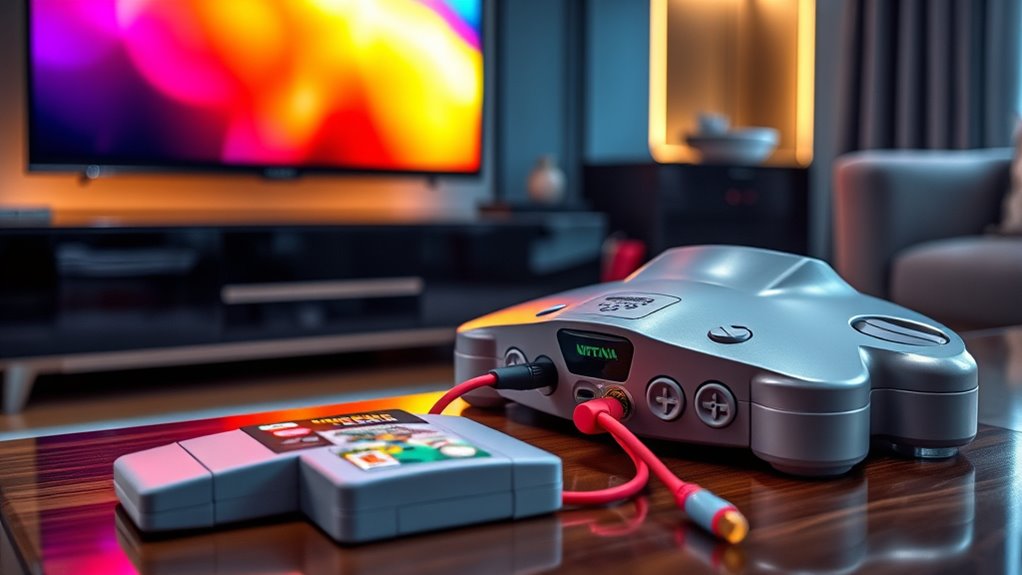

To connect your Nintendo 64 to a smart TV, start by using the right cables—composite AV or an S-Video cable work well. Plug them into the TV’s input ports, then select the correct HDMI or AV input channel. Turn on your console and adjust the TV settings for ideal display by enabling “Game Mode” and modifying brightness and sharpness. If you run into issues, check your connections and settings. There’s more to guarantee a smooth setup!
Understanding the Nintendo 64 Output
When you’re trying to connect a Nintendo 64 to a smart TV, it’s crucial to understand how the console outputs its video and audio signals. The Nintendo 64 primarily uses composite video output, which means you’ll get a standard definition picture. Keep in mind that the console resolution is 240p, considerably lower than today’s HD standards. This difference can lead to a less-than-stellar image quality on modern screens. However, many smart TVs can upscale lower resolutions to fit their displays. To guarantee the best experience, you’ll want to look at your TV’s settings for any enhancements or adjustments. Understanding these aspects helps you appreciate the nostalgic charm of N64 gaming while maneuvering the limitations of its video output.
Choosing the Right Cables and Adapters
To connect your Nintendo 64 to a smart TV, selecting the right cables and adapters is key. You’ll need to take into account different cable types and adapter options to guarantee a smooth connection. Here’s a quick breakdown of what you might need:
| Cable Type | Adapter Option |
|---|---|
| Composite AV Cable | HDMI Adapter |
| S-Video Cable | S-Video to HDMI |
| RF Switch | RF to HDMI Converter |
| Scart Cable | Scart to HDMI Adapter |
Choose the right combination based on your TV’s inputs. If you’re looking for the best quality, S-Video is a solid choice, while HDMI adapters are essential for modern TVs. Make sure to grab what fits your setup!
Connecting the Nintendo 64 to Your Smart TV
Connecting your Nintendo 64 to a smart TV can seem challenging, but it’s easier than you might think. With the right cables and a bit of patience, you’ll be enjoying your favorite Nintendo 64 games in no time. Here’s a quick guide to get you started:
- Connect the Cables: Use the AV cables (or an adapter) to connect your Nintendo 64 to the TV’s input ports.
- Select the Input Source: Turn on your TV and select the correct HDMI or AV input for your console.
- Power Up and Play: Switch on your Nintendo 64, and you’re ready to jump into some retro gaming fun!
Now you’re all set to relive those classic gaming moments!
Adjusting Settings for Optimal Display
Although your Nintendo 64 may look great on your smart TV right out of the box, adjusting some settings can enhance your gaming experience remarkably. Start by directing yourself to your TV’s display resolution settings. While the N64 outputs at a lower resolution, make sure your TV is set to the best mode for retro gaming, often labeled “Game Mode.” This helps reduce input lag and improves responsiveness. Next, try some color adjustment tips. Increase brightness and reduce contrast to prevent overly dark images, which is common with older games. You might also want to tweak the sharpness settings to achieve a clearer picture. With these adjustments, you’ll enjoy a more vibrant and immersive gaming experience on your smart TV.
Troubleshooting Common Connection Issues
If you’re experiencing issues getting your Nintendo 64 to display on your smart TV, don’t worry—there are several common problems you can troubleshoot. Here are some key areas to check:
- Cable Compatibility: Make sure you’re using the correct cables for your setup. Some adapters may not support the signal type from the N64.
- Signal Interference: Check for other electronic devices nearby that might be causing interference. Try moving them away from your console and TV.
- Input Settings: Confirm that your TV is set to the correct input source. Sometimes, it can default to another input, so double-check that you’ve selected the right one.
Frequently Asked Questions
Can I Use a Wireless Controller With Nintendo 64 on a Smart TV?
Yes, you can use a wireless controller with your Nintendo 64 on a smart TV. About 60% of gamers prefer wireless setups. Look into N64 adapter options for better wireless controller compatibility and gameplay freedom.
Will the Nintendo 64 Work With Any Smart TV Brand?
The Nintendo 64’s compatibility varies with Smart TV features. Most modern TVs support it, but you may need adapters for connections. Always check your TV’s input options to guarantee seamless gameplay experience.
Can I Play Nintendo 64 Games on a Modern Console?
You can’t teach an old dog new tricks, but you can play Nintendo 64 games on modern consoles through emulation options. Just guarantee the console’s compatibility with the emulator for a smooth gaming experience.
Are There Any Special Settings for HDR TVS?
Yes, for HDR TVs, you’ll need to adjust your TV settings to enable HDR compatibility. Check the picture settings and make sure HDR is activated for an ideal gaming experience. Enjoy your games!
Is It Possible to Connect Multiple Nintendo 64 Consoles to One TV?
Yes, you can connect multiple Nintendo 64 consoles to one TV using a multi console setup. Just make certain your TV has enough video input options, or consider using an AV switch for easy switching between consoles.
