

Connecting PC speakers is a straightforward process that can greatly enhance your audio experience. In just a few steps, you’ll have your speakers set up and ready to deliver high-quality sound. This guide will walk you through the necessary connections and settings to ensure your speakers work seamlessly with your computer.
Understanding Your Speaker Types
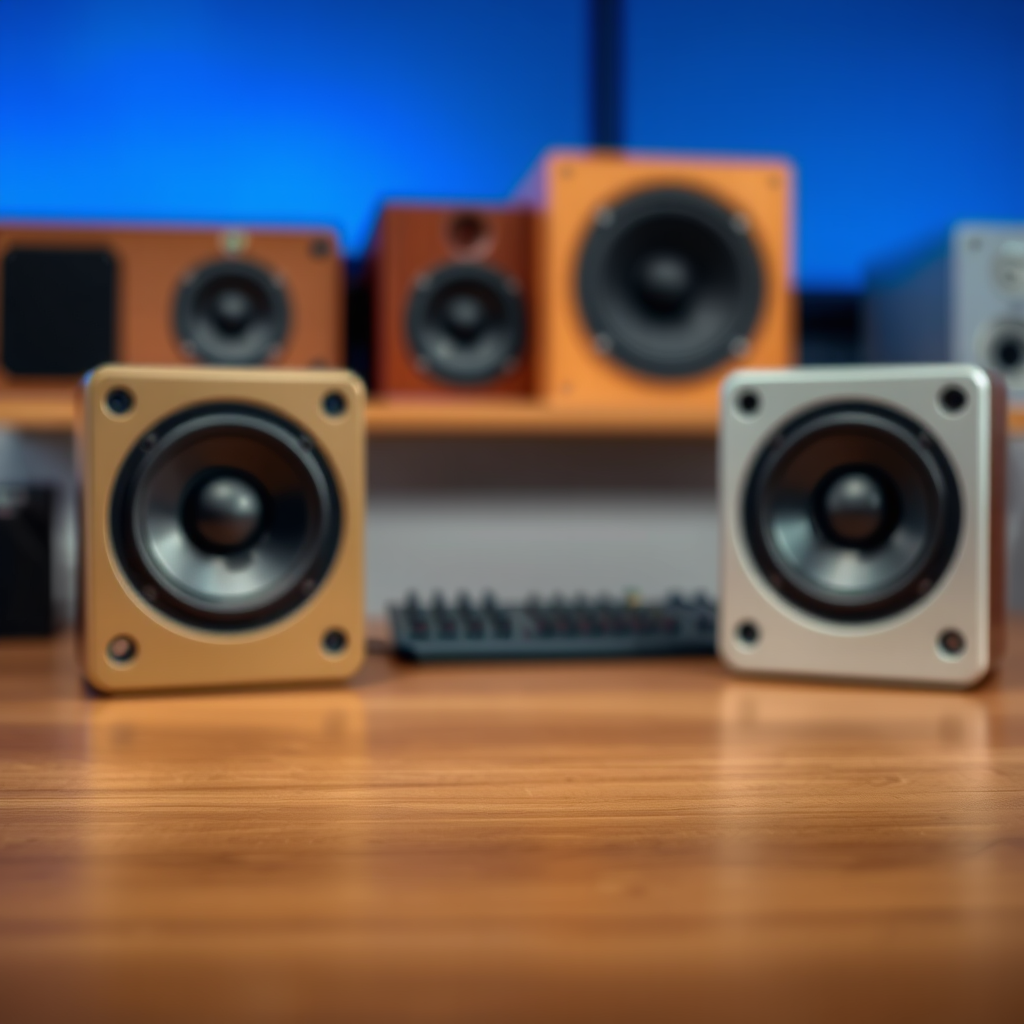
When considering how to connect PC speakers, it’s essential to understand the different types available. The two main categories are active and passive speakers. Active speakers, also known as powered speakers, have built-in amplifiers, allowing them to connect directly to your computer without needing an external power source. This simplifies setup and is ideal for casual users or those with limited space. On the other hand, passive speakers require an external amplifier to function, which can provide superior sound quality but may complicate installation.
Additionally, speakers can be classified as wired or wireless. Wired speakers typically offer a stable and uninterrupted connection, making them ideal for gaming or professional audio editing where latency is a concern. However, they can restrict placement options due to cable length. Wireless speakers, particularly those utilizing Bluetooth technology, provide flexibility and ease of movement, allowing you to place them anywhere within range of your computer. Understanding these distinctions will help you make an informed choice based on your specific needs and preferences.
Gathering Necessary Equipment
Before diving into the connection process, it’s crucial to gather the necessary equipment. Start with the right cables and connectors, which may include 3.5mm audio jacks, RCA cables, or optical cables, depending on your speaker type and computer audio output. Most standard speakers will connect via a 3.5mm jack, which is typically located on the back or side of the PC.
If you are using active speakers, ensure you have access to a power outlet, as they require electricity to function. Passive speakers will require an amplifier, which should also be plugged into a power source. Additionally, familiarize yourself with any specific adapters you may need, such as USB to audio jack converters for modern laptops that may lack traditional audio ports.
Connecting Wired Speakers
To connect wired speakers, begin by identifying the audio output port on your PC. This is commonly a green 3.5mm jack, but it can also be labeled as “line out” or “audio out.” Once you locate this port, proceed to plug the audio cable from your speakers into the output. Ensure that the connection is secure to prevent any sound issues.
Next, connect the other end of the cable to your speakers, ensuring you follow any color coding or labeling that may be present. Some speakers may have separate inputs for left and right channels, while others may have a single input. Once everything is connected, power on your speakers and adjust the volume levels appropriately.
Setting Up Wireless Speakers
Setting up wireless speakers typically involves Bluetooth connectivity. Start by turning on Bluetooth on your PC. In Windows, you can do this by navigating to the Settings app, selecting “Devices,” and toggling Bluetooth on. Meanwhile, put your wireless speakers into pairing mode, which usually involves pressing a designated button or switch on the speaker.
Once both devices are discoverable, your computer should display a list of available devices. Select your speakers from the list and click “Pair.” After a successful connection, you may need to adjust your audio settings. Go to the sound settings on your PC and ensure that the wireless speakers are set as the default playback device. Once everything is configured, you can enjoy the convenience of wireless sound.
Configuring Sound Settings on Your PC
After connecting your speakers, you will want to configure the sound settings on your computer for optimal audio performance. Access the sound settings by right-clicking the speaker icon in the system tray (Windows) or navigating to System Preferences and selecting Sound (Mac).
In the sound settings menu, ensure that your connected speakers are selected as the default output device. You can also adjust various parameters such as balance, enhancements, and bass boost depending on your needs. To ensure everything is functioning correctly, play some audio and adjust the volume levels. It’s advisable to test both low and high volumes to evaluate sound clarity and balance.
Troubleshooting Common Issues
Despite following the connection steps, you may encounter some issues. A common problem is no sound output, which can often be resolved by checking your connections. Ensure that all cables are securely connected, the speakers are powered on, and the volume levels are set appropriately. Additionally, verify that your speakers are selected as the default audio device in your sound settings.
Another issue you might face is distorted sound. This could stem from incorrect cable connections, particularly with wired speakers, or from software settings. Ensure that the audio settings on your PC are configured correctly and that no audio enhancements are causing interference. If you continue to experience issues, consider consulting the user manuals for your speakers or your computer for further troubleshooting steps.
Top 7 Speaker Brands by Popularity (2024)
| # | Brand | Type | Price Range | Rating |
|---|---|---|---|---|
| 1 | Logitech | Wired/Wireless | $50 – $300 | ★★★★☆ |
| 2 | Bose | Wired/Wireless | $150 – $800 | ★★★★★ |
| 3 | Sony | Wired/Wireless | $70 – $500 | ★★★★☆ |
| 4 | JBL | Wireless | $100 – $600 | ★★★★☆ |
| 5 | Creative | Wired | $40 – $250 | ★★★☆☆ |
| 6 | Edifier | Wired/Wireless | $80 – $400 | ★★★★☆ |
| 7 | Klipsch | Wired | $120 – $800 | ★★★★★ |
Enhancing Your Audio Experience
Once your speakers are connected and configured, consider taking steps to enhance your audio experience further. Many audio software options are available that provide equalizer settings, allowing you to customize sound frequencies based on your listening preferences. For instance, if you enjoy bass-heavy music, adjusting the bass levels can significantly improve your listening experience.
Additionally, speaker placement is crucial for optimal sound projection. Ideally, speakers should be positioned at ear level when seated, and equidistant from the listening position. If using a surround sound setup, align speakers to form a circle around the listener for immersive audio. Avoid placing speakers too close to walls or corners, as this can lead to sound distortion and a less enjoyable experience.
By taking these additional steps, you can maximize the performance of your speakers and tailor the sound to your liking, ensuring that your audio experience is truly exceptional.
Summarizing the connection process, you should now have a clear understanding of how to connect PC speakers effectively. Whether you’re using wired or wireless options, following these steps will help you enjoy a superior audio experience. For any issues encountered, refer back to the troubleshooting tips provided and enjoy your enhanced sound setup!
Frequently Asked Questions
How do I connect my PC speakers to my computer?
To connect your PC speakers to your computer, first identify the audio output port on your PC, which is usually a green jack. Plug the speaker’s audio cable into this port, ensuring a snug fit. If your speakers require power, connect them to an electrical outlet, and then turn them on to test the sound.
What do I do if my PC speakers are not working?
If your PC speakers are not working, start by checking the connections to ensure they are securely plugged into the audio output and power source. Next, check your computer’s sound settings by right-clicking the sound icon in the taskbar and selecting “Playback devices” to see if your speakers are set as the default output device. If issues persist, test the speakers on another device to rule out hardware problems.
Why won’t my Bluetooth speakers connect to my PC?
If your Bluetooth speakers won’t connect to your PC, first ensure that Bluetooth is enabled on your computer and that the speakers are in pairing mode. Check for any software updates for your Bluetooth drivers in Device Manager, as outdated drivers can cause connectivity issues. If necessary, try removing the speakers from the list of paired devices and reconnecting them.
What is the best way to connect multiple speakers to my PC?
The best way to connect multiple speakers to your PC is by using a sound card with multiple output channels or a USB audio interface that supports multi-channel audio. Alternatively, you can use speaker splitters or a multi-speaker setup with software that allows you to control audio output to various speakers. Make sure to configure your audio settings correctly for optimal sound distribution.
Which type of speakers is best for connecting to a PC for gaming?
For gaming, the best type of speakers to connect to your PC are those with surround sound capabilities, such as 5.1 or 7.1 systems, which provide an immersive audio experience. Look for speakers with low latency and high-quality drivers for clear sound. Brands like Logitech and Razer offer excellent gaming speaker options that enhance gameplay with rich audio fidelity.
References
- https://en.wikipedia.org/wiki/Speaker_(audio
https://en.wikipedia.org/wiki/Speaker_(audio - https://www.lifewire.com/how-to-connect-computer-speakers-3134667
https://www.lifewire.com/how-to-connect-computer-speakers-3134667 - https://www.pcmag.com/how-to/how-to-set-up-a-computer-audio-system
https://www.pcmag.com/how-to/how-to-set-up-a-computer-audio-system - Google Scholar Google Scholar
https://scholar.google.com/scholar?q=how+to+connect+pc+speakers - Google Scholar Google Scholar
https://scholar.google.com/scholar?q=computer+audio+setup - Google Scholar Google Scholar
https://scholar.google.com/scholar?q=PC+speaker+connection+guide - https://www.nrdc.org/stories/how-connect-your-pc-speakers
https://www.nrdc.org/stories/how-connect-your-pc-speakers - how to connect pc speakers – Search results
https://en.wikipedia.org/wiki/Special:Search?search=how+to+connect+pc+speakers - https://www.ncbi.nlm.nih.gov/search/research-articles/?term=how+to+connect+pc+speakers
https://www.ncbi.nlm.nih.gov/search/research-articles/?term=how+to+connect+pc+speakers

[…] to know how to connect to JBL earbuds and get them paired fast? This step-by-step guide walks you through the exact pairing sequence for iPhone and Android—so your earbuds show up and […]
[…] to pair Skullcandy earbuds via Bluetooth? This step-by-step guide walks you through the exact pairing mode steps, so your earbuds connect on the first try. You’ll […]