
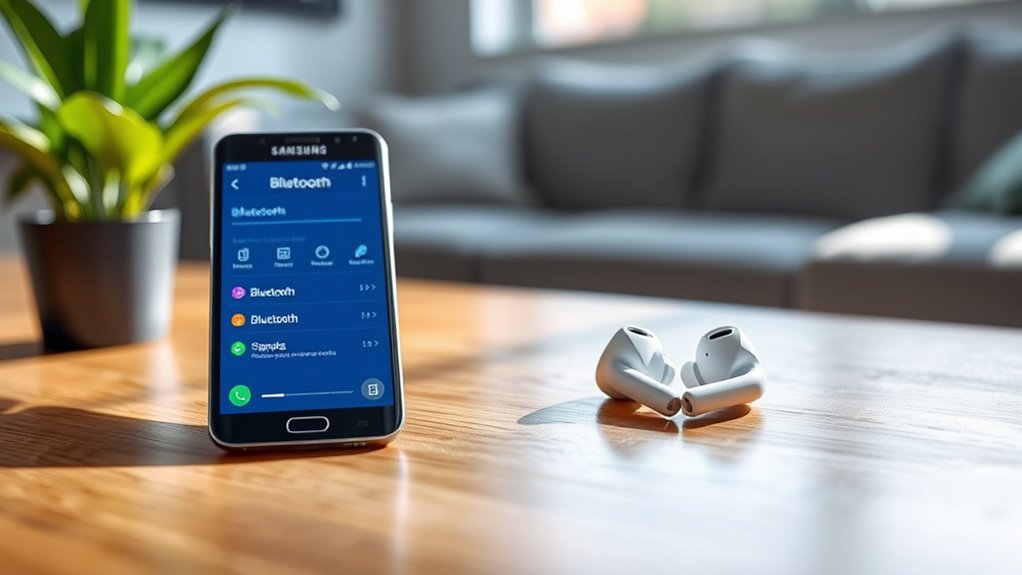

To connect your Samsung earbuds to your phone, first check compatibility and verify your phone’s Bluetooth is on. Remove the earbuds from the charging case to power them on. Access your phone’s Bluetooth settings, pair the earbuds, and confirm the connection by testing audio playback. If you run into issues, try resetting the earbuds or updating software. Customize your settings for an ideal experience and enjoy high-quality sound for music and calls—there’s more you can explore!
Check Compatibility of Your Samsung Earbuds
Before diving into connecting your Samsung earbuds, have you checked if they’re compatible with your phone? It’s essential to perform a compatibility check to guarantee a seamless experience. Different earbud models have varying requirements and connectivity options. Most Samsung earbuds, like the Galaxy Buds series, work well with a range of Android devices, but some features may be limited on non-Samsung phones. To avoid frustration, confirm that your phone’s operating system is up to date and supports Bluetooth connectivity. You can usually find compatibility information on the packaging or Samsung’s website. Taking these steps saves you time and enhances your listening freedom, allowing you to enjoy your music without any hiccups.
Prepare Your Phone for Connection
Before connecting your Samsung earbuds, you need to prepare your phone. First, make certain Bluetooth is enabled in your settings, as this is essential for pairing. Also, check that your device is compatible with your earbuds to guarantee a smooth connection.
Enable Bluetooth Settings
To successfully connect your Samsung earbuds to your phone, you’ll need to enable Bluetooth settings first. This powerful feature allows for seamless wireless connectivity, making your listening experience effortless. Here’s how to do it:
| Step | Action |
|---|---|
| 1 | Open your phone’s settings |
| 2 | Tap on ‘Connections’ |
| 3 | Select ‘Bluetooth’ |
| 4 | Toggle the switch to ‘On’ |
| 5 | Wait for your earbuds to appear |
Once Bluetooth is activated, your phone will search for devices, making it easier to connect your earbuds. Enjoy the freedom of wireless sound as you immerse yourself in your favorite tunes, podcasts, or calls without the hassle of tangled wires!
Check Device Compatibility
Verifying your phone is compatible with your Samsung earbuds is crucial for a smooth connection experience. Start by checking your device’s specifications against the earbud specifications. Most Samsung earbuds work with any Bluetooth-enabled phone, but it’s wise to consult the compatibility checklist for your specific model. Look for minimum OS requirements and Bluetooth versions—updating your phone may be necessary for peak performance. If you have an older device, it might not support the latest features of your earbuds. Also, confirm your phone’s software is up to date to avoid any connectivity issues. By confirming compatibility, you’ll save time and frustration, allowing you to enjoy your music or calls seamlessly.
Turn On Your Samsung Earbuds
Power up your Samsung earbuds by simply taking them out of their charging case. This activates the impressive earbud features, guaranteeing you enjoy a seamless audio experience. Here’s how to make the most of them:
- Remove the Earbuds: Just lift them from the case, and they’ll start connecting.
- Check Battery Life: Verify they’re adequately charged for peak performance.
- Adjust Fit: Experiment with different ear tips for comfort and sound quality.
- Explore Controls: Familiarize yourself with touch controls to maximize your listening experience.
Once you’ve got them powered up, you’re ready to plunge into your favorite tunes or podcasts. Enjoy the freedom and quality these earbuds offer!
Access Bluetooth Settings on Your Phone
To connect your Samsung earbuds, you’ll need to access the Bluetooth settings on your phone. Start by locating the Bluetooth menu, where you can enable the Bluetooth feature. Once that’s done, you’ll be ready to pair your devices seamlessly.
Locate Bluetooth Menu
While you’re excited to connect your Samsung earbuds, the first step is locating the Bluetooth menu on your phone. Here’s how to do it:
- Unlock your phone – Make sure your device is awake and ready.
- Open Settings – Look for the gear icon on your home screen or in the app drawer.
- Find Connections – Scroll down until you see “Connections” or “Network & Internet.”
- Select Bluetooth – Tap on “Bluetooth” to access the earbuds settings.
Once you’re in the Bluetooth menu, you’ll be all set to enable the feature and connect your earbuds. Enjoy the freedom of wireless listening!
Enable Bluetooth Feature
Now that you’ve located the Bluetooth menu on your phone, it’s time to enable the Bluetooth feature. Simply toggle the Bluetooth switch to the “on” position. This activates Bluetooth technology, allowing your phone to discover nearby devices, including your Samsung earbuds. You’ll notice a brief animation or notification confirming that Bluetooth is now active. With this feature enabled, you can take full advantage of the earbud features, like seamless audio streaming and hands-free calls. Plus, it gives you the freedom to move around without being tethered to your device. Just remember, if you’re not using Bluetooth, turning it off can help save battery life. So, let’s keep that freedom alive while enjoying your music!
Pairing Devices Process
Once you’ve enabled Bluetooth on your phone, accessing the Bluetooth settings is the next step in the pairing process. It’s essential for ensuring device compatibility and choosing the right pairing methods. Here’s how to get there:
- Open Settings: Locate the gear icon on your home screen or app drawer.
- Select Connections: Tap on “Connections” to access various connectivity options.
- Choose Bluetooth: Find and select “Bluetooth” to see available devices.
- Scan for Devices: Make sure your Samsung earbuds are in pairing mode, then tap “Scan” to discover them.
Following these steps will make it easy to connect your earbuds. Enjoy the freedom of wireless sound!
Pair Your Samsung Earbuds With Your Phone
To pair your Samsung earbuds with your phone, start by ensuring both devices are charged and within close range. First, activate the Bluetooth on your phone. Then, take the earbuds out of their case; they should automatically enter pairing mode. If they don’t, press and hold the touchpads on both earbuds until you see a blinking light. On your phone, look for your earbuds in the Bluetooth menu and select them. Once connected, you’ll enjoy seamless earbud functionality, enhancing your audio experience. For better connectivity, keep your phone nearby and avoid obstructions. If you encounter issues, try restarting both devices or resetting your earbuds. Follow these connection tips, and you’ll be ready to enjoy your favorite tunes in no time!
Confirm the Connection
After you’ve paired your Samsung earbuds with your phone, it’s important to confirm the connection to verify everything’s working smoothly. This connection verification guarantees you enjoy prime sound quality. Here’s how to do it:
- Play a Song: Start by playing music or a podcast to test sound output.
- Check Bluetooth Settings: Go to your phone’s Bluetooth settings to see if your earbuds are listed as connected.
- Adjust Volume: Make sure the volume is at a comfortable level to hear clearly.
- Try Touch Controls: Use touch controls on your earbuds to pause or skip tracks, verifying they respond correctly.
Troubleshooting Connection Issues
If you’re experiencing issues with your Samsung earbuds connecting to your phone, don’t worry—troubleshooting these problems is usually straightforward. Start by checking if your earbuds are charged and within range. If they still won’t connect, try resetting the earbuds. Simply press and hold the touchpads on both buds for about 7 seconds until you see the LED indicator flash.
Make sure your phone’s software is up to date, as outdated versions can cause connectivity issues. Check for updates in your phone’s settings.
Here’s a quick guide to help:
| Issue | Solution |
|---|---|
| Earbuds not pairing | Resetting earbuds |
| Connection drops | Check for software updates |
| Sound quality issues | Reset and reconnect |
| Earbuds not recognized | Restart your phone |
Customizing Earbud Settings
Once you’ve resolved any connection issues, it’s time to personalize your Samsung earbuds to enhance your listening experience. Customizing your earbud settings can boost comfort and sound quality. Here are some ways to tailor your earbuds:
Personalize your Samsung earbuds for optimal comfort and sound quality to elevate your listening experience.
- Adjust Earbud Controls: Set up touch controls for play, pause, and skip to suit your preferences.
- Sound Customization: Explore sound presets or create your own EQ settings for a balanced audio experience.
- Active Noise Cancellation: Toggle between noise cancellation and ambient sound modes based on your surroundings.
- Find My Earbuds: Activate this feature to locate your earbuds if they go missing.
Take advantage of these options to enjoy your music and calls in a way that feels just right for you!
Enjoying Music and Calls With Your Earbuds
Whether you’re immersing yourself in your favorite playlist or taking an important call, enjoying music and conversations with your Samsung earbuds is a seamless experience. These earbuds deliver impressive music quality, ensuring every note sounds clear and vibrant. You’ll appreciate the deep bass and crisp highs that elevate your listening experience, whether you’re jamming out or relaxing.
When it comes to calls, the call clarity is equally remarkable. Built-in microphones filter out background noise, allowing you to hear every word and making conversations feel more natural. With quick touch controls, switching between music and calls is effortless. So, whether you’re on the go or just chilling at home, your Samsung earbuds provide the freedom to enjoy both music and calls without missing a beat.
Frequently Asked Questions
Can I Connect Samsung Earbuds to Devices Other Than Samsung Phones?
Yes, you can connect your Samsung earbuds to devices other than Samsung phones. As long as the device has Bluetooth compatibility, you’ll just need to follow standard device pairing procedures to enjoy your music.
How Do I Reset My Samsung Earbuds if They Won’T Connect?
To reset your Samsung earbuds, place them in the charging case, press and hold the touchpads for about 10 seconds until you hear a tone. Use the Samsung app for further earbud troubleshooting if needed.
What Should I Do if My Earbuds Keep Disconnecting?
If your earbuds keep disconnecting, try troubleshooting steps like resetting them, ensuring Bluetooth’s enabled, checking battery levels, and moving closer to your device. These disconnection issues can often be resolved with a few adjustments.
Are Samsung Earbuds Compatible With Ios Devices?
Samsung earbuds are like a bridge to freedom, perfectly compatible with iOS devices. You can enjoy seamless audio experiences, easily connecting them to your iPhone or iPad, releasing your favorite tunes without limitations.
How Can I Check the Battery Level of My Samsung Earbuds?
You can check your Samsung earbuds’ battery status by opening the case near your phone or using the app. For peak performance, remember to charge them regularly and keep them stored properly when not in use.
