
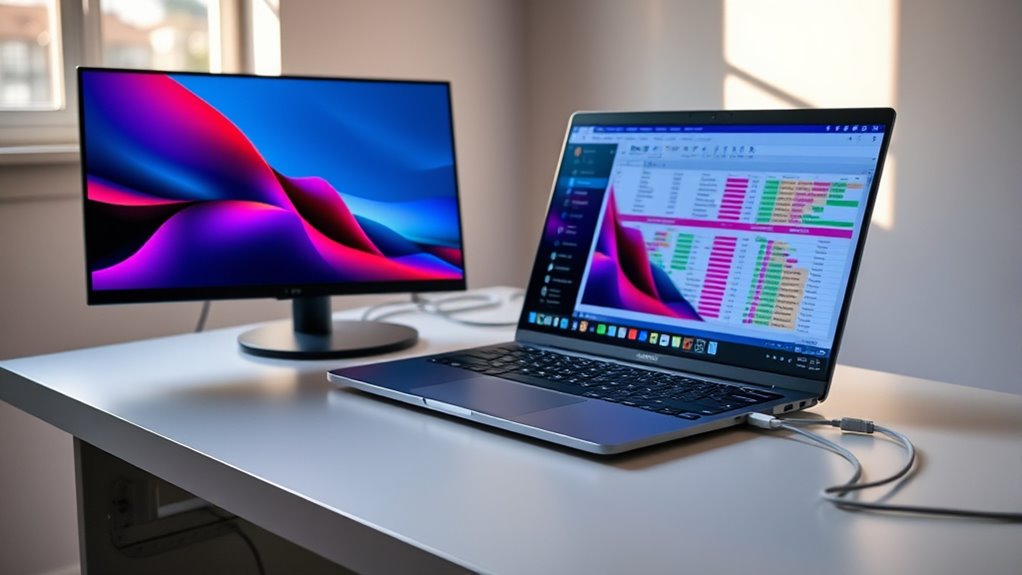

To connect a second monitor, first, check your computer’s compatibility with dual displays and verify you have the right ports and cables (like HDMI or DisplayPort). Next, gather any adapters needed. Connect the monitor to your computer, then power it on. Finally, configure the display settings: adjust the resolution and arrange the screens in your operating system. If you want to optimize usage and troubleshoot common issues, there’s more to explore.
Check Your Computer’s Compatibility
Before you can set up a second monitor, you need to verify your computer’s compatible with multiple displays. First, check your hardware requirements. Most modern graphics cards support dual monitors, but older models may not. Look for HDMI, DisplayPort, or VGA ports on your graphics card; these indicate multi-display support. Next, ascertain your operating system is up to date. Windows, macOS, and various Linux distributions typically handle multiple monitors well, but having the latest updates can resolve compatibility issues. You might also want to review your computer’s specifications online or consult the manufacturer’s documentation. Confirming these elements will empower you to expand your workspace and enhance productivity without unnecessary complications.
Gather the Necessary Cables and Adapters
To successfully connect a second monitor, you’ll need the right cables and adapters. Different monitor types require specific connections, so make certain you gather the necessary components based on your monitors’ inputs and outputs. Here’s what you should consider:
- Cables: Depending on your monitor types, you may need HDMI, DisplayPort, VGA, or DVI cables. Confirm they’re compatible with both your computer and the monitors.
- Adapters: If your computer’s output doesn’t match your monitor’s input, you might need an adapter (e.g., HDMI to VGA).
- Cable lengths: Measure the distance from your computer to the monitor to guarantee you get cables long enough for your setup without clutter.
With these components in hand, you’re ready to move on to the next steps!
Connect the Second Monitor
Now that you have all the necessary cables and adapters ready, it’s time to connect the second monitor. Start by positioning your monitor in your desired placement, guaranteeing it’s easily accessible and within your line of sight. Connect one end of the cable to the monitor and the other to your computer’s corresponding port. If you’re using adapters, make certain they’re securely attached. Once connected, power on the monitor. Depending on your setup, you may need to adjust the display resolution to match your preferences for peak clarity. Confirm both monitors are aligned correctly to create a seamless workspace. With everything hooked up, you’re one step closer to maximizing your productivity and enhancing your digital freedom.
Configure Display Settings on Windows
Configuring display settings on Windows is essential for optimizing your dual-monitor setup. To get the most out of your screens, follow these steps:
- Adjust Display Resolution: Right-click on the desktop, select “Display settings,” and adjust the resolution for each monitor according to your preference. This guarantees clarity and visual comfort.
- Set Up Multiple Desktops: Use the “Multiple displays” dropdown to choose whether to extend, duplicate, or use only one display. This can enhance your workflow.
- Rearrange Displays: Drag the monitor icons to match their physical layout. This helps in smooth navigation across screens.
Configure Display Settings on Macos
When setting up a second monitor on macOS, you’ll want to access the display settings to guarantee ideal performance. Start by clicking the Apple menu and selecting “System Preferences,” then choose “Displays.” Here, you can adjust the display arrangement to fit your workflow. Drag the monitor icons to position them as desired, ensuring seamless navigation between screens.
Next, check the monitor resolution for each display. Select the appropriate resolution from the dropdown menu to optimize clarity and performance. You may also want to enable “Scaled” options for more specific resolutions. By configuring these settings, you’ll create an efficient dual-monitor setup that enhances your productivity and allows for a more flexible workspace.
Adjust Display Settings on Linux
Although adjusting display settings on Linux can vary depending on your desktop environment, the process generally involves accessing the appropriate settings manager. Here’s how to do it:
- Open your display settings: Navigate to the settings manager within your Linux desktop environment, like GNOME, KDE, or XFCE.
- Select the second monitor: Use the display management tools to identify and select your second monitor. You can usually see it represented visually.
- Configure the display options: Adjust the resolution, orientation, and arrangement of your monitors to suit your preferences.
Troubleshooting Common Issues
If you’re having trouble with your second monitor, start by checking the cable connections to guarantee everything’s secure. Next, make sure your display drivers are up to date, as outdated drivers can cause issues. Finally, revisit your display settings to confirm they’re configured correctly for dual monitors.
Check Cable Connections
Checking cable connections is essential for troubleshooting common issues when connecting a second monitor. Confirming your cables are secure can greatly impact connection quality. Here’s a quick checklist to follow:
- Inspect Cable Types: Make sure you’re using the correct cables (HDMI, DisplayPort, DVI, or VGA) for your devices.
- Check Connections: Verify both ends of the cables are properly seated in the ports. Loose connections can lead to display problems.
- Examine for Damage: Look for any visible wear or damage on the cables. Frayed wires can cause signal loss or poor performance.
Update Display Drivers
Updating display drivers can resolve many issues when connecting a second monitor. The driver update importance can’t be overstated; outdated drivers can lead to compatibility problems, poor performance, or even failure to detect your new monitor. To guarantee a smooth experience, familiarize yourself with various driver installation methods. You can update drivers manually through your device manager or automatically using manufacturer software. Alternatively, visiting the manufacturer’s website allows you to download the latest drivers directly. Always restart your computer after installation to apply the changes effectively. By keeping your display drivers updated, you’re not just troubleshooting; you’re also optimizing your setup for maximum freedom and functionality. Embrace the full potential of your dual-monitor configuration!
Adjust Display Settings
Once you’ve connected your second monitor, adjusting the display settings is essential to guarantee it functions properly. This process might seem intimidating, but it’s straightforward. Here’s how to ensure peak performance:
- Set Display Resolution: Right-click on your desktop, select ‘Display settings’, and adjust the resolution to match your monitor’s specifications for the best clarity.
- Adjust Screen Orientation: If your second monitor isn’t oriented correctly, use the same settings menu to change its orientation to landscape or portrait based on your needs.
- Choose Display Mode: Decide if you want to extend, duplicate, or use one screen only. This can be done in the display settings as well.
Following these steps will enhance your multi-monitor experience considerably.
Tips for Optimizing Your Dual Monitor Setup
While setting up your dual monitor configuration, refining the arrangement can greatly enhance your workflow. Start with screen positioning; align both monitors at eye level for an ergonomic setup that reduces strain. Next, perform color calibration to guarantee consistency between screens, which aids in accurate visual tasks. Implement productivity tips like grouping applications on specific monitors to improve multi-tasking efficiency. Consider workspace organization by using virtual desktops to separate projects or tasks. Effective software management is essential; tools like window snap features can streamline your workflow. Finally, regularly reassess your setup and adjust based on your evolving needs to maintain a peak dual monitor experience. These strategies will empower you to maximize your productivity and creativity.
Frequently Asked Questions
Can I Use Two Different Monitor Brands Together?
Using two different monitor brands together is like mixing colors; it can create beautiful results. As long as they’re compatible, brand differences won’t hinder performance. Just make certain your graphics card supports both monitors effectively.
Will a Second Monitor Drain My Laptop Battery Faster?
Yes, a second monitor will likely increase battery consumption. Adjust your power settings to optimize usage; lowering brightness and using energy-saving modes can help mitigate the impact on your laptop’s battery life while multitasking.
How Do I Switch Between Monitors Quickly?
Imagine juggling balls; you need quick reflexes. To switch between monitors, use keyboard shortcuts like Windows + P to access display settings. It’s seamless, allowing you to stay in flow and maximize your workspace freedom.
Can I Connect More Than Two Monitors?
Yes, you can connect more than two monitors in a multiple monitor setup. By using extended desktop mode, you’ll expand your workspace, allowing for greater productivity and flexibility in managing your tasks across screens.
What Should I Do if My Monitor Is Detected but Not Displaying?
If your monitor’s detected but not displaying, check your monitor settings and verify the correct input’s selected. Also, inspect for cable issues like loose connections or damaged cables that might hinder the display.
